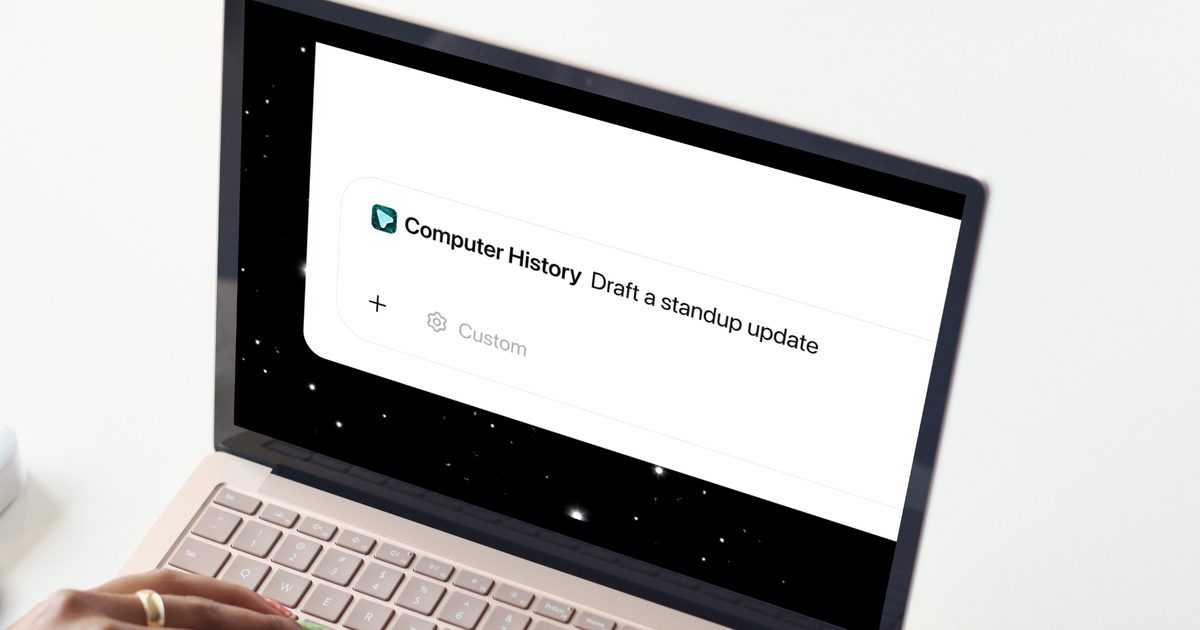




OpenAI just rolled out Computer History for the ChatGPT desktop app, and if you found Chronicle interesting but a little too screenshot-happy, this update should ease your mind.
What does Computer History do?
Instead of taking screenshots as Chronicle did, Computer History tracks your clicks, keystrokes, and app switches through macOS’s accessibility system, then turns all that activity into text summaries and a timeline you can scroll through. Think of it as ChatGPT quietly taking notes on your day so it can help you out later.
Once it’s turned on, you can ask ChatGPT things like what you were working on before your last break, or where that proposal document went. It digs through your recent activity and points you in the right direction instead of making you reconstruct your entire morning from memory.
If you find yourself doing the same task over and over, Computer History can notice the pattern and suggest turning it into a skill or automation. You just review the suggestion and let Codex build it out for you.
How do you turn it on, and is it actually private?
Computer History is off by default, and it stays that way until you flip the switch yourself. To turn it on, head to Settings → Integrations, and select Computer History to get started. You’ll also need Memories turned on, since that’s what lets ChatGPT actually use this context across your chats.
You get to pick exactly which apps and websites are allowed to contribute, and private browsing is never touched. There’s also a menu bar shortcut to pause collection whenever you want a break from being tracked, along with the option to delete your history at any time.
If you’re on a Business or Enterprise workspace, your admin needs to grant access first, and even then, you still have to opt in yourself. Pro users can enable it from the settings.
Overall, this feels like a solid privacy-first upgrade over Chronicle, and I like that OpenAI is giving users this much control over what gets remembered.