


Close Menu
Best in TechnologyBest in Technology
  • News
  • Phones
  • Laptops
  • Gadgets
  • Gaming
  • AI
  • Tips
  • More
    • Web Stories
    • Global
    • Press Release

Subscribe to Updates

Get the latest tech news and updates directly to your inbox.

What's On
Google Maps is getting dangerously good at planning your day

Google Maps is getting dangerously good at planning your day

6 August 2026
Review: Samsung G8 6K Gaming Monitor

Review: Samsung G8 6K Gaming Monitor

6 August 2026
Bose reveals second-gen QuietComfort Headphones and they steal some of the Ultra’s tricks.

Bose reveals second-gen QuietComfort Headphones and they steal some of the Ultra’s tricks.

6 August 2026
Facebook X (Twitter) Instagram
Just In
  • Google Maps is getting dangerously good at planning your day
  • Review: Samsung G8 6K Gaming Monitor
  • Bose reveals second-gen QuietComfort Headphones and they steal some of the Ultra’s tricks.
  • Microsoft’s Quantum Chief Doesn’t Care That Scientists Don’t Believe His Results
  • Grand Theft Auto VI Is Getting An ‘Extended Look’ On Netflix
  • Pubs and restaurants are treating Meta’s smart glasses like hidden cameras, and I’m completely on board
  • Meteor Showers, Eclipses, and More Are on the August 2026 Astronomical Calendar
  • Huawei FreeBuds Pro 5 review: Hands down, the best bargain earbuds I’ve tested in a while
Facebook X (Twitter) Instagram Pinterest Vimeo
Best in TechnologyBest in Technology
  • News
  • Phones
  • Laptops
  • Gadgets
  • Gaming
  • AI
  • Tips
  • More
    • Web Stories
    • Global
    • Press Release
Subscribe
Best in TechnologyBest in Technology
Home » How to change the login picture on a Mac
News

How to change the login picture on a Mac

News RoomBy News Room28 April 20244 Mins Read
Share Facebook Twitter Pinterest LinkedIn Tumblr Reddit Telegram Email
How to change the login picture on a Mac
Share
Facebook Twitter LinkedIn Pinterest Email

When you log into your Mac every day, one of the first things you see is a circular login picture above your username. On its own, this UI element is how you and other household members will know what user profile belongs to whom. Fortunately, Apple also gives you the ability to customize this image. You’ll be able to choose from your own personal photos, emojis, as well as Memojis.

If you’d like to personalize this part of your Mac login, we’ve put together this guide to teach you how to add a login image to your macOS profile.

Change the login picture on a Mac

Changing your login picture is a fun way to personalize your lock screen. It’s also a great way for other users of your Mac to see their own favorite image when it’s their turn to sign in.

Step 1: Open System Settings by using the icon in your Dock or the Apple icon in the Menu bar.

Step 2: Select Users & Groups.

Step 3: Choose the user from the list of options.

Step 4: Pick the current picture. You’ll see “Edit” when you hover your cursor over it.
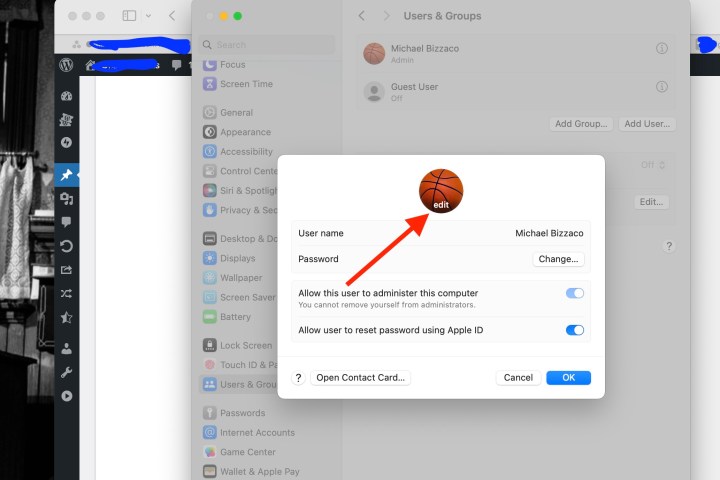
The Edit button over a user login image in macOS Sonoma.

Step 5: You’ll then see a window pop open with all of the picture options. You can use a current Memoji or create a new one, choose an emoji, use your monogram, or look at the suggestions. You can also use your Mac’s camera to snap a photo or select a picture from the Photos app.

Memoji: Pick a current Memoji or use the Plus sign to create a new one. Then, use the Pose tab to choose the facial expression and the Style tab to pick a background color.

Emoji: Select one of the popular emoji options or use the Plus sign to view the full selection. Then, go to the Style tab to pick a background color.

Monogram: Choose a monogram color from the collection.

Camera: To snap a picture on the spot, select Camera. Place your face within the circular frame and select the Capture button. To use the image, pick Save. Otherwise, pick Cancel.

Photos: Expand the Photos section to pick your Favorites or a particular album. Then, select the photo you want to use.

Suggestions: If you’re not sure which picture you want to use, you can look through the Suggestions. You’ll also see many default pictures like flowers, sports, animals, and symbols.

A list of login image options in macOS Sonoma.

Step 6: After you select the picture you want to use, you’ll see its preview in the bottom-left corner. Drag the slider to zoom in or out of the image for just the right look.

Step 7: When you finish, select Save. You can then close the System Settings using the X on the top left.

How to change the login screen background

Not only can you change your login image in macOS, but you’ll also be able to customize the look of the entire login screen. To do so, start by heading into System Settings. Click Wallpaper from the lefthand column of options.

Now all you have to do is select one of the images built into macOS, or use your own by clicking the Add Photo button.

How to change your login password

Changing your login password in macOS isn’t very difficult, and we have an entire guide dedicated to the subject. That being said, we’d like to tell you where to locate the password-changing settings in macOS.

All you have to do is click System Settings * > *Users and Groups. Click the Info button next to a username, then just click Change to begin changing your own login password. You can also click Reset to change another user’s login credentials.

Now when you see your Mac’s login screen, ready for your password, you’ll have a picture that suits you.

Editors’ Recommendations


Share. Facebook Twitter Pinterest LinkedIn Tumblr Email
Previous ArticleHow to change theme colors in Google Slides
Next Article How to allow pop-ups on a Mac

Related Articles

Google Maps is getting dangerously good at planning your day
News

Google Maps is getting dangerously good at planning your day

6 August 2026
Review: Samsung G8 6K Gaming Monitor
News

Review: Samsung G8 6K Gaming Monitor

6 August 2026
Bose reveals second-gen QuietComfort Headphones and they steal some of the Ultra’s tricks.
News

Bose reveals second-gen QuietComfort Headphones and they steal some of the Ultra’s tricks.

6 August 2026
Microsoft’s Quantum Chief Doesn’t Care That Scientists Don’t Believe His Results
News

Microsoft’s Quantum Chief Doesn’t Care That Scientists Don’t Believe His Results

6 August 2026
Pubs and restaurants are treating Meta’s smart glasses like hidden cameras, and I’m completely on board
News

Pubs and restaurants are treating Meta’s smart glasses like hidden cameras, and I’m completely on board

6 August 2026
Meteor Showers, Eclipses, and More Are on the August 2026 Astronomical Calendar
News

Meteor Showers, Eclipses, and More Are on the August 2026 Astronomical Calendar

6 August 2026
Demo
Top Articles
5 laptops to buy instead of the M4 MacBook Pro

5 laptops to buy instead of the M4 MacBook Pro

17 November 2024133 Views
ChatGPT o1 vs. o1-mini vs. 4o: Which should you use?

ChatGPT o1 vs. o1-mini vs. 4o: Which should you use?

15 December 2024111 Views
Costco partners with Electric Era to bring back EV charging in the U.S.

Costco partners with Electric Era to bring back EV charging in the U.S.

28 October 2024100 Views

Subscribe to Updates

Get the latest tech news and updates directly to your inbox.

Latest News
Pubs and restaurants are treating Meta’s smart glasses like hidden cameras, and I’m completely on board News

Pubs and restaurants are treating Meta’s smart glasses like hidden cameras, and I’m completely on board

News Room6 August 2026
Meteor Showers, Eclipses, and More Are on the August 2026 Astronomical Calendar News

Meteor Showers, Eclipses, and More Are on the August 2026 Astronomical Calendar

News Room6 August 2026
Huawei FreeBuds Pro 5 review: Hands down, the best bargain earbuds I’ve tested in a while News

Huawei FreeBuds Pro 5 review: Hands down, the best bargain earbuds I’ve tested in a while

News Room6 August 2026
Most Popular
The Spectacular Burnout of a Solar Panel Salesman

The Spectacular Burnout of a Solar Panel Salesman

13 January 2025137 Views
5 laptops to buy instead of the M4 MacBook Pro

5 laptops to buy instead of the M4 MacBook Pro

17 November 2024133 Views
ChatGPT o1 vs. o1-mini vs. 4o: Which should you use?

ChatGPT o1 vs. o1-mini vs. 4o: Which should you use?

15 December 2024111 Views
Our Picks
Microsoft’s Quantum Chief Doesn’t Care That Scientists Don’t Believe His Results

Microsoft’s Quantum Chief Doesn’t Care That Scientists Don’t Believe His Results

6 August 2026
Grand Theft Auto VI Is Getting An ‘Extended Look’ On Netflix

Grand Theft Auto VI Is Getting An ‘Extended Look’ On Netflix

6 August 2026
Pubs and restaurants are treating Meta’s smart glasses like hidden cameras, and I’m completely on board

Pubs and restaurants are treating Meta’s smart glasses like hidden cameras, and I’m completely on board

6 August 2026

Subscribe to Updates

Get the latest tech news and updates directly to your inbox.

Facebook X (Twitter) Instagram Pinterest
  • Privacy Policy
  • Terms of use
  • Advertise
  • Contact Us
© 2026 Best in Technology. All Rights Reserved.

Type above and press Enter to search. Press Esc to cancel.