



Close Menu
Best in TechnologyBest in Technology
  • News
  • Phones
  • Laptops
  • Gadgets
  • Gaming
  • AI
  • Tips
  • More
    • Web Stories
    • Global
    • Press Release

Subscribe to Updates

Get the latest tech news and updates directly to your inbox.

What's On
Volkswagen’s new ,000 electric SUV shows what US buyers are missing

Volkswagen’s new $20,000 electric SUV shows what US buyers are missing

30 August 2026
Brave’s new Email Alias feature can keep websites away from your real inbox address

Brave’s new Email Alias feature can keep websites away from your real inbox address

30 August 2026
The HiLight Studio app reveals what Google hides about the Pixel 11 Pro’s RGB light, but it’s not for everyone

The HiLight Studio app reveals what Google hides about the Pixel 11 Pro’s RGB light, but it’s not for everyone

30 August 2026
Facebook X (Twitter) Instagram
Just In
  • Volkswagen’s new $20,000 electric SUV shows what US buyers are missing
  • Brave’s new Email Alias feature can keep websites away from your real inbox address
  • The HiLight Studio app reveals what Google hides about the Pixel 11 Pro’s RGB light, but it’s not for everyone
  • Take A Tour And Watch Us Hand Out Magazines At Gamescom 2026
  • Nvidia’s DLSS 5 leak is making games prettier and people weirder
  • You no longer need a subscription to try Google’s Dreambeans app
  • Hisense made a phone with a second screen you can literally take off
  • 3 underrated movies on HBO Max you should watch this weekend (August 29-30)
Facebook X (Twitter) Instagram Pinterest Vimeo
Best in TechnologyBest in Technology
  • News
  • Phones
  • Laptops
  • Gadgets
  • Gaming
  • AI
  • Tips
  • More
    • Web Stories
    • Global
    • Press Release
Subscribe
Best in TechnologyBest in Technology
Home » How to allow pop-ups on a Mac
News

How to allow pop-ups on a Mac

News RoomBy News Room28 April 20245 Mins Read
Share Facebook Twitter Pinterest LinkedIn Tumblr Reddit Telegram Email
How to allow pop-ups on a Mac
Share
Facebook Twitter LinkedIn Pinterest Email

When we say “pop-ups,” we bet one of the first thoughts that comes to mind are those aggressive mini-windows that take up precious screen real estate when you’re trying to browse a site. That is definitely one kind of pop-up, but what if we told you that not all pop-ups are nuisances? Notifications from your favorite websites might be the kind of thing you don’t want to miss; and technically, these are pop-ups!

So is there a way to disable some pop-ups on a Mac, without affecting the instant windows you actually want to see? Yes there is! These settings are located right in macOS, and it doesn’t take long to learn how to use them.

Enable pop-ups on Safari

The default browser on your Mac makes managing pop-ups very simple. Here’s what to do:

Step 1: With Safari active, click Safari located in the top-left corner, followed by Settings in the resulting drop-down menu.

Step 2: In a pop-up window, click the Websites tab at the top, followed by the Pop-up Windows entry on the left.

Pop-up settings in macOS Safari.

Step 3: To enable pop-ups on a specific website, click the drop-down menu next to the website’s name and click Allow. If you want to allow pop-ups on all websites, select Allow on the drop-down menu next to When Visiting Other Websites located at the bottom.

Step 4: Finally, when Safari actively blocks a pop-up, a little notification appears in the browser’s address bar to let you know it happened. If you need this pop-up to enable a feature, then you can quickly retrieve it. Just click on the notification, and Safari will give you an option to view the pop-up.

It’s not a great way to manage pop-ups in general, but it is useful if you occasionally view a pop-up but don’t want to change any of your settings permanently.

Pop-up settings in Firefox for macOS.

Enable pop-ups on Firefox

Firefox is also a very common browser choice for Mac users, even more so since its Quantum revamp. If you use Firefox, take a look at how you can enable pop-ups within Mozilla’s popular browser:

Step 1: While in a Firefox window, select Firefox in the top-left corner, followed by Settings in the resulting drop-down menu.

Step 2: In the new Settings tab, click Privacy & Security listed on the left, and scroll down to the Permissions section.

Step 3: Uncheck the box next to Block Pop-Up Windows to enable pop-ups for all websites.
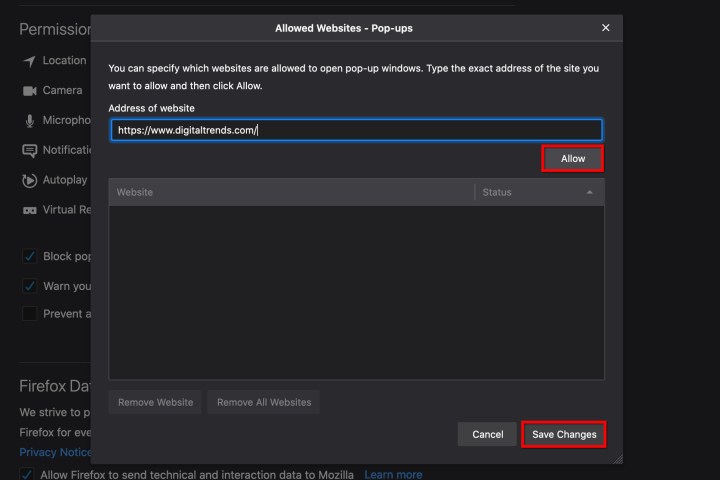
The Manually Allow Website Pop-Up option in Firefox for macOS.

Step 4: If you don’t want to enable all pop-ups, use the Exceptions button instead. This opens a new window where you can manually enter the website’s address — use the copy/paste method — and click the Allow and Save Changes buttons. You can add as many websites as you want to your exceptions, and remove them as needed when you are done.
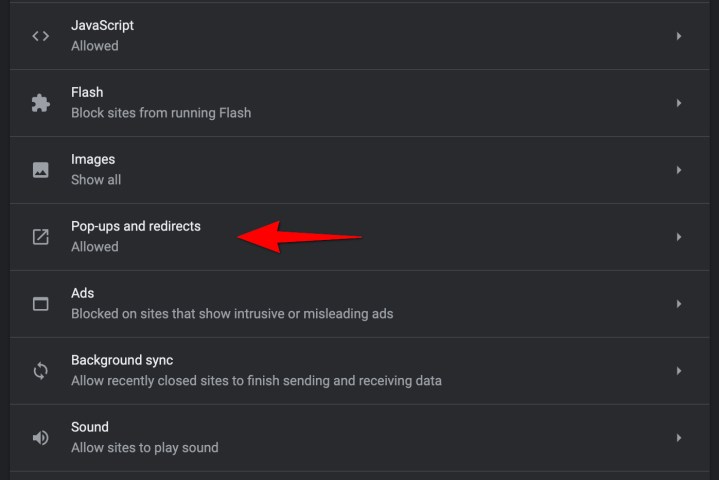
The Pop-Ups Redirects settings in Chrome for macOS.

Enable pop-ups on Chrome

Chrome is a popular browser for Android and Mac owners alike. The steps illustrated below explains how Chrome manages pop-ups and how you can deal with them manually.

Step 1: With a Chrome browser window open, click Chrome listed in the top-left corner, followed by Settings on the resulting drop-down menu.

Step 2: A new Settings tab opens. To the right, you should see a list of options, with Privacy and Security among them. Click on it.

Step 3: Select Site Settings, scroll down, and click Pop-Ups and Redirects. You’ll see a new page with an option to toggle between Blocked (Recommended) and Allowed. Switch to Allowed to enable all pop-ups.
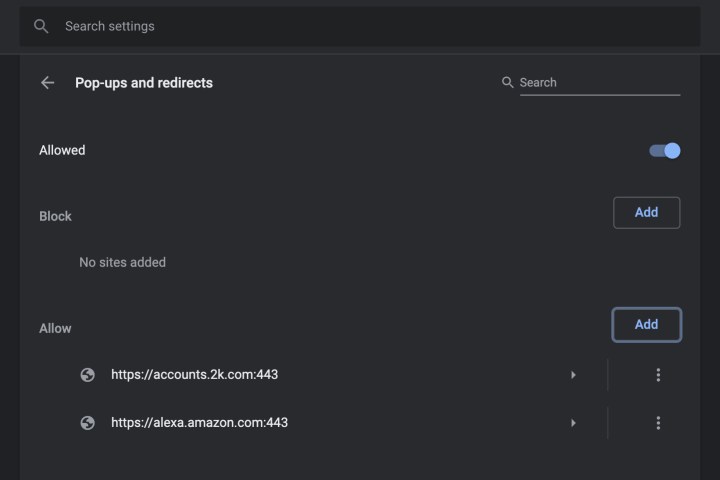
Pop-up settings in Chrome for macOS.

Step 4: Under Allow, you can manually add individual sites to the pop-up Allow list. This works well if you have another list of allowed sites that you can copy and paste into Chrome and save.

Step 5: You also have an option to automatically allow pop-ups from any site you visit in Chrome. When a page in Chrome blocks pop-ups, you will see a small icon in the address bar called Pop Up Blocked, which looks like a window with an X on it. You can click this icon to allow the pop-up or choose to allow pop-ups from that particular site.

Note: You can also access the pop-up settings by entering chrome://settings/content/popups in the address bar.
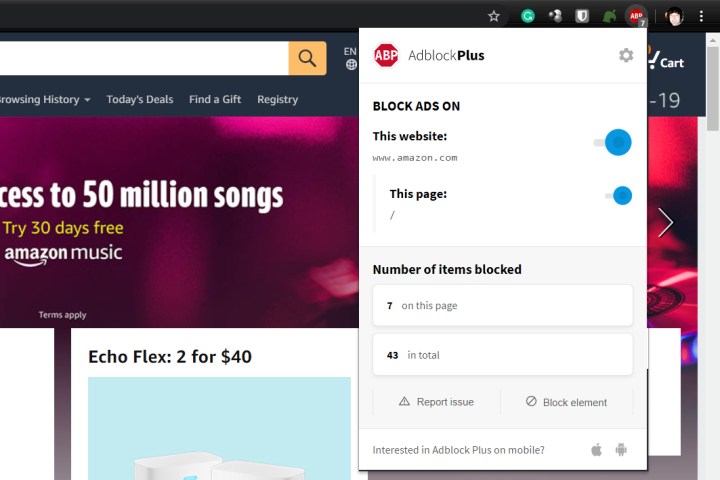
The Adblock Plus Chrome extension being used for macOS.

What about third-party apps?

Third-party ad-blocking apps like Adblock Plus get rid of ads and pop-ups. As you can see in the image, external apps provide a visual indicator of the present number of ads they have blocked.

However, you may need to enable pop-up windows in these apps as well, as they may incorrectly identify and block innocent pop-ups. When you visit a site where you need pop-ups, click on the AdBlock icon and find a way to add the site to your whitelist, or disable the block for that specific site. You should keep this in mind when using these third-party apps as the majority of them possess this capability.

Can pop-ups harm my Mac?

We all see pop-ups on our computers. As outlined in this article, not all of these notifications are malicious, but some definitely are. For the most part, the pop-up itself isn’t dangerous, unless you click on it. If the pop-up is designed to load malware and other harmful viruses onto your PC, in most cases, a click is all it takes to begin the sabotage.

Luckily, pop-ups have been around for a minute, so users are getting very good at detecting the malarky. If you have a gut feeling that you’ve been receiving phony macOS notifications, we recommend visiting Apple’s numerous support pages on this topic.

Editors’ Recommendations



Share. Facebook Twitter Pinterest LinkedIn Tumblr Email
Previous ArticleHow to change the login picture on a Mac
Next Article Save $400 on Samsung’s new AI-powered robot vacuum

Related Articles

Volkswagen’s new ,000 electric SUV shows what US buyers are missing
News

Volkswagen’s new $20,000 electric SUV shows what US buyers are missing

30 August 2026
Brave’s new Email Alias feature can keep websites away from your real inbox address
News

Brave’s new Email Alias feature can keep websites away from your real inbox address

30 August 2026
The HiLight Studio app reveals what Google hides about the Pixel 11 Pro’s RGB light, but it’s not for everyone
News

The HiLight Studio app reveals what Google hides about the Pixel 11 Pro’s RGB light, but it’s not for everyone

30 August 2026
Nvidia’s DLSS 5 leak is making games prettier and people weirder
News

Nvidia’s DLSS 5 leak is making games prettier and people weirder

30 August 2026
You no longer need a subscription to try Google’s Dreambeans app
News

You no longer need a subscription to try Google’s Dreambeans app

29 August 2026
Hisense made a phone with a second screen you can literally take off
News

Hisense made a phone with a second screen you can literally take off

29 August 2026
Demo
Top Articles
5 laptops to buy instead of the M4 MacBook Pro

5 laptops to buy instead of the M4 MacBook Pro

17 November 2024134 Views
ChatGPT o1 vs. o1-mini vs. 4o: Which should you use?

ChatGPT o1 vs. o1-mini vs. 4o: Which should you use?

15 December 2024112 Views
Costco partners with Electric Era to bring back EV charging in the U.S.

Costco partners with Electric Era to bring back EV charging in the U.S.

28 October 2024101 Views

Subscribe to Updates

Get the latest tech news and updates directly to your inbox.

Latest News
You no longer need a subscription to try Google’s Dreambeans app News

You no longer need a subscription to try Google’s Dreambeans app

News Room29 August 2026
Hisense made a phone with a second screen you can literally take off News

Hisense made a phone with a second screen you can literally take off

News Room29 August 2026
3 underrated movies on HBO Max you should watch this weekend (August 29-30) News

3 underrated movies on HBO Max you should watch this weekend (August 29-30)

News Room29 August 2026
Most Popular
The Spectacular Burnout of a Solar Panel Salesman

The Spectacular Burnout of a Solar Panel Salesman

13 January 2025137 Views
5 laptops to buy instead of the M4 MacBook Pro

5 laptops to buy instead of the M4 MacBook Pro

17 November 2024134 Views
ChatGPT o1 vs. o1-mini vs. 4o: Which should you use?

ChatGPT o1 vs. o1-mini vs. 4o: Which should you use?

15 December 2024112 Views
Our Picks
Take A Tour And Watch Us Hand Out Magazines At Gamescom 2026

Take A Tour And Watch Us Hand Out Magazines At Gamescom 2026

30 August 2026
Nvidia’s DLSS 5 leak is making games prettier and people weirder

Nvidia’s DLSS 5 leak is making games prettier and people weirder

30 August 2026
You no longer need a subscription to try Google’s Dreambeans app

You no longer need a subscription to try Google’s Dreambeans app

29 August 2026

Subscribe to Updates

Get the latest tech news and updates directly to your inbox.

Facebook X (Twitter) Instagram Pinterest
  • Privacy Policy
  • Terms of use
  • Advertise
  • Contact Us
© 2026 Best in Technology. All Rights Reserved.

Type above and press Enter to search. Press Esc to cancel.