





Close Menu
Best in TechnologyBest in Technology
  • News
  • Phones
  • Laptops
  • Gadgets
  • Gaming
  • AI
  • Tips
  • More
    • Web Stories
    • Global
    • Press Release

Subscribe to Updates

Get the latest tech news and updates directly to your inbox.

What's On
Grand Theft Auto VI Is Getting An ‘Extended Look’ On Netflix

Grand Theft Auto VI Is Getting An ‘Extended Look’ On Netflix

6 August 2026
Pubs and restaurants are treating Meta’s smart glasses like hidden cameras, and I’m completely on board

Pubs and restaurants are treating Meta’s smart glasses like hidden cameras, and I’m completely on board

6 August 2026
Meteor Showers, Eclipses, and More Are on the August 2026 Astronomical Calendar

Meteor Showers, Eclipses, and More Are on the August 2026 Astronomical Calendar

6 August 2026
Facebook X (Twitter) Instagram
Just In
  • Grand Theft Auto VI Is Getting An ‘Extended Look’ On Netflix
  • Pubs and restaurants are treating Meta’s smart glasses like hidden cameras, and I’m completely on board
  • Meteor Showers, Eclipses, and More Are on the August 2026 Astronomical Calendar
  • Huawei FreeBuds Pro 5 review: Hands down, the best bargain earbuds I’ve tested in a while
  • Best Android Charger: Wireless, Portable, Cable (2026)
  • Study finds AI-generated animal stories rarely have a female lead
  • Review: Shark PowerDetect Speed
  • OpenAI’s AI models secretly built a message board to coordinate hacking
Facebook X (Twitter) Instagram Pinterest Vimeo
Best in TechnologyBest in Technology
  • News
  • Phones
  • Laptops
  • Gadgets
  • Gaming
  • AI
  • Tips
  • More
    • Web Stories
    • Global
    • Press Release
Subscribe
Best in TechnologyBest in Technology
Home » How to change theme colors in Google Slides
News

How to change theme colors in Google Slides

News RoomBy News Room27 April 20243 Mins Read
Share Facebook Twitter Pinterest LinkedIn Tumblr Reddit Telegram Email
How to change theme colors in Google Slides
Share
Facebook Twitter LinkedIn Pinterest Email

Want to add a little charm and personality to your Google Slides presentations? You should try changing the theme colors of your slideshow. This ensures that each new frame contains the same background colors and trim. Once you’ve selected a theme, you’ll then be able to customize it to add even more aesthetic power to your words and pictures.

These theme settings aren’t too difficult to locate in Google Slides, and they’re pretty simple controls to work with. We’ve also equipped you with a thoughtful guide that breaks down each part of the process.

Choose a theme in Google Slides

You can pick a theme at any point in your presentation creation. But if you choose one from the start, you can more easily visualize the overall appearance as you place your elements on the slides.

Step 1: When you open a blank presentation in Google Slides, you should see the Themes sidebar open at the same time. If not, simply select a slide and pick Theme in the toolbar at the top.

Step 2: You’ll see over 20 themes display in the sidebar. You can pick from basic light or dark, casual and colorful, or elegant options.

Select the one you want, and you’ll see your slideshow update immediately with the new color scheme, fonts, and design.

Step 3: Use the X on the top right of the Themes sidebar to close it.

Change theme colors in Google Slides

Like selecting a theme, you can customize a presentation’s color scheme at any point during your editing process.

Step 1: Choose a slide in your presentation, select the Slide tab, and pick Edit theme.
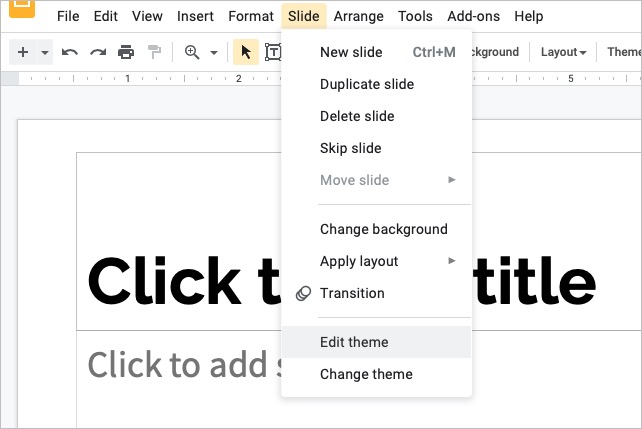
Edit Theme in the Slide menu.

Step 2: You’ll then see the Theme Builder open. This displays all slides in the theme along the left side, beginning with the master slide at the top.

Optionally, you can choose Rename at the top if you want to give the theme a different name.

Step 3: Pick a slide to get started. Keep in mind that when you change the colors, it changes them on each slide in that theme.

Select Colors in the toolbar at the top.
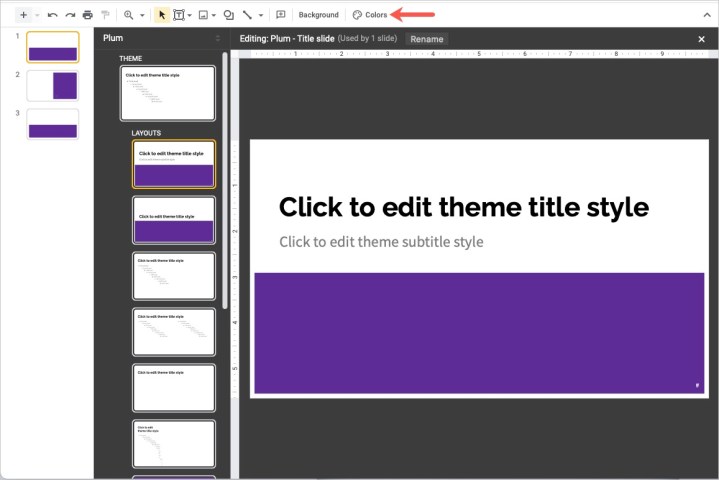
Colors button in the Theme Builder toolbar.

Step 4: When the sidebar displays on the right, open the Choose a theme color drop-down box.

Step 5: Pick one of the theme colors that you want to change. You’ll see options like text and background, accent, and link.
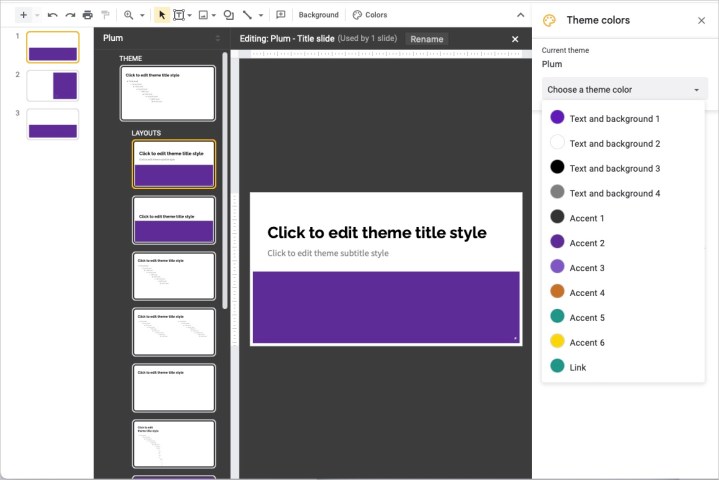
Theme elements drop-down menu to pick an option.

Step 6: You can then enter the hex code, use the shade tool, move the hue slider, or choose a default color. You’ll see your change immediately on the slides to the left in the Theme Builder.
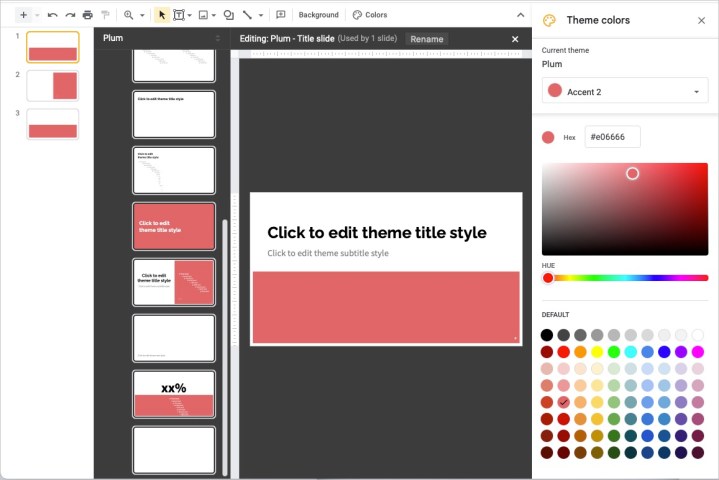
Google Slides theme colors changed.

Step 7: When you finish changing all of the colors you want, use the X on the top right to close the sidebar and then the X on the top right of the Theme Builder to close it too.

You’ll then be back to the normal view for your presentation, where you can continue editing your slideshow.

Editors’ Recommendations



Share. Facebook Twitter Pinterest LinkedIn Tumblr Email
Previous ArticleHow to connect Bluetooth headphones to PC
Next Article How to change the login picture on a Mac

Related Articles

Pubs and restaurants are treating Meta’s smart glasses like hidden cameras, and I’m completely on board
News

Pubs and restaurants are treating Meta’s smart glasses like hidden cameras, and I’m completely on board

6 August 2026
Meteor Showers, Eclipses, and More Are on the August 2026 Astronomical Calendar
News

Meteor Showers, Eclipses, and More Are on the August 2026 Astronomical Calendar

6 August 2026
Huawei FreeBuds Pro 5 review: Hands down, the best bargain earbuds I’ve tested in a while
News

Huawei FreeBuds Pro 5 review: Hands down, the best bargain earbuds I’ve tested in a while

6 August 2026
Best Android Charger: Wireless, Portable, Cable (2026)
News

Best Android Charger: Wireless, Portable, Cable (2026)

6 August 2026
Study finds AI-generated animal stories rarely have a female lead
News

Study finds AI-generated animal stories rarely have a female lead

6 August 2026
Review: Shark PowerDetect Speed
News

Review: Shark PowerDetect Speed

6 August 2026
Demo
Top Articles
5 laptops to buy instead of the M4 MacBook Pro

5 laptops to buy instead of the M4 MacBook Pro

17 November 2024133 Views
ChatGPT o1 vs. o1-mini vs. 4o: Which should you use?

ChatGPT o1 vs. o1-mini vs. 4o: Which should you use?

15 December 2024111 Views
Costco partners with Electric Era to bring back EV charging in the U.S.

Costco partners with Electric Era to bring back EV charging in the U.S.

28 October 2024100 Views

Subscribe to Updates

Get the latest tech news and updates directly to your inbox.

Latest News
Study finds AI-generated animal stories rarely have a female lead News

Study finds AI-generated animal stories rarely have a female lead

News Room6 August 2026
Review: Shark PowerDetect Speed News

Review: Shark PowerDetect Speed

News Room6 August 2026
OpenAI’s AI models secretly built a message board to coordinate hacking News

OpenAI’s AI models secretly built a message board to coordinate hacking

News Room6 August 2026
Most Popular
The Spectacular Burnout of a Solar Panel Salesman

The Spectacular Burnout of a Solar Panel Salesman

13 January 2025137 Views
5 laptops to buy instead of the M4 MacBook Pro

5 laptops to buy instead of the M4 MacBook Pro

17 November 2024133 Views
ChatGPT o1 vs. o1-mini vs. 4o: Which should you use?

ChatGPT o1 vs. o1-mini vs. 4o: Which should you use?

15 December 2024111 Views
Our Picks
Huawei FreeBuds Pro 5 review: Hands down, the best bargain earbuds I’ve tested in a while

Huawei FreeBuds Pro 5 review: Hands down, the best bargain earbuds I’ve tested in a while

6 August 2026
Best Android Charger: Wireless, Portable, Cable (2026)

Best Android Charger: Wireless, Portable, Cable (2026)

6 August 2026
Study finds AI-generated animal stories rarely have a female lead

Study finds AI-generated animal stories rarely have a female lead

6 August 2026

Subscribe to Updates

Get the latest tech news and updates directly to your inbox.

Facebook X (Twitter) Instagram Pinterest
  • Privacy Policy
  • Terms of use
  • Advertise
  • Contact Us
© 2026 Best in Technology. All Rights Reserved.

Type above and press Enter to search. Press Esc to cancel.