

Close Menu
Best in TechnologyBest in Technology
  • News
  • Phones
  • Laptops
  • Gadgets
  • Gaming
  • AI
  • Tips
  • More
    • Web Stories
    • Global
    • Press Release

Subscribe to Updates

Get the latest tech news and updates directly to your inbox.

What's On
This one app has single-handedly improved my Mac experience

This one app has single-handedly improved my Mac experience

13 July 2026
The Apple Car may be dead, but it became the foundation of Apple Intelligence

The Apple Car may be dead, but it became the foundation of Apple Intelligence

13 July 2026
ASUS expands its ProArt lineup with a compact keyboard and a smart creator mouse

ASUS expands its ProArt lineup with a compact keyboard and a smart creator mouse

13 July 2026
Facebook X (Twitter) Instagram
Just In
  • This one app has single-handedly improved my Mac experience
  • The Apple Car may be dead, but it became the foundation of Apple Intelligence
  • ASUS expands its ProArt lineup with a compact keyboard and a smart creator mouse
  • Microsoft wants Windows 11 and your phone to become best friends
  • Christopher Nolan’s personal take on smartphones is surprisingly practical
  • Uber’s Autonomous Vehicle Strategy: Slow Their Adoption
  • Apple’s M7 Ultra could take on Nvidia Blackwell with a staggering 1.5TB of memory
  • I tried to parody the most absurd AI products, but the tech industry beat me to it
Facebook X (Twitter) Instagram Pinterest Vimeo
Best in TechnologyBest in Technology
  • News
  • Phones
  • Laptops
  • Gadgets
  • Gaming
  • AI
  • Tips
  • More
    • Web Stories
    • Global
    • Press Release
Subscribe
Best in TechnologyBest in Technology
Home » How to turn off autoplay previews and episodes on Netflix
News

How to turn off autoplay previews and episodes on Netflix

News RoomBy News Room15 November 20243 Mins Read
Share Facebook Twitter Pinterest LinkedIn Tumblr Reddit Telegram Email
How to turn off autoplay previews and episodes on Netflix
Share
Facebook Twitter LinkedIn Pinterest Email

Netflix is one of the best streaming services on the planet, but even it can be annoying. If you’re tired of Netflix’s autoplay previews blaring at you or episodes that automatically keep playing when you’re done watching, you’ll be happy to know that there’s a way to turn these features off.

With just a few clicks in your Netflix account settings, you can disable autoplay previews and stop the next episode from automatically starting.

No more scrambling to turn down the volume or quickly moving on from a title just so the preview doesn’t play. You’ll have full control over what plays and when. Plus, you can prevent episodes from endlessly auto-playing after you’ve dozed off, saving you bandwidth. It’s easy to turn off. Here’s how.

The Netflix home screen with Cobra Kai.

How to turn off Netflix’s autoplay previews

Step 1: Right out of the gates, you’ll want to login to your Netflix account from a web browser.

Note: This process can also be done on your smartphone or tablet as well, but not using the Netflix app. Use your device’s browser to access your account.

Step 2: On the pull-down menu on the right side of the page, select Account.

Once here, you’ll find all kinds of information about your account, including all the profiles you have set up. You’ll need to deactivate the autoplay for all profiles individually (I guess some people like the feature?). By default, your account is selected.

Scroll down, then select Edit Setting. On the next page, choose Playback Settings.
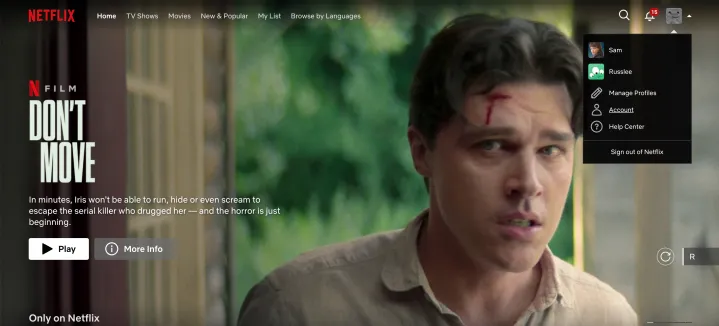
Screenshot showing how to get into the Netflix settings through the web.

Step 3: Uncheck both boxes at the top, under Autoplay controls for you — there’s a box for each playback setting, for previews and next episodes. If you uncheck the second box, Netflix will no longer autoplay previews of content that you happen to hover over. No more scrambling to turn the volume down, or quickly moving on from a title just so the preview doesn’t play. Unchecking the first will stop Netflix from automatically moving on to the next episode in a series you’re watching. While binge-watching is kind of the thing to do on Netflix, disabling this feature will actually require viewers to actively participate in said binge.

Netflix playback settings.

Step 4: Lastly, select Save to lock in your choice. Log out of your account.

As soon as you make the change to your profile on one device, it will take effect across all devices on which you’re logged into Netflix.

How to turn off Netflix autoplay -- Save button.

Netflix noted that there may be a delay before the setting changes take over, but an update can be forced by switching profiles, then switching back to reload your own profile with the updated settings.

And, if you decide that you miss the ways of autoplay, you can always head back into your settings and check a box or two.

The steps above work no matter what Netflix plan you have.


Share. Facebook Twitter Pinterest LinkedIn Tumblr Email
Previous ArticleDonald Trump to Nominate Anti-Vaccine Activist Robert F. Kennedy Jr. to Oversee US Public Health
Next Article Amazon’s Colorsoft Launch Has Left Some Customers Without a Kindle at All

Related Articles

This one app has single-handedly improved my Mac experience
News

This one app has single-handedly improved my Mac experience

13 July 2026
The Apple Car may be dead, but it became the foundation of Apple Intelligence
News

The Apple Car may be dead, but it became the foundation of Apple Intelligence

13 July 2026
ASUS expands its ProArt lineup with a compact keyboard and a smart creator mouse
News

ASUS expands its ProArt lineup with a compact keyboard and a smart creator mouse

13 July 2026
Microsoft wants Windows 11 and your phone to become best friends
News

Microsoft wants Windows 11 and your phone to become best friends

12 July 2026
Christopher Nolan’s personal take on smartphones is surprisingly practical
News

Christopher Nolan’s personal take on smartphones is surprisingly practical

12 July 2026
Uber’s Autonomous Vehicle Strategy: Slow Their Adoption
News

Uber’s Autonomous Vehicle Strategy: Slow Their Adoption

12 July 2026
Demo
Top Articles
5 laptops to buy instead of the M4 MacBook Pro

5 laptops to buy instead of the M4 MacBook Pro

17 November 2024133 Views
ChatGPT o1 vs. o1-mini vs. 4o: Which should you use?

ChatGPT o1 vs. o1-mini vs. 4o: Which should you use?

15 December 2024111 Views
Costco partners with Electric Era to bring back EV charging in the U.S.

Costco partners with Electric Era to bring back EV charging in the U.S.

28 October 2024100 Views

Subscribe to Updates

Get the latest tech news and updates directly to your inbox.

Latest News
Uber’s Autonomous Vehicle Strategy: Slow Their Adoption News

Uber’s Autonomous Vehicle Strategy: Slow Their Adoption

News Room12 July 2026
Apple’s M7 Ultra could take on Nvidia Blackwell with a staggering 1.5TB of memory News

Apple’s M7 Ultra could take on Nvidia Blackwell with a staggering 1.5TB of memory

News Room12 July 2026
I tried to parody the most absurd AI products, but the tech industry beat me to it News

I tried to parody the most absurd AI products, but the tech industry beat me to it

News Room12 July 2026
Most Popular
The Spectacular Burnout of a Solar Panel Salesman

The Spectacular Burnout of a Solar Panel Salesman

13 January 2025137 Views
5 laptops to buy instead of the M4 MacBook Pro

5 laptops to buy instead of the M4 MacBook Pro

17 November 2024133 Views
ChatGPT o1 vs. o1-mini vs. 4o: Which should you use?

ChatGPT o1 vs. o1-mini vs. 4o: Which should you use?

15 December 2024111 Views
Our Picks
Microsoft wants Windows 11 and your phone to become best friends

Microsoft wants Windows 11 and your phone to become best friends

12 July 2026
Christopher Nolan’s personal take on smartphones is surprisingly practical

Christopher Nolan’s personal take on smartphones is surprisingly practical

12 July 2026
Uber’s Autonomous Vehicle Strategy: Slow Their Adoption

Uber’s Autonomous Vehicle Strategy: Slow Their Adoption

12 July 2026

Subscribe to Updates

Get the latest tech news and updates directly to your inbox.

Facebook X (Twitter) Instagram Pinterest
  • Privacy Policy
  • Terms of use
  • Advertise
  • Contact Us
© 2026 Best in Technology. All Rights Reserved.

Type above and press Enter to search. Press Esc to cancel.