



Close Menu
Best in TechnologyBest in Technology
  • News
  • Phones
  • Laptops
  • Gadgets
  • Gaming
  • AI
  • Tips
  • More
    • Web Stories
    • Global
    • Press Release

Subscribe to Updates

Get the latest tech news and updates directly to your inbox.

What's On
Meta and Google just got beaten by an AI giant you might not expect

Meta and Google just got beaten by an AI giant you might not expect

16 August 2026
It’s Never Too Early to Start Planning for the Next Two Solar Eclipses

It’s Never Too Early to Start Planning for the Next Two Solar Eclipses

16 August 2026
I played around with the Pixel 11 Pro Fold. I think Google finally saw the right focus points

I played around with the Pixel 11 Pro Fold. I think Google finally saw the right focus points

16 August 2026
Facebook X (Twitter) Instagram
Just In
  • Meta and Google just got beaten by an AI giant you might not expect
  • It’s Never Too Early to Start Planning for the Next Two Solar Eclipses
  • I played around with the Pixel 11 Pro Fold. I think Google finally saw the right focus points
  • Someone Finally Fixed Installing Apps on a Mac
  • Review: TerraMow V1000
  • Review: Samsung Galaxy Z Fold8 and Z Fold8 Ultra
  • Astronomers Discover the Existence of a Black Hole Star
  • Inside the Experimental Traps Scientists Set for Ghostly Neutrinos
Facebook X (Twitter) Instagram Pinterest Vimeo
Best in TechnologyBest in Technology
  • News
  • Phones
  • Laptops
  • Gadgets
  • Gaming
  • AI
  • Tips
  • More
    • Web Stories
    • Global
    • Press Release
Subscribe
Best in TechnologyBest in Technology
Home » How to resize an image on Mac, Windows, and a Chromebook
News

How to resize an image on Mac, Windows, and a Chromebook

News RoomBy News Room2 March 20244 Mins Read
Share Facebook Twitter Pinterest LinkedIn Tumblr Reddit Telegram Email
How to resize an image on Mac, Windows, and a Chromebook
Share
Facebook Twitter LinkedIn Pinterest Email

Resizing an image is something we’re all going to have to do at some point in our digital lives. And whether you’re using Windows, macOS, or you’re rocking a Chromebook, there are ways to scale images up and down on each PC. Fortunately, these are all relatively simple methods too.

While there’s a near-limitless world of photo-editing programs out there, we made sure to highlight tools in this multi-step guide that any Windows, macOS, or Chromebook user will have access to.

With that being said, here’s how to resize images in Windows 11, macOS Sonoma, and ChromeOS.

Windows 11

For Windows 11 PCs, we prefer to use the operating system’s native Photos app. Follow the steps below to resize an image in Photos on Windows 11:

Step 1: Right-click on the image and select Open with followed by Photos.

Step 2: Select the Three dots icon located in the app’s top-right corner.
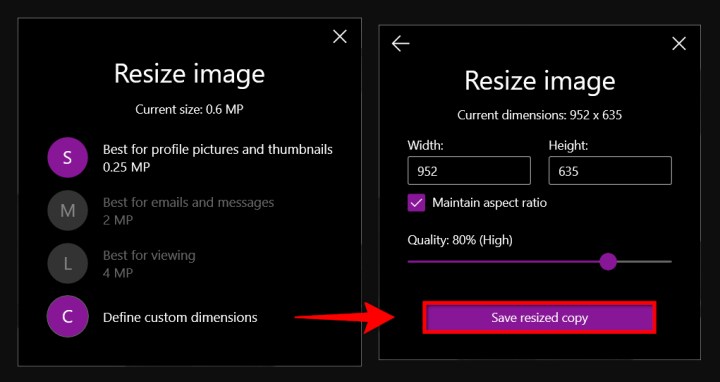
The Save Resized Copy button in the Windows Photos app.

Step 3: Select Resize on the drop-down menu.

Step 4: A pop-up window appears. Select one of the three preset sizes (shown on the left). Otherwise, choose Define custom dimensions for a specific size. Another pop-up window appears (shown on the right).

Step 5: To keep the aspect ratio, select the box next to Maintain aspect ratio.

As you enter a number into one of the boxes, the other box will automatically adjust its number in proportion to the number you just entered. If the aspect ratio doesn’t matter, don’t check the box, and enter the numbers in both boxes.

Step 6: Select the purple Save resized copy button.
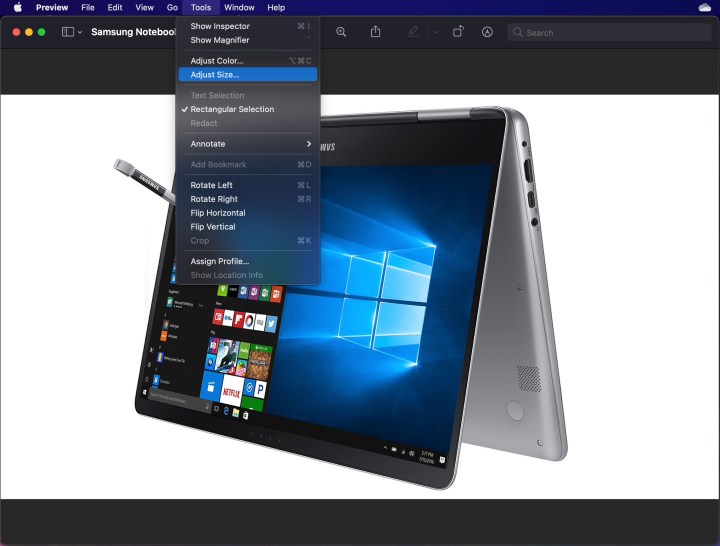
Selecting Adjust Size in the Preview app on macOS.

macOS

On macOS, you can use Preview to resize images. Here’s how to do that:

Step 1: Right-click on the image and select Open. If Preview is not your default image viewer, select Open with followed by Preview instead.

Step 2: Select Tools on the menu bar.

Step 3: Select Adjust size on the drop-down menu.

Customizing the size of an image in Preview on macOS.

Step 4: Enter the width and height information. You may need to switch the size type, like changing from inches to pixels, as shown above. Alternatively, you can select a preset size by selecting the arrows next to Fit into.

Step 5: Select the blue OK button to confirm the new size.

Step 6: To save the resized image, select File on the menu bar.

Step 7: Select Save.
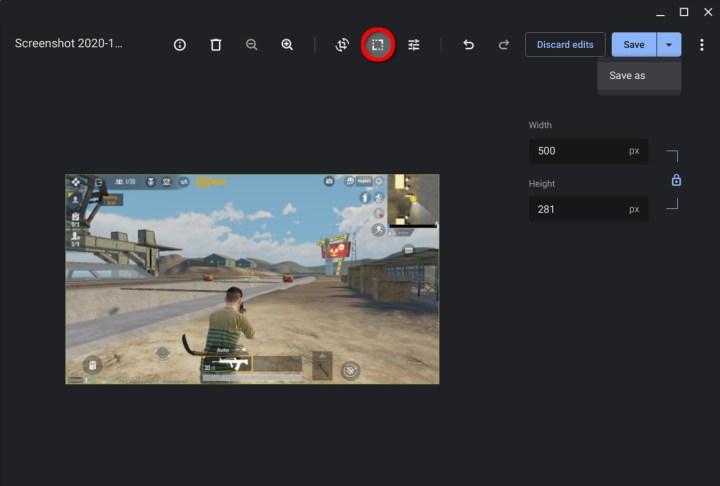
Resizing an image in ChromeOS via the Gallery app.

ChromeOS

You can use ChromeOS’ Gallery image viewer app to resize images. Use the steps below to resize images via Gallery:

Step 1: Right-click on the image and select Open with Gallery on the pop-up menu. Alternatively, if Gallery is not your default image viewer, select Open with followed by Gallery.

Step 2: Select the Rescale button at the top.

Step 3: Enter the width and height. Select the Chain icon to unlock the aspect ratio if needed.

Step 4: Select the blue Save button. Alternatively, select the blue Down arrow to choose Save as if you don’t want to alter the original image.

Web (Pixlr X)

Pixlr X is a free web app you can use to make simple edits to your images, including resizing them. Follow the steps below to resize an image using Pixlr X:

Step 1: Head to Pixlr X.

Step 2: Select the blue Open image button. Choose the image you want to edit.

Step 3: Find the Layout and Template button and select it. It looks like a group of three rectangles.
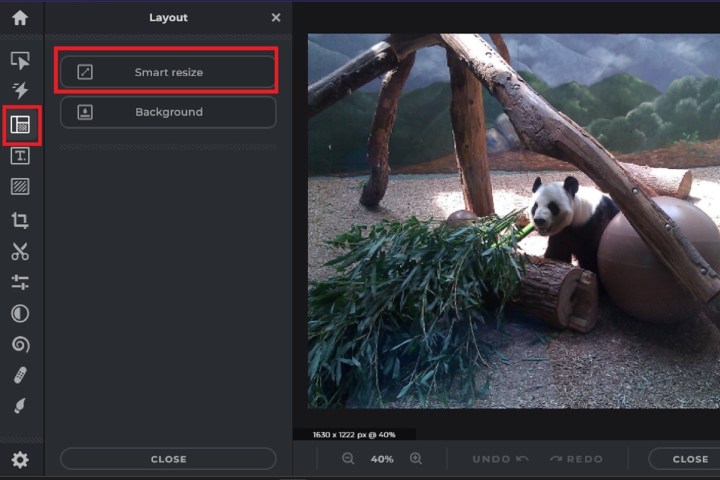
Selecting the Smart Resize button in Pixlr X.

Step 4: In the Layout menu, select Smart resize.

Step 5: On the Smart resize screen that appears, you can enter in your desired width and height measurements, lock or unlock the aspect ratio with the Lock proportions toggle, or even choose from a variety of size presets.
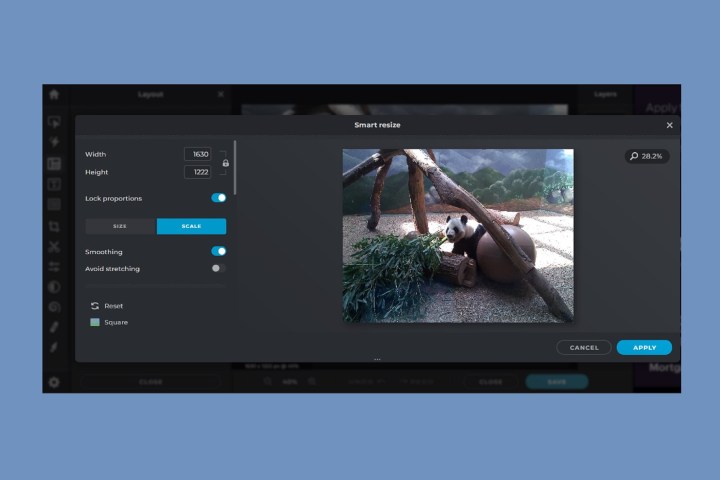
The Smart Resize screen on Pixlr X.

Step 6: Once you’ve made all your changes, select the blue Apply button.

Step 7: Find the blue Save button at the bottom and click it.

Step 8: Enter the file name, select your preferred file type, and adjust quality as needed. Once everything is as you want it, select the blue Save button.

Your edited image should be saved to your Downloads folder. There is a daily limit of three free saves.

Editors’ Recommendations


Share. Facebook Twitter Pinterest LinkedIn Tumblr Email
Previous Article7 Great Deals on iPads and Accessories
Next Article Final Fantasy VII Rebirth: Every Date Cloud Can Go On At The Gold Saucer

Related Articles

Meta and Google just got beaten by an AI giant you might not expect
News

Meta and Google just got beaten by an AI giant you might not expect

16 August 2026
It’s Never Too Early to Start Planning for the Next Two Solar Eclipses
News

It’s Never Too Early to Start Planning for the Next Two Solar Eclipses

16 August 2026
I played around with the Pixel 11 Pro Fold. I think Google finally saw the right focus points
News

I played around with the Pixel 11 Pro Fold. I think Google finally saw the right focus points

16 August 2026
Someone Finally Fixed Installing Apps on a Mac
News

Someone Finally Fixed Installing Apps on a Mac

16 August 2026
Review: TerraMow V1000
News

Review: TerraMow V1000

16 August 2026
Review: Samsung Galaxy Z Fold8 and Z Fold8 Ultra
News

Review: Samsung Galaxy Z Fold8 and Z Fold8 Ultra

16 August 2026
Demo
Top Articles
5 laptops to buy instead of the M4 MacBook Pro

5 laptops to buy instead of the M4 MacBook Pro

17 November 2024133 Views
ChatGPT o1 vs. o1-mini vs. 4o: Which should you use?

ChatGPT o1 vs. o1-mini vs. 4o: Which should you use?

15 December 2024112 Views
Costco partners with Electric Era to bring back EV charging in the U.S.

Costco partners with Electric Era to bring back EV charging in the U.S.

28 October 2024100 Views

Subscribe to Updates

Get the latest tech news and updates directly to your inbox.

Latest News
Review: Samsung Galaxy Z Fold8 and Z Fold8 Ultra News

Review: Samsung Galaxy Z Fold8 and Z Fold8 Ultra

News Room16 August 2026
Astronomers Discover the Existence of a Black Hole Star News

Astronomers Discover the Existence of a Black Hole Star

News Room16 August 2026
Inside the Experimental Traps Scientists Set for Ghostly Neutrinos News

Inside the Experimental Traps Scientists Set for Ghostly Neutrinos

News Room16 August 2026
Most Popular
The Spectacular Burnout of a Solar Panel Salesman

The Spectacular Burnout of a Solar Panel Salesman

13 January 2025137 Views
5 laptops to buy instead of the M4 MacBook Pro

5 laptops to buy instead of the M4 MacBook Pro

17 November 2024133 Views
ChatGPT o1 vs. o1-mini vs. 4o: Which should you use?

ChatGPT o1 vs. o1-mini vs. 4o: Which should you use?

15 December 2024112 Views
Our Picks
Someone Finally Fixed Installing Apps on a Mac

Someone Finally Fixed Installing Apps on a Mac

16 August 2026
Review: TerraMow V1000

Review: TerraMow V1000

16 August 2026
Review: Samsung Galaxy Z Fold8 and Z Fold8 Ultra

Review: Samsung Galaxy Z Fold8 and Z Fold8 Ultra

16 August 2026

Subscribe to Updates

Get the latest tech news and updates directly to your inbox.

Facebook X (Twitter) Instagram Pinterest
  • Privacy Policy
  • Terms of use
  • Advertise
  • Contact Us
© 2026 Best in Technology. All Rights Reserved.

Type above and press Enter to search. Press Esc to cancel.