




Close Menu
Best in TechnologyBest in Technology
  • News
  • Phones
  • Laptops
  • Gadgets
  • Gaming
  • AI
  • Tips
  • More
    • Web Stories
    • Global
    • Press Release

Subscribe to Updates

Get the latest tech news and updates directly to your inbox.

What's On
Your MacBook trackpad can now purr like a cat, and it’s surprisingly convincing

Your MacBook trackpad can now purr like a cat, and it’s surprisingly convincing

10 August 2026
Apple could be eyeing a round display as it plans smartwatch refresh

Apple could be eyeing a round display as it plans smartwatch refresh

10 August 2026
The Apple Watch could get outrageouly expensive with new premium models planned

The Apple Watch could get outrageouly expensive with new premium models planned

10 August 2026
Facebook X (Twitter) Instagram
Just In
  • Your MacBook trackpad can now purr like a cat, and it’s surprisingly convincing
  • Apple could be eyeing a round display as it plans smartwatch refresh
  • The Apple Watch could get outrageouly expensive with new premium models planned
  • Space Agencies Are Trying to Keep Astronauts From Losing Their Sight
  • I found 3 ChatGPT features that turned out to be way more useful than I expected
  • I’m already surrounded by AI. I don’t need ChatGPT living beside my bed
  • X’s creator payouts are changing, and original content is the new currency
  • Apple Reminders sucked for project management until I learned this feature
Facebook X (Twitter) Instagram Pinterest Vimeo
Best in TechnologyBest in Technology
  • News
  • Phones
  • Laptops
  • Gadgets
  • Gaming
  • AI
  • Tips
  • More
    • Web Stories
    • Global
    • Press Release
Subscribe
Best in TechnologyBest in Technology
Home » How to password-protect an Excel file on Windows and Mac
News

How to password-protect an Excel file on Windows and Mac

News RoomBy News Room11 September 20243 Mins Read
Share Facebook Twitter Pinterest LinkedIn Tumblr Reddit Telegram Email
How to password-protect an Excel file on Windows and Mac
Share
Facebook Twitter LinkedIn Pinterest Email

If you use a computer, you probably have some Microsoft Excel documents on your Mac or PC that you wouldn’t want other people to find and read.

After all, Excel serves not only the average person, but also businesses, government institutions, and millions of other folks worldwide. Whatever you’re using Microsoft Excel for, the best way to keep that information safe is to learn how to password-protect an Excel file.

Adding a password

Whether you’re creating graphs in Excel, creating a pivot table, or just inputting rows and rows of data, password-protecting your data isn’t just a good idea, it’s also easy.

Step 1: In Excel, open the document you want to secure with a password.

Step 2: Click File, followed by Info.
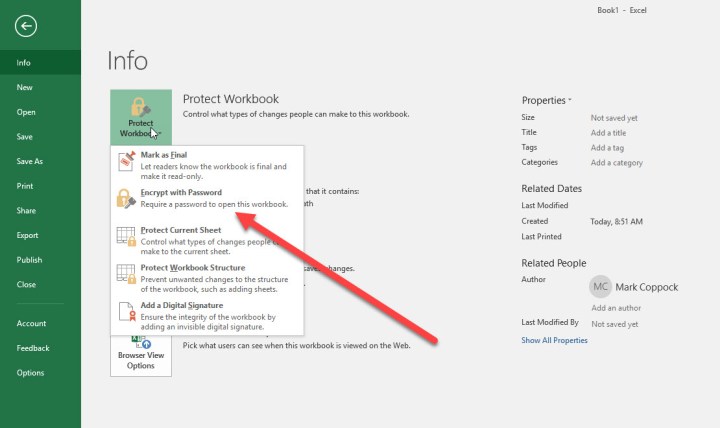
Excel 2016 Protect Workbook options.

Step 3: Next, click the Protect workbook button. From the drop-down menu, select Encrypt with password.

Step 4: Excel will then prompt you to type in a password. Pick one that’s complicated and unique and note it down in a quality password manager.
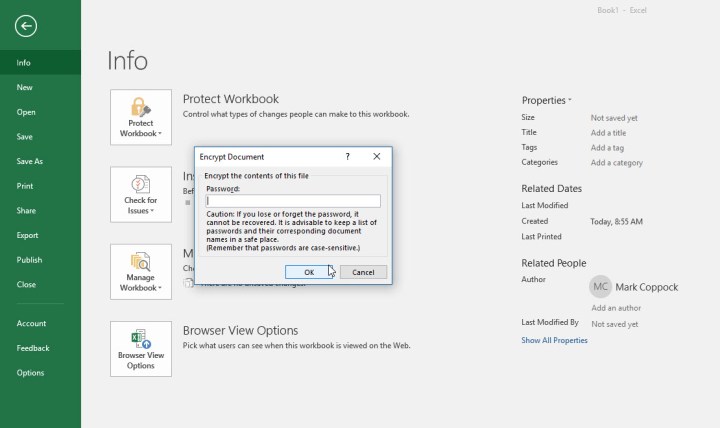
Excel prompting user to create and enter in a password for document.

File encryption

Now that you’ve password-protected your most essential files, it might be worth considering adding extra layers of security to your system. The easiest way to protect a large number of records is to encrypt them. Luckily, encryption programs are not hard to find. Windows 10 Professional users have a built-in encryption utility called BitLocker. Still, if you want to download a free version with customization options for different types of data, you can try the VeraCrypt open source download.

Additional security options

Excel also allows you to apply more customized security options to your file if necessary. It’s important to know what these other options do so you can create the right security for your project. Under Protect workbook, you’ll find several additional features that may prove useful:

Mark as final: This will mark the file as completed, which lets other people know that they shouldn’t make any changes. Using this option will not secure the data behind a password, however, so it doesn’t offer any security.

Protect current sheet: This will guard the currently selected worksheet with a password so that people can’t make any changes or only certain kinds of changes. It’s a handy option if there’s only one sheet in the workbook that you want to protect, and you don’t mind if people can see the info — you just don’t want them messing with anything. You will notice that there’s also an option to do this with Workbook structure, which protects from larger changes to the workbook (like adding a new sheet), unless people have the password.

Add a digital signature: You can guarantee that only you have access to and control over your Excel files by adding a digital signature.

Safeguarding Excel files is a crucial task that many people overlook. There are plenty of safety measures available to ensure that your information remains private and secure, starting with password protection.

But if all this seems like overkill, you have less extreme options to protect your worksheets. For example, you might prefer to lock cells in Excel to stop them being accidentally altered.




Share. Facebook Twitter Pinterest LinkedIn Tumblr Email
Previous ArticleiOS 18 Release Candidate Update Adds the Ability to Pause Live Video Recordings on iPhone
Next Article Samsung Galaxy S25 Ultra’s Leaked CAD Renders Showcase Flat Sides, Other Design Changes

Related Articles

Your MacBook trackpad can now purr like a cat, and it’s surprisingly convincing
News

Your MacBook trackpad can now purr like a cat, and it’s surprisingly convincing

10 August 2026
Apple could be eyeing a round display as it plans smartwatch refresh
News

Apple could be eyeing a round display as it plans smartwatch refresh

10 August 2026
The Apple Watch could get outrageouly expensive with new premium models planned
News

The Apple Watch could get outrageouly expensive with new premium models planned

10 August 2026
Space Agencies Are Trying to Keep Astronauts From Losing Their Sight
News

Space Agencies Are Trying to Keep Astronauts From Losing Their Sight

10 August 2026
I found 3 ChatGPT features that turned out to be way more useful than I expected
News

I found 3 ChatGPT features that turned out to be way more useful than I expected

10 August 2026
I’m already surrounded by AI. I don’t need ChatGPT living beside my bed
News

I’m already surrounded by AI. I don’t need ChatGPT living beside my bed

10 August 2026
Demo
Top Articles
5 laptops to buy instead of the M4 MacBook Pro

5 laptops to buy instead of the M4 MacBook Pro

17 November 2024133 Views
ChatGPT o1 vs. o1-mini vs. 4o: Which should you use?

ChatGPT o1 vs. o1-mini vs. 4o: Which should you use?

15 December 2024112 Views
Costco partners with Electric Era to bring back EV charging in the U.S.

Costco partners with Electric Era to bring back EV charging in the U.S.

28 October 2024100 Views

Subscribe to Updates

Get the latest tech news and updates directly to your inbox.

Latest News
I’m already surrounded by AI. I don’t need ChatGPT living beside my bed News

I’m already surrounded by AI. I don’t need ChatGPT living beside my bed

News Room10 August 2026
X’s creator payouts are changing, and original content is the new currency News

X’s creator payouts are changing, and original content is the new currency

News Room10 August 2026
Apple Reminders sucked for project management until I learned this feature News

Apple Reminders sucked for project management until I learned this feature

News Room10 August 2026
Most Popular
The Spectacular Burnout of a Solar Panel Salesman

The Spectacular Burnout of a Solar Panel Salesman

13 January 2025137 Views
5 laptops to buy instead of the M4 MacBook Pro

5 laptops to buy instead of the M4 MacBook Pro

17 November 2024133 Views
ChatGPT o1 vs. o1-mini vs. 4o: Which should you use?

ChatGPT o1 vs. o1-mini vs. 4o: Which should you use?

15 December 2024112 Views
Our Picks
Space Agencies Are Trying to Keep Astronauts From Losing Their Sight

Space Agencies Are Trying to Keep Astronauts From Losing Their Sight

10 August 2026
I found 3 ChatGPT features that turned out to be way more useful than I expected

I found 3 ChatGPT features that turned out to be way more useful than I expected

10 August 2026
I’m already surrounded by AI. I don’t need ChatGPT living beside my bed

I’m already surrounded by AI. I don’t need ChatGPT living beside my bed

10 August 2026

Subscribe to Updates

Get the latest tech news and updates directly to your inbox.

Facebook X (Twitter) Instagram Pinterest
  • Privacy Policy
  • Terms of use
  • Advertise
  • Contact Us
© 2026 Best in Technology. All Rights Reserved.

Type above and press Enter to search. Press Esc to cancel.