


Close Menu
Best in TechnologyBest in Technology
  • News
  • Phones
  • Laptops
  • Gadgets
  • Gaming
  • AI
  • Tips
  • More
    • Web Stories
    • Global
    • Press Release

Subscribe to Updates

Get the latest tech news and updates directly to your inbox.

What's On
I upgraded from the M1 MacBook Air to the M5, and here’s what changed for me

I upgraded from the M1 MacBook Air to the M5, and here’s what changed for me

9 August 2026
The Galaxy Tab S12 Ultra just showed up online, and Samsung seems reluctant to change a winning formula

The Galaxy Tab S12 Ultra just showed up online, and Samsung seems reluctant to change a winning formula

9 August 2026
EU’s Starlink alternative is finally moving beyond the planning stage

EU’s Starlink alternative is finally moving beyond the planning stage

8 August 2026
Facebook X (Twitter) Instagram
Just In
  • I upgraded from the M1 MacBook Air to the M5, and here’s what changed for me
  • The Galaxy Tab S12 Ultra just showed up online, and Samsung seems reluctant to change a winning formula
  • EU’s Starlink alternative is finally moving beyond the planning stage
  • Spokane Shows What the New Era of Wildfires Looks Like
  • The Galaxy Z Fold 8 is genuinely cool, but I’d pay up for the Z Fold 8 Ultra
  • WhatsApp Gets a Handy @all Feature for Group Chats
  • My next phone has to earn its retirement
  • Best Solar Generators for Off-Grid Trips, RVs, and Home Backup
Facebook X (Twitter) Instagram Pinterest Vimeo
Best in TechnologyBest in Technology
  • News
  • Phones
  • Laptops
  • Gadgets
  • Gaming
  • AI
  • Tips
  • More
    • Web Stories
    • Global
    • Press Release
Subscribe
Best in TechnologyBest in Technology
Home » How to mount your Blink Mini 2 security camera
News

How to mount your Blink Mini 2 security camera

News RoomBy News Room26 March 20243 Mins Read
Share Facebook Twitter Pinterest LinkedIn Tumblr Reddit Telegram Email
How to mount your Blink Mini 2 security camera
Share
Facebook Twitter LinkedIn Pinterest Email

The Blink Mini 2 offers an affordable way to keep tabs on your home. Clocking in at just $40, you’d be hard-pressed to find a security camera that offers better value. Along with 1080p footage capture, you can set up customized motion zones, activate Person Detection, and modify a bunch of other settings via the Blink mobile app. One of the best things about the Blink Mini 2, however, is that you can mount it on a wall or ceiling for improved visibility. It also comes with a basic stand for tabletop use.

Unsure how to mount your camera or afraid to snap the plastic stand in half while removing the camera? Here’s a closer look at how to mount the Blink Mini 2 and remove it from its stand.

How to remove the Blink Mini 2 from its stand

By default, the Blink Mini 2 will come preinstalled on its stand. This lets you manually swivel and pivot the camera to find the best viewing angle for your home. It also lifts it off the ground a few centimeters, ensuring your view isn’t blocked by nearby objects. However, if you want to remove it from the stand to make it more compact, Blink gives you that alternative. The process is easy – though it might be intimidating if it’s your first time attempting the procedure. Here’s how it works.

Step 1: Hold the base of the stand with one hand. Consider positioning the mounting spindle between two fingers for added stability.

Step 2: Grasp the camera with your other hand.

Step 3: Pull the stand and camera in opposite directions.

Step 4: You’ll need to apply quite a bit of pressure, but the camera will eventually pop off the stand. The process might also result in some nasty popping sounds and bending plastic. Don’t worry – this is normal, and no damage will be caused to the product.

Step 5: That’s it! The camera is now removed from the stand. To replace it, simply line up the camera with the mounting spindle, apply downward pressure, and it’ll snap back into place.
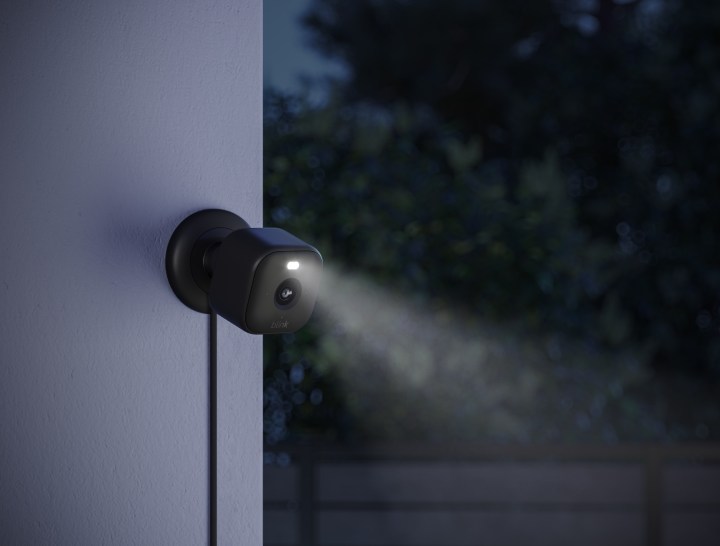
The Blink Mini 2 installed outside.

How to mount the Blink Mini 2 to a wall or ceiling

The Blink Mini 2 includes everything you need to attach the camera to a wall or ceiling. Here’s how it works.

Step 1: Remove your Blink Mini 2 from its stand.

Step 2: Slide the exterior plastic ring off the stand. This will reveal two screw holes.

Step 3: Determine where you want to place your camera (ensuring an electrical outlet is nearby for its plug), then use two screws to attach the mounting bracket to the wall or ceiling.

Step 4: Replace the exterior plastic ring by lining up the notches on it and the mounting bracket. This shouldn’t require much effort, as the two are designed to fit snuggly together. If you find yourself applying lots of pressure, try repositioning the exterior ring to better align with the mounting bracket notches.

Step 5: Snap your camera onto the mounting spindle.

Step 6: Plug in the power cable to the back of your Blink Mini 2.

Step 7: That’s it! Depending on how you installed the camera, you may need to dive into the settings menu and activate the Flip Video feature. This can be found by selecting the More button on the device’s thumbnail in the Blink app. Next, go to Device Settings and find Video and Photo. Here, you’ll have the option to Flip Video.

Editors’ Recommendations


Share. Facebook Twitter Pinterest LinkedIn Tumblr Email
Previous ArticleWhy the Baltimore Bridge Collapsed so Quickly
Next Article Bethesda Gives A Small Update On The Elder Scrolls 6

Related Articles

I upgraded from the M1 MacBook Air to the M5, and here’s what changed for me
News

I upgraded from the M1 MacBook Air to the M5, and here’s what changed for me

9 August 2026
The Galaxy Tab S12 Ultra just showed up online, and Samsung seems reluctant to change a winning formula
News

The Galaxy Tab S12 Ultra just showed up online, and Samsung seems reluctant to change a winning formula

9 August 2026
EU’s Starlink alternative is finally moving beyond the planning stage
News

EU’s Starlink alternative is finally moving beyond the planning stage

8 August 2026
Spokane Shows What the New Era of Wildfires Looks Like
News

Spokane Shows What the New Era of Wildfires Looks Like

8 August 2026
The Galaxy Z Fold 8 is genuinely cool, but I’d pay up for the Z Fold 8 Ultra
News

The Galaxy Z Fold 8 is genuinely cool, but I’d pay up for the Z Fold 8 Ultra

8 August 2026
WhatsApp Gets a Handy @all Feature for Group Chats
News

WhatsApp Gets a Handy @all Feature for Group Chats

8 August 2026
Demo
Top Articles
5 laptops to buy instead of the M4 MacBook Pro

5 laptops to buy instead of the M4 MacBook Pro

17 November 2024133 Views
ChatGPT o1 vs. o1-mini vs. 4o: Which should you use?

ChatGPT o1 vs. o1-mini vs. 4o: Which should you use?

15 December 2024112 Views
Costco partners with Electric Era to bring back EV charging in the U.S.

Costco partners with Electric Era to bring back EV charging in the U.S.

28 October 2024100 Views

Subscribe to Updates

Get the latest tech news and updates directly to your inbox.

Latest News
WhatsApp Gets a Handy @all Feature for Group Chats News

WhatsApp Gets a Handy @all Feature for Group Chats

News Room8 August 2026
My next phone has to earn its retirement News

My next phone has to earn its retirement

News Room8 August 2026
Best Solar Generators for Off-Grid Trips, RVs, and Home Backup News

Best Solar Generators for Off-Grid Trips, RVs, and Home Backup

News Room8 August 2026
Most Popular
The Spectacular Burnout of a Solar Panel Salesman

The Spectacular Burnout of a Solar Panel Salesman

13 January 2025137 Views
5 laptops to buy instead of the M4 MacBook Pro

5 laptops to buy instead of the M4 MacBook Pro

17 November 2024133 Views
ChatGPT o1 vs. o1-mini vs. 4o: Which should you use?

ChatGPT o1 vs. o1-mini vs. 4o: Which should you use?

15 December 2024112 Views
Our Picks
Spokane Shows What the New Era of Wildfires Looks Like

Spokane Shows What the New Era of Wildfires Looks Like

8 August 2026
The Galaxy Z Fold 8 is genuinely cool, but I’d pay up for the Z Fold 8 Ultra

The Galaxy Z Fold 8 is genuinely cool, but I’d pay up for the Z Fold 8 Ultra

8 August 2026
WhatsApp Gets a Handy @all Feature for Group Chats

WhatsApp Gets a Handy @all Feature for Group Chats

8 August 2026

Subscribe to Updates

Get the latest tech news and updates directly to your inbox.

Facebook X (Twitter) Instagram Pinterest
  • Privacy Policy
  • Terms of use
  • Advertise
  • Contact Us
© 2026 Best in Technology. All Rights Reserved.

Type above and press Enter to search. Press Esc to cancel.