





Close Menu
Best in TechnologyBest in Technology
  • News
  • Phones
  • Laptops
  • Gadgets
  • Gaming
  • AI
  • Tips
  • More
    • Web Stories
    • Global
    • Press Release

Subscribe to Updates

Get the latest tech news and updates directly to your inbox.

What's On
Ferrari’s newest one-off took two years to build, and only one person will ever drive it

Ferrari’s newest one-off took two years to build, and only one person will ever drive it

14 August 2026
I Wore an Electrical Muscle Stimulation Body Suit to Zap Myself Into Fitness

I Wore an Electrical Muscle Stimulation Body Suit to Zap Myself Into Fitness

14 August 2026
AI’s new cancer-screening partner has four legs and a very good nose

AI’s new cancer-screening partner has four legs and a very good nose

14 August 2026
Facebook X (Twitter) Instagram
Just In
  • Ferrari’s newest one-off took two years to build, and only one person will ever drive it
  • I Wore an Electrical Muscle Stimulation Body Suit to Zap Myself Into Fitness
  • AI’s new cancer-screening partner has four legs and a very good nose
  • FTC Strikes Deals to Ignore Unlawful Credit Discrimination
  • Keychron made 96 blank keys somebody else’s problem
  • These ‘Masturbation Consultants’ Were Hired to Pleasure Themselves With AI
  • Galaxy phones may finally get a basic privacy feature Samsung missed
  • Review: Dell XPS 13 (2026)
Facebook X (Twitter) Instagram Pinterest Vimeo
Best in TechnologyBest in Technology
  • News
  • Phones
  • Laptops
  • Gadgets
  • Gaming
  • AI
  • Tips
  • More
    • Web Stories
    • Global
    • Press Release
Subscribe
Best in TechnologyBest in Technology
Home » How to install an SSD in your laptop
News

How to install an SSD in your laptop

News RoomBy News Room25 July 20244 Mins Read
Share Facebook Twitter Pinterest LinkedIn Tumblr Reddit Telegram Email
How to install an SSD in your laptop
Share
Facebook Twitter LinkedIn Pinterest Email

Upgrading your laptop’s storage to a modern SSD can make a big difference to its performance on paper and how it feels to use. An SSD swap for an old hard drive or adding in a faster NVMe SSD to replace your aging SATA drive can take a laptop from sluggish to speedy in no time at all.

Not all laptops make it easy to replace your SSD, but for those where you can, it can be done in just a few minutes. Here’s how to install an SSD in your laptop.

Note: Installing an SSD in your laptop is straightforward, but does run a slight risk of damaging components. Only proceed with the utmost care and read all instructions before doing so.

How to pick the right SSD

Before you can install a new SSD in your laptop, you need to buy a good one that’s compatible. The right SSD for your laptop depends on its size, available storage capacity, connections, and your budget. Check out our guide on how to buy an SSD for more help.

Back up your data

Before you do anything to your laptop’s storage, it’s a good idea to back up your most important data. That can include work files, game saves, personal photos and videos, and anything else you consider important. But make sure it’s backed up to an external SSD or cloud storage platform for safe keeping. The last thing you want to do is accidentally wipe a drive with important memories or work on.

This is less important if you’re installing a new SSD alongside your existing storage drive, but if you’re installing a new SSD to replace what you have, you’ll need to move all your files over anyway, so backing up now is the most straightforward way.

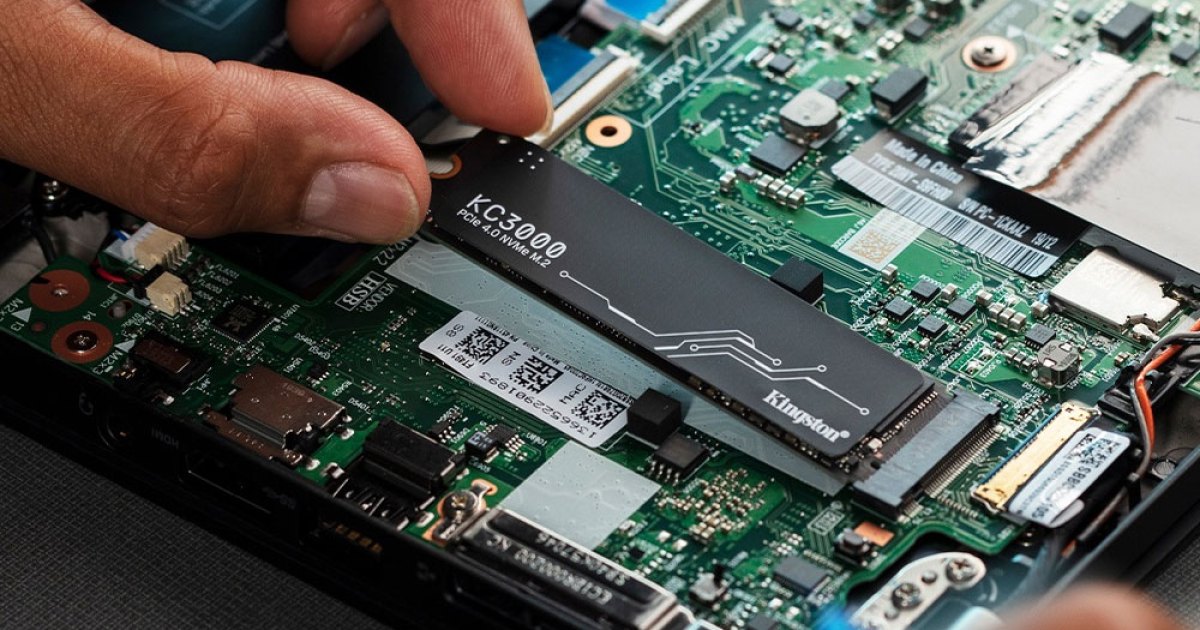
Installing a Kingston SSD.

How to install an SSD in your laptop

Find a level surface with good lighting where you can work without distractions. Place your laptop upside-down with the power unplugged and battery out, if possible. If your laptop allows SSD upgrades, then it’ll have a small cutout in the underside with screws holding it in place. It’s possible you’ll have a compartment for upgrading the memory too. The SSD compartment should be obvious, but if not, just unscrew both to find out which is which.

Note: Some laptops allow laptop upgrades by removing the whole underside of the laptop. Do so if you feel like you can do it safely, but make sure you keep track of all the screws, and look out for glue or fragile ribbon cables that might make removing the laptop case more difficult.

Step 1: If your laptop has space for a new NVMe or SATA SSD, simplly install your new drive next to the existing drive. However, if you need to remove an old drive first, proceed with the steps below.

Step 2: If your laptop has a hard drive, or older 2.5-inch SATA SSD, you should see it locked in place with a few screws and a pair of cables. Remove all of those before gently pulling the drive free. You may need to pull in the opposite direction of where it is connected, before lifting it out.

If your laptop has an NVMe drive already, remove the retaining screw, and then gently lift the drive before pulling it free from its socket.

A SATA SSD in a laptop.

Step 3: If you’re installing a new SATA SSD, place it into the correct position inside the laptop storage bay, then connect the cables or connections and screw it in place.

For an NVMe SSD, slot it gently into the socket, then press down on the opposite end until its horizontal with the slot. Then screw in the retaining screw to hold it in place.

Step 4: When you’re done, replace the storage bay panel and any other screws, then power up the laptop to see if it worked. You should see the storage drive appear in the post screen breakdown, or in your Windows file explorer menu when you get to Windows if it was a secondary drive.

If it doesn’t boot, or the drive isn’t recognized, check if you installed it correctly. Additionally, check out our guide on what to do when your laptop won’t boot.

Step 5: If necessary, install Windows from a USB drive or external hard drive. For more help on setting up Windows, follow our install guide here.

When you’re finished, make sure to install the latest drivers for your laptop from the manufacturer’s website, as well as any default applications you may need, such as an antivirus. Considering running Windows update a few times too, to make sure it’s up to date.



Share. Facebook Twitter Pinterest LinkedIn Tumblr Email
Previous ArticleHow Soon Might the Atlantic Ocean Break? Two Sibling Scientists Found an Answer—and Shook the World
Next Article Vivo V40 SE 4G With 50-Megapixel Main Camera, 80W Fast Charging Launched: Price, Specifications

Related Articles

Ferrari’s newest one-off took two years to build, and only one person will ever drive it
News

Ferrari’s newest one-off took two years to build, and only one person will ever drive it

14 August 2026
I Wore an Electrical Muscle Stimulation Body Suit to Zap Myself Into Fitness
News

I Wore an Electrical Muscle Stimulation Body Suit to Zap Myself Into Fitness

14 August 2026
AI’s new cancer-screening partner has four legs and a very good nose
News

AI’s new cancer-screening partner has four legs and a very good nose

14 August 2026
FTC Strikes Deals to Ignore Unlawful Credit Discrimination
News

FTC Strikes Deals to Ignore Unlawful Credit Discrimination

14 August 2026
Keychron made 96 blank keys somebody else’s problem
News

Keychron made 96 blank keys somebody else’s problem

14 August 2026
These ‘Masturbation Consultants’ Were Hired to Pleasure Themselves With AI
News

These ‘Masturbation Consultants’ Were Hired to Pleasure Themselves With AI

14 August 2026
Demo
Top Articles
5 laptops to buy instead of the M4 MacBook Pro

5 laptops to buy instead of the M4 MacBook Pro

17 November 2024133 Views
ChatGPT o1 vs. o1-mini vs. 4o: Which should you use?

ChatGPT o1 vs. o1-mini vs. 4o: Which should you use?

15 December 2024112 Views
Costco partners with Electric Era to bring back EV charging in the U.S.

Costco partners with Electric Era to bring back EV charging in the U.S.

28 October 2024100 Views

Subscribe to Updates

Get the latest tech news and updates directly to your inbox.

Latest News
These ‘Masturbation Consultants’ Were Hired to Pleasure Themselves With AI News

These ‘Masturbation Consultants’ Were Hired to Pleasure Themselves With AI

News Room14 August 2026
Galaxy phones may finally get a basic privacy feature Samsung missed News

Galaxy phones may finally get a basic privacy feature Samsung missed

News Room14 August 2026
Review: Dell XPS 13 (2026) News

Review: Dell XPS 13 (2026)

News Room14 August 2026
Most Popular
The Spectacular Burnout of a Solar Panel Salesman

The Spectacular Burnout of a Solar Panel Salesman

13 January 2025137 Views
5 laptops to buy instead of the M4 MacBook Pro

5 laptops to buy instead of the M4 MacBook Pro

17 November 2024133 Views
ChatGPT o1 vs. o1-mini vs. 4o: Which should you use?

ChatGPT o1 vs. o1-mini vs. 4o: Which should you use?

15 December 2024112 Views
Our Picks
FTC Strikes Deals to Ignore Unlawful Credit Discrimination

FTC Strikes Deals to Ignore Unlawful Credit Discrimination

14 August 2026
Keychron made 96 blank keys somebody else’s problem

Keychron made 96 blank keys somebody else’s problem

14 August 2026
These ‘Masturbation Consultants’ Were Hired to Pleasure Themselves With AI

These ‘Masturbation Consultants’ Were Hired to Pleasure Themselves With AI

14 August 2026

Subscribe to Updates

Get the latest tech news and updates directly to your inbox.

Facebook X (Twitter) Instagram Pinterest
  • Privacy Policy
  • Terms of use
  • Advertise
  • Contact Us
© 2026 Best in Technology. All Rights Reserved.

Type above and press Enter to search. Press Esc to cancel.