


Close Menu
Best in TechnologyBest in Technology
  • News
  • Phones
  • Laptops
  • Gadgets
  • Gaming
  • AI
  • Tips
  • More
    • Web Stories
    • Global
    • Press Release

Subscribe to Updates

Get the latest tech news and updates directly to your inbox.

What's On
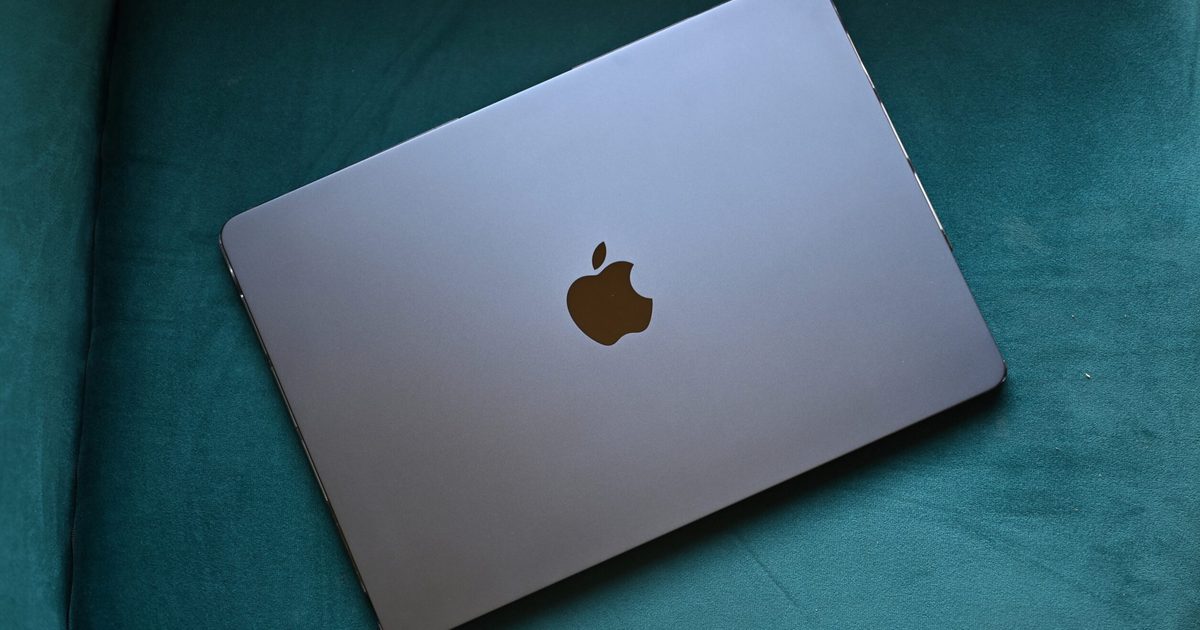
I upgraded from the M1 MacBook Air to the M5, and here’s what changed for me

I upgraded from the M1 MacBook Air to the M5, and here’s what changed for me

9 August 2026
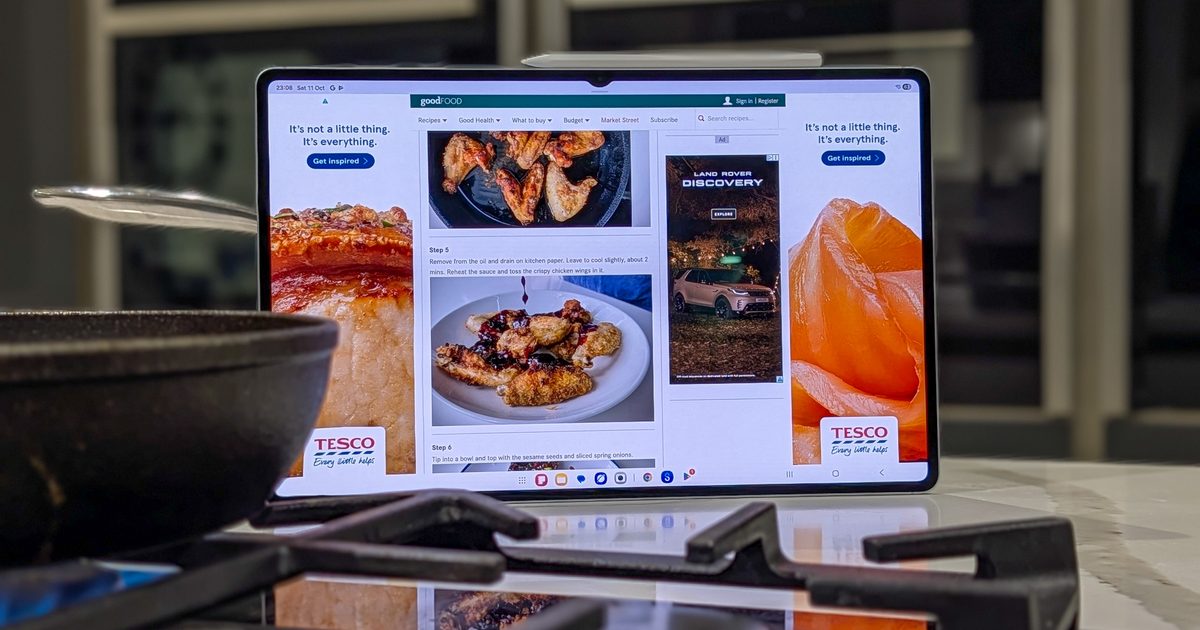
The Galaxy Tab S12 Ultra just showed up online, and Samsung seems reluctant to change a winning formula

The Galaxy Tab S12 Ultra just showed up online, and Samsung seems reluctant to change a winning formula

9 August 2026
EU’s Starlink alternative is finally moving beyond the planning stage

EU’s Starlink alternative is finally moving beyond the planning stage

8 August 2026
Facebook X (Twitter) Instagram
Just In
  • I upgraded from the M1 MacBook Air to the M5, and here’s what changed for me
  • The Galaxy Tab S12 Ultra just showed up online, and Samsung seems reluctant to change a winning formula
  • EU’s Starlink alternative is finally moving beyond the planning stage
  • Spokane Shows What the New Era of Wildfires Looks Like
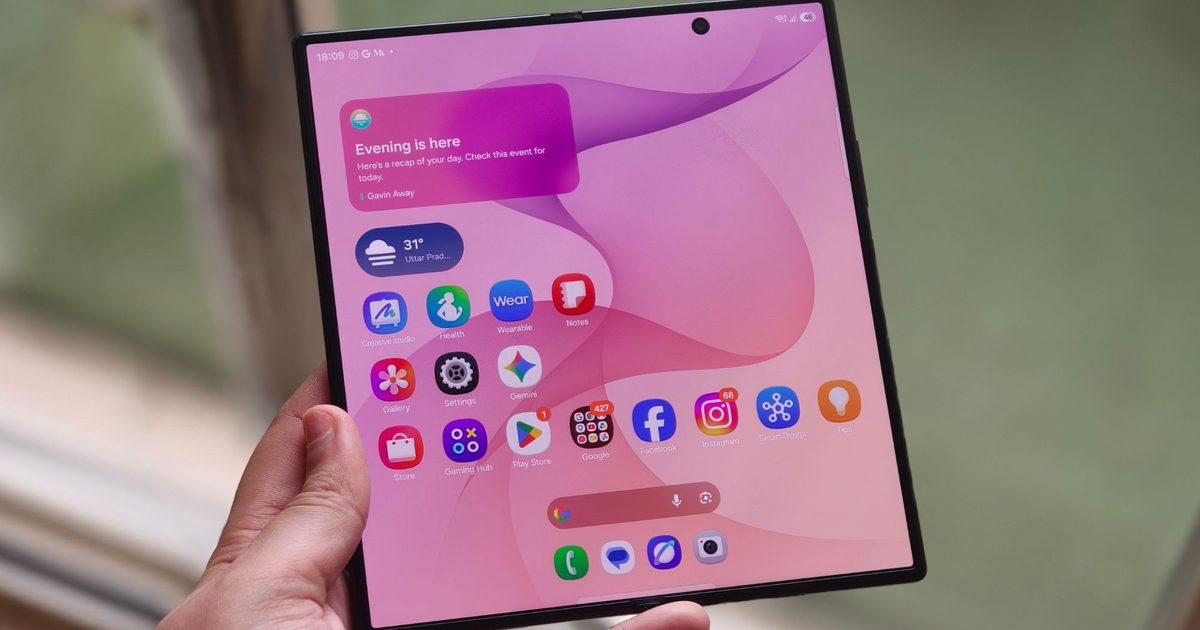
  • The Galaxy Z Fold 8 is genuinely cool, but I’d pay up for the Z Fold 8 Ultra
  • WhatsApp Gets a Handy @all Feature for Group Chats
  • My next phone has to earn its retirement
  • Best Solar Generators for Off-Grid Trips, RVs, and Home Backup
Facebook X (Twitter) Instagram Pinterest Vimeo
Best in TechnologyBest in Technology
  • News
  • Phones
  • Laptops
  • Gadgets
  • Gaming
  • AI
  • Tips
  • More
    • Web Stories
    • Global
    • Press Release
Subscribe
Best in TechnologyBest in Technology
Home » How to adjust screen resolution in Windows 11 and older
News

How to adjust screen resolution in Windows 11 and older

News RoomBy News Room30 March 20242 Mins Read
Share Facebook Twitter Pinterest LinkedIn Tumblr Reddit Telegram Email
How to adjust screen resolution in Windows 11 and older
Share
Facebook Twitter LinkedIn Pinterest Email

You’re not actually stuck with the screen resolution setting your Windows PC came with. In addition to tons of other device personalization options, screen resolutions are customizable on Windows PCs. And adjusting the screen resolution on your Windows machine is easier than you think. All it takes is a quick trip to your Settings app or Control Panel (depending on which version of Windows you’re running) and a few clicks and you’re on your way to an easier-to-view screen. Here, we’ll show you how to adjust screen resolutions for Windows 11, Windows 10, and Windows 7 PCs.

In Windows 11

Step 1: Navigate to the Windows 11 Settings app.

Step 2: Click Display.

Step 3: Click on the display you want to change the screen resolution for. Displays will be labeled as “1” or “2” if you have multiple displays connected. If you don’t have multiple displays connected, proceed to step 4.

Step 3: In the Scale and Layout section, click Display Resolution. Pick a resolution and then click Keep changes.

In Windows 10

Step 1: Navigate to the Windows 10 Settings app.

Step 2: In the Settings app menu, select System. Then select Display (if it’s not already selected).

Step 3: Scroll down to the section labeled Scale and Layout.

Step 4: Click on the drop-down menu within the Display Resolution subsection. Choose your desired resolution from the drop-down menu.

Step 5: In the dialog box that appears, confirm your selection by clicking on Keep Changes. The change in resolution should be immediately visible.

In Windows 7

Step 1: Go to the Control Panel.

Step 2: Within the section labeled Appearance and Personalization, select Adjust Screen Resolution.

Step 3: Select the drop-down near Resolution and then drag the slider to your desired resolution. Select Apply.

Step 4: To confirm your changes, choose Keep. If you change your mind and would rather keep the old resolution, choose Revert.

On a related note, Microsoft ended support for Windows 7 on January 14, 2020, and if you’re still running Windows 7 and you’re able to do so, we recommend upgrading your device to Windows 10 so that your device continues to have access to Microsoft’s important security updates.

Editors’ Recommendations


Share. Facebook Twitter Pinterest LinkedIn Tumblr Email
Previous ArticleHyperOS Update Schedule for Q2 2024 Announced by Xiaomi: See List of Eligible Xiaomi, Redmi Smartphones
Next Article What is packet loss, and how do you fix it?

Related Articles

I upgraded from the M1 MacBook Air to the M5, and here’s what changed for me
News

I upgraded from the M1 MacBook Air to the M5, and here’s what changed for me

9 August 2026
The Galaxy Tab S12 Ultra just showed up online, and Samsung seems reluctant to change a winning formula
News

The Galaxy Tab S12 Ultra just showed up online, and Samsung seems reluctant to change a winning formula

9 August 2026
EU’s Starlink alternative is finally moving beyond the planning stage
News

EU’s Starlink alternative is finally moving beyond the planning stage

8 August 2026
Spokane Shows What the New Era of Wildfires Looks Like
News

Spokane Shows What the New Era of Wildfires Looks Like

8 August 2026
The Galaxy Z Fold 8 is genuinely cool, but I’d pay up for the Z Fold 8 Ultra
News

The Galaxy Z Fold 8 is genuinely cool, but I’d pay up for the Z Fold 8 Ultra

8 August 2026
WhatsApp Gets a Handy @all Feature for Group Chats
News

WhatsApp Gets a Handy @all Feature for Group Chats

8 August 2026
Demo
Top Articles
5 laptops to buy instead of the M4 MacBook Pro

5 laptops to buy instead of the M4 MacBook Pro

17 November 2024133 Views
ChatGPT o1 vs. o1-mini vs. 4o: Which should you use?

ChatGPT o1 vs. o1-mini vs. 4o: Which should you use?

15 December 2024112 Views
Costco partners with Electric Era to bring back EV charging in the U.S.

Costco partners with Electric Era to bring back EV charging in the U.S.

28 October 2024100 Views

Subscribe to Updates

Get the latest tech news and updates directly to your inbox.

Latest News
WhatsApp Gets a Handy @all Feature for Group Chats News

WhatsApp Gets a Handy @all Feature for Group Chats

News Room8 August 2026
My next phone has to earn its retirement News

My next phone has to earn its retirement

News Room8 August 2026
Best Solar Generators for Off-Grid Trips, RVs, and Home Backup News

Best Solar Generators for Off-Grid Trips, RVs, and Home Backup

News Room8 August 2026
Most Popular
The Spectacular Burnout of a Solar Panel Salesman

The Spectacular Burnout of a Solar Panel Salesman

13 January 2025137 Views
5 laptops to buy instead of the M4 MacBook Pro

5 laptops to buy instead of the M4 MacBook Pro

17 November 2024133 Views
ChatGPT o1 vs. o1-mini vs. 4o: Which should you use?

ChatGPT o1 vs. o1-mini vs. 4o: Which should you use?

15 December 2024112 Views
Our Picks
Spokane Shows What the New Era of Wildfires Looks Like

Spokane Shows What the New Era of Wildfires Looks Like

8 August 2026
The Galaxy Z Fold 8 is genuinely cool, but I’d pay up for the Z Fold 8 Ultra

The Galaxy Z Fold 8 is genuinely cool, but I’d pay up for the Z Fold 8 Ultra

8 August 2026
WhatsApp Gets a Handy @all Feature for Group Chats

WhatsApp Gets a Handy @all Feature for Group Chats

8 August 2026

Subscribe to Updates

Get the latest tech news and updates directly to your inbox.

Facebook X (Twitter) Instagram Pinterest
  • Privacy Policy
  • Terms of use
  • Advertise
  • Contact Us
© 2026 Best in Technology. All Rights Reserved.

Type above and press Enter to search. Press Esc to cancel.