




Keyboards are one of the main ways we interact with our PCs. So it can be especially problematic when they suddenly become unresponsive or locked. But if you’re having trouble unlocking your keyboard, there’s no need to panic. There are a number of solutions you can try before giving up and just buying a new keyboard. Let’s explore your options for fixing this issue.
Here’s how to unlock a keyboard that’s locked.
Check USB dongles and USB cables
As is the case with wireless mice, wireless keyboards also come with their own USB dongles. You may have inadvertently moved the PC around or the dongle may have come loose over time. Remove the USB dongle from its port and reinsert it. If that doesn’t do the trick, consider that maybe the dongle has become faulty.
If you’re using a wired keyboard, try unplugging it and replugging it again, too.
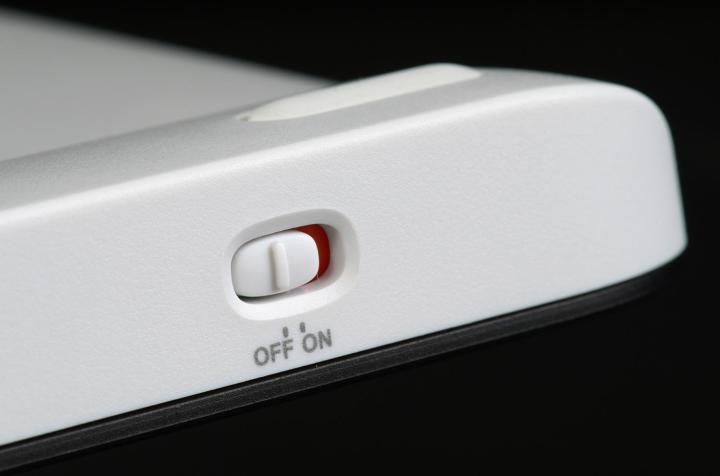
Switch the on/off button
Sometimes the solution to the issue of a locked keyboard can be as simple as flipping a switch. In the case of wireless keyboards, the majority of them have an on/off button in order to preserve the battery. Check if the button is switched on.
Consider replacing the battery, as that may have run out of juice. It might be that you’re out of battery rather than dealing with a locked keyboard.
Updating drivers
The keyboard may have stopped working because the driver is outdated or a system glitch may have corrupted it. Whatever the case may be, updating the keyboard drivers may unlock your locked keyboard.
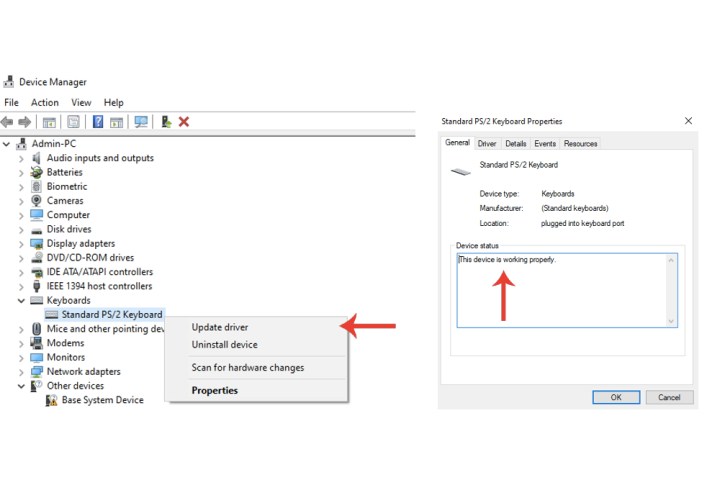
If you’re on Windows 10, you’ll need to go to your Device manager (Start menu > Windows system > Control panel > Device manager). For Windows 11, select Start menu > Settings > System > About > Device manager. Locate the keyboard driver by selecting the Keyboards field. Right-click on Standard PS/2 keyboard and choose the Update driver option. You’ll be required to restart your system once the update has been successfully completed.
Furthermore, if you select the Properties option from that same drop-down list, Windows will tell you if it finds any problems with the driver itself.
Do note that if you have a wireless keyboard, it may not show up as what’s listed for a standard laptop keyboard (Standard PS/2 keyboard).
Uninstalling and reinstalling drivers
If updating your driver fails to unlock your keyboard, try this method instead (use at your own risk).
Step 1: Go to Device manager on Windows. Right-click the keyboard entry and select the Uninstall device tab.
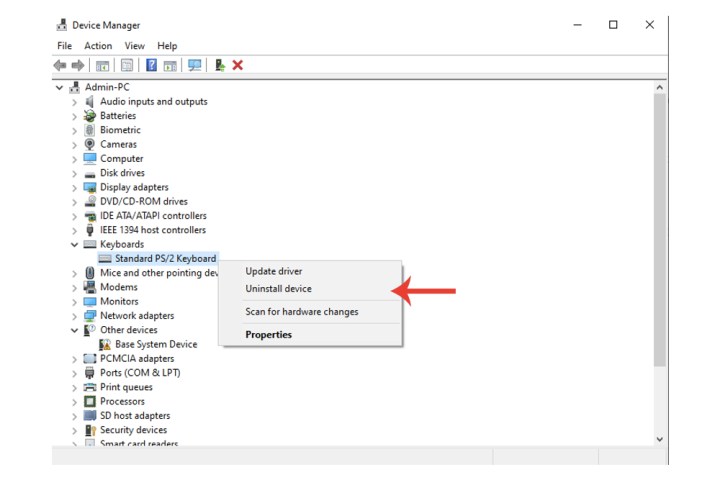
Step 2: Restart your PC. When it reboots, it should install the keyboard driver for you.
If it doesn’t, attach another keyboard to your system if you can, go to the manufacturer’s website for the locked keyboard, and download the necessary drivers.
Alternatively, follow this procedure on another machine entirely, save it to a USB/external hard drive, and use your mouse to install it on the affected system.
Disabling sticky and filter key functions on Windows 10/11
You may have accidentally locked your keyboard due to the sticky and filter key functions being enabled.
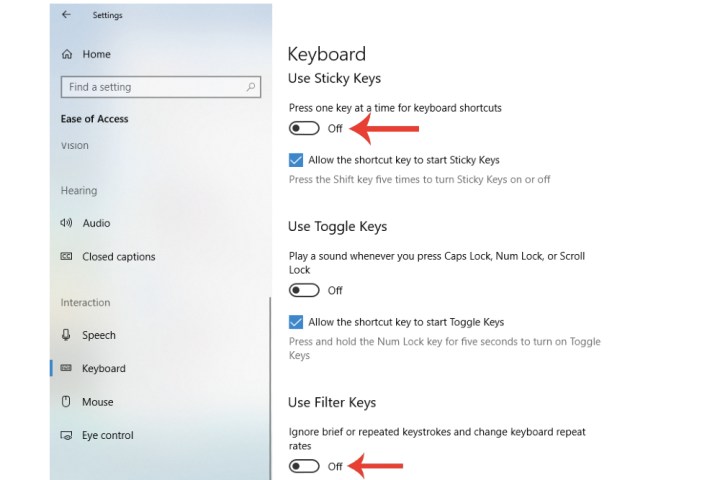
Step 1: On Windows 10, open Settings, and then select the Ease of access tab. Scroll down to the Interaction section on the sidebar and select Keyboard. Turn off Filter keys and Sticky keys with their corresponding switches with your mouse.
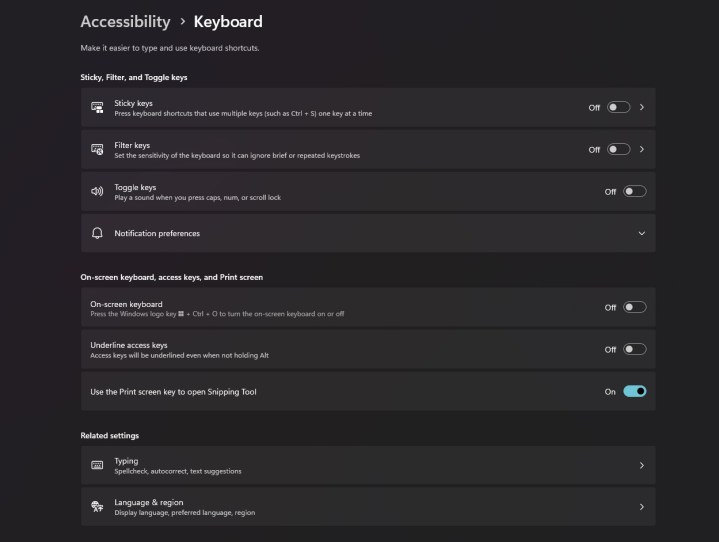
Step 2: Similarly for Windows 11, select the Start menu, open Settings and head over to the Accessibility section on the left under which you should find the Keyboard settings. On the top there should be toggles to turn off Sticky keys and Filter keys.
Other general solutions
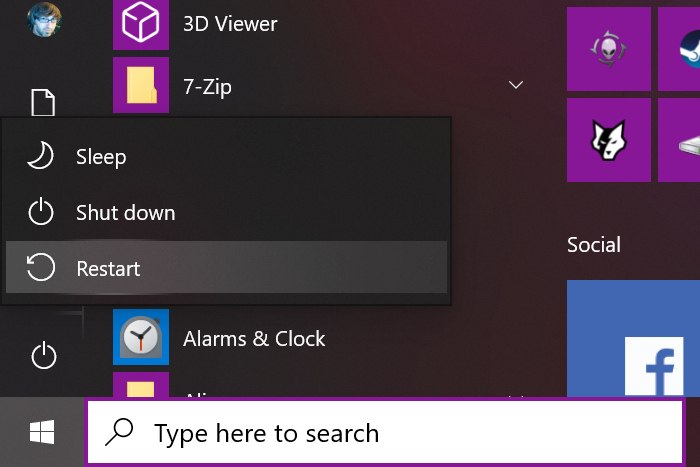
Step 1: Restart your computer: Yes, it might seem like an obvious solution, but you’d be surprised at how many people have unlocked the keyboard after just restarting their machine. Try it.
Step 2: On-screen keyboard: This is more of a temporary solution, but it’s still effective nevertheless. On Windows 10, open the Keyboard section within Ease of access and switch on the Use the on-screen keyboard button. If you are using Windows 11, you can find the toggle to enable on-screen keyboard by heading to Start > Settings > Accessibility > Keyboard.
This could at the very least allow you to type on your system, albeit via a much longer procedure. For example, you could type in the necessary search term for drivers that you can download for your keyboard (be sure to make sure it’s from the manufacture’s official website).

Step 3: Mechanical damage: Your keyboard may not be working anymore due to certain mechanical damage the product has been affected with. For example, you may have dropped it on the floor and that could have broken some of the modules inside the keyboard itself. Similarly, you may have spilled some water or coffee on it.
To this end, connect the keyboard to another system and see if it works. If it doesn’t, it’s likely you’ll simply need to buy a new keyboard. you can make an informed decision by checking out our favorite gaming keyboards, or if you want something more comfortable, then here are some of the best ergonomic keyboards.
If you have a laptop and none of the aforementioned fixes have unlocked your keyboard, then it may be time to get it examined at a trusted PC repair outlet.

Frequently asked questions
How do I get my keyboard out of lock mode?
When it comes to unlocking a locked keyboard, you actually have a number of solutions you can choose from. Some of these solutions include: making sure your dongles and cables are hooked up properly, restarting your PC, and updating or even reinstalling your keyboard drivers. If you need more details on how to use these solutions or other solutions you can try, please refer to the earlier sections of this article.
Why is my keyboard locked?
There are a wide variety of reasons that could be behind why a keyboard is locked. Here are some possible reasons:
- For wireless keyboards: It isn’t switched on or it needs a new battery.
- It’s not plugged in or its USB dongle isn’t fully inserted.
- The drivers are corrupted or outdated.
- Sticky keys or filter keys features have been enabled.
How do I fix my keyboard?
If you just need solutions for how to unlock your keyboard, take a look at the previous sections of this article for solutions you can try. But if you’re having other problems with your keyboard, you should check out our more comprehensive guide on how to fix a broken keyboard. That guide contains solutions to a lot of common keyboard problems such as: wrong character outputs, keys that jam, or slow responses to key presses.
If none of the tips we shared in our guides have helped your keyboard issue, you may need to take it to a professional to have it repaired. Or you may need to buy a new keyboard.
Editors’ Recommendations