



Amazon’s Fire TV, available on a variety of devices and built into some TVs, allows you to access all your content and even take it on the road with you. That includes the latest streaming hits on Prime Video, along with content from your other favorite streaming platforms, video games, and more. And with Alexa’s help, you can control both the Fire TV and your home from the comfort of your couch.
But if you’re frequently using Fire TV as your entertainment hub, there are a few settings tricks that you should know, like how to increase your privacy or how to make your viewing a little quieter. We’ll help you get started with these quick tips and tweaks to get the most out of your Amazon Fire TV while also fixing some of the little things that may have been bothering you.
Create different profiles for different users
When Fire TV first arrived, you could register your Amazon account, but there wasn’t a way to create separate user profiles, such as one for each person in the family or roommates in a house or apartment. But that feature is available now, allowing you to create one primary profile and up to five secondary profiles for personalization, such as watch lists, viewing history, and recommendations. Here’s how to create profiles.
Step 1: On the startup screen of your Fire TV, look at the icons on the left side. You should see an icon that says Profiles. You can also press your Alexa button on the remote and say, “Profiles.”
Step 2: Select Add profile.
Step 3: Choose if this is an adult profile or a child profile (for children younger than 12, the child profile adds extra restrictions and protections).
Step 4: Choose a name and icon, and you’re done.
Keep in mind that profiles are not available for Fire TV (1st-generation), Fire TV (2nd-generation), or the Fire TV Stick (1st-generation).
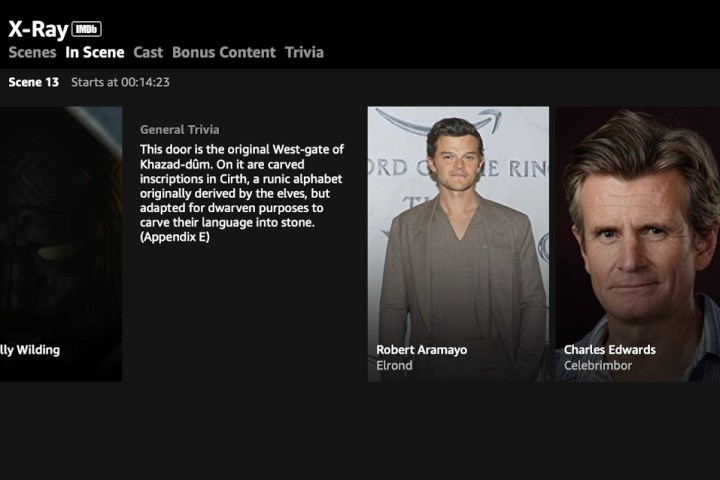
Find out more about what you’re watching
You’ve probably seen that when you pause Prime Video, you’ll get an overlay that pops up with information about the actors on screen and more. But you can go a lot deeper, too. When you’re watching something, press Up on your Fire TV remote, and you’ll get the full “X-Ray” dive into the current scene, behind the scenes, information on the cast and actors, and more, all powered by the Amazon-owned IMDb. It’s an easy way to learn more or to get some nice reminders if you can’t keep up with all the characters on your favorite show.
Turn off the navigation noises
Fire TV uses little navigation clicks when you move between icons and make selections. Sometimes this can get very annoying, especially if you’re browsing through a lot of different titles. Fortunately, Amazon included a way to shut it off.
Step 1: Select Settings. You can find the icon, instruct Alexa to go there, or (our preferred option), press and hold the remote Home button to bring Settings up immediately.
Step 2: Select Display & sounds.
Step 3: Select Audio.
Step 4: Disable the navigation sounds.
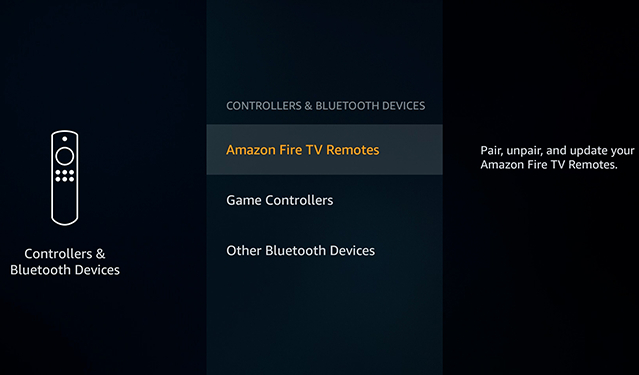
Switch to your Bluetooth headphones
Sometimes you need to be quiet while watching shows on Fire TV or booting up a game. Fortunately, Fire TV supports Bluetooth headphones, and all Fire TV options have Bluetooth support, so you should be able to quickly switch to headphones or earbuds. This is also how you can connect a wireless controller for Amazon games!
Step 1: Make sure your Bluetooth headphones are on and in their pairing mode.
Step 2: Head to Settings on Fire TV.
Step 3: Choose Controllers & Bluetooth devices.
Step 4: Select Other Bluetooth devices.
Step 5: Wait for Fire TV to pick up your Bluetooth headphones, and pair them.
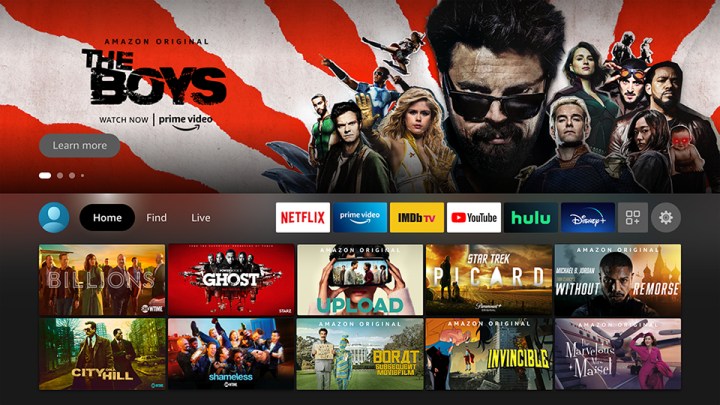
Turn off autoplay
For some reason, autoplay continues to haunt TV streaming apps, blasting you with sound and video clips from advertised content or the current show you’re looking at. Fortunately, you aren’t stuck with soul-sapping autoplay on Fire TV, as Amazon (unlike some others) gives you a way to turn it off.
Step 1: Head to Settings from the Fire TV Home page or via remote.
Step 2: Go to Preferences.
Step 3: Select Featured content. Here, you will find options to disable autoplay video, autoplay audio, or both.
Step 4: You may want to spend some time in Preferences to tweak other things to your liking once you’re gotten rid of autoplay.
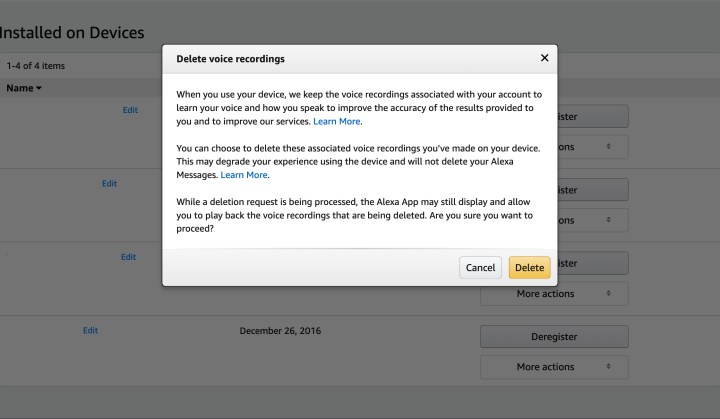
Improve your privacy
Privacy is an understandable concern when dabbling with streaming services and voice assistants. Alexa has her own privacy settings you can disable, but there are other steps you can take on Fire TV to make things less invasive.
Step 1: Amazon has a page dedicated to all the devices registered to your account. Navigate to it here. You can choose your Fire TV or the Alexa app.
Step 2: In the Actions tab, you can select Delete voice recordings, and in some cases, Delete location history. For maximum privacy, you may want to do both. You can adjust Alexa settings to automatically delete voice command recordings after a certain time, too.
Step 3: Now navigate to your Fire TV Home screen and choose to go to Settings once more.
Step 4: Select Preferences > Privacy settings.
Step 5: Choose Interest-based ads and disable them. Now your Fire TV won’t give you any targeted ads … although you will still get the standard ads.
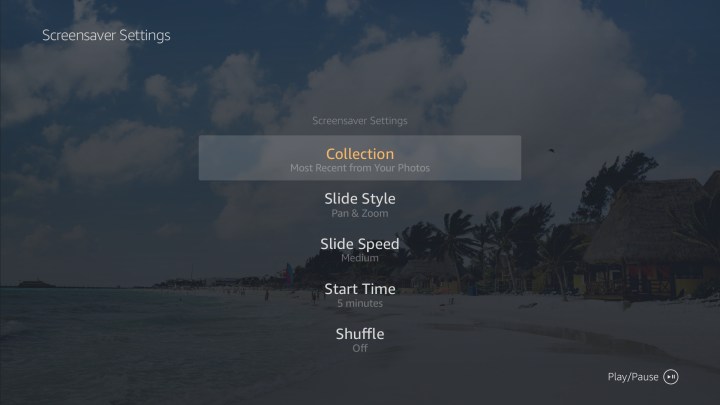
Choose your own screensaver slideshow
Fire TV has a slideshow mode that it will enter if it isn’t being used for a certain period of time, showing various nature scenes to help entertain your dog or spare your OLED TV from burn-in. But if you don’t like the default slideshow, you can customize it if you use Prime Photos to store your photos in Amazon’s cloud storage. Prime members get free, unlimited photo storage, so you can easily transfer your photos from elsewhere before you get started.
Step 1: Go to Settings.
Step 2: Go to Display & sounds.
Step 3: Choose Screensaver. Here, you can pick from photo collections you have saved in Prime Photos and choose how fast the slideshow goes.
Use the Fire TV remote app
Older Fire TV remotes don’t have voice command options or in some cases, you may find the remote layout clunky to use. But there’s an alternative! You can download the Amazon Fire TV app to your phone or tablet and use it and its built-in voice commands instead of relying on the remote (also very handy when traveling with a Fire TV Stick). You can download it here for Android and here for iOS.
Editors’ Recommendations