

Close Menu
Best in TechnologyBest in Technology
  • News
  • Phones
  • Laptops
  • Gadgets
  • Gaming
  • AI
  • Tips
  • More
    • Web Stories
    • Global
    • Press Release

Subscribe to Updates

Get the latest tech news and updates directly to your inbox.

What's On
Google Health just made Fitbit Air a better fit for Apple Health users

Google Health just made Fitbit Air a better fit for Apple Health users

4 August 2026
Did an AI Music App Just Snitch on the Song of the Summer?

Did an AI Music App Just Snitch on the Song of the Summer?

4 August 2026
Pwnage’s new gaming mouse lets users adjust click force and travel with a screwdriver

Pwnage’s new gaming mouse lets users adjust click force and travel with a screwdriver

4 August 2026
Facebook X (Twitter) Instagram
Just In
  • Google Health just made Fitbit Air a better fit for Apple Health users
  • Did an AI Music App Just Snitch on the Song of the Summer?
  • Pwnage’s new gaming mouse lets users adjust click force and travel with a screwdriver
  • Dave Bautista Reportedly In Talks To Replace Injured Ryan Hurst
  • Volvo’s purported EX50 could be the budget-friendly plot twist nobody saw coming
  • Xbox may have a surprisingly smart plan for keeping physical games alive
  • The SpaceX Falcon Lunar Crash Is a Warning for Moon Bases
  • MSI’s new 4K 120Hz OLED monitor uses inkjet tech that could make premium screens cheaper
Facebook X (Twitter) Instagram Pinterest Vimeo
Best in TechnologyBest in Technology
  • News
  • Phones
  • Laptops
  • Gadgets
  • Gaming
  • AI
  • Tips
  • More
    • Web Stories
    • Global
    • Press Release
Subscribe
Best in TechnologyBest in Technology
Home » How to check how much RAM you have on Windows and Mac
News

How to check how much RAM you have on Windows and Mac

News RoomBy News Room27 April 20244 Mins Read
Share Facebook Twitter Pinterest LinkedIn Tumblr Reddit Telegram Email
How to check how much RAM you have on Windows and Mac
Share
Facebook Twitter LinkedIn Pinterest Email

You can only know if you have enough RAM, if you know how to check how much you have. Fortunately, doing so is super quick and easy and then you can decide whether you want to upgrade your memory — here’s how to choose new memory sticks — or whether you have enough for what you need to do.

You certainly don’t need to buy more or new RAM just for the sake of it, and if you have enough for what you need, more memory won’t make much difference anyway.

Here’s how to check how much RAM you have in your PC or laptop.

How to check how much RAM you have in Windows 10 and 11

In Windows 10 and 11, finding out how much RAM you need is a simple task requiring just a few easy steps.

Note: The screenshots below are for Windows 11, and though Windows 10 looks different, the steps are identical.

Step 1: Open the Settings app. The easiest way is to right-click on the Windows icon and select Settings.

Step 2: In the Settings app, select System then navigate to the bottom and select About.
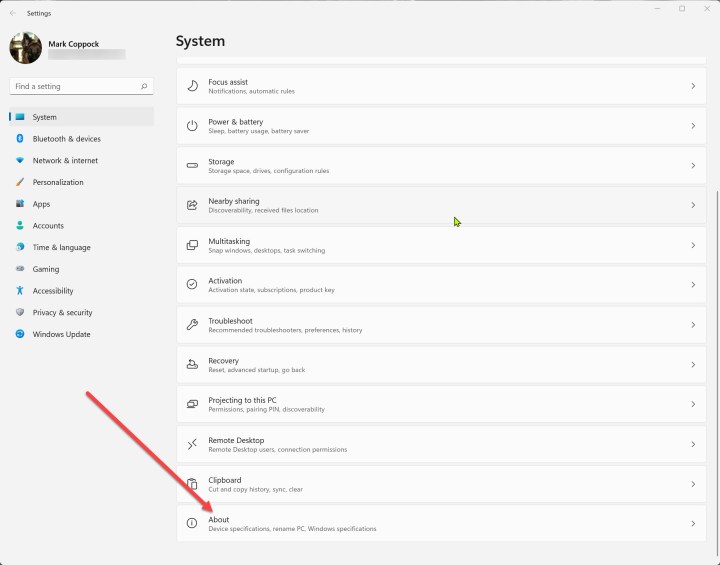
Opening Settings > About in Windows 11.

Step 3: You’ll find your installed RAM listed under Device Specifications.

System > About information in Windows 11.

How to check how much RAM you have in MacOS

MacOS also makes it easy to see how much RAM you have.

Step 1: Click the Apple menu and select About This Mac.
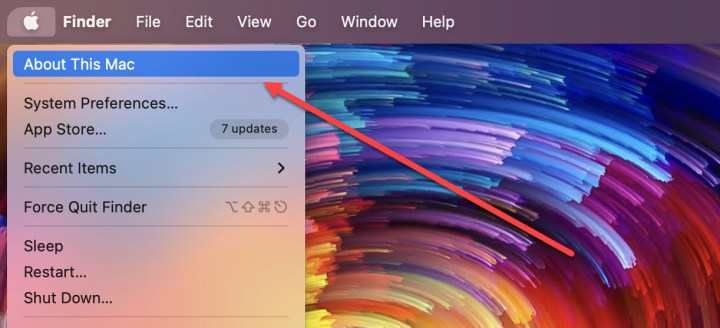
Selecting About This Mac in Mac OS.

Step 2: The Overview tab should be selected by default. The amount of installed RAM will be displayed next to Memory.
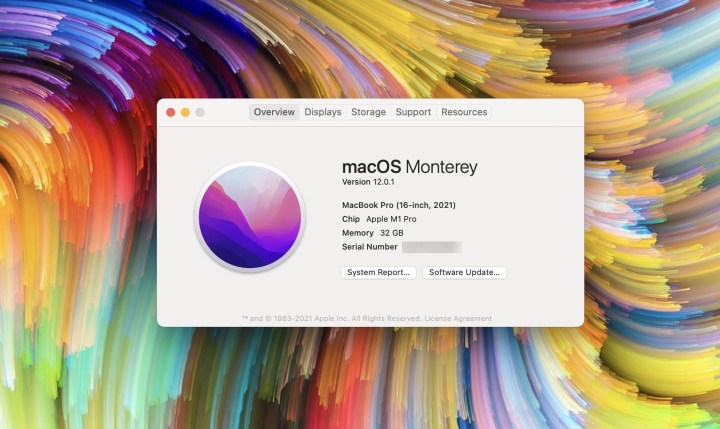
System overview information in Mac OS.

How to check how much RAM you have in Chrome OS

Checking how much RAM your PC has in Chrome OS is a little less straightforward, but still easy enough.

Step 1: Open the Chrome browser and type “chrome://system” in the search bar. Select Enter.

Opening system info in Chrome OS.

Step 2: Scroll down to meminfo in the list. Select the Expand button.

Navigate to meminfo in Chrome OS.

Step 3: The amount of RAM in your PC will be listed next to MemTotal, in kilobytes (kB). Divide by 1,048,576 to get the amount in gigabytes (GB) that’s not being used by the Chrome OS system, then round up to get the amount of installed RAM. For example, the Chromebook used in this how-to shows 16248736kB. When divided by 1,048,567, the result is 15.59GB. Round that up to 16GB, which is the amount I already know is installed in the laptop.

how to check much ram you have expand mem info

How to check how much RAM you have FAQ

  • How do I tell how much RAM I have?

That depends on your device and operating system. Check the sections above if you’re on a Windows PC or laptop, Apple Mac or MacBook, or a Chromebook. For a phone or tablet, you’ll want to look at your device settings, or on the manufacturer’s website.

  • How to check maximum RAM capacity?

Maximum RAM capacity can relate to a physical maximum, such as only having a certain number of slots to install RAM. In other cases it can relate to the design of the product — Apple’s latest generation MacBooks, for example, have unified memory on the CPU, so the maximum you can get is the RAM it came with.

Look on you manufacturer’s website or in the manual to find out how much RAM you device can take.

This depends on the device and what you want to do with it. For a standard PC used for web browsing, emails, and social media, 16GB is plenty, and for a low-end laptop or tablet, it would be complete overkill. However, if you want to play demanding games, do some video editing, or 3D design work, you really want 32GB of RAM or more.

Editors’ Recommendations


Share. Facebook Twitter Pinterest LinkedIn Tumblr Email
Previous ArticleThe Best iPad Accessories
Next Article The Legend Of Zelda: Phantom Hourglass | Replay

Related Articles

Google Health just made Fitbit Air a better fit for Apple Health users
News

Google Health just made Fitbit Air a better fit for Apple Health users

4 August 2026
Did an AI Music App Just Snitch on the Song of the Summer?
News

Did an AI Music App Just Snitch on the Song of the Summer?

4 August 2026
Pwnage’s new gaming mouse lets users adjust click force and travel with a screwdriver
News

Pwnage’s new gaming mouse lets users adjust click force and travel with a screwdriver

4 August 2026
Volvo’s purported EX50 could be the budget-friendly plot twist nobody saw coming
News

Volvo’s purported EX50 could be the budget-friendly plot twist nobody saw coming

3 August 2026
Xbox may have a surprisingly smart plan for keeping physical games alive
News

Xbox may have a surprisingly smart plan for keeping physical games alive

3 August 2026
The SpaceX Falcon Lunar Crash Is a Warning for Moon Bases
News

The SpaceX Falcon Lunar Crash Is a Warning for Moon Bases

3 August 2026
Demo
Top Articles
5 laptops to buy instead of the M4 MacBook Pro

5 laptops to buy instead of the M4 MacBook Pro

17 November 2024133 Views
ChatGPT o1 vs. o1-mini vs. 4o: Which should you use?

ChatGPT o1 vs. o1-mini vs. 4o: Which should you use?

15 December 2024111 Views
Costco partners with Electric Era to bring back EV charging in the U.S.

Costco partners with Electric Era to bring back EV charging in the U.S.

28 October 2024100 Views

Subscribe to Updates

Get the latest tech news and updates directly to your inbox.

Latest News
Xbox may have a surprisingly smart plan for keeping physical games alive News

Xbox may have a surprisingly smart plan for keeping physical games alive

News Room3 August 2026
The SpaceX Falcon Lunar Crash Is a Warning for Moon Bases News

The SpaceX Falcon Lunar Crash Is a Warning for Moon Bases

News Room3 August 2026
MSI’s new 4K 120Hz OLED monitor uses inkjet tech that could make premium screens cheaper News

MSI’s new 4K 120Hz OLED monitor uses inkjet tech that could make premium screens cheaper

News Room3 August 2026
Most Popular
The Spectacular Burnout of a Solar Panel Salesman

The Spectacular Burnout of a Solar Panel Salesman

13 January 2025137 Views
5 laptops to buy instead of the M4 MacBook Pro

5 laptops to buy instead of the M4 MacBook Pro

17 November 2024133 Views
ChatGPT o1 vs. o1-mini vs. 4o: Which should you use?

ChatGPT o1 vs. o1-mini vs. 4o: Which should you use?

15 December 2024111 Views
Our Picks
Dave Bautista Reportedly In Talks To Replace Injured Ryan Hurst

Dave Bautista Reportedly In Talks To Replace Injured Ryan Hurst

3 August 2026
Volvo’s purported EX50 could be the budget-friendly plot twist nobody saw coming

Volvo’s purported EX50 could be the budget-friendly plot twist nobody saw coming

3 August 2026
Xbox may have a surprisingly smart plan for keeping physical games alive

Xbox may have a surprisingly smart plan for keeping physical games alive

3 August 2026

Subscribe to Updates

Get the latest tech news and updates directly to your inbox.

Facebook X (Twitter) Instagram Pinterest
  • Privacy Policy
  • Terms of use
  • Advertise
  • Contact Us
© 2026 Best in Technology. All Rights Reserved.

Type above and press Enter to search. Press Esc to cancel.