

Close Menu
Best in TechnologyBest in Technology
  • News
  • Phones
  • Laptops
  • Gadgets
  • Gaming
  • AI
  • Tips
  • More
    • Web Stories
    • Global
    • Press Release

Subscribe to Updates

Get the latest tech news and updates directly to your inbox.

What's On
Your holiday photos could help scammers figure out exactly where you are

Your holiday photos could help scammers figure out exactly where you are

16 August 2026
I tried this Mac music app, and now I wish macOS had it built-in

I tried this Mac music app, and now I wish macOS had it built-in

16 August 2026
I Tested the Best Cat Water Fountains—These Are Worth Buying

I Tested the Best Cat Water Fountains—These Are Worth Buying

16 August 2026
Facebook X (Twitter) Instagram
Just In
  • Your holiday photos could help scammers figure out exactly where you are
  • I tried this Mac music app, and now I wish macOS had it built-in
  • I Tested the Best Cat Water Fountains—These Are Worth Buying
  • Meta and Google just got beaten by an AI giant you might not expect
  • It’s Never Too Early to Start Planning for the Next Two Solar Eclipses
  • I played around with the Pixel 11 Pro Fold. I think Google finally saw the right focus points
  • Someone Finally Fixed Installing Apps on a Mac
  • Review: TerraMow V1000
Facebook X (Twitter) Instagram Pinterest Vimeo
Best in TechnologyBest in Technology
  • News
  • Phones
  • Laptops
  • Gadgets
  • Gaming
  • AI
  • Tips
  • More
    • Web Stories
    • Global
    • Press Release
Subscribe
Best in TechnologyBest in Technology
Home » How to connect an iPhone to a Mac with or without a cable
News

How to connect an iPhone to a Mac with or without a cable

News RoomBy News Room14 April 20245 Mins Read
Share Facebook Twitter Pinterest LinkedIn Tumblr Reddit Telegram Email
How to connect an iPhone to a Mac with or without a cable
Share
Facebook Twitter LinkedIn Pinterest Email

Connecting your iPhone to a Mac computer is relatively easy to do. With options for wired and wireless connectivity, hooking your iOS device up to your MacBook or Mac mini unlocks a world of options. Not only will you be able to upload media to your phone, but you can also use your computer to load firmware updates onto your mobile device. And today, we’re going to teach you how to get your new or old iPhone ready for a wired or wireless handshake.

Here’s a guide on how to connect your device to a Mac, with or without a USB-C or Lightning cable attached.

Connect an iPhone to Mac using a cable

To sync content, remove data and settings, or update your iPhone, you can use a cable to connect it to your Mac. You’ll simply use the charging cable for your iPhone to make the connection. However, depending on which device models you own, you may need an adapter.

If your iPhone uses a Lightning to USB cable and your Mac has a USB port, you can simply plug it right in. But if your Mac only has a USB-C port, for instance, a MacBook Pro 2021, you’ll need an adapter. On the other hand, if your iPhone uses a USB-C to Lightning cable and your computer only has a USB port, like with the MacBook Air M1, 2020, it’s recommended that you utilize a Lightning to USB cable to make the connection.

The bottom line is that unless you have an iPhone cable and a Mac port with matching connectors, you’ll need to grab an adapter (or the appropriate cable) to physically connect it.

If you’re able to make this connection, whether with an adapter or not, you can use Finder on macOS Catalina or later to work with your data as well as update your iPhone. You’ll find these steps below.

If you’re running an older version of macOS, before Catalina, you’ll use iTunes to perform these actions.

Step 1: Plug your phone into your computer and open Finder.

Step 2: In the sidebar, select your iPhone in the Locations section.

Step 3: You may be asked to Trust the device or update your iPhone to the latest iOS version if you haven’t already. Simply follow the prompts for these actions.

Step 4: Then, use the various tabs at the top, directly below your iPhone details, to work with the content you need in Finder.
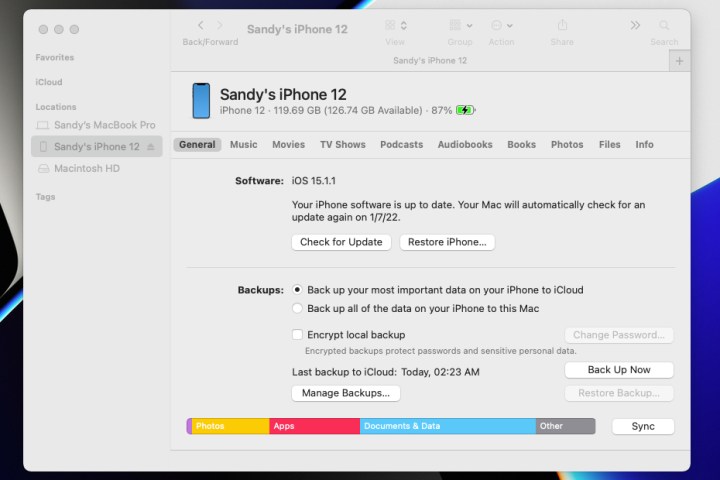
iPhone details in Finder on Mac.

Step 5: Plugging in your iPhone every time that you want to sync data can be exhausting. That’s why Apple has added a method to switch to Wi-Fi syncing after your first big setup.

In Finder, check that your iPhone is still selected, and that you are in the General section. Under Options, select Show this iPhone when on Wi-Fi. Choose Apply. Now you can visit the syncing menu in Finder without needing a cable connection.
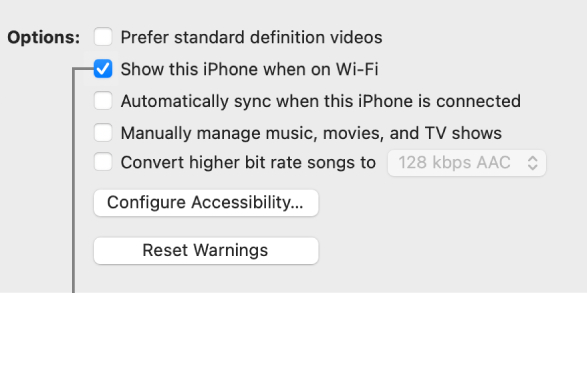
Sync iPhone on Wi-Fi.

Step 6: When you finish and want to disconnect your iPhone, click the Eject icon to the right of it in the Finder sidebar. You can then safely unplug the cable from your iPhone and Mac.
android nearby share stacks up against apple airdrop iphone

Connect an iPhone to Mac via Bluetooth

To make a wireless connection from your iPhone to your Mac and take advantage of features like Handoff, AirPlay, AirDrop, Continuity Camera, Instant Hotspot, and Universal Clipboard, make sure the following are in place.

Step 1: Check that your iPhone and Mac are connected to the same Wi-Fi network.

Step 2: Connect your iPhone to your Mac via Bluetooth. If you haven’t paired the devices before, select the Bluetooth symbol in the upper-right menu of macOS and select Bluetooth preferences. Keep your iPhone near and turned on, and wait for your macOS to detect it so you can pair the devices by choosing Connect. Enter any necessary authentication.
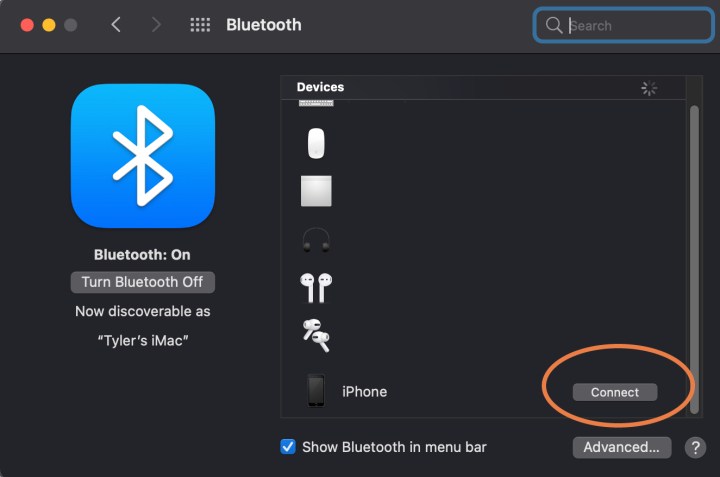
Connect iPhone with Bluetooth.

Step 3: On your iPhone, go to Settings > General > AirPlay & Handoff. Make sure Handoff is enabled. Now, with any app that works with Handoff, you can see a Handoff icon in your Mac’s dock that you can use to switch to your iPhone.
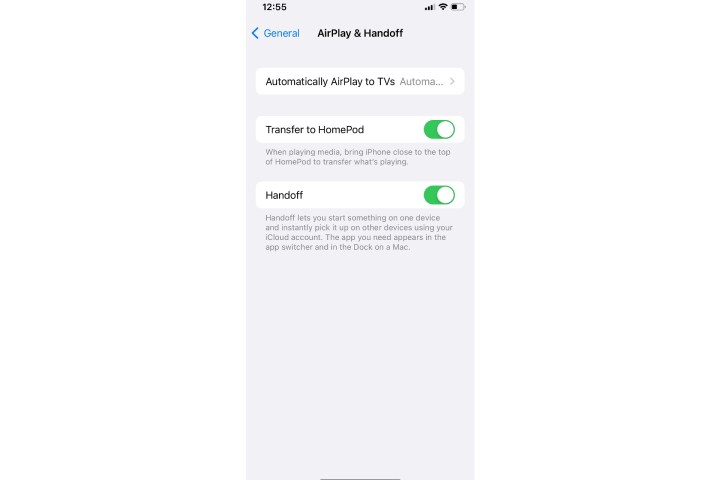
Enable Handoff on iPhone.

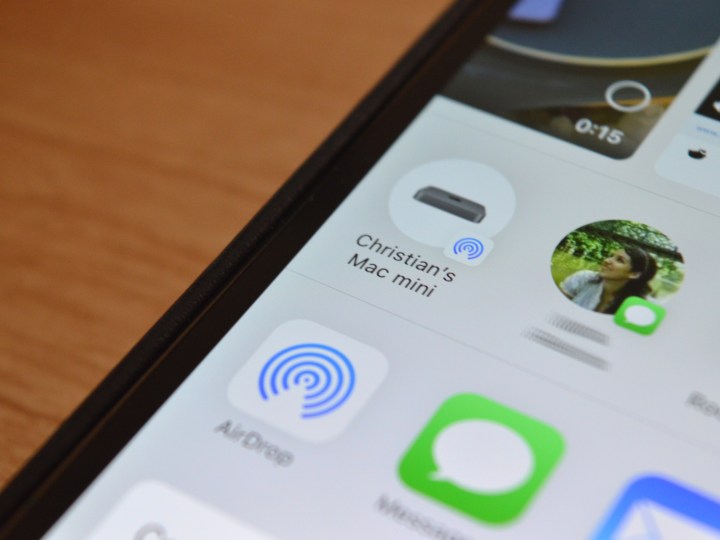
Step 4: If you want to use AirDrop, you don’t have to worry about a Bluetooth connection, just make sure your devices are on the same Wi-Fi network. Then choose the Share option on a device like your iPhone, and you should see all available options appear. AirDrop will have its radar-like icon next to compatible devices.

Step 5: To use Continuity Camera features, open a compatible app and Control-click on the spot where you want to place content. This will open an insert menu: Select the option that says Import from iPhone or iPad.

You will now see several options available depending on what devices are connected. Take photo will open the Camera on your iPhone so you can snap a photo that will then be inserted on your Mac. Scan documents will do something very similar but save it as a PDF.
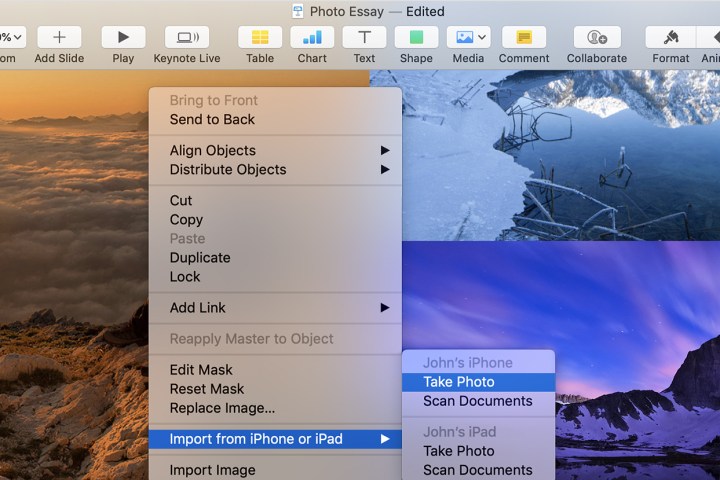
iPhone Continuity on Mac.

What about using Sidecar with my iPhone?

Sidecar is only designed for iPads, and at this time, cannot be used with iPhones. Sidecar is meant to provide a second screen for your Mac work, and iPhones aren’t quite big enough to be very useful here. Likewise, Universal Control is designed to work with iPads or MacBooks.

Whether you need to connect a physical cable to work with data in Finder or want to connect wirelessly to use the Continuity features, it’s easy to connect your iPhone to your Mac. If you’re thinking about getting a new iPhone, take a look at our comparison of these two popular iPhone 15 models, too.

Editors’ Recommendations


Share. Facebook Twitter Pinterest LinkedIn Tumblr Email
Previous ArticleThe Best Smartwatches
Next Article Review: Rolser Wallaby Tweed 2-Wheel Foldable Shopping Trolley

Related Articles

Your holiday photos could help scammers figure out exactly where you are
News

Your holiday photos could help scammers figure out exactly where you are

16 August 2026
I tried this Mac music app, and now I wish macOS had it built-in
News

I tried this Mac music app, and now I wish macOS had it built-in

16 August 2026
I Tested the Best Cat Water Fountains—These Are Worth Buying
News

I Tested the Best Cat Water Fountains—These Are Worth Buying

16 August 2026
Meta and Google just got beaten by an AI giant you might not expect
News

Meta and Google just got beaten by an AI giant you might not expect

16 August 2026
It’s Never Too Early to Start Planning for the Next Two Solar Eclipses
News

It’s Never Too Early to Start Planning for the Next Two Solar Eclipses

16 August 2026
I played around with the Pixel 11 Pro Fold. I think Google finally saw the right focus points
News

I played around with the Pixel 11 Pro Fold. I think Google finally saw the right focus points

16 August 2026
Demo
Top Articles
5 laptops to buy instead of the M4 MacBook Pro

5 laptops to buy instead of the M4 MacBook Pro

17 November 2024133 Views
ChatGPT o1 vs. o1-mini vs. 4o: Which should you use?

ChatGPT o1 vs. o1-mini vs. 4o: Which should you use?

15 December 2024112 Views
Costco partners with Electric Era to bring back EV charging in the U.S.

Costco partners with Electric Era to bring back EV charging in the U.S.

28 October 2024100 Views

Subscribe to Updates

Get the latest tech news and updates directly to your inbox.

Latest News
I played around with the Pixel 11 Pro Fold. I think Google finally saw the right focus points News

I played around with the Pixel 11 Pro Fold. I think Google finally saw the right focus points

News Room16 August 2026
Someone Finally Fixed Installing Apps on a Mac News

Someone Finally Fixed Installing Apps on a Mac

News Room16 August 2026
Review: TerraMow V1000 News

Review: TerraMow V1000

News Room16 August 2026
Most Popular
The Spectacular Burnout of a Solar Panel Salesman

The Spectacular Burnout of a Solar Panel Salesman

13 January 2025137 Views
5 laptops to buy instead of the M4 MacBook Pro

5 laptops to buy instead of the M4 MacBook Pro

17 November 2024133 Views
ChatGPT o1 vs. o1-mini vs. 4o: Which should you use?

ChatGPT o1 vs. o1-mini vs. 4o: Which should you use?

15 December 2024112 Views
Our Picks
Meta and Google just got beaten by an AI giant you might not expect

Meta and Google just got beaten by an AI giant you might not expect

16 August 2026
It’s Never Too Early to Start Planning for the Next Two Solar Eclipses

It’s Never Too Early to Start Planning for the Next Two Solar Eclipses

16 August 2026
I played around with the Pixel 11 Pro Fold. I think Google finally saw the right focus points

I played around with the Pixel 11 Pro Fold. I think Google finally saw the right focus points

16 August 2026

Subscribe to Updates

Get the latest tech news and updates directly to your inbox.

Facebook X (Twitter) Instagram Pinterest
  • Privacy Policy
  • Terms of use
  • Advertise
  • Contact Us
© 2026 Best in Technology. All Rights Reserved.

Type above and press Enter to search. Press Esc to cancel.