



Close Menu
Best in TechnologyBest in Technology
  • News
  • Phones
  • Laptops
  • Gadgets
  • Gaming
  • AI
  • Tips
  • More
    • Web Stories
    • Global
    • Press Release

Subscribe to Updates

Get the latest tech news and updates directly to your inbox.

What's On
Apple could soon launch a clamshell-style foldable iPhone to rival Samsung’s Flip

Apple could soon launch a clamshell-style foldable iPhone to rival Samsung’s Flip

1 February 2026
The Information Networks That Connect Venezuelans in Uncertain Times

The Information Networks That Connect Venezuelans in Uncertain Times

1 February 2026
You Asked: Desk-friendly TVs for work and gaming? Bigger Mini-LED vs. smaller OLED?

You Asked: Desk-friendly TVs for work and gaming? Bigger Mini-LED vs. smaller OLED?

1 February 2026
Facebook X (Twitter) Instagram
Just In
  • Apple could soon launch a clamshell-style foldable iPhone to rival Samsung’s Flip
  • The Information Networks That Connect Venezuelans in Uncertain Times
  • You Asked: Desk-friendly TVs for work and gaming? Bigger Mini-LED vs. smaller OLED?
  • Best Valentine’s Day Gifts (2026): Legos, Karaoke, Digital Frames, and More
  • How to Use Physics to Escape an Ice Bowl
  • Building a Watch Collection on a Budget? Here’s Where to Start
  • The Best Prepaid Phone Plans
  • The Best Date-Night Boxes
Facebook X (Twitter) Instagram Pinterest Vimeo
Best in TechnologyBest in Technology
  • News
  • Phones
  • Laptops
  • Gadgets
  • Gaming
  • AI
  • Tips
  • More
    • Web Stories
    • Global
    • Press Release
Subscribe
Best in TechnologyBest in Technology
Home » What to do when your Windows 11 laptop is plugged in but not charging
News

What to do when your Windows 11 laptop is plugged in but not charging

News RoomBy News Room27 June 20244 Mins Read
Share Facebook Twitter Pinterest LinkedIn Tumblr Reddit Telegram Email
What to do when your Windows 11 laptop is plugged in but not charging
Share
Facebook Twitter LinkedIn Pinterest Email

If you plugged your Windows 11 laptop in but is just isn’t charging, it might seem like all hope is lost and the laptop is dead — especially if it has no charge. However, we don’t need to jump to such pessimistic conclusion just yet. There are a few things that might fix it, and they’re well worth trying before giving up on it.

Here’s how to get your laptop charging again.

Clean the port

If you feel like the charger isn’t plugging all the way into the charge port, whether that’s a USB-C connection or more traditional barrel connector, have a look inside with a flashlight. It’s possible some debris or detritus has become lodged in there. If there is, turn the laptop off and remove the blockage with a non-conductive implement. Then try plugging the charger back in again to see if that fixed the issue.

If you want to make sure that no dirt is preventing charging, you can also clean the metallic contacts inside the charge port with a cotton swab soaked in a little isopropyl alcohol.
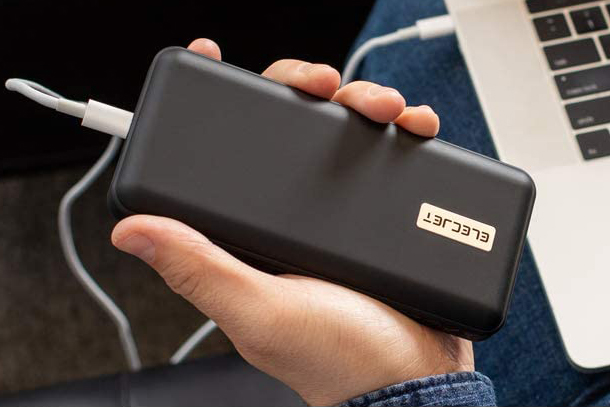
Man charging a laptop with the Elecjet PowerPie P20 45W Fast Portable Charger.

Change the charge cable (and charger)

If you can, try using a different laptop charger and charge cable. That’s a lot easier if you’re using a USB-C charger, as you can swap out the one you’re using for a power bank or smartphone charger. Although if that works, the charge speed will be terrible, but it’s still a good way to check if your charger or charge cable is at fault.

If you’re using a more traditional barrel power connector for the laptop, you may be out of luck unless you know someone with the same laptop you can borrow a charger from. Don’t go around plugging in random chargers that physically fit — that could damage the laptop (further).

Reinstalling battery drivers on a laptop.

Reinstall your battery drivers

Did you know that your battery has its own drivers? While they shouldn’t run into problems, sometimes a Windows update or some other software change can cause a problem with them. Reinstalling them can fix a number of issues, including not charging.

Step 1: Search for “Device manager” in Windows search and select the corresponding result.

Step 2: Look down the list of devices for “Batteries” and select the arrow next to it.

Step 3: Right-click on each item and select Uninstall to uninstall your battery drivers. Don’t worry, they’ll be reinstalled when you reboot your laptop.

Step 4: Shut down the laptop, and if it’s plugged in, remove the power cable. Press and hold the power button for 30 seconds.

Step 5: Plug everything back in again and boot up the laptop. It should now charge as you expect it to.

Run Windows update

It’s a general fix but it can work on a lot of things. Run Windows update to see if any updates fix the bug in your system. Reboot after they’ve installed and try charging your laptop again to see if that fixed it.

System restore

If you can’t get your laptop charging but you’re pretty sure changing something is what caused the issue, you can try restoring your laptop to a previous state. Run system restore and roll back to a date before you started having the charging issue.

For more tips, follow our system restore point guide.

Factory reset

If no matter what you do you can’t get the laptop to charge properly and it still has some power, you can try a factory reset. This turns the laptop back to how it was when you first turned it on. If a software bug has caused this charging problem, a factory reset should fix it.

Follow our guide on how to factory reset a laptop here.

Editors’ Recommendations


Share. Facebook Twitter Pinterest LinkedIn Tumblr Email
Previous ArticleAging Might Not Be Inevitable
Next Article Lenovo Legion Go With 8.8-inch Display, AMD Ryzen Z1 Extreme Chipset Launched in India

Related Articles

Apple could soon launch a clamshell-style foldable iPhone to rival Samsung’s Flip
News

Apple could soon launch a clamshell-style foldable iPhone to rival Samsung’s Flip

1 February 2026
The Information Networks That Connect Venezuelans in Uncertain Times
News

The Information Networks That Connect Venezuelans in Uncertain Times

1 February 2026
You Asked: Desk-friendly TVs for work and gaming? Bigger Mini-LED vs. smaller OLED?
News

You Asked: Desk-friendly TVs for work and gaming? Bigger Mini-LED vs. smaller OLED?

1 February 2026
Best Valentine’s Day Gifts (2026): Legos, Karaoke, Digital Frames, and More
News

Best Valentine’s Day Gifts (2026): Legos, Karaoke, Digital Frames, and More

1 February 2026
How to Use Physics to Escape an Ice Bowl
News

How to Use Physics to Escape an Ice Bowl

1 February 2026
Building a Watch Collection on a Budget? Here’s Where to Start
News

Building a Watch Collection on a Budget? Here’s Where to Start

1 February 2026
Demo
Top Articles
ChatGPT o1 vs. o1-mini vs. 4o: Which should you use?

ChatGPT o1 vs. o1-mini vs. 4o: Which should you use?

15 December 2024107 Views
5 laptops to buy instead of the M4 MacBook Pro

5 laptops to buy instead of the M4 MacBook Pro

17 November 2024101 Views
Costco partners with Electric Era to bring back EV charging in the U.S.

Costco partners with Electric Era to bring back EV charging in the U.S.

28 October 202497 Views

Subscribe to Updates

Get the latest tech news and updates directly to your inbox.

Latest News
Building a Watch Collection on a Budget? Here’s Where to Start News

Building a Watch Collection on a Budget? Here’s Where to Start

News Room1 February 2026
The Best Prepaid Phone Plans News

The Best Prepaid Phone Plans

News Room1 February 2026
The Best Date-Night Boxes News

The Best Date-Night Boxes

News Room1 February 2026
Most Popular
The Spectacular Burnout of a Solar Panel Salesman

The Spectacular Burnout of a Solar Panel Salesman

13 January 2025136 Views
ChatGPT o1 vs. o1-mini vs. 4o: Which should you use?

ChatGPT o1 vs. o1-mini vs. 4o: Which should you use?

15 December 2024107 Views
5 laptops to buy instead of the M4 MacBook Pro

5 laptops to buy instead of the M4 MacBook Pro

17 November 2024101 Views
Our Picks
Best Valentine’s Day Gifts (2026): Legos, Karaoke, Digital Frames, and More

Best Valentine’s Day Gifts (2026): Legos, Karaoke, Digital Frames, and More

1 February 2026
How to Use Physics to Escape an Ice Bowl

How to Use Physics to Escape an Ice Bowl

1 February 2026
Building a Watch Collection on a Budget? Here’s Where to Start

Building a Watch Collection on a Budget? Here’s Where to Start

1 February 2026

Subscribe to Updates

Get the latest tech news and updates directly to your inbox.

Facebook X (Twitter) Instagram Pinterest
  • Privacy Policy
  • Terms of use
  • Advertise
  • Contact Us
© 2026 Best in Technology. All Rights Reserved.

Type above and press Enter to search. Press Esc to cancel.