






Close Menu
Best in TechnologyBest in Technology
  • News
  • Phones
  • Laptops
  • Gadgets
  • Gaming
  • AI
  • Tips
  • More
    • Web Stories
    • Global
    • Press Release

Subscribe to Updates

Get the latest tech news and updates directly to your inbox.

What's On
E-Paper Works Best When Almost Nothing Is Happening

E-Paper Works Best When Almost Nothing Is Happening

17 August 2026
Kingdom Hearts IV Gets 2027 Launch Window – Aug 17, 2026

Kingdom Hearts IV Gets 2027 Launch Window – Aug 17, 2026

17 August 2026
Your Mac might have a screen sharing problem, and hackers already know about it

Your Mac might have a screen sharing problem, and hackers already know about it

17 August 2026
Facebook X (Twitter) Instagram
Just In
  • E-Paper Works Best When Almost Nothing Is Happening
  • Kingdom Hearts IV Gets 2027 Launch Window – Aug 17, 2026
  • Your Mac might have a screen sharing problem, and hackers already know about it
  • Marvel Cosmic Invasion Gets Doctor Doom DLC This Fall
  • Check Out The Final Pre-Launch Trailer For Star Wars Zero Company
  • MelGeek MADE68 Ultra V2 Review: Great for gaming, even better than I expected for typing
  • Hayden Panettiere, Actor Of Nashville, Heroes – Aug 17, 2026
  • A random TikTok video helped scientists discover a rare underground fish in India
Facebook X (Twitter) Instagram Pinterest Vimeo
Best in TechnologyBest in Technology
  • News
  • Phones
  • Laptops
  • Gadgets
  • Gaming
  • AI
  • Tips
  • More
    • Web Stories
    • Global
    • Press Release
Subscribe
Best in TechnologyBest in Technology
Home » What graphics card do I have? How to find out what GPU is in your system
News

What graphics card do I have? How to find out what GPU is in your system

News RoomBy News Room8 October 20243 Mins Read
Share Facebook Twitter Pinterest LinkedIn Tumblr Reddit Telegram Email
What graphics card do I have? How to find out what GPU is in your system
Share
Facebook Twitter LinkedIn Pinterest Email

Knowing what graphics card/GPU (that’s graphics processing unit) you have makes it much easier to know what games you can play. A high-end graphics card will unlock any game you like with advanced settings like ray tracing, while a weaker GPU might leave you unable to even start some newer AAA games. In that scenario, you’re going to need an upgrade.

Here’s how to find out what GPU you have in your PC, so you know whether what you have is enough, or you need to choose an upgrade from the best graphics cards around.

Check what graphics card you have on Windows

If you’re running Windows, the easiest and quickest way to check what graphics card you have is through the Task Manager. The screenshots below are from Windows 10, but the instructions work the same from Windows 7 right through to Windows 11.

Step 1: Press Ctrl *+ *Alt + Delete on your keyboard, then select Task Manager from the screen that pops up.

Alternatively, you can right-click the task bar and select Task Manager from there.
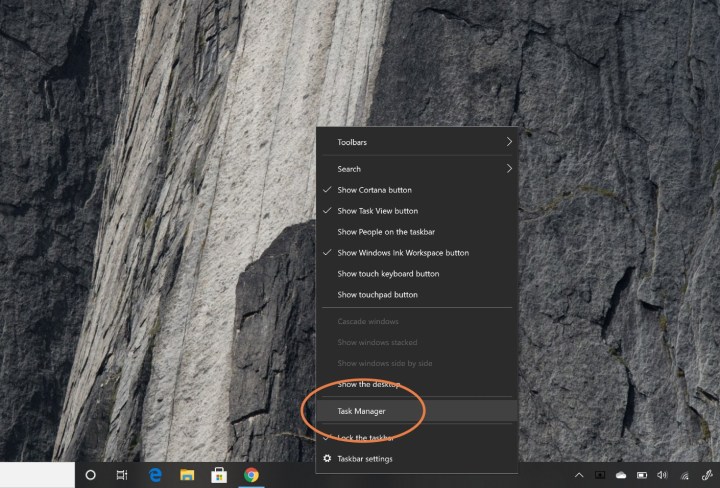
Opening Windows 10 Task Manager.

Step 2: If your task manager is in its minimized form, select More details at the bottom to unlock the full Task Manager.

Get your weekly teardown of the tech behind PC gaming

Step 3: Select the Performance tab at the top of the screen. This is where you’ll find all kinds of information on your processor, memory, storage, and graphics.
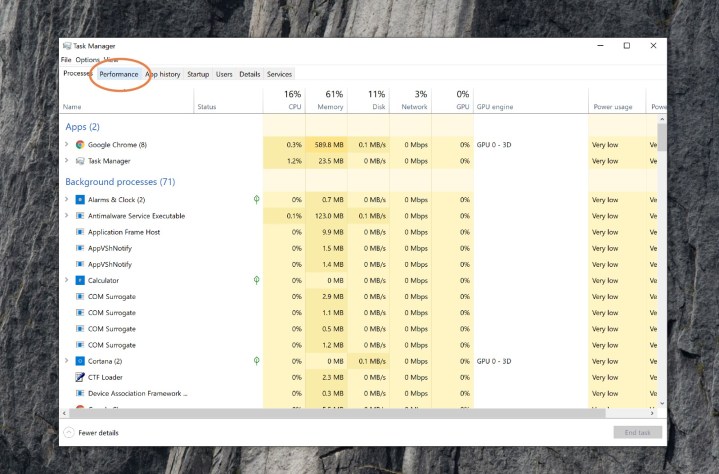
Windows 10 task manager.

Step 4: Scroll down the list on the left-hand side until you find GPU 0. Listed underneath that heading in the left-hand menu will be your graphics card.

If the name is truncated, as in this example, select it and you’ll see the full name of the graphics card or GPU in the top right. In this case, it’s an Nvidia RTX 3070 Ti.
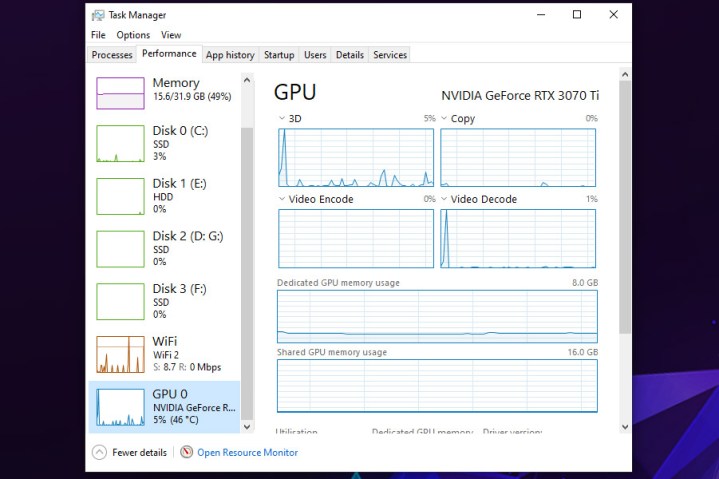
Windows 10 task manager performance tab.

Step 5: If you’re interested in learning more about your computer, you can also use Task Manager to look at details of your processor, memory, and storage, by selecting the individual elements along the left-hand side. This can be particularly handy if you’re looking to upgrade, or build yourself a new computer.
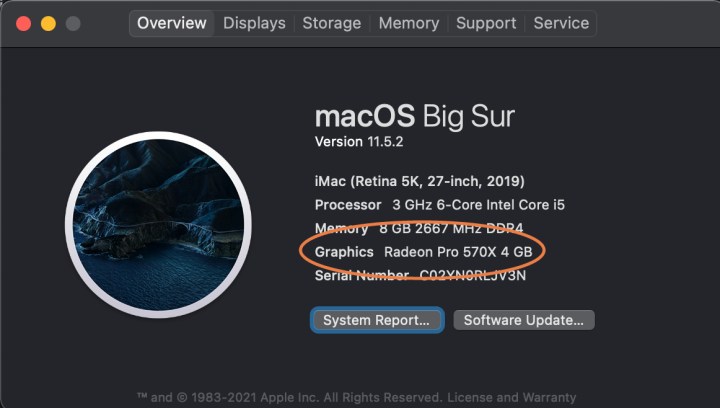
Find your Mac's Graphics information.

How to find out what graphics card you have on a Mac

You might not be able to upgrade your Mac in the same was as a PC, but if you want to optimize your Mac for gaming, then you’ll want to know what graphics card you have. Here’s how to find out what it is.

Step 1: Select the Apple icon in the upper-left side of the screen.

Step 2: From the menu that appears, select About this Mac.

Step 3: The window that appears will contain all the basic information about your Mac, including its processor, memory, storage drive, and its graphics card or GPU.

Buying a new GPU for your PC is invariably expensive. As such, it is important to do as much research as possible before committing to buy. Our guide on how to choose a graphics card can help set you in the right direction.




Share. Facebook Twitter Pinterest LinkedIn Tumblr Email
Previous ArticleOppo K12 Plus Launch Date Set for October 12; Design, Colours, Key Features Revealed
Next Article Dali’s IO-8 headphones promise ‘audiophile’ active noise cancellation

Related Articles

E-Paper Works Best When Almost Nothing Is Happening
News

E-Paper Works Best When Almost Nothing Is Happening

17 August 2026
Your Mac might have a screen sharing problem, and hackers already know about it
News

Your Mac might have a screen sharing problem, and hackers already know about it

17 August 2026
MelGeek MADE68 Ultra V2 Review: Great for gaming, even better than I expected for typing
News

MelGeek MADE68 Ultra V2 Review: Great for gaming, even better than I expected for typing

17 August 2026
A random TikTok video helped scientists discover a rare underground fish in India
News

A random TikTok video helped scientists discover a rare underground fish in India

17 August 2026
The US is trying to kick foreign robots out, but the local supply chain might not be there yet
News

The US is trying to kick foreign robots out, but the local supply chain might not be there yet

17 August 2026
The Galaxy Z Fold 8 Ultra is expensive to buy, and even more expensive to break
News

The Galaxy Z Fold 8 Ultra is expensive to buy, and even more expensive to break

17 August 2026
Demo
Top Articles
5 laptops to buy instead of the M4 MacBook Pro

5 laptops to buy instead of the M4 MacBook Pro

17 November 2024133 Views
ChatGPT o1 vs. o1-mini vs. 4o: Which should you use?

ChatGPT o1 vs. o1-mini vs. 4o: Which should you use?

15 December 2024112 Views
Costco partners with Electric Era to bring back EV charging in the U.S.

Costco partners with Electric Era to bring back EV charging in the U.S.

28 October 2024100 Views

Subscribe to Updates

Get the latest tech news and updates directly to your inbox.

Latest News
MelGeek MADE68 Ultra V2 Review: Great for gaming, even better than I expected for typing News

MelGeek MADE68 Ultra V2 Review: Great for gaming, even better than I expected for typing

News Room17 August 2026
Hayden Panettiere, Actor Of Nashville, Heroes – Aug 17, 2026 Gaming

Hayden Panettiere, Actor Of Nashville, Heroes – Aug 17, 2026

News Room17 August 2026
A random TikTok video helped scientists discover a rare underground fish in India News

A random TikTok video helped scientists discover a rare underground fish in India

News Room17 August 2026
Most Popular
The Spectacular Burnout of a Solar Panel Salesman

The Spectacular Burnout of a Solar Panel Salesman

13 January 2025137 Views
5 laptops to buy instead of the M4 MacBook Pro

5 laptops to buy instead of the M4 MacBook Pro

17 November 2024133 Views
ChatGPT o1 vs. o1-mini vs. 4o: Which should you use?

ChatGPT o1 vs. o1-mini vs. 4o: Which should you use?

15 December 2024112 Views
Our Picks
Marvel Cosmic Invasion Gets Doctor Doom DLC This Fall

Marvel Cosmic Invasion Gets Doctor Doom DLC This Fall

17 August 2026
Check Out The Final Pre-Launch Trailer For Star Wars Zero Company

Check Out The Final Pre-Launch Trailer For Star Wars Zero Company

17 August 2026
MelGeek MADE68 Ultra V2 Review: Great for gaming, even better than I expected for typing

MelGeek MADE68 Ultra V2 Review: Great for gaming, even better than I expected for typing

17 August 2026

Subscribe to Updates

Get the latest tech news and updates directly to your inbox.

Facebook X (Twitter) Instagram Pinterest
  • Privacy Policy
  • Terms of use
  • Advertise
  • Contact Us
© 2026 Best in Technology. All Rights Reserved.

Type above and press Enter to search. Press Esc to cancel.