




Close Menu
Best in TechnologyBest in Technology
  • News
  • Phones
  • Laptops
  • Gadgets
  • Gaming
  • AI
  • Tips
  • More
    • Web Stories
    • Global
    • Press Release

Subscribe to Updates

Get the latest tech news and updates directly to your inbox.

What's On
I tried to parody the most absurd AI products, but the tech industry beat me to it

I tried to parody the most absurd AI products, but the tech industry beat me to it

12 July 2026
The Pixel 11 is almost here, and these are the 3 upgrades I’m begging Google to make

The Pixel 11 is almost here, and these are the 3 upgrades I’m begging Google to make

12 July 2026
What is Copilot? Everything you need to know about Microsoft’s AI assistant

What is Copilot? Everything you need to know about Microsoft’s AI assistant

12 July 2026
Facebook X (Twitter) Instagram
Just In
  • I tried to parody the most absurd AI products, but the tech industry beat me to it
  • The Pixel 11 is almost here, and these are the 3 upgrades I’m begging Google to make
  • What is Copilot? Everything you need to know about Microsoft’s AI assistant
  • Scientists’ Side Hustle? Using AI and Quantum Computing to Generate New Peptides
  • The Best Robotic Pool Cleaners of 2026: Beatbot, iGarden, Dreame
  • NBA The Run Adds Campaign Mode In 2027
  • I bought into a brighter future, but my digital life bills monthly subscriptions
  • Here’s How Apple Is Updating Its Child Safety Features in iOS 27
Facebook X (Twitter) Instagram Pinterest Vimeo
Best in TechnologyBest in Technology
  • News
  • Phones
  • Laptops
  • Gadgets
  • Gaming
  • AI
  • Tips
  • More
    • Web Stories
    • Global
    • Press Release
Subscribe
Best in TechnologyBest in Technology
Home » How to use Nintendo Switch Joy-Cons on PC
News

How to use Nintendo Switch Joy-Cons on PC

News RoomBy News Room1 March 20243 Mins Read
Share Facebook Twitter Pinterest LinkedIn Tumblr Reddit Telegram Email
How to use Nintendo Switch Joy-Cons on PC
Share
Facebook Twitter LinkedIn Pinterest Email

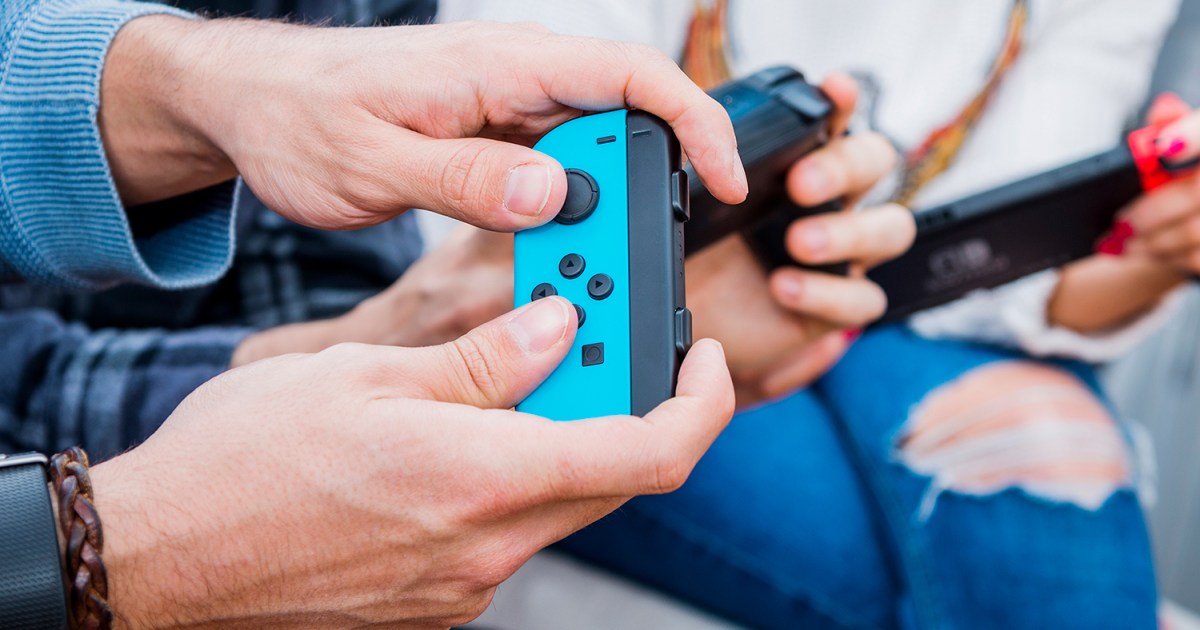
Nintendo’s Joy-Con controllers are both versatile and comfortable—so it’s a good thing you’re no longer limited to using them on the Switch! Joy-Cons are now able to function as PC controllers without issue. If you’re playing a title that is better served with a controller or simply want to take a break from a mouse and keyboard, here’s how you can use your Nintendo Switch Joy-Cons on a PC.

How to connect Joy-Cons to your PC

Once you have your Joy-Cons and PC ready to go, the process of connecting the two is very simple. Here’s how to do it.

Step 1: On your PC, go to Start > Devices > Bluetooth and make sure it is turned on.

Step 2: Hold down the Sync buttons on both your Joy-Cons until the four lights are flashing.

Step 3: Back on the PC, select Add a device.

Step 4: You will need to choose each individual Joy-Con one at a time from the list to connect them both.

Step 5: Select Done.
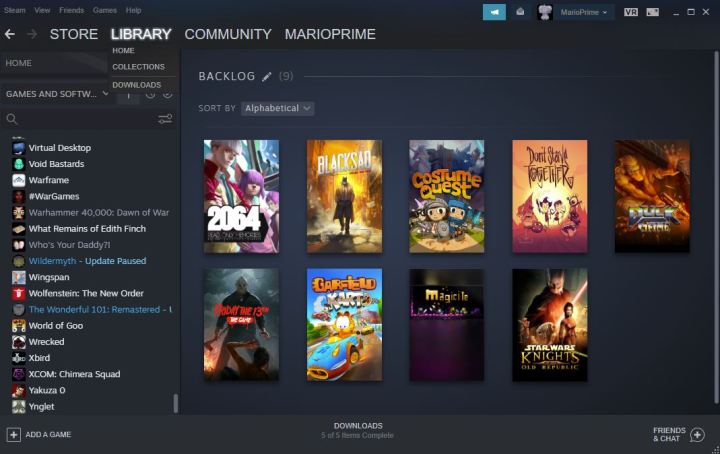
A Steam Collection shows a player's backlog.

How to use Joy-Cons with Steam

Just pairing your Joy-Cons isn’t the final step, however. You do need to do a little bit more to get them working with your games. If you want to use them with games from your Steam library, here’s how to do it.

Step 1: Open Steam.

Step 2: Go into the Settings and go into Account section.

Step 3: Opt in to the Steam beta updates.

Step 4: Restart Steam.

The Legend of Zelda: Skyward Sword Joy-Con.

How to use Joy-Cons on all other games

If you have games you want to play outside of steam, you will need another way to get your computer to register your controller inputs. Here’s the easiest way to do it.

Step 1: Download BetterJoy.

Step 2: Open and run the setup file to install the drivers.

Step 3: Once installed, run BetterJoyForCemu.

Step 4: You can now select how you want the PC to read your Joy-Cons. You can use them as a single pair or two individual controllers.

Frequently Asked Questions

How do you use a Nintendo Switch controller on PC?

To use Nintendo Joy-Con controllers on a PC, follow these simple steps:

  1. On your PC, go to Start > Devices > Bluetooth and make sure it is turned on.
  2. Hold down the Sync buttons on both your Joy-Cons until the four lights are flashing.
  3. Back on the PC, select Add a device.
  4.  You will need to choose each individual Joy-Con one at a time from the list to connect them both.
  5. Select Done.

Extra steps are required if you want to get your Joy-Cons working with Steam games.

How do I use Nintendo Switch Joy-Con controllers on Steam?

To use Nintendo Switch Joy-Con controllers on Steam, do the following:

  1. Open Steam.
  2. Go into the Settings and go into Account section.
  3. Opt in to the Steam beta updates.
  4. Restart Steam.

Your Joy-Cons will now work on games from your Steam library.

Does Steam Deck support Joy-Cons?

Yes, Steam Deck supports Joy-Con controllers, and all manner of other types of controllers (Xbox controllers, Sony DualSense controllers, etc.). Of course, the button layout on the Joy-Cons is a bit different than the native Steam Deck buttons. To start the connection process, head into the Bluetooth menu under Settings on your Steam Deck. From there, you can pair your device with the Joy-Cons.

Do Joy-Cons use Bluetooth?

Nintendo’s Joy-Con controllers operate over a Bluetooth signal, so you can use them on other Bluetooth enabled devices, like your PC. That’s right, you can use your Joy-Cons to play PC and Steam games without issue.

Editors’ Recommendations


Share. Facebook Twitter Pinterest LinkedIn Tumblr Email
Previous ArticleRealme 12+ 5G With MediaTek Dimensity 7050 SoC, 67W SuperVOOC Charging Launched: Price, Specifications
Next Article Elon Musk’s Lawsuit Against a Group That Found Hate Speech on X Isn’t Going Well

Related Articles

I tried to parody the most absurd AI products, but the tech industry beat me to it
News

I tried to parody the most absurd AI products, but the tech industry beat me to it

12 July 2026
The Pixel 11 is almost here, and these are the 3 upgrades I’m begging Google to make
News

The Pixel 11 is almost here, and these are the 3 upgrades I’m begging Google to make

12 July 2026
What is Copilot? Everything you need to know about Microsoft’s AI assistant
News

What is Copilot? Everything you need to know about Microsoft’s AI assistant

12 July 2026
Scientists’ Side Hustle? Using AI and Quantum Computing to Generate New Peptides
News

Scientists’ Side Hustle? Using AI and Quantum Computing to Generate New Peptides

12 July 2026
The Best Robotic Pool Cleaners of 2026: Beatbot, iGarden, Dreame
News

The Best Robotic Pool Cleaners of 2026: Beatbot, iGarden, Dreame

12 July 2026
I bought into a brighter future, but my digital life bills monthly subscriptions
News

I bought into a brighter future, but my digital life bills monthly subscriptions

12 July 2026
Demo
Top Articles
5 laptops to buy instead of the M4 MacBook Pro

5 laptops to buy instead of the M4 MacBook Pro

17 November 2024133 Views
ChatGPT o1 vs. o1-mini vs. 4o: Which should you use?

ChatGPT o1 vs. o1-mini vs. 4o: Which should you use?

15 December 2024111 Views
Costco partners with Electric Era to bring back EV charging in the U.S.

Costco partners with Electric Era to bring back EV charging in the U.S.

28 October 2024100 Views

Subscribe to Updates

Get the latest tech news and updates directly to your inbox.

Latest News
NBA The Run Adds Campaign Mode In 2027 Gaming

NBA The Run Adds Campaign Mode In 2027

News Room12 July 2026
I bought into a brighter future, but my digital life bills monthly subscriptions News

I bought into a brighter future, but my digital life bills monthly subscriptions

News Room12 July 2026
Here’s How Apple Is Updating Its Child Safety Features in iOS 27 News

Here’s How Apple Is Updating Its Child Safety Features in iOS 27

News Room12 July 2026
Most Popular
The Spectacular Burnout of a Solar Panel Salesman

The Spectacular Burnout of a Solar Panel Salesman

13 January 2025137 Views
5 laptops to buy instead of the M4 MacBook Pro

5 laptops to buy instead of the M4 MacBook Pro

17 November 2024133 Views
ChatGPT o1 vs. o1-mini vs. 4o: Which should you use?

ChatGPT o1 vs. o1-mini vs. 4o: Which should you use?

15 December 2024111 Views
Our Picks
Scientists’ Side Hustle? Using AI and Quantum Computing to Generate New Peptides

Scientists’ Side Hustle? Using AI and Quantum Computing to Generate New Peptides

12 July 2026
The Best Robotic Pool Cleaners of 2026: Beatbot, iGarden, Dreame

The Best Robotic Pool Cleaners of 2026: Beatbot, iGarden, Dreame

12 July 2026
NBA The Run Adds Campaign Mode In 2027

NBA The Run Adds Campaign Mode In 2027

12 July 2026

Subscribe to Updates

Get the latest tech news and updates directly to your inbox.

Facebook X (Twitter) Instagram Pinterest
  • Privacy Policy
  • Terms of use
  • Advertise
  • Contact Us
© 2026 Best in Technology. All Rights Reserved.

Type above and press Enter to search. Press Esc to cancel.