



Close Menu
Best in TechnologyBest in Technology
  • News
  • Phones
  • Laptops
  • Gadgets
  • Gaming
  • AI
  • Tips
  • More
    • Web Stories
    • Global
    • Press Release

Subscribe to Updates

Get the latest tech news and updates directly to your inbox.

What's On
Samsung is cracking down on TV apps that quietly shared users’ internet connections

Samsung is cracking down on TV apps that quietly shared users’ internet connections

4 August 2026
The next official Palworld mobile game comes from an unexpected studio

The next official Palworld mobile game comes from an unexpected studio

4 August 2026
Beast of Reincarnation Review – Boring World, Beguiling Combat

Beast of Reincarnation Review – Boring World, Beguiling Combat

4 August 2026
Facebook X (Twitter) Instagram
Just In
  • Samsung is cracking down on TV apps that quietly shared users’ internet connections
  • The next official Palworld mobile game comes from an unexpected studio
  • Beast of Reincarnation Review – Boring World, Beguiling Combat
  • Save big on DJI creator gear with these AliExpress August deals
  • Google Health just made Fitbit Air a better fit for Apple Health users
  • Did an AI Music App Just Snitch on the Song of the Summer?
  • Pwnage’s new gaming mouse lets users adjust click force and travel with a screwdriver
  • Dave Bautista Reportedly In Talks To Replace Injured Ryan Hurst
Facebook X (Twitter) Instagram Pinterest Vimeo
Best in TechnologyBest in Technology
  • News
  • Phones
  • Laptops
  • Gadgets
  • Gaming
  • AI
  • Tips
  • More
    • Web Stories
    • Global
    • Press Release
Subscribe
Best in TechnologyBest in Technology
Home » How to update your Gmail picture on desktop and mobile
News

How to update your Gmail picture on desktop and mobile

News RoomBy News Room27 April 20243 Mins Read
Share Facebook Twitter Pinterest LinkedIn Tumblr Reddit Telegram Email
How to update your Gmail picture on desktop and mobile
Share
Facebook Twitter LinkedIn Pinterest Email

There are lots of reasons why you’d want to change your Gmail profile picture. Maybe you have a great, new selfie you want to show off. Or you just want to update your work email with a photo that’s recent and professional-looking. Whatever the reason, we can help you update your Gmail picture in just a few quick steps. We’ve also got you covered whether you choose to change your photo via Gmail’s desktop website or through its mobile app.

How to change your profile picture in Gmail: Desktop method

Step 1: Navigate Gmail via your browser and log into your Gmail account if you’re not already logged in.

Step 2: Click on your profile photo icon, which is located in the top right corner of your screen. From there, you have two options: You can either click on the little camera icon at the top of the menu that appears, or you can click on Manage your Google Account. If you choose the camera icon, just follow the on-screen prompts to change your profile picture and then click Set as profile photo. If you choose Manage your Google Account, go to Step 3.

Step 3: On your Google Account page, select the Personal info tab on the left side of your screen.

Step 4: Within the Photo section, under Basic info, select your current profile picture icon.

Step 5: Follow the on-screen prompts to choose or upload your photo. Then select Set as profile photo.
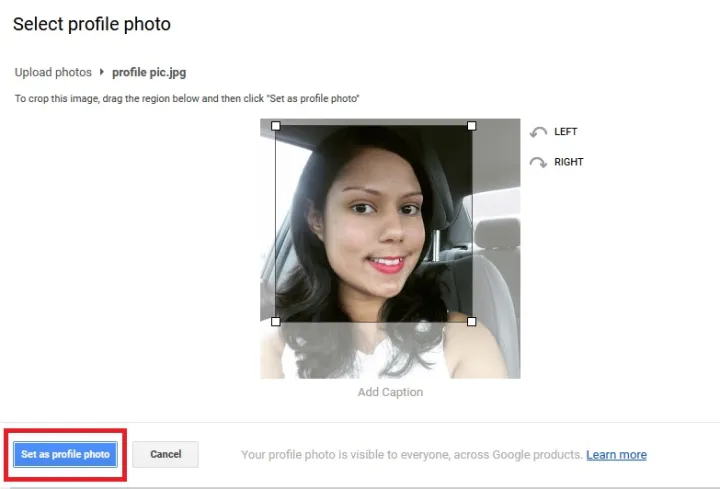
gmail profile photo change step 5

How to change your profile picture in Gmail: Mobile app method

Changing your profile picture in the Gmail app on iOS and Android are much the same as in the web browser. Here’s how to do it.

Step 1: Select the Gmail app on your Android or iOS device to open it.

Step 2: Click on the photo icon you see at the top right corner.

Step 3: A window will pop up that says either Manage your Google Account or Google Account button, depending on your version of Android.

Gmail Manage Your Google Account

Step 4: When the next screen loads, select Personal info.

Step 5: Find the Basic info header, and click the profile photo that is currently uploaded.
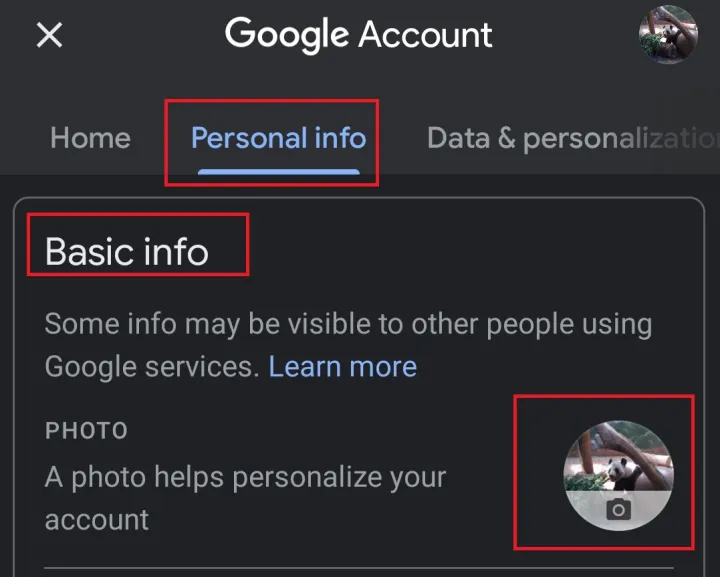
Gmail android app screenshot 2

Step 6: A window will appear with an explanation; the message is longer on more recent versions of iOS, but the process is the same. Tap on Set profile photo.
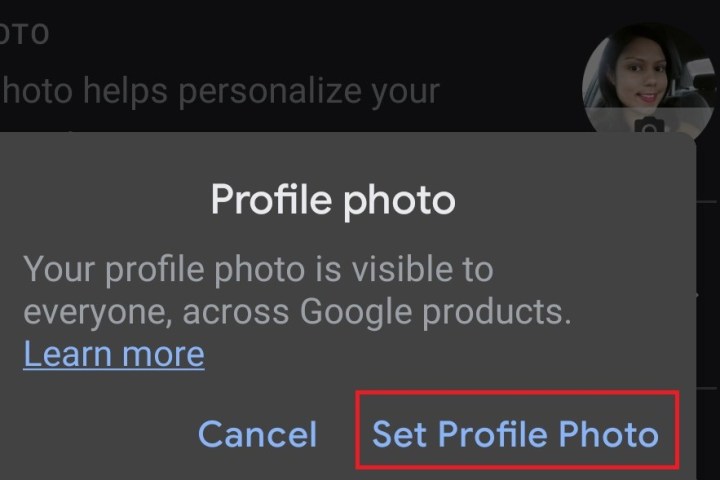
Gmail app step 5 screenshot

Step 7: A pop-up window (Android) or slide-up menu (iOS) appears on the screen. Navigate to your photo library to pick an image you’ve already saved, or click on the camera to take a new picture.

Editors’ Recommendations



Share. Facebook Twitter Pinterest LinkedIn Tumblr Email
Previous ArticleThe Best Sleeping Pads for Camping, Backpacking, and Travel
Next Article Meta’s Ray-Ban Smart Shades Get a Fresh Blast of AI

Related Articles

Samsung is cracking down on TV apps that quietly shared users’ internet connections
News

Samsung is cracking down on TV apps that quietly shared users’ internet connections

4 August 2026
The next official Palworld mobile game comes from an unexpected studio
News

The next official Palworld mobile game comes from an unexpected studio

4 August 2026
Save big on DJI creator gear with these AliExpress August deals
News

Save big on DJI creator gear with these AliExpress August deals

4 August 2026
Google Health just made Fitbit Air a better fit for Apple Health users
News

Google Health just made Fitbit Air a better fit for Apple Health users

4 August 2026
Did an AI Music App Just Snitch on the Song of the Summer?
News

Did an AI Music App Just Snitch on the Song of the Summer?

4 August 2026
Pwnage’s new gaming mouse lets users adjust click force and travel with a screwdriver
News

Pwnage’s new gaming mouse lets users adjust click force and travel with a screwdriver

4 August 2026
Demo
Top Articles
5 laptops to buy instead of the M4 MacBook Pro

5 laptops to buy instead of the M4 MacBook Pro

17 November 2024133 Views
ChatGPT o1 vs. o1-mini vs. 4o: Which should you use?

ChatGPT o1 vs. o1-mini vs. 4o: Which should you use?

15 December 2024111 Views
Costco partners with Electric Era to bring back EV charging in the U.S.

Costco partners with Electric Era to bring back EV charging in the U.S.

28 October 2024100 Views

Subscribe to Updates

Get the latest tech news and updates directly to your inbox.

Latest News
Did an AI Music App Just Snitch on the Song of the Summer? News

Did an AI Music App Just Snitch on the Song of the Summer?

News Room4 August 2026
Pwnage’s new gaming mouse lets users adjust click force and travel with a screwdriver News

Pwnage’s new gaming mouse lets users adjust click force and travel with a screwdriver

News Room4 August 2026
Dave Bautista Reportedly In Talks To Replace Injured Ryan Hurst Gaming

Dave Bautista Reportedly In Talks To Replace Injured Ryan Hurst

News Room3 August 2026
Most Popular
The Spectacular Burnout of a Solar Panel Salesman

The Spectacular Burnout of a Solar Panel Salesman

13 January 2025137 Views
5 laptops to buy instead of the M4 MacBook Pro

5 laptops to buy instead of the M4 MacBook Pro

17 November 2024133 Views
ChatGPT o1 vs. o1-mini vs. 4o: Which should you use?

ChatGPT o1 vs. o1-mini vs. 4o: Which should you use?

15 December 2024111 Views
Our Picks
Save big on DJI creator gear with these AliExpress August deals

Save big on DJI creator gear with these AliExpress August deals

4 August 2026
Google Health just made Fitbit Air a better fit for Apple Health users

Google Health just made Fitbit Air a better fit for Apple Health users

4 August 2026
Did an AI Music App Just Snitch on the Song of the Summer?

Did an AI Music App Just Snitch on the Song of the Summer?

4 August 2026

Subscribe to Updates

Get the latest tech news and updates directly to your inbox.

Facebook X (Twitter) Instagram Pinterest
  • Privacy Policy
  • Terms of use
  • Advertise
  • Contact Us
© 2026 Best in Technology. All Rights Reserved.

Type above and press Enter to search. Press Esc to cancel.