





Close Menu
Best in TechnologyBest in Technology
  • News
  • Phones
  • Laptops
  • Gadgets
  • Gaming
  • AI
  • Tips
  • More
    • Web Stories
    • Global
    • Press Release

Subscribe to Updates

Get the latest tech news and updates directly to your inbox.

What's On
Your Pixel is getting Android 17 again

Your Pixel is getting Android 17 again

14 February 2026
Google boosts Gemini 3 Deep Think AI and it’s a huge milestone for 3D printing

Google boosts Gemini 3 Deep Think AI and it’s a huge milestone for 3D printing

14 February 2026
Robot Dogs Are on Going on Patrol at the 2026 World Cup in Mexico

Robot Dogs Are on Going on Patrol at the 2026 World Cup in Mexico

14 February 2026
Facebook X (Twitter) Instagram
Just In
  • Your Pixel is getting Android 17 again
  • Google boosts Gemini 3 Deep Think AI and it’s a huge milestone for 3D printing
  • Robot Dogs Are on Going on Patrol at the 2026 World Cup in Mexico
  • Gear News of the Week: Samsung Sets a Date for Galaxy Unpacked, and Fitbit’s AI Coach Comes to iOS
  • Here’s What It’s Like to Use H&R Block’s DIY Tax Service (2026)
  • Ring Kills Flock Safety Deal After Super Bowl Ad Uproar
  • Best Alternatives to Google’s Android Operating System (2026), Tested and Reviewed
  • Lola Blankets Are 45 Percent Off This Presidents’ Day Weekend
Facebook X (Twitter) Instagram Pinterest Vimeo
Best in TechnologyBest in Technology
  • News
  • Phones
  • Laptops
  • Gadgets
  • Gaming
  • AI
  • Tips
  • More
    • Web Stories
    • Global
    • Press Release
Subscribe
Best in TechnologyBest in Technology
Home » How to shut down a computer with keyboard shortcuts
News

How to shut down a computer with keyboard shortcuts

News RoomBy News Room8 March 20246 Mins Read
Share Facebook Twitter Pinterest LinkedIn Tumblr Reddit Telegram Email
How to shut down a computer with keyboard shortcuts
Share
Facebook Twitter LinkedIn Pinterest Email

There’s more than one way to shut down a Windows PC. You don’t always have to use a mouse. You can use your keyboard instead. Plus, keyboard shortcuts are faster, easy to learn, and can even help you bypass certain problems if your mouse isn’t working.

Here’s how to shut down your computer with shortcuts in both Windows 10 and Windows 11.

How to shut down a computer with keyboard shortcuts

Step 1: If possible, shut down all the apps that are currently open. This isn’t absolutely necessary, but it’s a good idea. You will at least need to navigate away from all apps and be on the Windows home screen for this to work.

Step 2: If necessary, make sure that the FN key on your keyboard is turned on. It usually has an indicator light that shows when it is on or off. The FN key needs to be enabled for this shortcut to work.

Step 3: Press Alt + F4. This should immediately open a shutdown menu on your PC. If you are interested in shutting down Windows 10 as quickly as possible with your keyboard, then just hit the Enter key and Windows will shut down and update if necessary.

Step 4: If you want to put your computer to sleep, you can use the Tab key plus the Arrow keys to cycle over to the drop-down menu and go through their options, although this might be easier if you can use your mouse as well. The menu includes the ability to Sleep, automatically Restart, and Switch User. Make your selection and choose OK to initiate.

Remember, Sleep is a low-power state that saves what Windows was doing so that it can be quickly accessed again when you boot back up. It’s a way to save a little time, especially with slower machines.

Windows 10 Sleep option.

Step 5: For an alternative option, you can also press Win (the Windows key) + X. This will open up a system menu. Use the Arrow keys to navigate down to the power options, then select which method you want to use to make Windows sleep or turn off. This is functionally the same option — the interface is just a bit different.
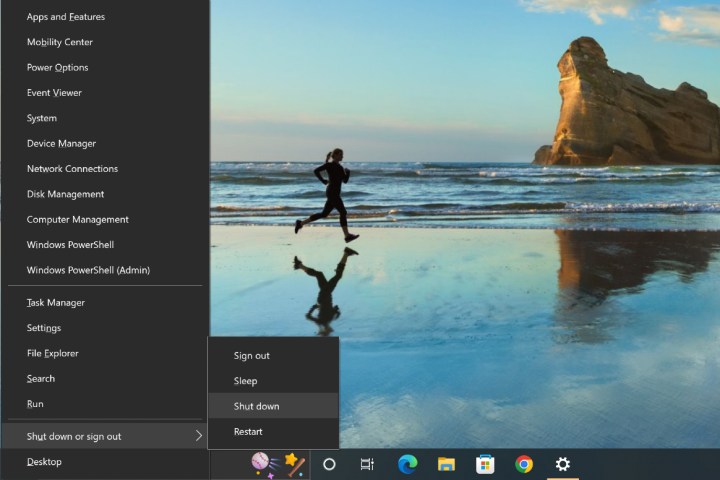
Windows 10 Win + X menu.

What if the keyboard isn’t responding?

If your PC is frozen to the point that you can’t use any keyboard commands, you’re going to have to force it to reboot. Press and hold the manual Power button on your PC until it shuts down entirely. While it’s not advisable to do this every time you want to turn off your computer, it works fine if something is wrong and other controls are frozen … although you’ll want to get to the bottom of the problem, too.

I thought Alt + F4 was used to shut down apps on Windows?

The Alt + F4 command is a broad shortcut that’s used for shutdown purposes. If you are currently in an app and try to use Alt + F4, it will immediately shut down the app if it is able. But when apps are closed or downsized and you are on the Windows home screen, it will instead bring up the PC shutdown menu for you to use. That’s one reason it’s important to close your apps before beginning.

Why are there no sleep options in Windows 10/11?

There should be, but if your sleep option has disappeared from the Start menu, it’s probably because of a bug. Sometimes certain updates or changes in Windows will disable the sleep option even though it shouldn’t be. Fortunately, you can turn it back on.

Step 1: Navigate to the Control panel. Search for it if you aren’t sure where it is.

Step 2: Go to the Hardware and sound section, then select Power options.

Step 3: Select Choose what the power button does.
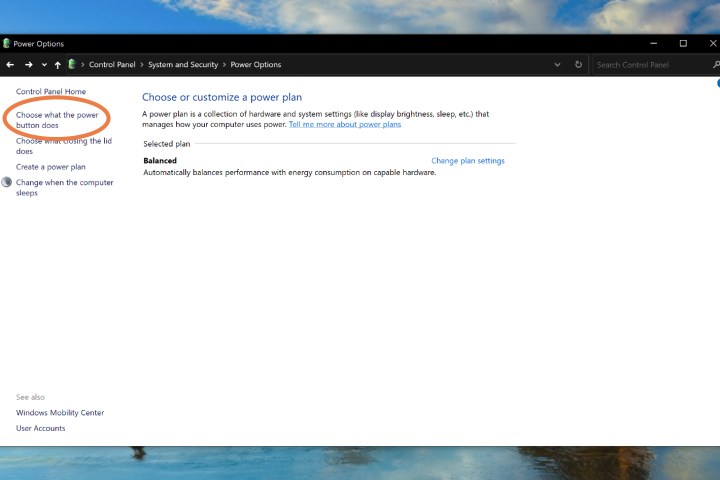
Choose what the Power Button Does.

Step 4: Look at the bottom section of the window, where you’ll see Shutdown settings. Make sure the Sleep setting is checked. If you don’t check it, it won’t appear in the Power menu, which is why you may not be able to find it right now.

If you haven’t upgraded to Windows 11 yet, we have a guide answering some the questions you may have about if it’s worth it to make the switch right now.

Toggling Sleep on in Windows menu.

Frequently asked questions

How do I manually shut down my computer?

On Windows 11 and 10 PCs: You select the Start menu icon and then choose the Power icon. Then, from the menu that appears, you’ll select Shut down.

For both macOS Ventura and Sonoma: Select the Apple menu and then choose Shut down.

How can I shut down my PC with a keyboard?

With respect to Windows PCs, you have a few options when it comes to shutting down your PC via a keyboard. Here’s two:

  • Be sure to either close or minimize your apps first and then press either Alt + F4 or Alt + Fn + F4. Doing so should bring up a shut down menu window. If the Shut down option is already selected for you, then just press the Enter key. If not, use the arrow and Tab keys to choose the Shut down option from the drop-down menu and then press Enter.
  • Press the Windows key + X. Then from the menu that appears use the arrow keys to navigate to Shut down or sign out > Shut down. Once you’ve selected Shut down with your arrow keys, press Enter.

What are some other useful Windows keyboard shortcuts I should know?

Here are some other useful Windows keyboard shortcuts you should know:

  • To access the Quick Settings in your Taskbar on Windows 11, so you can adjust things like brightness and volume: Press Windows key + A
  • Open File Explorer: Press Windows Key + E
  • Press the PrtScn key to take a screenshot and have it copied to your clipboard.

For more keyboard shortcuts you should know for Windows PCs, check out our keyboard shortcut guides for both Windows 10 and Windows 11.

Editors’ Recommendations


Share. Facebook Twitter Pinterest LinkedIn Tumblr Email
Previous ArticleUnicorn Overlord Impressions, Show Update | All Things Nintendo
Next Article 9 strange facts about the Oscars you didn’t know

Related Articles

Your Pixel is getting Android 17 again
News

Your Pixel is getting Android 17 again

14 February 2026
Google boosts Gemini 3 Deep Think AI and it’s a huge milestone for 3D printing
News

Google boosts Gemini 3 Deep Think AI and it’s a huge milestone for 3D printing

14 February 2026
Robot Dogs Are on Going on Patrol at the 2026 World Cup in Mexico
News

Robot Dogs Are on Going on Patrol at the 2026 World Cup in Mexico

14 February 2026
Gear News of the Week: Samsung Sets a Date for Galaxy Unpacked, and Fitbit’s AI Coach Comes to iOS
News

Gear News of the Week: Samsung Sets a Date for Galaxy Unpacked, and Fitbit’s AI Coach Comes to iOS

14 February 2026
Here’s What It’s Like to Use H&R Block’s DIY Tax Service (2026)
News

Here’s What It’s Like to Use H&R Block’s DIY Tax Service (2026)

14 February 2026
Ring Kills Flock Safety Deal After Super Bowl Ad Uproar
News

Ring Kills Flock Safety Deal After Super Bowl Ad Uproar

14 February 2026
Demo
Top Articles
5 laptops to buy instead of the M4 MacBook Pro

5 laptops to buy instead of the M4 MacBook Pro

17 November 2024126 Views
ChatGPT o1 vs. o1-mini vs. 4o: Which should you use?

ChatGPT o1 vs. o1-mini vs. 4o: Which should you use?

15 December 2024109 Views
Costco partners with Electric Era to bring back EV charging in the U.S.

Costco partners with Electric Era to bring back EV charging in the U.S.

28 October 202498 Views

Subscribe to Updates

Get the latest tech news and updates directly to your inbox.

Latest News
Ring Kills Flock Safety Deal After Super Bowl Ad Uproar News

Ring Kills Flock Safety Deal After Super Bowl Ad Uproar

News Room14 February 2026
Best Alternatives to Google’s Android Operating System (2026), Tested and Reviewed News

Best Alternatives to Google’s Android Operating System (2026), Tested and Reviewed

News Room14 February 2026
Lola Blankets Are 45 Percent Off This Presidents’ Day Weekend News

Lola Blankets Are 45 Percent Off This Presidents’ Day Weekend

News Room14 February 2026
Most Popular
The Spectacular Burnout of a Solar Panel Salesman

The Spectacular Burnout of a Solar Panel Salesman

13 January 2025137 Views
5 laptops to buy instead of the M4 MacBook Pro

5 laptops to buy instead of the M4 MacBook Pro

17 November 2024126 Views
ChatGPT o1 vs. o1-mini vs. 4o: Which should you use?

ChatGPT o1 vs. o1-mini vs. 4o: Which should you use?

15 December 2024109 Views
Our Picks
Gear News of the Week: Samsung Sets a Date for Galaxy Unpacked, and Fitbit’s AI Coach Comes to iOS

Gear News of the Week: Samsung Sets a Date for Galaxy Unpacked, and Fitbit’s AI Coach Comes to iOS

14 February 2026
Here’s What It’s Like to Use H&R Block’s DIY Tax Service (2026)

Here’s What It’s Like to Use H&R Block’s DIY Tax Service (2026)

14 February 2026
Ring Kills Flock Safety Deal After Super Bowl Ad Uproar

Ring Kills Flock Safety Deal After Super Bowl Ad Uproar

14 February 2026

Subscribe to Updates

Get the latest tech news and updates directly to your inbox.

Facebook X (Twitter) Instagram Pinterest
  • Privacy Policy
  • Terms of use
  • Advertise
  • Contact Us
© 2026 Best in Technology. All Rights Reserved.

Type above and press Enter to search. Press Esc to cancel.