


Close Menu
Best in TechnologyBest in Technology
  • News
  • Phones
  • Laptops
  • Gadgets
  • Gaming
  • AI
  • Tips
  • More
    • Web Stories
    • Global
    • Press Release

Subscribe to Updates

Get the latest tech news and updates directly to your inbox.

What's On
The Galaxy Tab S12 Ultra just showed up online, and Samsung seems reluctant to change a winning formula

The Galaxy Tab S12 Ultra just showed up online, and Samsung seems reluctant to change a winning formula

9 August 2026
EU’s Starlink alternative is finally moving beyond the planning stage

EU’s Starlink alternative is finally moving beyond the planning stage

8 August 2026
Spokane Shows What the New Era of Wildfires Looks Like

Spokane Shows What the New Era of Wildfires Looks Like

8 August 2026
Facebook X (Twitter) Instagram
Just In
  • The Galaxy Tab S12 Ultra just showed up online, and Samsung seems reluctant to change a winning formula
  • EU’s Starlink alternative is finally moving beyond the planning stage
  • Spokane Shows What the New Era of Wildfires Looks Like
  • The Galaxy Z Fold 8 is genuinely cool, but I’d pay up for the Z Fold 8 Ultra
  • WhatsApp Gets a Handy @all Feature for Group Chats
  • My next phone has to earn its retirement
  • Best Solar Generators for Off-Grid Trips, RVs, and Home Backup
  • Google’s Stephen Curry Pixel Watch 5 is an expensive affair that ends at the strap
Facebook X (Twitter) Instagram Pinterest Vimeo
Best in TechnologyBest in Technology
  • News
  • Phones
  • Laptops
  • Gadgets
  • Gaming
  • AI
  • Tips
  • More
    • Web Stories
    • Global
    • Press Release
Subscribe
Best in TechnologyBest in Technology
Home » How to record your screen in Windows 11
News

How to record your screen in Windows 11

News RoomBy News Room30 March 20244 Mins Read
Share Facebook Twitter Pinterest LinkedIn Tumblr Reddit Telegram Email
How to record your screen in Windows 11
Share
Facebook Twitter LinkedIn Pinterest Email

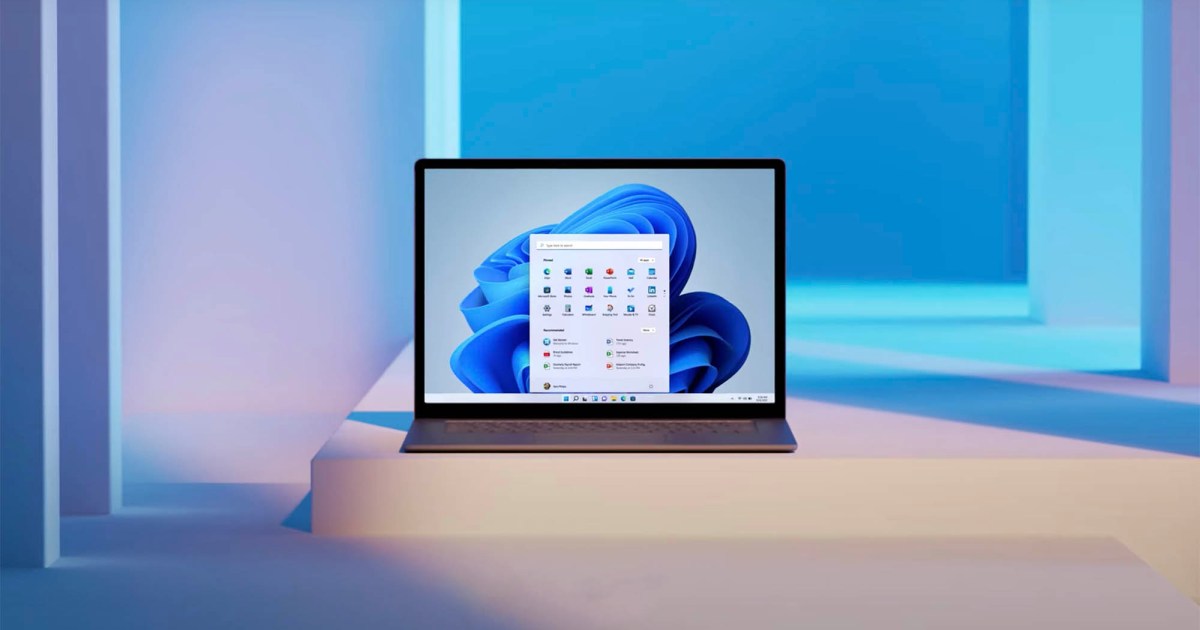
Recording your screen is an incredibly useful feature available on Windows 11. In a professional capacity, it allows you to capture your screen to highlight issues or show off a new workflow to your colleagues. You can also record a presentation that can be shared throughout the company. For gaming, it lets you record a clip of action that can then be shared with friends or posted online. If you’re trying to figure out how to record your screen on Windows 11, you’ll be glad to know the process is simple (at least, once you know where to look).

Here’s a look at how to record your screen in Windows 11 using Screen Recorder, Xbox Game Bar, and more.

Screen Recorder

The Snipping Tool now lets you use a feature called Screen Recorder. This makes it easy to record your screen without much fuss. Here’s how it works.

Step 1: Search for “Snipping Tool” in the Start menu.

Step 2: Press the Record button in the toolbar, then select New.

Step 3: Select the area of the screen you want to record.

Step 4: Press Start. This should begin a countdown. When the countdown hits zero, your screen recording will begin.

Step 5: When you’re ready to stop filming, press Stop. Windows 11 will then let you choose where to save or share the video.

Xbox Game Bar in Windows 11.

Xbox Game Bar

Though it’s mainly made for gaming, it can record any app you have open, as long as it’s one window at a time. You also can enable your microphone during recording if you need it.

Step 1: To use the Xbox Gamebar, your PC will need to support a set of encoders. This shouldn’t be a problem, though, as these encoders are enabled on all the most recent graphics cards and Intel processors.

Step 2: To get started with Xbox Game Bar, visit the Windows 11 Start menu and search for Game Bar. There should be a settings link on the search results on the screen for Enable Xbox Game Bar. You’ll want to click this, visit the settings, and make sure the switch is turned to On.

Step 3: Once the Xbox Game Bar is turned on, you can record your screen at any time in Windows 11 with the Windows + G keys. Just make sure that you have an app open in the background. Xbox Game Bar won’t record your desktop or multiple windows — it only works on a single window.

Step 4: Once you’ve pressed the dual-key command, you’ll see a Record icon at the top-left of your screen. If you tap that button, the Game Bar will minimize and start recording. You can stop at any time with the Stop button on the top-right of the screen. You can also toggle your microphone by clicking the Microphone icon.

Step 5: Your recordings will save by default to the Captures folder in Videos in File Explorer.
PowerPoint

PowerPoint

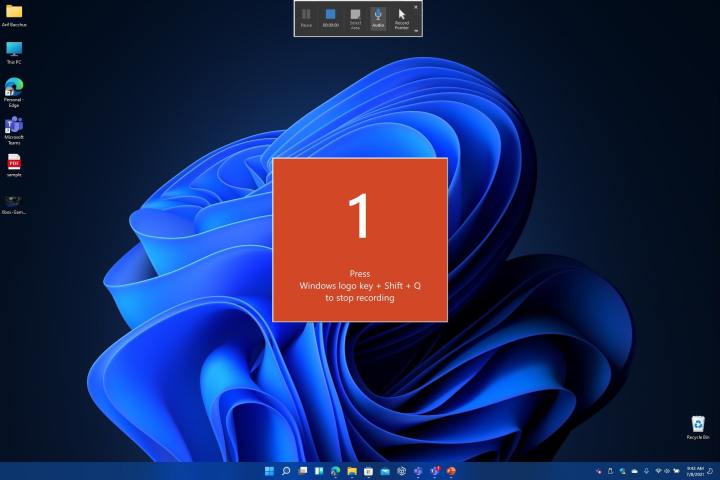
Another way to record your screen in Windows 11 is with PowerPoint. PowerPoint will let you record multiple windows at once. However, you’ll need to ensure that you have a Microsoft 365 subscription for it to work properly.

Step 1: To get started, open a new PowerPoint file and then click the Insert menu. Then, you should see a Screen Recording button. Hit that, and then begin your recording. The screen will dim, and you’ll see a toolbar appear.

Step 2: Select where you want to record, and click the red Record button. The recording will begin. When you finish, click Windows + Shift + Q to end the recording.

Step 3: You can then save your recording by right-clicking on the PowerPoint slide with the recording and choosing the Save Media As from the list. Choose where you want to save the file, and you’re done!

Other options

There are many third-party tools you can choose from to record your screen. OBS Studio is one of our favorites. This app is available in the Microsoft Store for download.

Just open up the Microsoft Store in Windows 11, search for it, and install. Choose Optimize for Recording, and once you’re up and running, you can start a screen recording by adding your desktop screen as Display Capture to the source in the bottom-middle of the screen. Be sure to mute the microphone under Audio Mixer and then hit Start Recording. When done, hit Stop Recording and visit your Videos folder to see the saved file.

Editors’ Recommendations


Share. Facebook Twitter Pinterest LinkedIn Tumblr Email
Previous ArticleRedmi Note 13 Pro Turbo Specifications Leak, Could Debut Globally as Poco F6
Next Article How to uninstall Windows 11 and rollback to Windows 10

Related Articles

The Galaxy Tab S12 Ultra just showed up online, and Samsung seems reluctant to change a winning formula
News

The Galaxy Tab S12 Ultra just showed up online, and Samsung seems reluctant to change a winning formula

9 August 2026
EU’s Starlink alternative is finally moving beyond the planning stage
News

EU’s Starlink alternative is finally moving beyond the planning stage

8 August 2026
Spokane Shows What the New Era of Wildfires Looks Like
News

Spokane Shows What the New Era of Wildfires Looks Like

8 August 2026
The Galaxy Z Fold 8 is genuinely cool, but I’d pay up for the Z Fold 8 Ultra
News

The Galaxy Z Fold 8 is genuinely cool, but I’d pay up for the Z Fold 8 Ultra

8 August 2026
WhatsApp Gets a Handy @all Feature for Group Chats
News

WhatsApp Gets a Handy @all Feature for Group Chats

8 August 2026
My next phone has to earn its retirement
News

My next phone has to earn its retirement

8 August 2026
Demo
Top Articles
5 laptops to buy instead of the M4 MacBook Pro

5 laptops to buy instead of the M4 MacBook Pro

17 November 2024133 Views
ChatGPT o1 vs. o1-mini vs. 4o: Which should you use?

ChatGPT o1 vs. o1-mini vs. 4o: Which should you use?

15 December 2024112 Views
Costco partners with Electric Era to bring back EV charging in the U.S.

Costco partners with Electric Era to bring back EV charging in the U.S.

28 October 2024100 Views

Subscribe to Updates

Get the latest tech news and updates directly to your inbox.

Latest News
My next phone has to earn its retirement News

My next phone has to earn its retirement

News Room8 August 2026
Best Solar Generators for Off-Grid Trips, RVs, and Home Backup News

Best Solar Generators for Off-Grid Trips, RVs, and Home Backup

News Room8 August 2026
Google’s Stephen Curry Pixel Watch 5 is an expensive affair that ends at the strap News

Google’s Stephen Curry Pixel Watch 5 is an expensive affair that ends at the strap

News Room8 August 2026
Most Popular
The Spectacular Burnout of a Solar Panel Salesman

The Spectacular Burnout of a Solar Panel Salesman

13 January 2025137 Views
5 laptops to buy instead of the M4 MacBook Pro

5 laptops to buy instead of the M4 MacBook Pro

17 November 2024133 Views
ChatGPT o1 vs. o1-mini vs. 4o: Which should you use?

ChatGPT o1 vs. o1-mini vs. 4o: Which should you use?

15 December 2024112 Views
Our Picks
The Galaxy Z Fold 8 is genuinely cool, but I’d pay up for the Z Fold 8 Ultra

The Galaxy Z Fold 8 is genuinely cool, but I’d pay up for the Z Fold 8 Ultra

8 August 2026
WhatsApp Gets a Handy @all Feature for Group Chats

WhatsApp Gets a Handy @all Feature for Group Chats

8 August 2026
My next phone has to earn its retirement

My next phone has to earn its retirement

8 August 2026

Subscribe to Updates

Get the latest tech news and updates directly to your inbox.

Facebook X (Twitter) Instagram Pinterest
  • Privacy Policy
  • Terms of use
  • Advertise
  • Contact Us
© 2026 Best in Technology. All Rights Reserved.

Type above and press Enter to search. Press Esc to cancel.