


Close Menu
Best in TechnologyBest in Technology
  • News
  • Phones
  • Laptops
  • Gadgets
  • Gaming
  • AI
  • Tips
  • More
    • Web Stories
    • Global
    • Press Release

Subscribe to Updates

Get the latest tech news and updates directly to your inbox.

What's On
The Sonos Beam Ultra proves you don’t need a huge soundbar for Dolby Atmos

The Sonos Beam Ultra proves you don’t need a huge soundbar for Dolby Atmos

1 September 2026
No Rest For The Wicked 1.0 Launch Delayed To March 2027

No Rest For The Wicked 1.0 Launch Delayed To March 2027

1 September 2026
These 6 Labor Day smart home deals solve real problems

These 6 Labor Day smart home deals solve real problems

1 September 2026
Facebook X (Twitter) Instagram
Just In
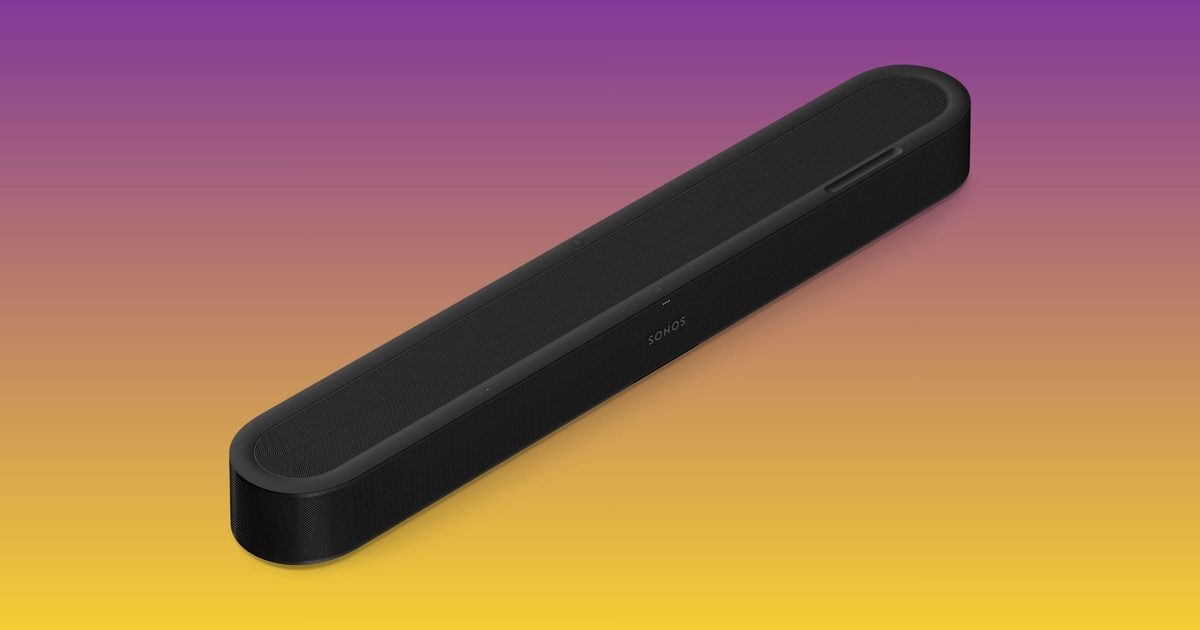
  • The Sonos Beam Ultra proves you don’t need a huge soundbar for Dolby Atmos
  • No Rest For The Wicked 1.0 Launch Delayed To March 2027
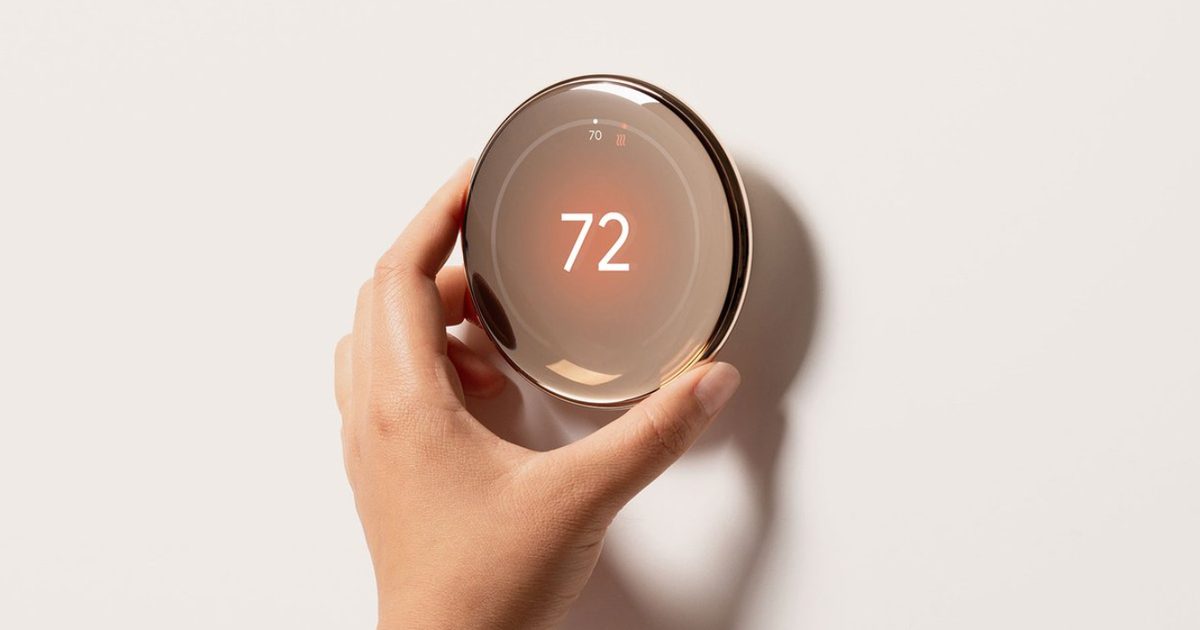
  • These 6 Labor Day smart home deals solve real problems
  • Sonos Ace Ultra, Beam Ultra, Sonos Fabric, and a New App: Everything Sonos Just Announced
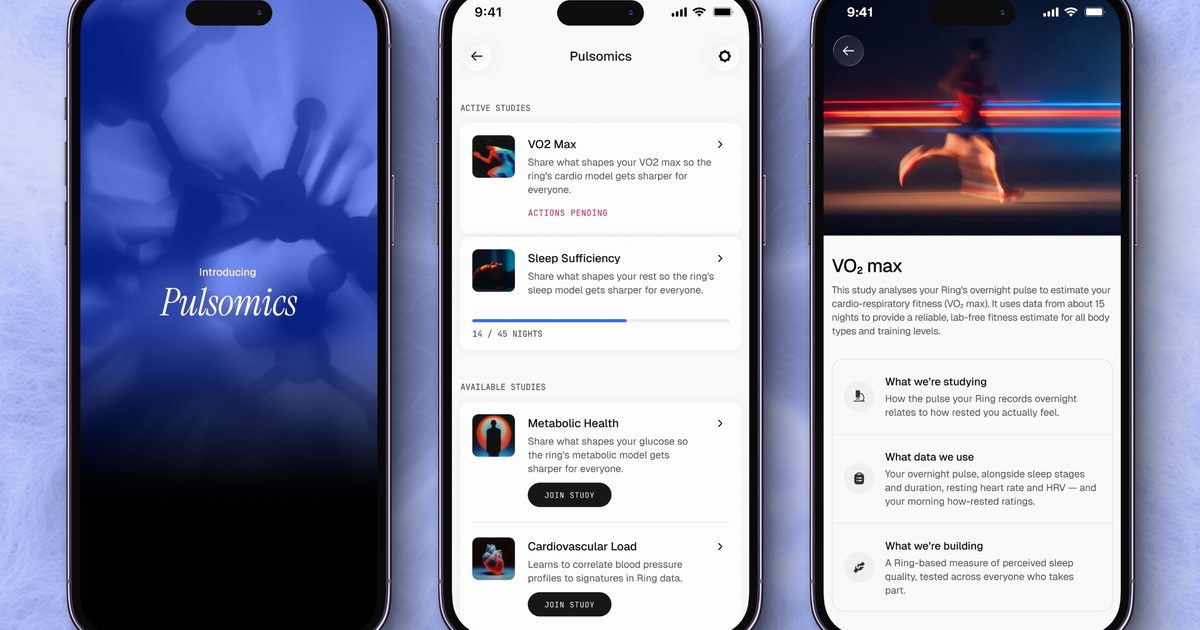
  • Ultrahuman wants your sleep data to make its Ring better at personalizing health insights
  • Dyson’s Next Act Is an Electric Toothbrush With a Camera
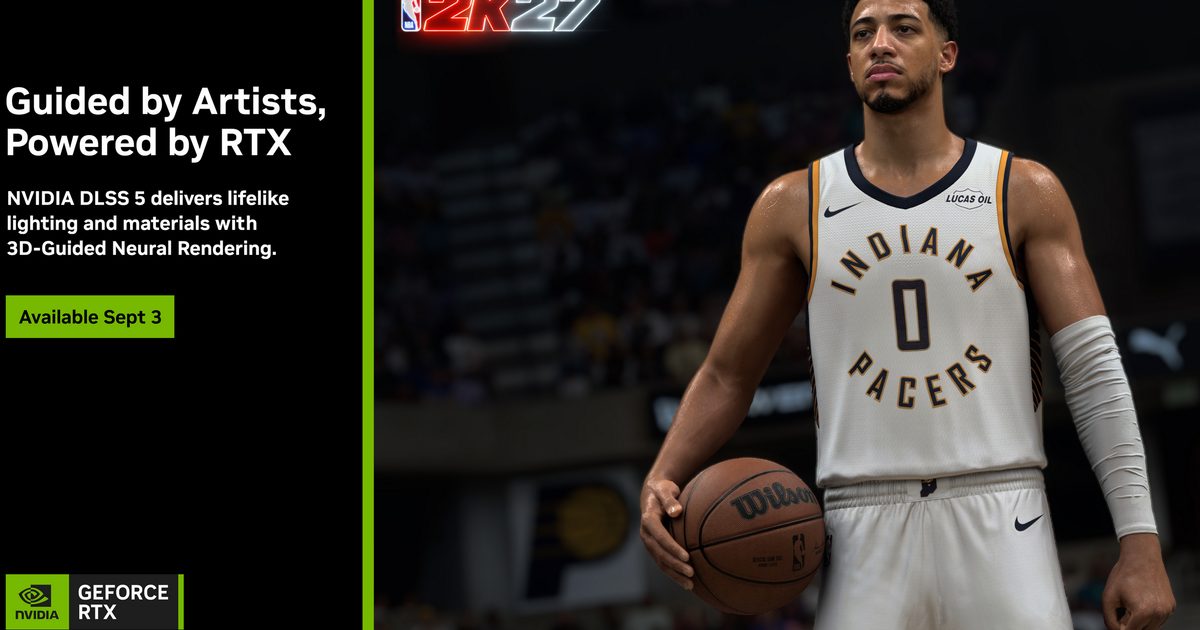
  • Nvidia’s DLSS 5 goes live with NBA 2K27 on September 3, and it looks a lot more convincing
  • Best Sleep Trackers of 2026: Oura, Whoop, and Eight Sleep
Facebook X (Twitter) Instagram Pinterest Vimeo
Best in TechnologyBest in Technology
  • News
  • Phones
  • Laptops
  • Gadgets
  • Gaming
  • AI
  • Tips
  • More
    • Web Stories
    • Global
    • Press Release
Subscribe
Best in TechnologyBest in Technology
Home » How to reconnect the Chromecast with Google TV voice remote
News

How to reconnect the Chromecast with Google TV voice remote

News RoomBy News Room26 February 20244 Mins Read
Share Facebook Twitter Pinterest LinkedIn Tumblr Reddit Telegram Email
How to reconnect the Chromecast with Google TV voice remote
Share
Facebook Twitter LinkedIn Pinterest Email

After launching in 2020, the Chromecast with Google TV quickly became a hot commodity. The affordable device made it easy to turn any TV into a smart TV, providing access to apps like Netflix, YouTube TV, Spotify, and other popular services. Google continues to update the service as we roll into 2024, ensuring the device works as well today as it did four years ago. You’ll also now find both a 4K and HD model on the market, giving you the option to pick whichever is best for your home theater.

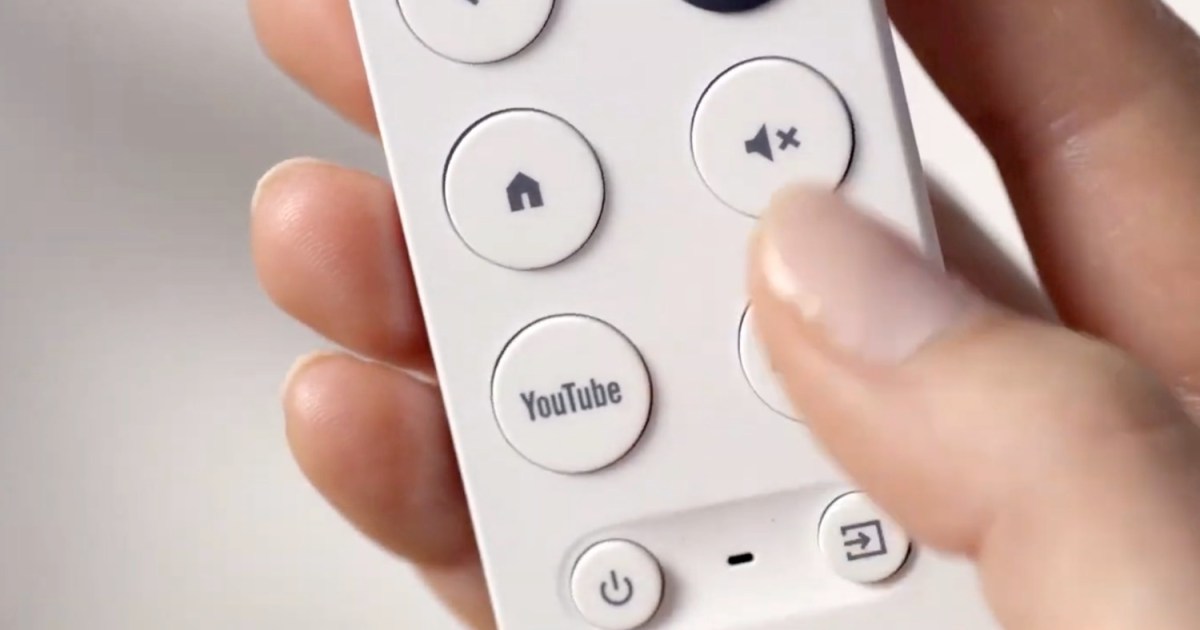
Part of what makes the Chromecast with Google TV so compelling is its Voice Remote. This lets you control your TV in a variety of ways, and it’s essentially how you operate the entire setup. However, like all electronics, the Voice Remote doesn’t always work as intended. A common problem is that the Voice Remote will disconnect from Chromecast, preventing you from using it with your TV and turning it into a fancy paperweight. The issue seems to occur randomly — but thankfully, there’s an easy solution.

Here’s how to reconnect the Chromecast with Google TV Voice Remote and get back to enjoying your shows.

How to re-pair a Google TV remote that won’t connect

When the Chromecast is powered on, it typically pairs with the remote automatically without hassle, but that is not always the case. The remote and the Chromecast communicate with each other via Bluetooth. If your Chromecast can’t find the remote, your TV will play a chime. This chime is an indication that the Chromecast has stopped scanning for Bluetooth devices and therefore cannot pair with the Voice Remote.

If your remote is not paired with your Chromecast and is not responsive, you have to manually pair them.

Step 1: First, make sure that the batteries in your remote are not dead and are installed correctly.

To put the Chromecast back in pairing mode press the button on the back of the Chromecast, and it will open up the pairing mode on the device, which will notify you via your TV screen.

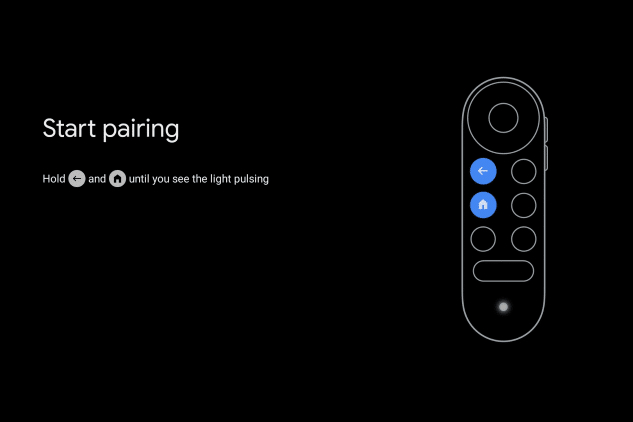
Step 2: If this doesn’t pair with the device automatically, next, on the remote, press and hold the Back + Home buttons simultaneously, not letting go until you see the LED light at the bottom of the remote pulsating. This will put the remote in pairing mode.


Perfect for watching NFL, NBA, and more, you can score 50% off your first month of live TV with Sling TV.

Step 3: When you see the LED, press the Home button on the remote. The remote should now be paired.

Reboot the Chromecast with Google TV

You can try a regular reboot of the Chromecast, which will restart the remote pairing process.

Step 1: Unplug the power cable from the Chromecast and wait for three seconds. (Ensure that you leave the Chromecast plugged into the TV’s HDMI port.)

Step 2: Plug the power cable back into the Chromecast. The Chromecast should begin searching for the remote.

Step 3: To ensure that your remote is working, press a few buttons on the remote.

Step 4: The Chromecast will begin the initial setup process as a new device. Follow through with this process.
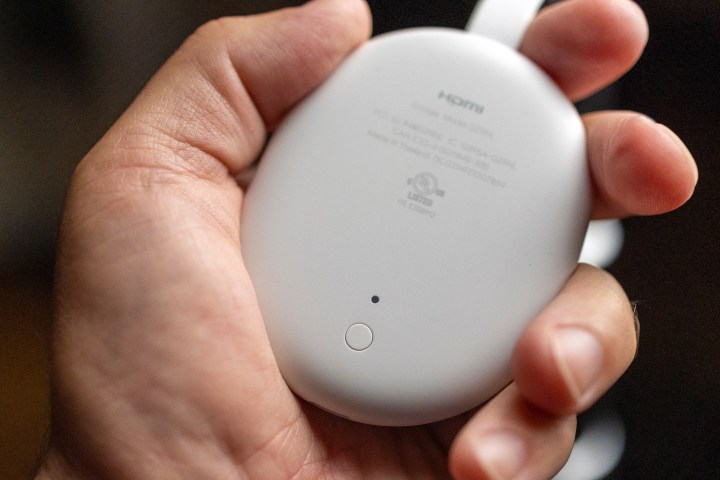
The reset button on the back of the Chromecast with Google TV.

Factory resetting the Chromecast with Google TV

If these steps do not work, try the following process instead. Factory resetting does not mean you will lose your data, but it means that the Chromecast with Google TV initial setup will happen again from scratch.

Step 1: To begin the reset process, locate your Chromecast’s physical reset button.

While powered, press and hold the button on the back of the Chromecast. The light will start blinking yellow.

Step 2: Continue to hold the button until it turns solid white, and then release it. The Chromecast will restart and the reset is complete. You are now ready to set up your Chromecast once again. Once the Chromecast resets, it will initiate the remote setup process again. Follow the same remote pairing process from above.

You should now have reconnected your Chromecast with Google TV remote and everything should be working properly. If you are still having issues, you can check out the Google Support page for more information.

Editors’ Recommendations


Share. Facebook Twitter Pinterest LinkedIn Tumblr Email
Previous ArticleSamsung is about to display the Galaxy Ring for the first time
Next Article Astronaut captures stunning images of a snowy Grand Canyon

Related Articles

The Sonos Beam Ultra proves you don’t need a huge soundbar for Dolby Atmos
News

The Sonos Beam Ultra proves you don’t need a huge soundbar for Dolby Atmos

1 September 2026
These 6 Labor Day smart home deals solve real problems
News

These 6 Labor Day smart home deals solve real problems

1 September 2026
Sonos Ace Ultra, Beam Ultra, Sonos Fabric, and a New App: Everything Sonos Just Announced
News

Sonos Ace Ultra, Beam Ultra, Sonos Fabric, and a New App: Everything Sonos Just Announced

1 September 2026
Ultrahuman wants your sleep data to make its Ring better at personalizing health insights
News

Ultrahuman wants your sleep data to make its Ring better at personalizing health insights

1 September 2026
Dyson’s Next Act Is an Electric Toothbrush With a Camera
News

Dyson’s Next Act Is an Electric Toothbrush With a Camera

1 September 2026
Nvidia’s DLSS 5 goes live with NBA 2K27 on September 3, and it looks a lot more convincing
News

Nvidia’s DLSS 5 goes live with NBA 2K27 on September 3, and it looks a lot more convincing

1 September 2026
Demo
Top Articles
5 laptops to buy instead of the M4 MacBook Pro

5 laptops to buy instead of the M4 MacBook Pro

17 November 2024134 Views
ChatGPT o1 vs. o1-mini vs. 4o: Which should you use?

ChatGPT o1 vs. o1-mini vs. 4o: Which should you use?

15 December 2024112 Views
Costco partners with Electric Era to bring back EV charging in the U.S.

Costco partners with Electric Era to bring back EV charging in the U.S.

28 October 2024101 Views

Subscribe to Updates

Get the latest tech news and updates directly to your inbox.

Latest News
Dyson’s Next Act Is an Electric Toothbrush With a Camera News

Dyson’s Next Act Is an Electric Toothbrush With a Camera

News Room1 September 2026
Nvidia’s DLSS 5 goes live with NBA 2K27 on September 3, and it looks a lot more convincing News

Nvidia’s DLSS 5 goes live with NBA 2K27 on September 3, and it looks a lot more convincing

News Room1 September 2026
Best Sleep Trackers of 2026: Oura, Whoop, and Eight Sleep News

Best Sleep Trackers of 2026: Oura, Whoop, and Eight Sleep

News Room1 September 2026
Most Popular
The Spectacular Burnout of a Solar Panel Salesman

The Spectacular Burnout of a Solar Panel Salesman

13 January 2025137 Views
5 laptops to buy instead of the M4 MacBook Pro

5 laptops to buy instead of the M4 MacBook Pro

17 November 2024134 Views
ChatGPT o1 vs. o1-mini vs. 4o: Which should you use?

ChatGPT o1 vs. o1-mini vs. 4o: Which should you use?

15 December 2024112 Views
Our Picks
Sonos Ace Ultra, Beam Ultra, Sonos Fabric, and a New App: Everything Sonos Just Announced

Sonos Ace Ultra, Beam Ultra, Sonos Fabric, and a New App: Everything Sonos Just Announced

1 September 2026
Ultrahuman wants your sleep data to make its Ring better at personalizing health insights

Ultrahuman wants your sleep data to make its Ring better at personalizing health insights

1 September 2026
Dyson’s Next Act Is an Electric Toothbrush With a Camera

Dyson’s Next Act Is an Electric Toothbrush With a Camera

1 September 2026

Subscribe to Updates

Get the latest tech news and updates directly to your inbox.

Facebook X (Twitter) Instagram Pinterest
  • Privacy Policy
  • Terms of use
  • Advertise
  • Contact Us
© 2026 Best in Technology. All Rights Reserved.

Type above and press Enter to search. Press Esc to cancel.