



Close Menu
Best in TechnologyBest in Technology
  • News
  • Phones
  • Laptops
  • Gadgets
  • Gaming
  • AI
  • Tips
  • More
    • Web Stories
    • Global
    • Press Release

Subscribe to Updates

Get the latest tech news and updates directly to your inbox.

What's On
Lenovo’s answer to the MacBook Neo could be a peppy Vibe laptop

Lenovo’s answer to the MacBook Neo could be a peppy Vibe laptop

13 August 2026
The White House Is Going to Expand Its AI Policy

The White House Is Going to Expand Its AI Policy

13 August 2026
Marvel Tōkon: Fighting Review: The Fighting-Game

Marvel Tōkon: Fighting Review: The Fighting-Game

12 August 2026
Facebook X (Twitter) Instagram
Just In
  • Lenovo’s answer to the MacBook Neo could be a peppy Vibe laptop
  • The White House Is Going to Expand Its AI Policy
  • Marvel Tōkon: Fighting Review: The Fighting-Game
  • Claude can now pull data from your browser tabs and keep working on your desktop
  • The Best Way to Avoid Diarrhea Lettuce? This Indoor Garden
  • Pixel 11 vs Pixel 10 series: Do Google’s new phones offer enough for an upgrade?
  • The Gender War Over ‘Obsession’ Has Come for Theme Parks
  • Everything announced at Made by Google 2026: Pixel 11 lineup, Pixel Watch 5, and Pixel Tag
Facebook X (Twitter) Instagram Pinterest Vimeo
Best in TechnologyBest in Technology
  • News
  • Phones
  • Laptops
  • Gadgets
  • Gaming
  • AI
  • Tips
  • More
    • Web Stories
    • Global
    • Press Release
Subscribe
Best in TechnologyBest in Technology
Home » How to map macros on your gaming keyboard
News

How to map macros on your gaming keyboard

News RoomBy News Room20 December 20234 Mins Read
Share Facebook Twitter Pinterest LinkedIn Tumblr Reddit Telegram Email
How to map macros on your gaming keyboard
Share
Facebook Twitter LinkedIn Pinterest Email

Macros can be a great way to automate mundane functions in your favorite games, or give you a slight speed advantage in high actions-per-minute games, like real-time strategy and MOBA games. While there are some gaming keyboards that come with prerecorded macros for you to use, you still need to apply them, and for most gaming keyboards, you’ll need to record them yourself.

But how do you actually do that? Fortunately, most keyboard manufacturers have their own backend software that makes the process very straightforward. Here’s how to map macros on your gaming keyboard.

How to map macros on Logitech keyboards

Logitech make some great gaming keyboards and mice, and collects all of them for button remapping and lighting management under the Logitech G-Hub application.

For more details, here’s our guide on how to use Logitech G-Hub.

Step 1: Download and install the Logitech G Hub from the official website.

Step 2: Open the app and it should automatically detect any Logitech devices you have connected to your PC, including the keyboard. Select it.

Step 3: Select Macros from the left-hand menu.

Step 4: Select Create new macro. Give it a name, then choose what type of macro you want it to be (toggle, repeat, sequence).

Step 5: Select any further relevant options, then select Start now. You can create a macro that performs a range of functions, so select one from the options presented. If you want it to handle a number of sequenced keypresses, select Record keystrokes, then press the keys you want to record.

When you’re done, select Stop Recording.

Step 6: Save the macro ,then return to the main keyboard page. Select the key on your keyboard that you want to apply the macro to, then drag and drop the chosen macro on to it.

Razer synapse software recording macros.

How to map macros on Razer keyboards

Razer also has a robust backend system for remapping keys and recording macros.

Step 1: Download and install the Razer Synapse software from the main website.

Step 2: Open the application and select the Macro icon in the top menu.

Step 3: Select the + icon in the top left and give the new macro a name.

Step 4: Select that macro name from the left-hand list, then select to record or insert inputs.

For recorded inputs, you can simply press Start and begin recording your macro. Select Stop when finished.

For insert, you can use the mouse to select keyboard inputs manually one at a time.

Step 5: Choose any additional parameters like delay functions between keypresses

Step 6: Go back to the main keyboard menu and select the key that you want to apply the macro to.

Step 7: Select Macro from the left-hand menu, then from the drop-down menu under “Assign Macro,” select the one you want to apply.

Step 8: If you want to, adjust Playaback option to add repetition, or toggle on and off.
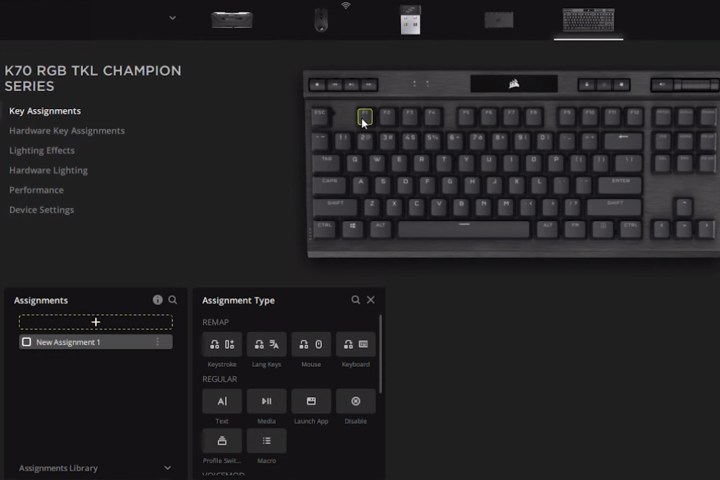
Creating Macros in the Corsair iCue app.

How to map macros on Corsair keyboards

Corsair’s iCUE software might be one of the best apps out there for managing your component’s RGB lighting, but it’s also great for managing keyboard remapping, including recording macros.

Step 1: Download and install the Corsair iCUE application from the official website.

Step 2: Open the application and select your keyboard from the list of available Corsair components and peripherals.

Step 3: Select Key assignments from the left-hand menu.

Step 4: In the bottom-left “Assignments” box, select the + icon followed by Macro.

Step 5: Input your sequence of keystrokes and set the additional parameters like looping or toggle on/off.

Step 6: Select which key you want to apply the macro to, then select the menu button to save it to your keyboard.

Now that you’ve remapped your keyboard and added your favorite macros, why not try adjusting your keyboard’s RGB lighting?

Editors’ Recommendations


Share. Facebook Twitter Pinterest LinkedIn Tumblr Email
Previous ArticleArizona’s Secretary of State Is Already Sick of Election Conspiracy Theories
Next Article We Found 14 Popular Christmas Toys Worth Gifting (and 3 to Avoid)

Related Articles

Lenovo’s answer to the MacBook Neo could be a peppy Vibe laptop
News

Lenovo’s answer to the MacBook Neo could be a peppy Vibe laptop

13 August 2026
The White House Is Going to Expand Its AI Policy
News

The White House Is Going to Expand Its AI Policy

13 August 2026
Claude can now pull data from your browser tabs and keep working on your desktop
News

Claude can now pull data from your browser tabs and keep working on your desktop

12 August 2026
The Best Way to Avoid Diarrhea Lettuce? This Indoor Garden
News

The Best Way to Avoid Diarrhea Lettuce? This Indoor Garden

12 August 2026
Pixel 11 vs Pixel 10 series: Do Google’s new phones offer enough for an upgrade?
News

Pixel 11 vs Pixel 10 series: Do Google’s new phones offer enough for an upgrade?

12 August 2026
The Gender War Over ‘Obsession’ Has Come for Theme Parks
News

The Gender War Over ‘Obsession’ Has Come for Theme Parks

12 August 2026
Demo
Top Articles
5 laptops to buy instead of the M4 MacBook Pro

5 laptops to buy instead of the M4 MacBook Pro

17 November 2024133 Views
ChatGPT o1 vs. o1-mini vs. 4o: Which should you use?

ChatGPT o1 vs. o1-mini vs. 4o: Which should you use?

15 December 2024112 Views
Costco partners with Electric Era to bring back EV charging in the U.S.

Costco partners with Electric Era to bring back EV charging in the U.S.

28 October 2024100 Views

Subscribe to Updates

Get the latest tech news and updates directly to your inbox.

Latest News
Pixel 11 vs Pixel 10 series: Do Google’s new phones offer enough for an upgrade? News

Pixel 11 vs Pixel 10 series: Do Google’s new phones offer enough for an upgrade?

News Room12 August 2026
The Gender War Over ‘Obsession’ Has Come for Theme Parks News

The Gender War Over ‘Obsession’ Has Come for Theme Parks

News Room12 August 2026
Everything announced at Made by Google 2026: Pixel 11 lineup, Pixel Watch 5, and Pixel Tag News

Everything announced at Made by Google 2026: Pixel 11 lineup, Pixel Watch 5, and Pixel Tag

News Room12 August 2026
Most Popular
The Spectacular Burnout of a Solar Panel Salesman

The Spectacular Burnout of a Solar Panel Salesman

13 January 2025137 Views
5 laptops to buy instead of the M4 MacBook Pro

5 laptops to buy instead of the M4 MacBook Pro

17 November 2024133 Views
ChatGPT o1 vs. o1-mini vs. 4o: Which should you use?

ChatGPT o1 vs. o1-mini vs. 4o: Which should you use?

15 December 2024112 Views
Our Picks
Claude can now pull data from your browser tabs and keep working on your desktop

Claude can now pull data from your browser tabs and keep working on your desktop

12 August 2026
The Best Way to Avoid Diarrhea Lettuce? This Indoor Garden

The Best Way to Avoid Diarrhea Lettuce? This Indoor Garden

12 August 2026
Pixel 11 vs Pixel 10 series: Do Google’s new phones offer enough for an upgrade?

Pixel 11 vs Pixel 10 series: Do Google’s new phones offer enough for an upgrade?

12 August 2026

Subscribe to Updates

Get the latest tech news and updates directly to your inbox.

Facebook X (Twitter) Instagram Pinterest
  • Privacy Policy
  • Terms of use
  • Advertise
  • Contact Us
© 2026 Best in Technology. All Rights Reserved.

Type above and press Enter to search. Press Esc to cancel.