




Close Menu
Best in TechnologyBest in Technology
  • News
  • Phones
  • Laptops
  • Gadgets
  • Gaming
  • AI
  • Tips
  • More
    • Web Stories
    • Global
    • Press Release

Subscribe to Updates

Get the latest tech news and updates directly to your inbox.

What's On
Italian car designer Pininfarina worked with a budget phone maker, and the result is stunning

Italian car designer Pininfarina worked with a budget phone maker, and the result is stunning

5 March 2026
Review: Suunto Vertical 2

Review: Suunto Vertical 2

5 March 2026
Kena: Bridge Of Spirits Is Coming To Nintendo Switch 2 This Spring

Kena: Bridge Of Spirits Is Coming To Nintendo Switch 2 This Spring

5 March 2026
Facebook X (Twitter) Instagram
Just In
  • Italian car designer Pininfarina worked with a budget phone maker, and the result is stunning
  • Review: Suunto Vertical 2
  • Kena: Bridge Of Spirits Is Coming To Nintendo Switch 2 This Spring
  • Nothing’s new Headphone a brings you the best of the Headphone 1 for $199
  • The Best Gravel Running Shoes
  • New Kirby Air Riders Amiibo Announced Alongside King Dedede Amiibo Release Date
  • Apple Music will put custom tags for AI songs and visuals, but it’s not enough
  • Review: KEF Muo Bluetooth Speaker
Facebook X (Twitter) Instagram Pinterest Vimeo
Best in TechnologyBest in Technology
  • News
  • Phones
  • Laptops
  • Gadgets
  • Gaming
  • AI
  • Tips
  • More
    • Web Stories
    • Global
    • Press Release
Subscribe
Best in TechnologyBest in Technology
Home » How to make a zip file on a Mac
News

How to make a zip file on a Mac

News RoomBy News Room5 January 20244 Mins Read
Share Facebook Twitter Pinterest LinkedIn Tumblr Reddit Telegram Email
How to make a zip file on a Mac
Share
Facebook Twitter LinkedIn Pinterest Email

Creating zip files on a Mac might seem daunting at first, but you have a few options — and plenty of tools — at your disposal. While you may have experience creating a zip file on a Windows-based computer, the process is slightly different on a Mac.

With this guide, you’ll become a pro at zipping and unzipping files between your Mac, iPad, and iPhone in no time. If you want to secure your zip files with a password, we have a guide for that too.

How to zip a single file on a Mac

Creating a zip file on a Mac is quick and easy, as macOS includes a built-in tool called Archive Utility for compressing and unzipping files. You don’t need a third-party app to get started.

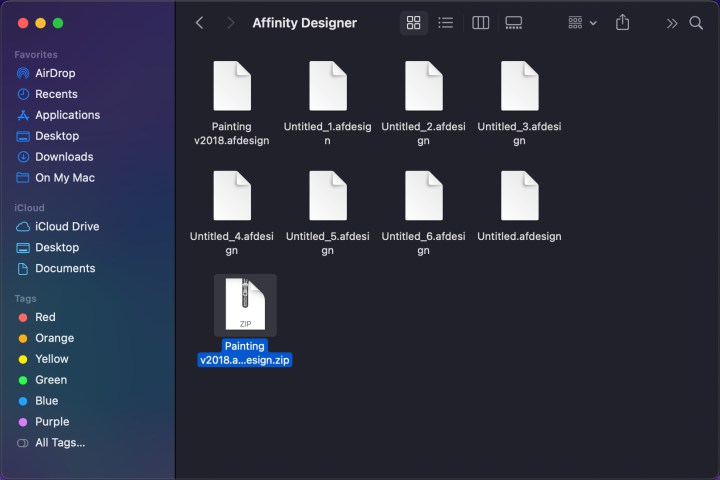
Step 1: Right-click or control-click on a file you want to compress and select Compress [File Name] from the pop-up menu.

Step 2: As shown below, a new zip file appears in the same folder, while the original file remains.
MacOS New Zip File

How to zip multiple files

The process is very similar for compressing multiple files into a zip archive, albeit with a couple of small differences.

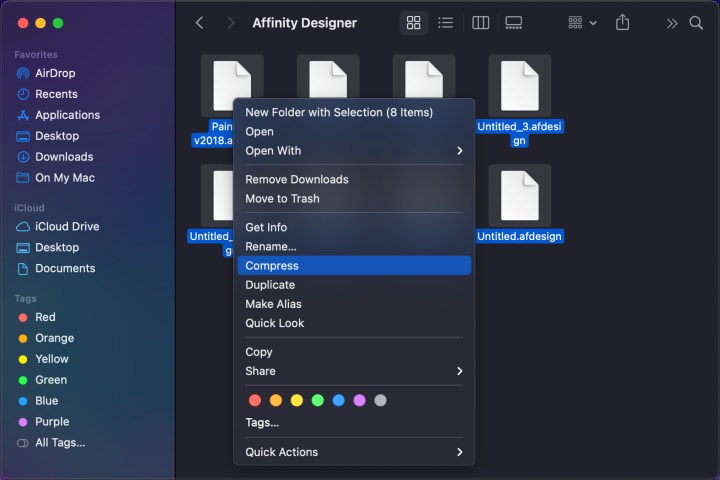
Step 1: Using your mouse or trackpad, draw a box around all the files you want to compress. Alternatively, hold the Command key while selecting your desired files.

Step 2: Right-click or control-click and select Compress from the pop-up menu. A new archive will appear in the folder. As before, the original files remain intact.
MacOS Compress Multiple Files

Step 3: To rename the default Archive.zip file, simply right-click or control-click on the archive and select Rename. Or you can select the file, select Return and type a new name. This is useful if you need to create multiple zip files or to make it easier for the recipient to know what’s in the archive.

Rename Archive

How to unzip a file

There’s nothing complicated about unzipping a zip file, and it’s easy to do in a few different ways.

Step 1: Double-click on your zip file and it will unzip its contents automatically. The files it contains will be put into a new folder that takes the name of the zip file. The zip file will remain intact and in place.

Step 2: Alternatively, right-click or control-click on a zip file and choose Open from the pop-up menu.

Step 3: You can also hover over Open With in the right-click menu, then choose Archive Utility. You can download unzipping software like The Unarchiver if you prefer.
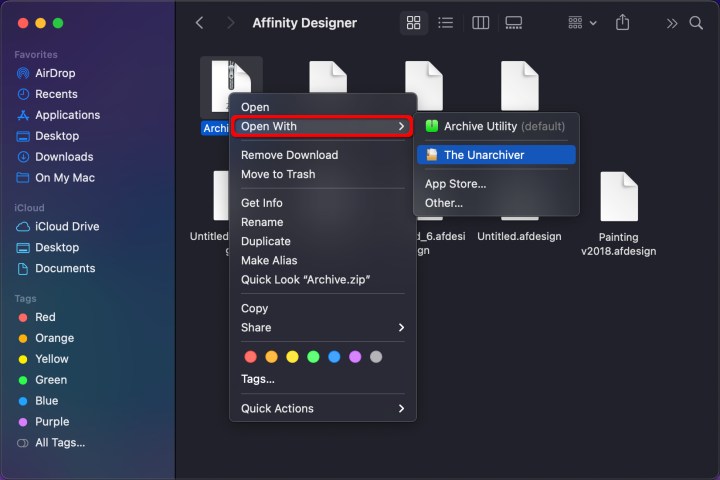
Mac Open Zip Files Third Party

Is compression not working?

Perhaps you cannot compress files because file permissions aren’t letting you. Fortunately, you can fix that by changing the zip file’s permissions.

Step 1: Right-click or control-click on the file you want and choose Get Info from the resulting menu.
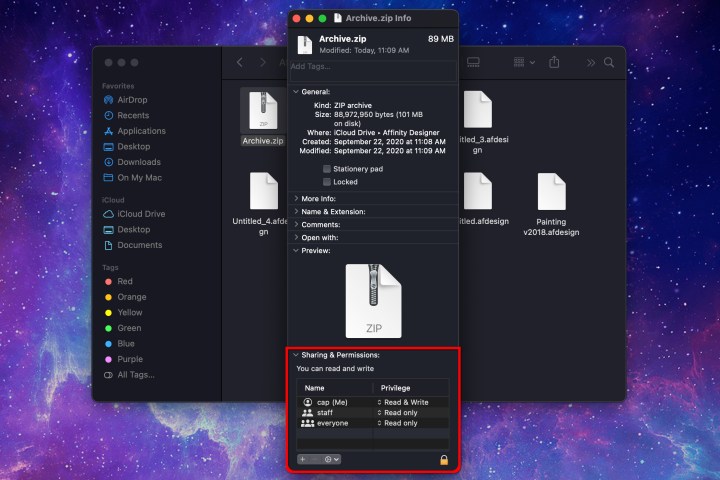
Fix Archive Permissions

Step 2: Click the arrow beside Sharing & Permissions to open this choice, as displayed above.

Step 3: Check that your specific account is set as an administrator and that your permissions are Read & Write. If they are set to Read Only, change them to Read & Write in order to give yourself the proper permissions.

Step 4: You might need to click the Lock button in the bottom-right corner of the Get Info window in order to make changes. Once that’s done, switch your permissions to Read & Write and try compressing the file once more.

Sending compressed files to iOS/iPadOS

There are times when you might want to send a zip file from macOS to an iOS or iPadOS device. In that case, you’ll need to complete a few more steps to uncompress the files on your phone or tablet.

Step 1: First, you’ll need to save the zip file to the Files app on your iPhone or iPad. For example, if you’ve sent the zip file in an email, open your email app, tap the Share button on the attachment, then select Save to Files.

Step 2: Now open the Files app and locate the file in question.
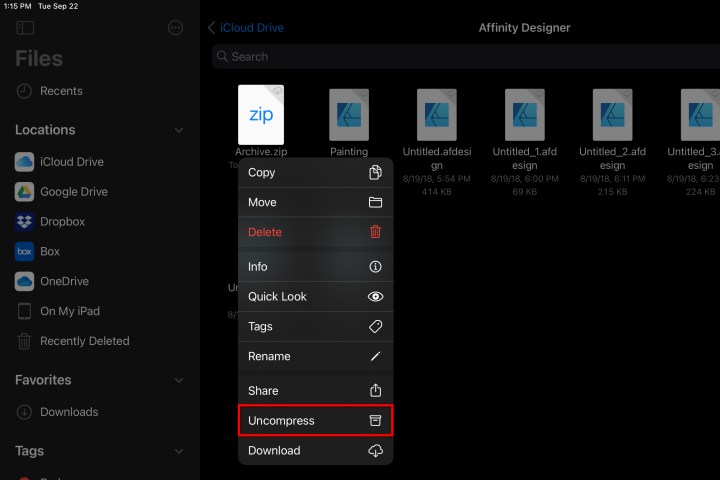
iPadOS Unzip Archive

Step 3: Tap and hold the file and choose Uncompress. As on macOS, this will create a new folder containing the unzipped files, while leaving the zip file itself intact. That’s all there is to it.

Editors’ Recommendations


Share. Facebook Twitter Pinterest LinkedIn Tumblr Email
Previous ArticleMost Anticipated Switch Games Of 2024 | All Things Nintendo
Next Article Don’t Miss These Fitbit Deals on the Sense 2, Charge 6, and Versa 4

Related Articles

Italian car designer Pininfarina worked with a budget phone maker, and the result is stunning
News

Italian car designer Pininfarina worked with a budget phone maker, and the result is stunning

5 March 2026
Review: Suunto Vertical 2
News

Review: Suunto Vertical 2

5 March 2026
Nothing’s new Headphone a brings you the best of the Headphone 1 for 9
News

Nothing’s new Headphone a brings you the best of the Headphone 1 for $199

5 March 2026
The Best Gravel Running Shoes
News

The Best Gravel Running Shoes

5 March 2026
Apple Music will put custom tags for AI songs and visuals, but it’s not enough
News

Apple Music will put custom tags for AI songs and visuals, but it’s not enough

5 March 2026
Review: KEF Muo Bluetooth Speaker
News

Review: KEF Muo Bluetooth Speaker

5 March 2026
Demo
Top Articles
5 laptops to buy instead of the M4 MacBook Pro

5 laptops to buy instead of the M4 MacBook Pro

17 November 2024126 Views
ChatGPT o1 vs. o1-mini vs. 4o: Which should you use?

ChatGPT o1 vs. o1-mini vs. 4o: Which should you use?

15 December 2024111 Views
Costco partners with Electric Era to bring back EV charging in the U.S.

Costco partners with Electric Era to bring back EV charging in the U.S.

28 October 202499 Views

Subscribe to Updates

Get the latest tech news and updates directly to your inbox.

Latest News
New Kirby Air Riders Amiibo Announced Alongside King Dedede Amiibo Release Date Gaming

New Kirby Air Riders Amiibo Announced Alongside King Dedede Amiibo Release Date

News Room5 March 2026
Apple Music will put custom tags for AI songs and visuals, but it’s not enough News

Apple Music will put custom tags for AI songs and visuals, but it’s not enough

News Room5 March 2026
Review: KEF Muo Bluetooth Speaker News

Review: KEF Muo Bluetooth Speaker

News Room5 March 2026
Most Popular
The Spectacular Burnout of a Solar Panel Salesman

The Spectacular Burnout of a Solar Panel Salesman

13 January 2025137 Views
5 laptops to buy instead of the M4 MacBook Pro

5 laptops to buy instead of the M4 MacBook Pro

17 November 2024126 Views
ChatGPT o1 vs. o1-mini vs. 4o: Which should you use?

ChatGPT o1 vs. o1-mini vs. 4o: Which should you use?

15 December 2024111 Views
Our Picks
Nothing’s new Headphone a brings you the best of the Headphone 1 for 9

Nothing’s new Headphone a brings you the best of the Headphone 1 for $199

5 March 2026
The Best Gravel Running Shoes

The Best Gravel Running Shoes

5 March 2026
New Kirby Air Riders Amiibo Announced Alongside King Dedede Amiibo Release Date

New Kirby Air Riders Amiibo Announced Alongside King Dedede Amiibo Release Date

5 March 2026

Subscribe to Updates

Get the latest tech news and updates directly to your inbox.

Facebook X (Twitter) Instagram Pinterest
  • Privacy Policy
  • Terms of use
  • Advertise
  • Contact Us
© 2026 Best in Technology. All Rights Reserved.

Type above and press Enter to search. Press Esc to cancel.