







Close Menu
Best in TechnologyBest in Technology
  • News
  • Phones
  • Laptops
  • Gadgets
  • Gaming
  • AI
  • Tips
  • More
    • Web Stories
    • Global
    • Press Release

Subscribe to Updates

Get the latest tech news and updates directly to your inbox.

What's On
Anker just exposed a big problem with portable power stations

Anker just exposed a big problem with portable power stations

7 August 2026
AI models keep escaping their sandboxes, and Kimi K3 is the latest to join the party

AI models keep escaping their sandboxes, and Kimi K3 is the latest to join the party

7 August 2026
Gemini’s revamped Wear OS design is finally rolling out, and it was worth the wait

Gemini’s revamped Wear OS design is finally rolling out, and it was worth the wait

7 August 2026
Facebook X (Twitter) Instagram
Just In
  • Anker just exposed a big problem with portable power stations
  • AI models keep escaping their sandboxes, and Kimi K3 is the latest to join the party
  • Gemini’s revamped Wear OS design is finally rolling out, and it was worth the wait
  • After switching to ChatGPT Voice, typing now feels painfully slow
  • From Seconds of Visual Impact to Minutes of Storytelling: AI Video Is Moving Toward Narrative Depth
  • Marantz upgrades its CINEMA Series 2 with a new DAC, Dirac Live, and better gaming support
  • One of China’s Most Powerful AI Models Has Also Escaped Containment
  • How US Forex Traders Now Get to Choose Their Own Platform
Facebook X (Twitter) Instagram Pinterest Vimeo
Best in TechnologyBest in Technology
  • News
  • Phones
  • Laptops
  • Gadgets
  • Gaming
  • AI
  • Tips
  • More
    • Web Stories
    • Global
    • Press Release
Subscribe
Best in TechnologyBest in Technology
Home » How to lock cells in Excel
News

How to lock cells in Excel

News RoomBy News Room10 September 20243 Mins Read
Share Facebook Twitter Pinterest LinkedIn Tumblr Reddit Telegram Email
How to lock cells in Excel
Share
Facebook Twitter LinkedIn Pinterest Email

Locking cells in a Microsoft Excel spreadsheet is a super useful thing to know how to do. It’s used to protect a certain segment or an entire worksheet from being modified by anyone other than the spreadsheet’s creator.

For example, if you’re an employer and you use Microsoft Excel to create a spreadsheet with multiple drop-down lists for applicants, locking cells will prevent recipients of that form from tampering with any of the data.

Here’s a guide on how to lock cells in Excel.

Locking individual or multiple cells

Step 1: An Excel spreadsheet might already be locked. Therefore, to lock individual or multiple cells, you’ll have to unlock the spreadsheet first. To do this, click the Green Diagonal button on the top-left side of the first cell.

The button to select all cells within a spreadsheet on Microsoft Excel.

Step 2: Right-click your mouse and select the Format Cells option from the menu.

The Format Cells button in Microsoft Excel.

Step 3: Select the Protection tab and unselect the Locked button. Click OK.
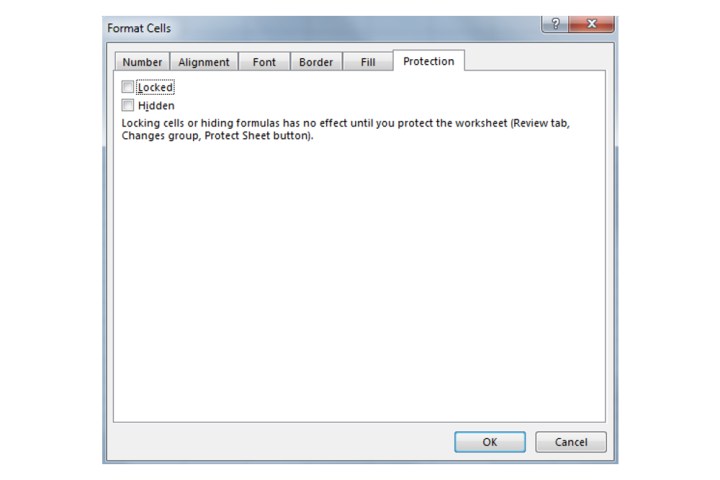
The Locked button found within the Protection tab in Microsoft Excel.

Step 4: Now choose what cells you want to lock by clicking on them. You can select a single cell, multiple cells, a row, or an entire column.

Step 5: Within the selected cell or cells, right-click and choose Format Cells.

Step 6: Navigate to the Protection tab again, select the Locked box, and then click OK.
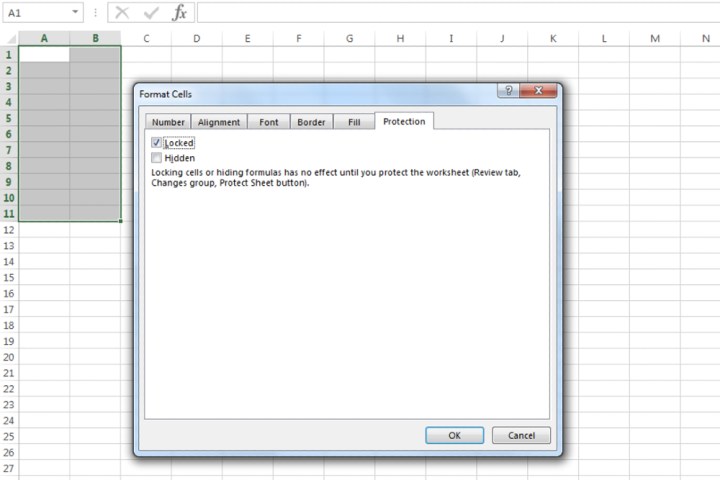
Locking specific cells in Microsoft Excel by using the Locked box.

Step 7: In order to confirm the locking of cells, click the Review tab. Now click the Protect Sheet option.
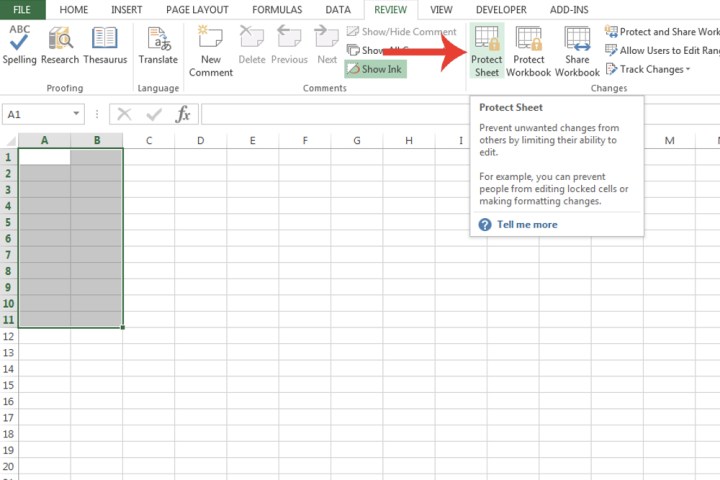
The Protect Sheet button in Microsoft Excel used for confirming the locking of cells.

Step 8: Choose what sort of protection you want from all the options shown. By default, the Select Locked Cells and Select Unlocked Cells fields are already ticked. You can also input a password for further protection. Click OK.

The cells you’ve chosen will now be locked.
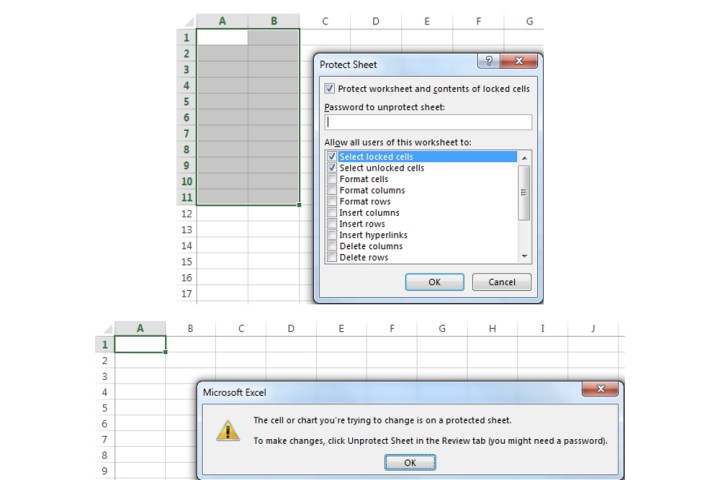
The Protect Sheet window where it lists all the configuration options connected to locking cells.

Locking an entire spreadsheet

Step 1: At the bottom of Microsoft Excel, right-click the spreadsheet you want to lock.

Step 2: Select the Protect Sheet option. As explained in step 8, customize the different types of protection you want to apply to the spreadsheet, then click OK. As we mentioned in step 1, Microsoft already locks an Excel spreadsheet, so you won’t need to take the steps to do so yourself.
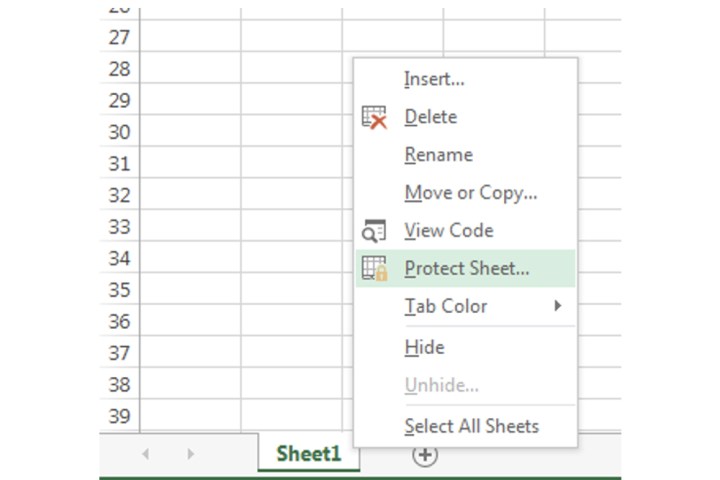
A shortcut to access the Protect Sheet option for locking an entire spreadsheet in Microsoft Excel.

Now you know how to lock and unlock cells and your Excel spreadsheet, you can retain better control over your data and avoid mistakes with entry.

Excel spreadsheets are considerably flexible, which makes the software suitable for all manner of purposes. If you know how to merge and unmerge cells in Microsoft Excel, you can use it for just about anything.





Share. Facebook Twitter Pinterest LinkedIn Tumblr Email
Previous ArticleApple Event Live Blog: All the iPhone 16 News as It Happens
Next Article iPhone 15 Pro, iPhone 15 Pro Max, iPhone 13, Watch Series 9 Discontinued After iPhone 16 Series Launch Event

Related Articles

Anker just exposed a big problem with portable power stations
News

Anker just exposed a big problem with portable power stations

7 August 2026
AI models keep escaping their sandboxes, and Kimi K3 is the latest to join the party
News

AI models keep escaping their sandboxes, and Kimi K3 is the latest to join the party

7 August 2026
Gemini’s revamped Wear OS design is finally rolling out, and it was worth the wait
News

Gemini’s revamped Wear OS design is finally rolling out, and it was worth the wait

7 August 2026
After switching to ChatGPT Voice, typing now feels painfully slow
News

After switching to ChatGPT Voice, typing now feels painfully slow

7 August 2026
From Seconds of Visual Impact to Minutes of Storytelling: AI Video Is Moving Toward Narrative Depth
News

From Seconds of Visual Impact to Minutes of Storytelling: AI Video Is Moving Toward Narrative Depth

7 August 2026
Marantz upgrades its CINEMA Series 2 with a new DAC, Dirac Live, and better gaming support
News

Marantz upgrades its CINEMA Series 2 with a new DAC, Dirac Live, and better gaming support

7 August 2026
Demo
Top Articles
5 laptops to buy instead of the M4 MacBook Pro

5 laptops to buy instead of the M4 MacBook Pro

17 November 2024133 Views
ChatGPT o1 vs. o1-mini vs. 4o: Which should you use?

ChatGPT o1 vs. o1-mini vs. 4o: Which should you use?

15 December 2024111 Views
Costco partners with Electric Era to bring back EV charging in the U.S.

Costco partners with Electric Era to bring back EV charging in the U.S.

28 October 2024100 Views

Subscribe to Updates

Get the latest tech news and updates directly to your inbox.

Latest News
Marantz upgrades its CINEMA Series 2 with a new DAC, Dirac Live, and better gaming support News

Marantz upgrades its CINEMA Series 2 with a new DAC, Dirac Live, and better gaming support

News Room7 August 2026
One of China’s Most Powerful AI Models Has Also Escaped Containment News

One of China’s Most Powerful AI Models Has Also Escaped Containment

News Room7 August 2026
How US Forex Traders Now Get to Choose Their Own Platform News

How US Forex Traders Now Get to Choose Their Own Platform

News Room7 August 2026
Most Popular
The Spectacular Burnout of a Solar Panel Salesman

The Spectacular Burnout of a Solar Panel Salesman

13 January 2025137 Views
5 laptops to buy instead of the M4 MacBook Pro

5 laptops to buy instead of the M4 MacBook Pro

17 November 2024133 Views
ChatGPT o1 vs. o1-mini vs. 4o: Which should you use?

ChatGPT o1 vs. o1-mini vs. 4o: Which should you use?

15 December 2024111 Views
Our Picks
After switching to ChatGPT Voice, typing now feels painfully slow

After switching to ChatGPT Voice, typing now feels painfully slow

7 August 2026
From Seconds of Visual Impact to Minutes of Storytelling: AI Video Is Moving Toward Narrative Depth

From Seconds of Visual Impact to Minutes of Storytelling: AI Video Is Moving Toward Narrative Depth

7 August 2026
Marantz upgrades its CINEMA Series 2 with a new DAC, Dirac Live, and better gaming support

Marantz upgrades its CINEMA Series 2 with a new DAC, Dirac Live, and better gaming support

7 August 2026

Subscribe to Updates

Get the latest tech news and updates directly to your inbox.

Facebook X (Twitter) Instagram Pinterest
  • Privacy Policy
  • Terms of use
  • Advertise
  • Contact Us
© 2026 Best in Technology. All Rights Reserved.

Type above and press Enter to search. Press Esc to cancel.