

Close Menu
Best in TechnologyBest in Technology
  • News
  • Phones
  • Laptops
  • Gadgets
  • Gaming
  • AI
  • Tips
  • More
    • Web Stories
    • Global
    • Press Release

Subscribe to Updates

Get the latest tech news and updates directly to your inbox.

What's On
Apple’s next Beats headphones have leaked, and I have a nudge about which product they belong with

Apple’s next Beats headphones have leaked, and I have a nudge about which product they belong with

21 August 2026
Influencers and Resellers Are Turning Empty Boxes Into Big Cash

Influencers and Resellers Are Turning Empty Boxes Into Big Cash

21 August 2026
Your next cinema trip could come with a Meta smart glasses ban

Your next cinema trip could come with a Meta smart glasses ban

21 August 2026
Facebook X (Twitter) Instagram
Just In
  • Apple’s next Beats headphones have leaked, and I have a nudge about which product they belong with
  • Influencers and Resellers Are Turning Empty Boxes Into Big Cash
  • Your next cinema trip could come with a Meta smart glasses ban
  • Best Early Tech Labor Day Sales I’d Shop Myself (2026): AirTags, Dyson, and More
  • RayNeo’s new iO Smart Glasses slip a tiny display into your line of sight
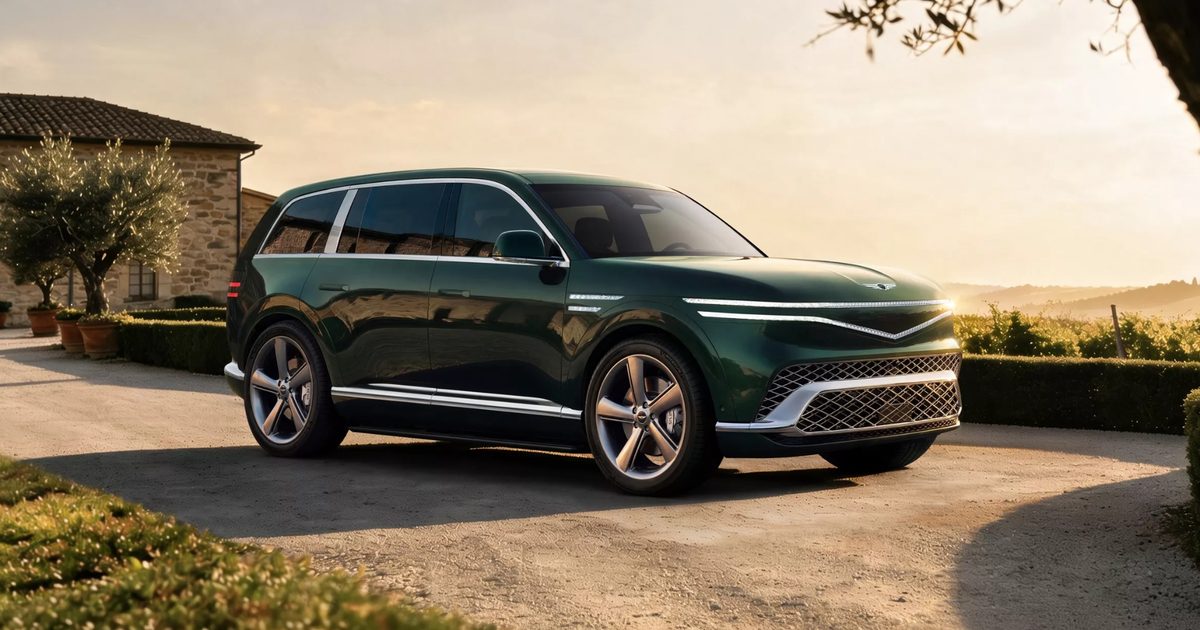
  • Genesis launched a flagship electric SUV and gave it more power than the Ferrari Amalfi
  • Sony’s next Xperia phone is coming August 24, but it’s likely to skip the US
  • The Single English County Saying No to Palantir
Facebook X (Twitter) Instagram Pinterest Vimeo
Best in TechnologyBest in Technology
  • News
  • Phones
  • Laptops
  • Gadgets
  • Gaming
  • AI
  • Tips
  • More
    • Web Stories
    • Global
    • Press Release
Subscribe
Best in TechnologyBest in Technology
Home » How to install Android apps on Windows 11
News

How to install Android apps on Windows 11

News RoomBy News Room18 June 20244 Mins Read
Share Facebook Twitter Pinterest LinkedIn Tumblr Reddit Telegram Email
How to install Android apps on Windows 11
Share
Facebook Twitter LinkedIn Pinterest Email

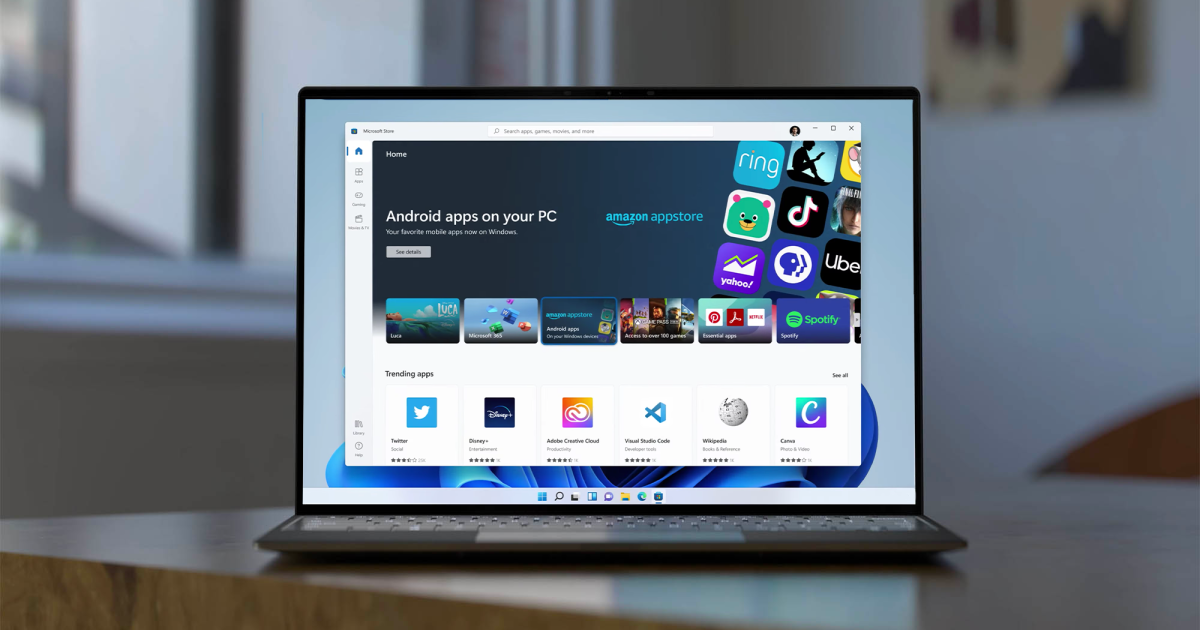
The best way to install Android apps on Windows 11 is to do so via the Amazon Appstore. In order to do that, you’ll need to set up the Windows Subsystem for Android (if it’s not already set up on your PC), install the Amazon Appstore app, and enable virtualization if prompted. In this guide, we’ll show you how to do all of that so you can start installing Android apps on your Windows 11 PC.

We’re focusing on natively installing Android apps on Windows 11 here. You can still use Android apps on Windows 10 through emulation, but we recommend installing Windows 11 if you want to run Android apps through Windows.

Currently, this method still works. However, Amazon has announced that it will discontinue the Amazon App Store on Windows 11 on March 5, 2025. You will still be able to use apps you’ve already installed past that point, but you won’t be able to install new ones. In addition, developers can continue updating those apps.

How to install Android apps on Windows 11

For Android apps on Windows 11, you need the Amazon Appstore and the Windows Subsystem for Android. You should already have the Windows Subsystem for Android installed with Windows 11, but in case you don’t, you can re-download it from the Microsoft Store.

Step 1: Open the Microsoft Store by using the Windows + S keys and searching for “Microsoft Store.”

Step 2: Search for “Amazon Appstore” and select the app.
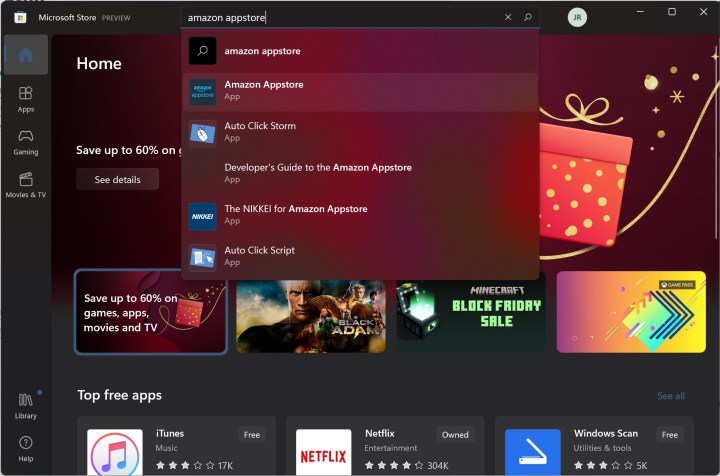
Searching for Amazon Appstore app in Microsoft Store.

Step 3: Select Get.

Step 4: At this point, you may need to enable virtualization if you haven’t already done it on your computer. Windows 11 can do this automatically, as well as set up the Windows Subsystem for Android if you don’t have it installed.

If you see the prompt, select Set up > Download > Next > Restart, following the prompts from the Microsoft Store. You’ll need to restart your computer.
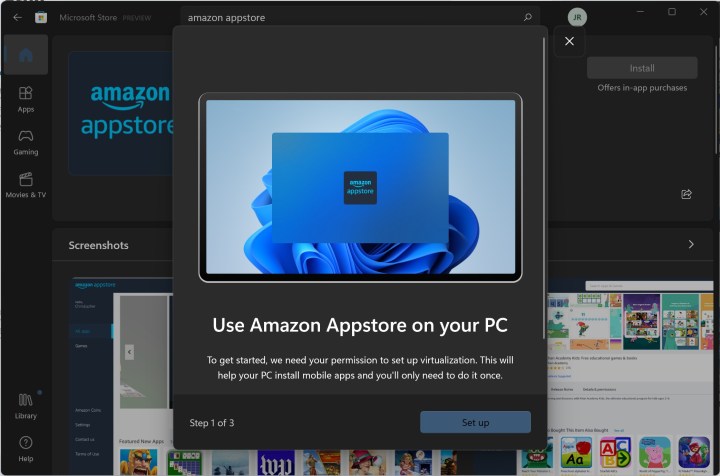
Enabling virtualization in order to use Amazon Appstore.

Step 5: Once your PC has fully restarted, the Windows Subsystem for Android should appear and then the Amazon Appstore app should open automatically afterward.

Amazon Appstore sign-in on Windows 11.

Step 6: Sign into your Amazon account (or create a new one), and start downloading Android apps on Windows!
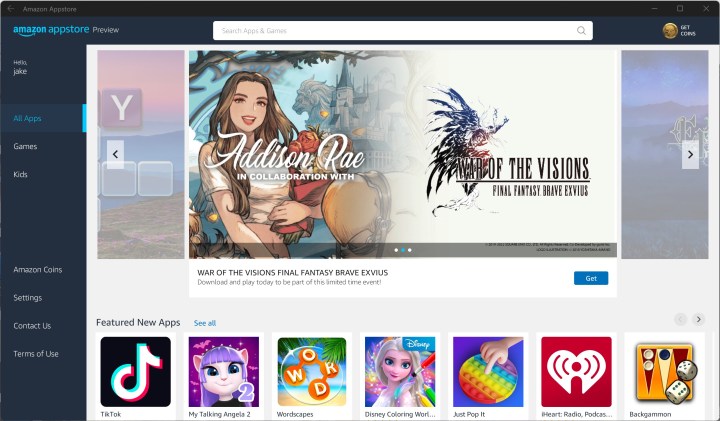
The Amazon Appstore interface once logged in.

You’re restricted to the Amazon Appstore on Windows 11, but there is still a long list of apps you can download and use, including TikTok and Comixology. If you want to know where to get started, make sure to read our guide on the best Android apps for Windows 11.

If you want to explore outside of the Amazon Appstore, you can sideload Android apps on Windows 11. These apps aren’t officially supported, though, so proceed at your own risk.

Frequently asked questions

Can I install Android apps on Windows 11?

Yes, you can install Android apps on Windows 11. Android apps are supported on Windows 11 via the Amazon Appstore. In order to install Android apps on Windows 11, you’ll need to have at least three things: the Windows Subsystem for Android, the Amazon Appstore app, and an Amazon account.

How do I install Android apps on PC?

Once you have the Windows Subsystem for Android and the Amazon Appstore app downloaded and set up on your PC, you may be prompted to also enable virtualization. Once you’ve done that, your PC should restart and you’ll be asked to log into your Amazon account. Once logged in, you should now be able to download Android apps to your Windows 11 PC.

If you need more specific instructions for installing Android apps on Windows 11, please refer to the instructions for doing so at the beginning of this article.

Does Windows 11 have an app store?

Yes, Windows 11 does have an app store. It’s called Microsoft Store and it should be a native app on your Windows 11 PC. The app icon should look like a white shopping bag with the Microsoft logo in the middle of it. You can download all sorts of apps and games here.

If you want to install Android apps on your Windows 11 PC, you’ll want to use the Amazon Appstore app for that. You can find and download the Amazon Appstore app in the Microsoft Store.

Editors’ Recommendations


Share. Facebook Twitter Pinterest LinkedIn Tumblr Email
Previous ArticleThe Dragon Age: The Veilguard Digital Issue Is Now Live!
Next Article Hidetaka Miyazaki Talks Why Bloodborne Is Special To Him And How It Led To Elden Ring

Related Articles

Apple’s next Beats headphones have leaked, and I have a nudge about which product they belong with
News

Apple’s next Beats headphones have leaked, and I have a nudge about which product they belong with

21 August 2026
Influencers and Resellers Are Turning Empty Boxes Into Big Cash
News

Influencers and Resellers Are Turning Empty Boxes Into Big Cash

21 August 2026
Your next cinema trip could come with a Meta smart glasses ban
News

Your next cinema trip could come with a Meta smart glasses ban

21 August 2026
Best Early Tech Labor Day Sales I’d Shop Myself (2026): AirTags, Dyson, and More
News

Best Early Tech Labor Day Sales I’d Shop Myself (2026): AirTags, Dyson, and More

21 August 2026
RayNeo’s new iO Smart Glasses slip a tiny display into your line of sight
News

RayNeo’s new iO Smart Glasses slip a tiny display into your line of sight

21 August 2026
Genesis launched a flagship electric SUV and gave it more power than the Ferrari Amalfi
News

Genesis launched a flagship electric SUV and gave it more power than the Ferrari Amalfi

21 August 2026
Demo
Top Articles
5 laptops to buy instead of the M4 MacBook Pro

5 laptops to buy instead of the M4 MacBook Pro

17 November 2024133 Views
ChatGPT o1 vs. o1-mini vs. 4o: Which should you use?

ChatGPT o1 vs. o1-mini vs. 4o: Which should you use?

15 December 2024112 Views
Costco partners with Electric Era to bring back EV charging in the U.S.

Costco partners with Electric Era to bring back EV charging in the U.S.

28 October 2024100 Views

Subscribe to Updates

Get the latest tech news and updates directly to your inbox.

Latest News
Genesis launched a flagship electric SUV and gave it more power than the Ferrari Amalfi News

Genesis launched a flagship electric SUV and gave it more power than the Ferrari Amalfi

News Room21 August 2026
Sony’s next Xperia phone is coming August 24, but it’s likely to skip the US News

Sony’s next Xperia phone is coming August 24, but it’s likely to skip the US

News Room21 August 2026
The Single English County Saying No to Palantir News

The Single English County Saying No to Palantir

News Room21 August 2026
Most Popular
The Spectacular Burnout of a Solar Panel Salesman

The Spectacular Burnout of a Solar Panel Salesman

13 January 2025137 Views
5 laptops to buy instead of the M4 MacBook Pro

5 laptops to buy instead of the M4 MacBook Pro

17 November 2024133 Views
ChatGPT o1 vs. o1-mini vs. 4o: Which should you use?

ChatGPT o1 vs. o1-mini vs. 4o: Which should you use?

15 December 2024112 Views
Our Picks
Best Early Tech Labor Day Sales I’d Shop Myself (2026): AirTags, Dyson, and More

Best Early Tech Labor Day Sales I’d Shop Myself (2026): AirTags, Dyson, and More

21 August 2026
RayNeo’s new iO Smart Glasses slip a tiny display into your line of sight

RayNeo’s new iO Smart Glasses slip a tiny display into your line of sight

21 August 2026
Genesis launched a flagship electric SUV and gave it more power than the Ferrari Amalfi

Genesis launched a flagship electric SUV and gave it more power than the Ferrari Amalfi

21 August 2026

Subscribe to Updates

Get the latest tech news and updates directly to your inbox.

Facebook X (Twitter) Instagram Pinterest
  • Privacy Policy
  • Terms of use
  • Advertise
  • Contact Us
© 2026 Best in Technology. All Rights Reserved.

Type above and press Enter to search. Press Esc to cancel.