




Close Menu
Best in TechnologyBest in Technology
  • News
  • Phones
  • Laptops
  • Gadgets
  • Gaming
  • AI
  • Tips
  • More
    • Web Stories
    • Global
    • Press Release

Subscribe to Updates

Get the latest tech news and updates directly to your inbox.

What's On
VITURE’s new XR glasses look straight out of Phantom Blade Zero

VITURE’s new XR glasses look straight out of Phantom Blade Zero

28 August 2026
Aniimo, A Pokémon-Inspired Creature Collector – Aug 25, 2026

Aniimo, A Pokémon-Inspired Creature Collector – Aug 25, 2026

28 August 2026
Gemini Omni can now extend videos to 40 seconds and upscale them to 4K

Gemini Omni can now extend videos to 40 seconds and upscale them to 4K

28 August 2026
Facebook X (Twitter) Instagram
Just In
  • VITURE’s new XR glasses look straight out of Phantom Blade Zero
  • Aniimo, A Pokémon-Inspired Creature Collector – Aug 25, 2026
  • Gemini Omni can now extend videos to 40 seconds and upscale them to 4K
  • Nodusfall Is Hoyoverse’s Surprising New Fantasy Action Project
  • Google cracks down on memory-hogging Android apps amid an AI-fueled RAM shortage
  • Netflix Failed at Video Games. Now It’s Trying to Promote Them
  • The Wolf Among Us Remastered Emerges From The Shadows On October 29
  • Gemini Notebook now lets you reference books and turn them into different formats
Facebook X (Twitter) Instagram Pinterest Vimeo
Best in TechnologyBest in Technology
  • News
  • Phones
  • Laptops
  • Gadgets
  • Gaming
  • AI
  • Tips
  • More
    • Web Stories
    • Global
    • Press Release
Subscribe
Best in TechnologyBest in Technology
Home » How to find archived emails in Gmail and return them to your inbox
News

How to find archived emails in Gmail and return them to your inbox

News RoomBy News Room6 December 20236 Mins Read
Share Facebook Twitter Pinterest LinkedIn Tumblr Reddit Telegram Email
How to find archived emails in Gmail and return them to your inbox
Share
Facebook Twitter LinkedIn Pinterest Email

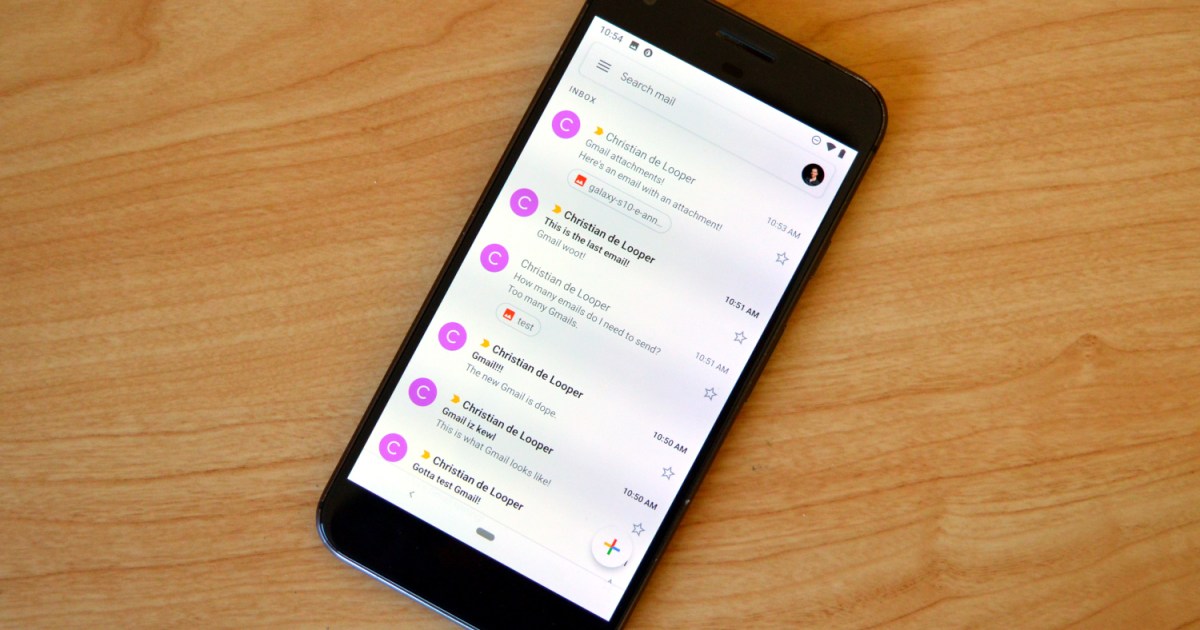
If you’re looking to clean up your Gmail inbox, but you don’t want to delete anything permanently, then choosing the archive option is your best bet. Whenever you archive an email, it is removed from your inbox folder while still remaining accessible. Here’s how to access any emails you have archived previously, as well as how to move such messages back to your regular inbox for fast access.

Finding archived emails via the web

If you access Gmail via a web browser, it is a straightforward process to recall any emails you may have archived. For starters, if you choose to use the search bar at the top of the page, search results will include any archived emails. Alternatively, you can access all of your available mail, including archived pieces, under the All mail option.

Step 1: Visit the Gmail website and sign in.

Step 2: On the left side of the screen, select More.

Step 3: Select the All mail option.

Step 4: On the right side of the screen, you may now browse your email; it will include all emails in your account, including archived content.

Selecting the All Mail option in the Gmail app for Android.

Finding archived emails via mobile apps

If you are using the Gmail mobile app on your iOS or Android device, you can also access archived content easily. As on the web, you can use the search bar displayed above your mail to initiate a search that will include archived content. Otherwise, if you wish, you can access all of your available mail, including archived content, under the All mail option.

Step 1: Open the Gmail app on your device.

Step 2: At the top of the screen, select the Menu button; it is displayed as three horizontal lines.

Step 3: Select the All mail option from the menu that appears.

Step 4: You may now browse your emails on-screen. This will include all emails in your account, including archived messages.
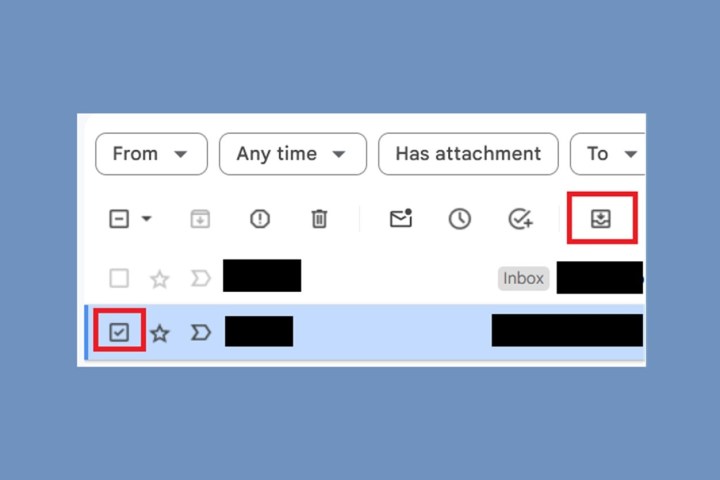
Selecting the Move to Inbox option in Gmail for web.

Moving an archived email to the inbox via the web

If you change your mind, you can always move any archived content back to your inbox. Follow these steps to move archived emails back into your inbox using the Gmail website:

Step 1: Visit the Gmail website and sign in.

Step 2: Locate the email you wish to relocate.

Step 3: To the left of the email, check the Small box icon.

Step 4: At the top of the screen, select the Move to inbox icon. It looks like an inbox tray with a downward arrow inside of it.

Your archived email will then be moved back to the inbox for regular viewing. If you wish to return the piece of mail to the archive, hover over the email once again and select the Archive button (pictured as a small box with a down arrow).
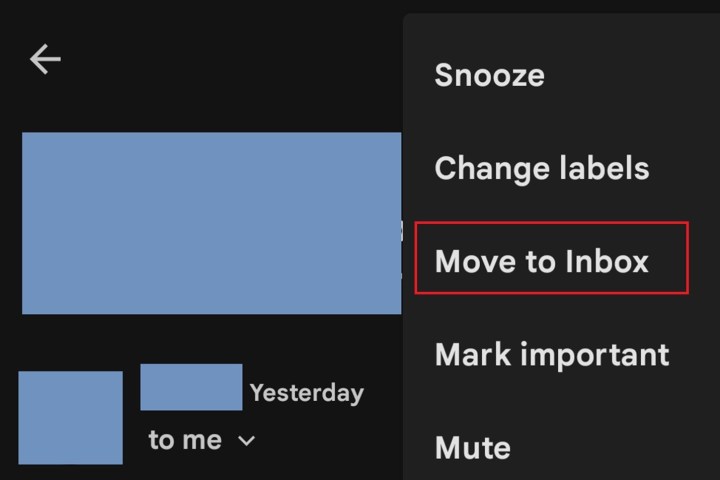
Selecting the Move to Inbox option in Gmail for Android.

Moving an archived email to the inbox via mobile apps

You can also change your mind about archived emails while you are out and about using Gmail’s available mobile apps for iOS and Android. Follow these steps to move the archived email back into your inbox within Google’s official Gmail app for Android:

Step 1: Open the Gmail app on your device.

Step 2: Locate the email you wish to relocate and select it.

Step 3: Select the More button in the upper-right corner of your screen (shown as three vertical dots), not the message.

Step 4: Choose the Move to inbox option from the menu that appears.

Your archived email will then be moved back to the inbox for regular viewing. If you wish to return the piece of mail to Archived, reopen the email and select the Archive button (pictured as a small box with a down arrow).

iOS devices

Note: For iOS devices, the process is a bit different. Here’s how to do it according to Google:

Step 1: Find the email you want in All mail.

Step 2: Select the sender’s profile icon on the left of the screen.

Step 3: Select the More icon (three dots).

Step 4: Select whether you want to Move to inbox or Move to > Primary.

Selecting the Mute option in Gmail for web.

Archiving an email vs. muting an email

You may have heard of the ability to mute an email and archive an email discussed in the same breath. Both features will remove messages from your inbox to keep things tidy, but archived emails will return to your inbox if someone replies to them. On the other hand, muted messages will stay out of your inbox permanently. Follow these steps on either the web or a mobile app if you wish to mute an email:

Step 1: Access your Gmail account.

Step 2: Open the email you wish to mute.

Step 3: Select the More button (shown as three vertical dots). For the web, it is important that you select the More button that is located toward the top of your screen, just under the search box.

Step 4: Select the Mute option.

You can follow these steps on both iOS and Android phones and tablets. The only minor difference with iOS devices is that the More icon for iOS is not three vertical dots, but instead is three horizontal dots.

If you wish to unmute an email conversation, you can do so on the web by following the steps given above, but you’ll need to select the Unmute option in step 4. You’ll still need to select Move to inbox if you want the email to return to your inbox. Unmuting an email doesn’t move it to a different folder in Gmail, so it will remain in All Mail if you don’t move it yourself.

You can also unmute an email in the Gmail app for Android, but you won’t find an Unmute option. You’ll have to select the More icon and then Move to inbox instead. Doing so effectively unmutes the message and moves it back to the inbox.

All of your muted conversations are grouped so that you can easily access them by searching for them under the name “is:mute” in the Gmail search box.

Editors’ Recommendations


Share. Facebook Twitter Pinterest LinkedIn Tumblr Email
Previous ArticleiOS 17.2 RC, macOS Sonoma 14.2 RC With New Features Rolled Out to Testers
Next Article Redmi Note 13 Series India Launch Set for January 2024: Here’s What to Expect

Related Articles

VITURE’s new XR glasses look straight out of Phantom Blade Zero
News

VITURE’s new XR glasses look straight out of Phantom Blade Zero

28 August 2026
Gemini Omni can now extend videos to 40 seconds and upscale them to 4K
News

Gemini Omni can now extend videos to 40 seconds and upscale them to 4K

28 August 2026
Google cracks down on memory-hogging Android apps amid an AI-fueled RAM shortage
News

Google cracks down on memory-hogging Android apps amid an AI-fueled RAM shortage

28 August 2026
Netflix Failed at Video Games. Now It’s Trying to Promote Them
News

Netflix Failed at Video Games. Now It’s Trying to Promote Them

28 August 2026
Gemini Notebook now lets you reference books and turn them into different formats
News

Gemini Notebook now lets you reference books and turn them into different formats

28 August 2026
A Georgia Cop Used Flock to Track 2 Other Cops: His Ex and Her Friend
News

A Georgia Cop Used Flock to Track 2 Other Cops: His Ex and Her Friend

28 August 2026
Demo
Top Articles
5 laptops to buy instead of the M4 MacBook Pro

5 laptops to buy instead of the M4 MacBook Pro

17 November 2024133 Views
ChatGPT o1 vs. o1-mini vs. 4o: Which should you use?

ChatGPT o1 vs. o1-mini vs. 4o: Which should you use?

15 December 2024112 Views
Costco partners with Electric Era to bring back EV charging in the U.S.

Costco partners with Electric Era to bring back EV charging in the U.S.

28 October 2024101 Views

Subscribe to Updates

Get the latest tech news and updates directly to your inbox.

Latest News
Netflix Failed at Video Games. Now It’s Trying to Promote Them News

Netflix Failed at Video Games. Now It’s Trying to Promote Them

News Room28 August 2026
The Wolf Among Us Remastered Emerges From The Shadows On October 29 Gaming

The Wolf Among Us Remastered Emerges From The Shadows On October 29

News Room28 August 2026
Gemini Notebook now lets you reference books and turn them into different formats News

Gemini Notebook now lets you reference books and turn them into different formats

News Room28 August 2026
Most Popular
The Spectacular Burnout of a Solar Panel Salesman

The Spectacular Burnout of a Solar Panel Salesman

13 January 2025137 Views
5 laptops to buy instead of the M4 MacBook Pro

5 laptops to buy instead of the M4 MacBook Pro

17 November 2024133 Views
ChatGPT o1 vs. o1-mini vs. 4o: Which should you use?

ChatGPT o1 vs. o1-mini vs. 4o: Which should you use?

15 December 2024112 Views
Our Picks
Nodusfall Is Hoyoverse’s Surprising New Fantasy Action Project

Nodusfall Is Hoyoverse’s Surprising New Fantasy Action Project

28 August 2026
Google cracks down on memory-hogging Android apps amid an AI-fueled RAM shortage

Google cracks down on memory-hogging Android apps amid an AI-fueled RAM shortage

28 August 2026
Netflix Failed at Video Games. Now It’s Trying to Promote Them

Netflix Failed at Video Games. Now It’s Trying to Promote Them

28 August 2026

Subscribe to Updates

Get the latest tech news and updates directly to your inbox.

Facebook X (Twitter) Instagram Pinterest
  • Privacy Policy
  • Terms of use
  • Advertise
  • Contact Us
© 2026 Best in Technology. All Rights Reserved.

Type above and press Enter to search. Press Esc to cancel.