




Close Menu
Best in TechnologyBest in Technology
  • News
  • Phones
  • Laptops
  • Gadgets
  • Gaming
  • AI
  • Tips
  • More
    • Web Stories
    • Global
    • Press Release

Subscribe to Updates

Get the latest tech news and updates directly to your inbox.

What's On
Is wired better than wireless? How to prevent lag in your gaming experience

Is wired better than wireless? How to prevent lag in your gaming experience

14 December 2025
Google is working on an Android feature to reduce motion sickness while using your phone

Google is working on an Android feature to reduce motion sickness while using your phone

14 December 2025
Review: Alpine A390

Review: Alpine A390

14 December 2025
Facebook X (Twitter) Instagram
Just In
  • Is wired better than wireless? How to prevent lag in your gaming experience
  • Google is working on an Android feature to reduce motion sickness while using your phone
  • Review: Alpine A390
  • The easiest internet switch: Get up to $300 back with T-Mobile 5G home internet
  • For the First Time, AI Analyzes Language as Well as a Human Expert
  • IKEA made a wireless charger that looks like a donut and somehow it works
  • iOS 26.2 adds a new screen flash option to make notifications harder to miss
  • Star Wars: Fate of the Old Republic revealed as a new single-player RPG
Facebook X (Twitter) Instagram Pinterest Vimeo
Best in TechnologyBest in Technology
  • News
  • Phones
  • Laptops
  • Gadgets
  • Gaming
  • AI
  • Tips
  • More
    • Web Stories
    • Global
    • Press Release
Subscribe
Best in TechnologyBest in Technology
Home » How to find archived emails in Gmail and return them to your inbox
News

How to find archived emails in Gmail and return them to your inbox

News RoomBy News Room6 December 20236 Mins Read
Share Facebook Twitter Pinterest LinkedIn Tumblr Reddit Telegram Email
How to find archived emails in Gmail and return them to your inbox
Share
Facebook Twitter LinkedIn Pinterest Email

If you’re looking to clean up your Gmail inbox, but you don’t want to delete anything permanently, then choosing the archive option is your best bet. Whenever you archive an email, it is removed from your inbox folder while still remaining accessible. Here’s how to access any emails you have archived previously, as well as how to move such messages back to your regular inbox for fast access.

Finding archived emails via the web

If you access Gmail via a web browser, it is a straightforward process to recall any emails you may have archived. For starters, if you choose to use the search bar at the top of the page, search results will include any archived emails. Alternatively, you can access all of your available mail, including archived pieces, under the All mail option.

Step 1: Visit the Gmail website and sign in.

Step 2: On the left side of the screen, select More.

Step 3: Select the All mail option.

Step 4: On the right side of the screen, you may now browse your email; it will include all emails in your account, including archived content.

Selecting the All Mail option in the Gmail app for Android.

Finding archived emails via mobile apps

If you are using the Gmail mobile app on your iOS or Android device, you can also access archived content easily. As on the web, you can use the search bar displayed above your mail to initiate a search that will include archived content. Otherwise, if you wish, you can access all of your available mail, including archived content, under the All mail option.

Step 1: Open the Gmail app on your device.

Step 2: At the top of the screen, select the Menu button; it is displayed as three horizontal lines.

Step 3: Select the All mail option from the menu that appears.

Step 4: You may now browse your emails on-screen. This will include all emails in your account, including archived messages.
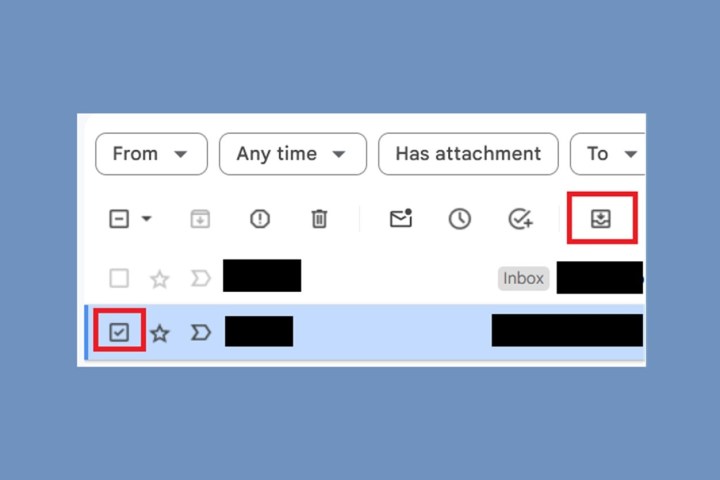
Selecting the Move to Inbox option in Gmail for web.

Moving an archived email to the inbox via the web

If you change your mind, you can always move any archived content back to your inbox. Follow these steps to move archived emails back into your inbox using the Gmail website:

Step 1: Visit the Gmail website and sign in.

Step 2: Locate the email you wish to relocate.

Step 3: To the left of the email, check the Small box icon.

Step 4: At the top of the screen, select the Move to inbox icon. It looks like an inbox tray with a downward arrow inside of it.

Your archived email will then be moved back to the inbox for regular viewing. If you wish to return the piece of mail to the archive, hover over the email once again and select the Archive button (pictured as a small box with a down arrow).
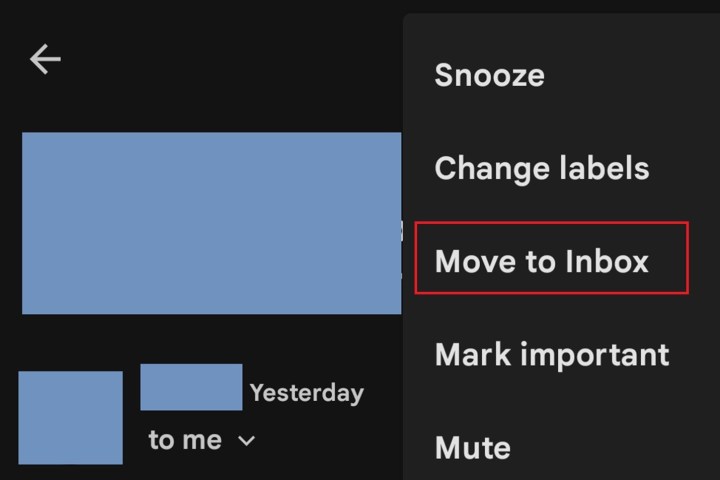
Selecting the Move to Inbox option in Gmail for Android.

Moving an archived email to the inbox via mobile apps

You can also change your mind about archived emails while you are out and about using Gmail’s available mobile apps for iOS and Android. Follow these steps to move the archived email back into your inbox within Google’s official Gmail app for Android:

Step 1: Open the Gmail app on your device.

Step 2: Locate the email you wish to relocate and select it.

Step 3: Select the More button in the upper-right corner of your screen (shown as three vertical dots), not the message.

Step 4: Choose the Move to inbox option from the menu that appears.

Your archived email will then be moved back to the inbox for regular viewing. If you wish to return the piece of mail to Archived, reopen the email and select the Archive button (pictured as a small box with a down arrow).

iOS devices

Note: For iOS devices, the process is a bit different. Here’s how to do it according to Google:

Step 1: Find the email you want in All mail.

Step 2: Select the sender’s profile icon on the left of the screen.

Step 3: Select the More icon (three dots).

Step 4: Select whether you want to Move to inbox or Move to > Primary.

Selecting the Mute option in Gmail for web.

Archiving an email vs. muting an email

You may have heard of the ability to mute an email and archive an email discussed in the same breath. Both features will remove messages from your inbox to keep things tidy, but archived emails will return to your inbox if someone replies to them. On the other hand, muted messages will stay out of your inbox permanently. Follow these steps on either the web or a mobile app if you wish to mute an email:

Step 1: Access your Gmail account.

Step 2: Open the email you wish to mute.

Step 3: Select the More button (shown as three vertical dots). For the web, it is important that you select the More button that is located toward the top of your screen, just under the search box.

Step 4: Select the Mute option.

You can follow these steps on both iOS and Android phones and tablets. The only minor difference with iOS devices is that the More icon for iOS is not three vertical dots, but instead is three horizontal dots.

If you wish to unmute an email conversation, you can do so on the web by following the steps given above, but you’ll need to select the Unmute option in step 4. You’ll still need to select Move to inbox if you want the email to return to your inbox. Unmuting an email doesn’t move it to a different folder in Gmail, so it will remain in All Mail if you don’t move it yourself.

You can also unmute an email in the Gmail app for Android, but you won’t find an Unmute option. You’ll have to select the More icon and then Move to inbox instead. Doing so effectively unmutes the message and moves it back to the inbox.

All of your muted conversations are grouped so that you can easily access them by searching for them under the name “is:mute” in the Gmail search box.

Editors’ Recommendations


Share. Facebook Twitter Pinterest LinkedIn Tumblr Email
Previous ArticleiOS 17.2 RC, macOS Sonoma 14.2 RC With New Features Rolled Out to Testers
Next Article Redmi Note 13 Series India Launch Set for January 2024: Here’s What to Expect

Related Articles

Is wired better than wireless? How to prevent lag in your gaming experience
News

Is wired better than wireless? How to prevent lag in your gaming experience

14 December 2025
Google is working on an Android feature to reduce motion sickness while using your phone
News

Google is working on an Android feature to reduce motion sickness while using your phone

14 December 2025
Review: Alpine A390
News

Review: Alpine A390

14 December 2025
The easiest internet switch: Get up to 0 back with T-Mobile 5G home internet
News

The easiest internet switch: Get up to $300 back with T-Mobile 5G home internet

14 December 2025
For the First Time, AI Analyzes Language as Well as a Human Expert
News

For the First Time, AI Analyzes Language as Well as a Human Expert

14 December 2025
IKEA made a wireless charger that looks like a donut and somehow it works
News

IKEA made a wireless charger that looks like a donut and somehow it works

14 December 2025
Demo
Top Articles
ChatGPT o1 vs. o1-mini vs. 4o: Which should you use?

ChatGPT o1 vs. o1-mini vs. 4o: Which should you use?

15 December 2024107 Views
5 laptops to buy instead of the M4 MacBook Pro

5 laptops to buy instead of the M4 MacBook Pro

17 November 2024100 Views
Costco partners with Electric Era to bring back EV charging in the U.S.

Costco partners with Electric Era to bring back EV charging in the U.S.

28 October 202497 Views

Subscribe to Updates

Get the latest tech news and updates directly to your inbox.

Latest News
IKEA made a wireless charger that looks like a donut and somehow it works News

IKEA made a wireless charger that looks like a donut and somehow it works

News Room14 December 2025
iOS 26.2 adds a new screen flash option to make notifications harder to miss News

iOS 26.2 adds a new screen flash option to make notifications harder to miss

News Room14 December 2025
Star Wars: Fate of the Old Republic revealed as a new single-player RPG News

Star Wars: Fate of the Old Republic revealed as a new single-player RPG

News Room14 December 2025
Most Popular
The Spectacular Burnout of a Solar Panel Salesman

The Spectacular Burnout of a Solar Panel Salesman

13 January 2025136 Views
ChatGPT o1 vs. o1-mini vs. 4o: Which should you use?

ChatGPT o1 vs. o1-mini vs. 4o: Which should you use?

15 December 2024107 Views
5 laptops to buy instead of the M4 MacBook Pro

5 laptops to buy instead of the M4 MacBook Pro

17 November 2024100 Views
Our Picks
The easiest internet switch: Get up to 0 back with T-Mobile 5G home internet

The easiest internet switch: Get up to $300 back with T-Mobile 5G home internet

14 December 2025
For the First Time, AI Analyzes Language as Well as a Human Expert

For the First Time, AI Analyzes Language as Well as a Human Expert

14 December 2025
IKEA made a wireless charger that looks like a donut and somehow it works

IKEA made a wireless charger that looks like a donut and somehow it works

14 December 2025

Subscribe to Updates

Get the latest tech news and updates directly to your inbox.

Facebook X (Twitter) Instagram Pinterest
  • Privacy Policy
  • Terms of use
  • Advertise
  • Contact Us
© 2025 Best in Technology. All Rights Reserved.

Type above and press Enter to search. Press Esc to cancel.