




Close Menu
Best in TechnologyBest in Technology
  • News
  • Phones
  • Laptops
  • Gadgets
  • Gaming
  • AI
  • Tips
  • More
    • Web Stories
    • Global
    • Press Release

Subscribe to Updates

Get the latest tech news and updates directly to your inbox.

What's On
Saros Will Let You Teleport Straight To Unlocked Biomes

Saros Will Let You Teleport Straight To Unlocked Biomes

13 February 2026
Microsoft says your AI agent can become a double agent

Microsoft says your AI agent can become a double agent

13 February 2026
Review: Mazzer Philos Coffee Grinder

Review: Mazzer Philos Coffee Grinder

13 February 2026
Facebook X (Twitter) Instagram
Just In
  • Saros Will Let You Teleport Straight To Unlocked Biomes
  • Microsoft says your AI agent can become a double agent
  • Review: Mazzer Philos Coffee Grinder
  • Castlevania: Belmont’s Curse, Made By Konami And The Dead Cells Devs, Launches In 2026
  • This is the “buy it once” video doorbell deal worth considering
  • Review: Wacom MovinkPad 11
  • Everything Announced At The February PlayStation State Of Play
  • Watch NASA’s trailer for imminent crewed launch to ISS
Facebook X (Twitter) Instagram Pinterest Vimeo
Best in TechnologyBest in Technology
  • News
  • Phones
  • Laptops
  • Gadgets
  • Gaming
  • AI
  • Tips
  • More
    • Web Stories
    • Global
    • Press Release
Subscribe
Best in TechnologyBest in Technology
Home » How to find and copy a file path on Mac
News

How to find and copy a file path on Mac

News RoomBy News Room26 February 20245 Mins Read
Share Facebook Twitter Pinterest LinkedIn Tumblr Reddit Telegram Email
How to find and copy a file path on Mac
Share
Facebook Twitter LinkedIn Pinterest Email

If you need to know the exact location of a file on your Mac, you’ll need its file path. And you’ll probably want to copy the file path to your clipboard for later use too. Lucky for you, we know how to do that.

In this guide, we’ll go over four easy ways to find and copy a file path on your Mac. With so many quick options to choose from, you’re sure to find the best method for you.

File paths in Finder

One of the easiest ways to view a file path is in Finder on your Mac. Along with it, we’ll show you how to use the context menu to copy that path.

Step 1: Open Finder on your Mac and navigate to the file or folder you want to view.

Step 2: To simply see the file path, select View > Show path bar in the menu bar.

Step 3: You’ll then see the path display at the bottom of the Finder window.

Path Bar in a Finder window on Mac.

Step 4: To copy the file path, right-click the item in Finder to display the context menu.

Right-click context menu on Mac.

Step 5: Hold the Option key while the context menu is open and select Copy [name] as Pathname.

The file path is then on your clipboard for you to paste where you wish.
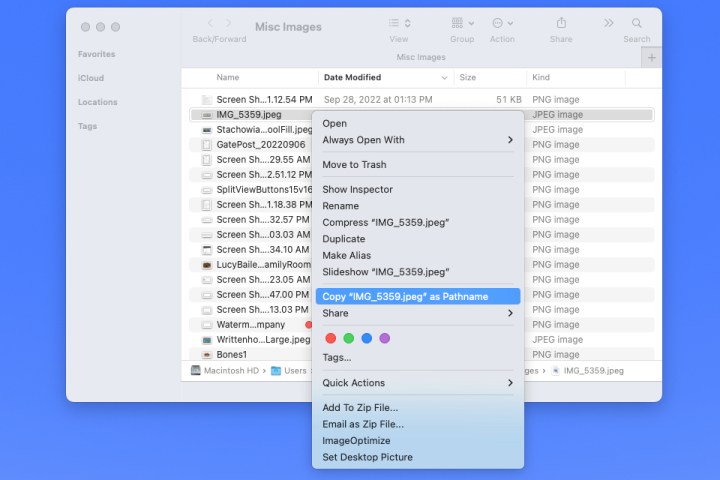
Copy Pathname in the context menu on Mac.

File paths in Get Info

Another convenient location to view and copy a file path is with the Get Info tool.

Step 1: Select the item on your desktop or in Finder.

Step 2: Press Command + I or right-click and pick Get info.

Get Info in the context menu for a folder.

Step 3: When the Get Info window opens, expand the General section at the top and you’ll see the file path next to Where. Drag your cursor through the path to highlight it.
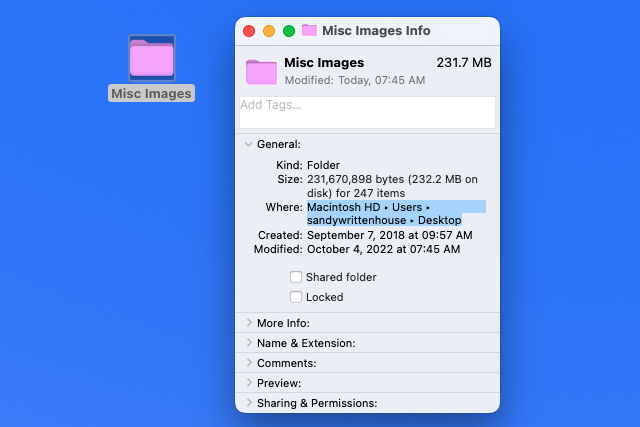
Path name next to Where in the Get Info window.

Step 4: Press Command + C to copy the path or right-click and choose Copy as Pathname.

Copy as Pathname in Get Info.

Step 5: With the path on your clipboard, you can then paste it where needed. The path should display correctly with the arrows replaced by forward slashes.
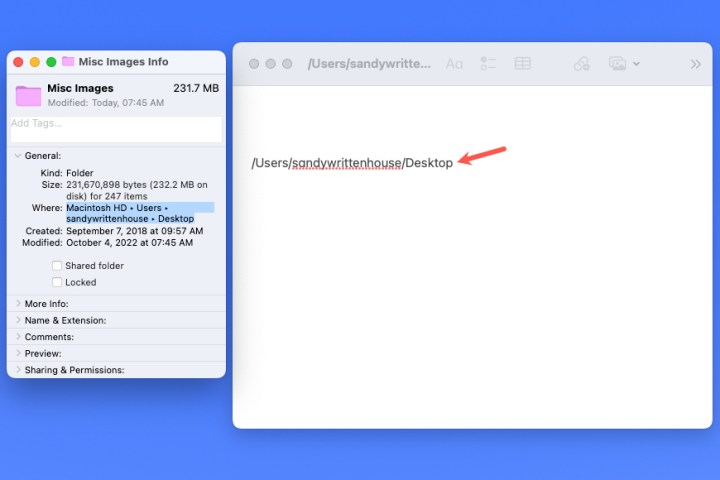
File path from Get Info pasted into Notes.

File paths in Go To Folder

You may only think of opening Finder’s Go To Folder tool when you need to navigate somewhere on Mac. But this nifty tool can also provide the file path of an item.

Step 1: With Finder active, select Go > Go to folder from the menu bar.
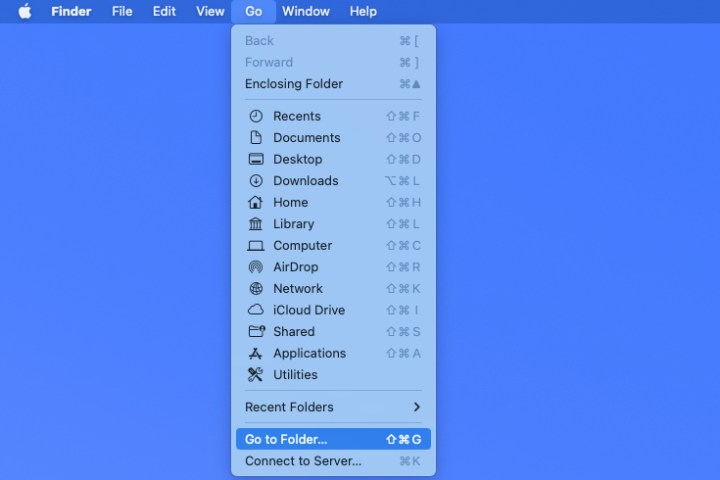
Go to Folder in the Finder Go menu.

Step 2: When the window opens, select the X on the right side of the Search bar to clear the field if necessary.
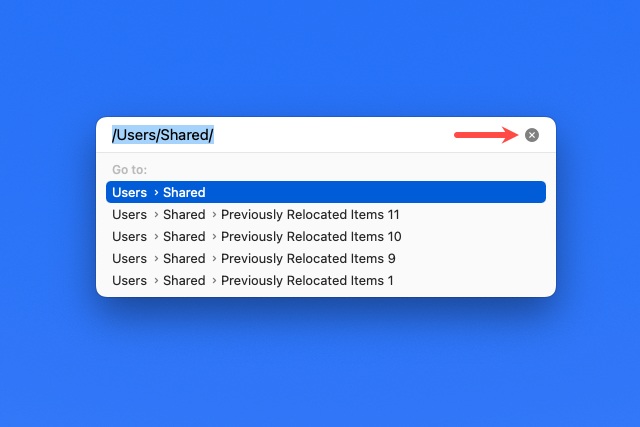
X in the Go To Folder search bar.

Step 3: Drag your file or folder into the Search bar at the top of the window. You’ll then see the path for the item in that field.
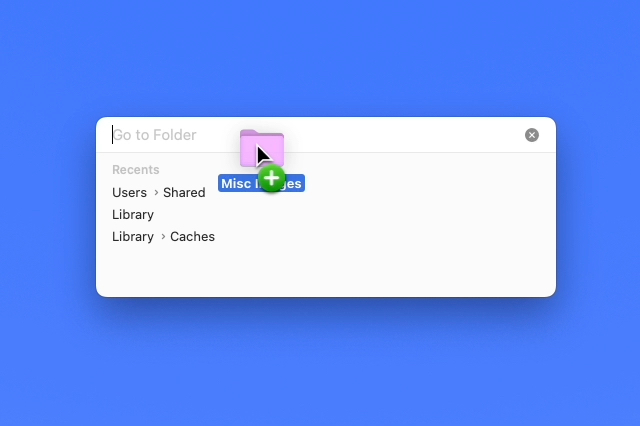
Dragging a folder into the Go To Folder window.

Step 4: From there, select the path and either use Command + C or right-click and pick Copy.

With the path on your clipboard, you can paste it where you like.

Copy in the shortcut menu in Go To Folder.

File paths in Terminal

If you’re a fan of using Terminal to perform actions on your Mac, then you can use this app to display and copy a file path as well.

Step 1: Open Terminal as you normally would or by going to the Utilities folder and selecting the application.
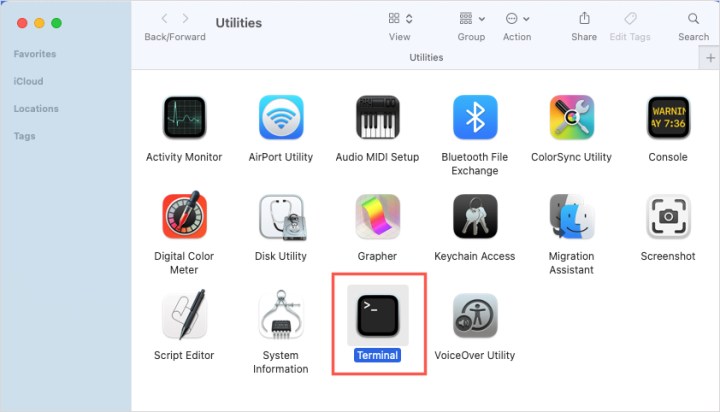
Terminal in the MacOS Utilities folder.

Step 2: When the Terminal window opens, drag your file or folder into it. You’ll then see the file path display in the window.

Dragging a folder into the Dragging a folder into the Terminal window.

Step 3: Right-click and choose Copy to place the path on your clipboard and paste it where needed.
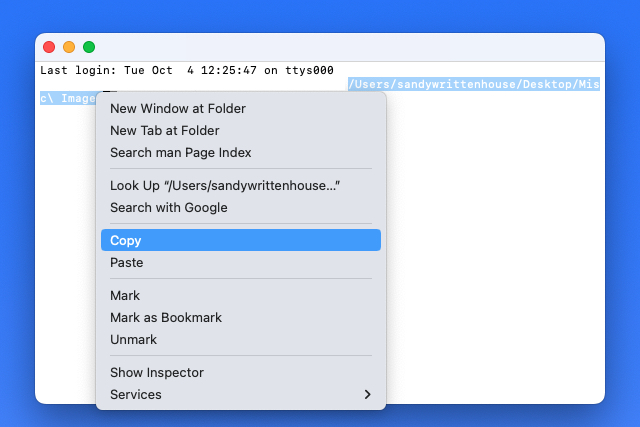
Copy in the Terminal shortcut menu.

Frequently asked questions

What is the path of a file?

A file path is essentially like the navigation directions to the location of a file on your computer. It quite literally tells you the path you would have to follow to find a file if you didn’t already know where it was. If a given file was located within a folder that is also within another folder, the file path would list those folders in the order you would have to click on them to get to the file.

How do I copy a file path on a Mac?

There are a variety of ways to find and copy a file path on a Mac. You can find file path via Finder, Get Info, Go to Folder, or Terminal. The methods for copying the file path once you locate it may vary depending on which method you choose for locating the file path in the first place. But if you need to see how to use any of the aforementioned methods, please see our step-by-step guides for each of them. You can find them earlier in this article.

How do I find a file path in Windows 11?

In Windows 11, you can either right-click on a file on the desktop or in File Explorer. Then in the menu that pops up, you’ll just select Copy as path. This will put the full file path of the file on your Clipboard so you can paste it later.

If you just a want to view a file path, you can just right-click on a file on the desktop or in File Explorer. Then from the menu that appears, you’ll choose Properties. In the Properties window that appears, you’ll see the file path next to the word Location.

Editors’ Recommendations



Share. Facebook Twitter Pinterest LinkedIn Tumblr Email
Previous ArticleHow to create a folder on your Windows or Mac computer
Next Article How to track your Fortnite player statistics

Related Articles

Microsoft says your AI agent can become a double agent
News

Microsoft says your AI agent can become a double agent

13 February 2026
Review: Mazzer Philos Coffee Grinder
News

Review: Mazzer Philos Coffee Grinder

13 February 2026
This is the “buy it once” video doorbell deal worth considering
News

This is the “buy it once” video doorbell deal worth considering

13 February 2026
Review: Wacom MovinkPad 11
News

Review: Wacom MovinkPad 11

13 February 2026
Watch NASA’s trailer for imminent crewed launch to ISS
News

Watch NASA’s trailer for imminent crewed launch to ISS

13 February 2026
The Fight Over US Climate Rules Is Just Beginning
News

The Fight Over US Climate Rules Is Just Beginning

13 February 2026
Demo
Top Articles
ChatGPT o1 vs. o1-mini vs. 4o: Which should you use?

ChatGPT o1 vs. o1-mini vs. 4o: Which should you use?

15 December 2024108 Views
5 laptops to buy instead of the M4 MacBook Pro

5 laptops to buy instead of the M4 MacBook Pro

17 November 2024101 Views
Costco partners with Electric Era to bring back EV charging in the U.S.

Costco partners with Electric Era to bring back EV charging in the U.S.

28 October 202498 Views

Subscribe to Updates

Get the latest tech news and updates directly to your inbox.

Latest News
Review: Wacom MovinkPad 11 News

Review: Wacom MovinkPad 11

News Room13 February 2026
Everything Announced At The February PlayStation State Of Play Gaming

Everything Announced At The February PlayStation State Of Play

News Room13 February 2026
Watch NASA’s trailer for imminent crewed launch to ISS News

Watch NASA’s trailer for imminent crewed launch to ISS

News Room13 February 2026
Most Popular
The Spectacular Burnout of a Solar Panel Salesman

The Spectacular Burnout of a Solar Panel Salesman

13 January 2025137 Views
ChatGPT o1 vs. o1-mini vs. 4o: Which should you use?

ChatGPT o1 vs. o1-mini vs. 4o: Which should you use?

15 December 2024108 Views
5 laptops to buy instead of the M4 MacBook Pro

5 laptops to buy instead of the M4 MacBook Pro

17 November 2024101 Views
Our Picks
Castlevania: Belmont’s Curse, Made By Konami And The Dead Cells Devs, Launches In 2026

Castlevania: Belmont’s Curse, Made By Konami And The Dead Cells Devs, Launches In 2026

13 February 2026
This is the “buy it once” video doorbell deal worth considering

This is the “buy it once” video doorbell deal worth considering

13 February 2026
Review: Wacom MovinkPad 11

Review: Wacom MovinkPad 11

13 February 2026

Subscribe to Updates

Get the latest tech news and updates directly to your inbox.

Facebook X (Twitter) Instagram Pinterest
  • Privacy Policy
  • Terms of use
  • Advertise
  • Contact Us
© 2026 Best in Technology. All Rights Reserved.

Type above and press Enter to search. Press Esc to cancel.