




Close Menu
Best in TechnologyBest in Technology
  • News
  • Phones
  • Laptops
  • Gadgets
  • Gaming
  • AI
  • Tips
  • More
    • Web Stories
    • Global
    • Press Release

Subscribe to Updates

Get the latest tech news and updates directly to your inbox.

What's On
I underestimated this NotebookLM feature until it completely changed how I study

I underestimated this NotebookLM feature until it completely changed how I study

14 July 2026
Best RGB TVs (2026): My Picks After Testing the Hottest TVs

Best RGB TVs (2026): My Picks After Testing the Hottest TVs

14 July 2026
The Concorde dream is within reach. NASA X-59 just has to silence the supersonic boom

The Concorde dream is within reach. NASA X-59 just has to silence the supersonic boom

14 July 2026
Facebook X (Twitter) Instagram
Just In
  • I underestimated this NotebookLM feature until it completely changed how I study
  • Best RGB TVs (2026): My Picks After Testing the Hottest TVs
  • The Concorde dream is within reach. NASA X-59 just has to silence the supersonic boom
  • This Luddite Puppet Hopes You’re Not Reading This on Your Smartphone
  • Black Ops multiplayer is a mess on PlayStation and Activision is rushing to fix it
  • Sotheby’s Big T. Rex Auction Raises Concerns Hype and Wealth Are Upending Science
  • Anthropic confirms Claude acts differently depending on your language and which model you pick
  • The US Approves the Launch of a Mirror Satellite That Can Reflect Sunlight and Illuminate the Earth at Night
Facebook X (Twitter) Instagram Pinterest Vimeo
Best in TechnologyBest in Technology
  • News
  • Phones
  • Laptops
  • Gadgets
  • Gaming
  • AI
  • Tips
  • More
    • Web Stories
    • Global
    • Press Release
Subscribe
Best in TechnologyBest in Technology
Home » How to find and copy a file path on Mac
News

How to find and copy a file path on Mac

News RoomBy News Room26 February 20245 Mins Read
Share Facebook Twitter Pinterest LinkedIn Tumblr Reddit Telegram Email
How to find and copy a file path on Mac
Share
Facebook Twitter LinkedIn Pinterest Email

If you need to know the exact location of a file on your Mac, you’ll need its file path. And you’ll probably want to copy the file path to your clipboard for later use too. Lucky for you, we know how to do that.

In this guide, we’ll go over four easy ways to find and copy a file path on your Mac. With so many quick options to choose from, you’re sure to find the best method for you.

File paths in Finder

One of the easiest ways to view a file path is in Finder on your Mac. Along with it, we’ll show you how to use the context menu to copy that path.

Step 1: Open Finder on your Mac and navigate to the file or folder you want to view.

Step 2: To simply see the file path, select View > Show path bar in the menu bar.

Step 3: You’ll then see the path display at the bottom of the Finder window.

Path Bar in a Finder window on Mac.

Step 4: To copy the file path, right-click the item in Finder to display the context menu.

Right-click context menu on Mac.

Step 5: Hold the Option key while the context menu is open and select Copy [name] as Pathname.

The file path is then on your clipboard for you to paste where you wish.
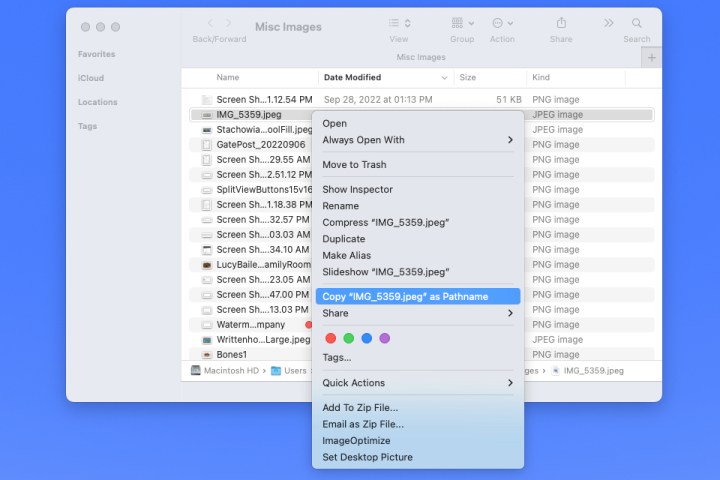
Copy Pathname in the context menu on Mac.

File paths in Get Info

Another convenient location to view and copy a file path is with the Get Info tool.

Step 1: Select the item on your desktop or in Finder.

Step 2: Press Command + I or right-click and pick Get info.

Get Info in the context menu for a folder.

Step 3: When the Get Info window opens, expand the General section at the top and you’ll see the file path next to Where. Drag your cursor through the path to highlight it.
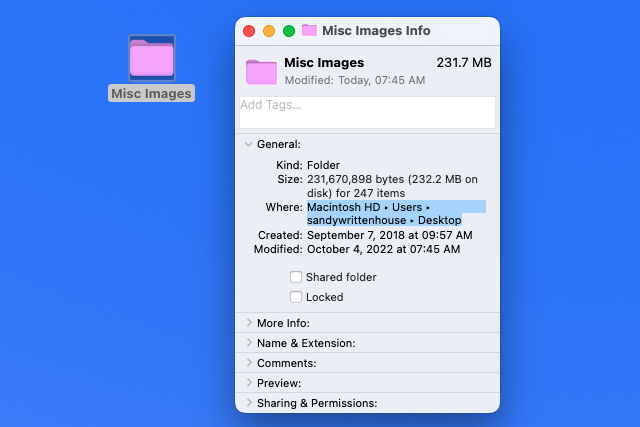
Path name next to Where in the Get Info window.

Step 4: Press Command + C to copy the path or right-click and choose Copy as Pathname.

Copy as Pathname in Get Info.

Step 5: With the path on your clipboard, you can then paste it where needed. The path should display correctly with the arrows replaced by forward slashes.
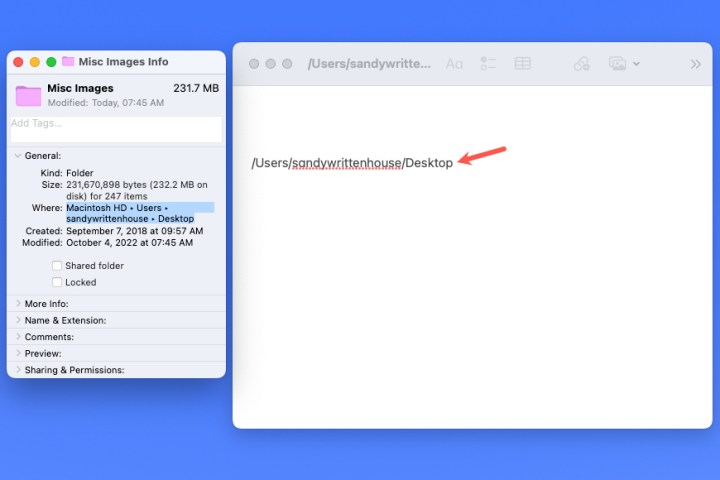
File path from Get Info pasted into Notes.

File paths in Go To Folder

You may only think of opening Finder’s Go To Folder tool when you need to navigate somewhere on Mac. But this nifty tool can also provide the file path of an item.

Step 1: With Finder active, select Go > Go to folder from the menu bar.
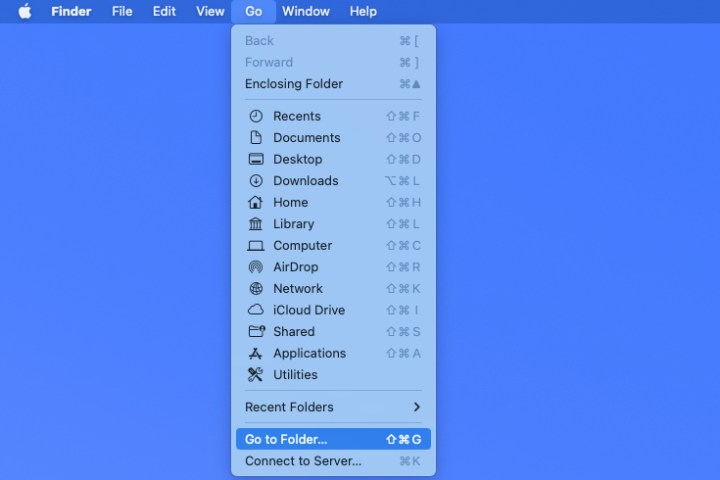
Go to Folder in the Finder Go menu.

Step 2: When the window opens, select the X on the right side of the Search bar to clear the field if necessary.
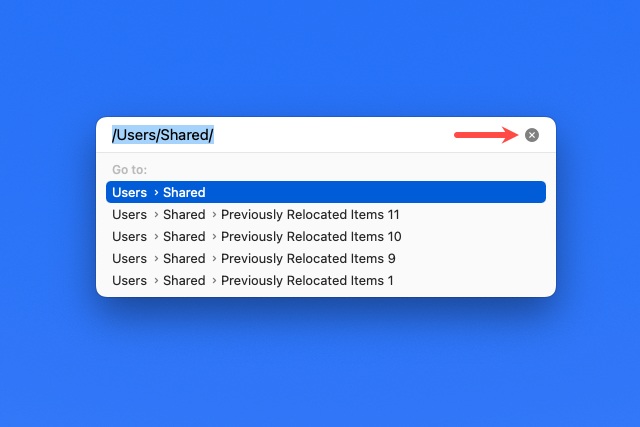
X in the Go To Folder search bar.

Step 3: Drag your file or folder into the Search bar at the top of the window. You’ll then see the path for the item in that field.
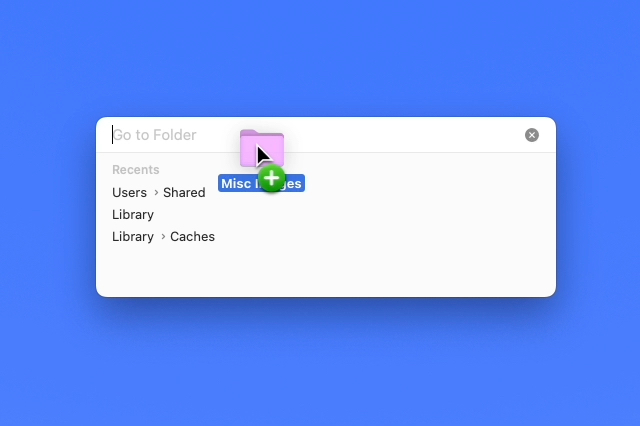
Dragging a folder into the Go To Folder window.

Step 4: From there, select the path and either use Command + C or right-click and pick Copy.

With the path on your clipboard, you can paste it where you like.

Copy in the shortcut menu in Go To Folder.

File paths in Terminal

If you’re a fan of using Terminal to perform actions on your Mac, then you can use this app to display and copy a file path as well.

Step 1: Open Terminal as you normally would or by going to the Utilities folder and selecting the application.
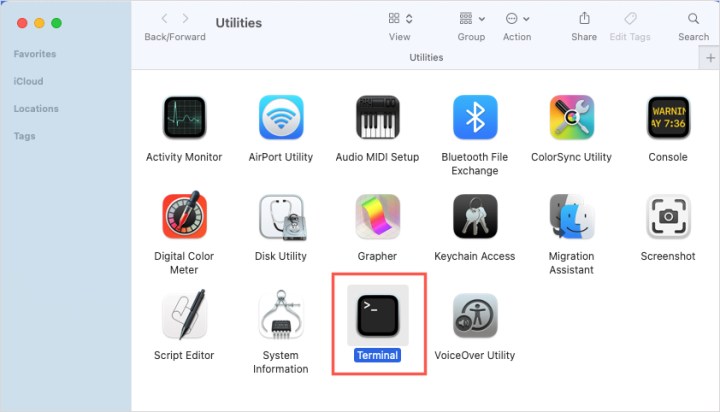
Terminal in the MacOS Utilities folder.

Step 2: When the Terminal window opens, drag your file or folder into it. You’ll then see the file path display in the window.

Dragging a folder into the Dragging a folder into the Terminal window.

Step 3: Right-click and choose Copy to place the path on your clipboard and paste it where needed.
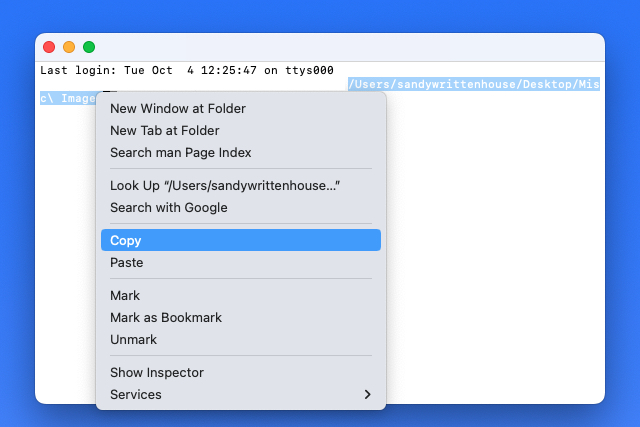
Copy in the Terminal shortcut menu.

Frequently asked questions

What is the path of a file?

A file path is essentially like the navigation directions to the location of a file on your computer. It quite literally tells you the path you would have to follow to find a file if you didn’t already know where it was. If a given file was located within a folder that is also within another folder, the file path would list those folders in the order you would have to click on them to get to the file.

How do I copy a file path on a Mac?

There are a variety of ways to find and copy a file path on a Mac. You can find file path via Finder, Get Info, Go to Folder, or Terminal. The methods for copying the file path once you locate it may vary depending on which method you choose for locating the file path in the first place. But if you need to see how to use any of the aforementioned methods, please see our step-by-step guides for each of them. You can find them earlier in this article.

How do I find a file path in Windows 11?

In Windows 11, you can either right-click on a file on the desktop or in File Explorer. Then in the menu that pops up, you’ll just select Copy as path. This will put the full file path of the file on your Clipboard so you can paste it later.

If you just a want to view a file path, you can just right-click on a file on the desktop or in File Explorer. Then from the menu that appears, you’ll choose Properties. In the Properties window that appears, you’ll see the file path next to the word Location.

Editors’ Recommendations



Share. Facebook Twitter Pinterest LinkedIn Tumblr Email
Previous ArticleHow to create a folder on your Windows or Mac computer
Next Article How to track your Fortnite player statistics

Related Articles

I underestimated this NotebookLM feature until it completely changed how I study
News

I underestimated this NotebookLM feature until it completely changed how I study

14 July 2026
Best RGB TVs (2026): My Picks After Testing the Hottest TVs
News

Best RGB TVs (2026): My Picks After Testing the Hottest TVs

14 July 2026
The Concorde dream is within reach. NASA X-59 just has to silence the supersonic boom
News

The Concorde dream is within reach. NASA X-59 just has to silence the supersonic boom

14 July 2026
This Luddite Puppet Hopes You’re Not Reading This on Your Smartphone
News

This Luddite Puppet Hopes You’re Not Reading This on Your Smartphone

14 July 2026
Black Ops multiplayer is a mess on PlayStation and Activision is rushing to fix it
News

Black Ops multiplayer is a mess on PlayStation and Activision is rushing to fix it

14 July 2026
Sotheby’s Big T. Rex Auction Raises Concerns Hype and Wealth Are Upending Science
News

Sotheby’s Big T. Rex Auction Raises Concerns Hype and Wealth Are Upending Science

14 July 2026
Demo
Top Articles
5 laptops to buy instead of the M4 MacBook Pro

5 laptops to buy instead of the M4 MacBook Pro

17 November 2024133 Views
ChatGPT o1 vs. o1-mini vs. 4o: Which should you use?

ChatGPT o1 vs. o1-mini vs. 4o: Which should you use?

15 December 2024111 Views
Costco partners with Electric Era to bring back EV charging in the U.S.

Costco partners with Electric Era to bring back EV charging in the U.S.

28 October 2024100 Views

Subscribe to Updates

Get the latest tech news and updates directly to your inbox.

Latest News
Sotheby’s Big T. Rex Auction Raises Concerns Hype and Wealth Are Upending Science News

Sotheby’s Big T. Rex Auction Raises Concerns Hype and Wealth Are Upending Science

News Room14 July 2026
Anthropic confirms Claude acts differently depending on your language and which model you pick News

Anthropic confirms Claude acts differently depending on your language and which model you pick

News Room14 July 2026
The US Approves the Launch of a Mirror Satellite That Can Reflect Sunlight and Illuminate the Earth at Night News

The US Approves the Launch of a Mirror Satellite That Can Reflect Sunlight and Illuminate the Earth at Night

News Room14 July 2026
Most Popular
The Spectacular Burnout of a Solar Panel Salesman

The Spectacular Burnout of a Solar Panel Salesman

13 January 2025137 Views
5 laptops to buy instead of the M4 MacBook Pro

5 laptops to buy instead of the M4 MacBook Pro

17 November 2024133 Views
ChatGPT o1 vs. o1-mini vs. 4o: Which should you use?

ChatGPT o1 vs. o1-mini vs. 4o: Which should you use?

15 December 2024111 Views
Our Picks
This Luddite Puppet Hopes You’re Not Reading This on Your Smartphone

This Luddite Puppet Hopes You’re Not Reading This on Your Smartphone

14 July 2026
Black Ops multiplayer is a mess on PlayStation and Activision is rushing to fix it

Black Ops multiplayer is a mess on PlayStation and Activision is rushing to fix it

14 July 2026
Sotheby’s Big T. Rex Auction Raises Concerns Hype and Wealth Are Upending Science

Sotheby’s Big T. Rex Auction Raises Concerns Hype and Wealth Are Upending Science

14 July 2026

Subscribe to Updates

Get the latest tech news and updates directly to your inbox.

Facebook X (Twitter) Instagram Pinterest
  • Privacy Policy
  • Terms of use
  • Advertise
  • Contact Us
© 2026 Best in Technology. All Rights Reserved.

Type above and press Enter to search. Press Esc to cancel.