




Close Menu
Best in TechnologyBest in Technology
  • News
  • Phones
  • Laptops
  • Gadgets
  • Gaming
  • AI
  • Tips
  • More
    • Web Stories
    • Global
    • Press Release

Subscribe to Updates

Get the latest tech news and updates directly to your inbox.

What's On
Tesla Model 3 got outsold by an EV from a Chinese smartphone brand

Tesla Model 3 got outsold by an EV from a Chinese smartphone brand

25 January 2026
OnePlus 15T leak spills details on a curious camera situation

OnePlus 15T leak spills details on a curious camera situation

25 January 2026
The Lego Pokémon Line Shows Toys Are Only for Rich Adults Now

The Lego Pokémon Line Shows Toys Are Only for Rich Adults Now

25 January 2026
Facebook X (Twitter) Instagram
Just In
  • Tesla Model 3 got outsold by an EV from a Chinese smartphone brand
  • OnePlus 15T leak spills details on a curious camera situation
  • The Lego Pokémon Line Shows Toys Are Only for Rich Adults Now
  • Review: Bambu P1S Combo 3D Printer Review
  • Your WhatsApp voice notes could help screen for early signs of depression
  • How Long Should You Cold Plunge? We Asked Experts (2026)
  • Your charging cable might get a workout if you try ‘Charchery’
  • Review: Phonak Audeo Infinio Ultra Sphere
Facebook X (Twitter) Instagram Pinterest Vimeo
Best in TechnologyBest in Technology
  • News
  • Phones
  • Laptops
  • Gadgets
  • Gaming
  • AI
  • Tips
  • More
    • Web Stories
    • Global
    • Press Release
Subscribe
Best in TechnologyBest in Technology
Home » How to edit a PDF in Google Drive
News

How to edit a PDF in Google Drive

News RoomBy News Room15 May 20244 Mins Read
Share Facebook Twitter Pinterest LinkedIn Tumblr Reddit Telegram Email
How to edit a PDF in Google Drive
Share
Facebook Twitter LinkedIn Pinterest Email

Google Drive lets you stay on top of collaborative projects. The suite is compatible with several file types, which bodes well for those of us who need to frequently share and edit docs, images, and PDFs. As to the latter, you’ll have tons of PDF formatting and customization options to choose from in Google Drive, along with this guide to teach you how to use all these features.

Log in to Google Drive

First things first: You need to head into Google Drive. You can access the web version from any browser by simply heading to this site. Once you’re in, choose Go To Drive to enter the cloud platform.

If you’ve never used Drive before, it’s very simple to set up. You’ll just need to log in with your Google account email and password. All basic features are free, including the ability to edit your PDFs.

After you have successfully logged in to Drive, check that you have downloaded the PDF you want to edit to your local computer storage or another place you can easily access it. You’ll want to have it ready to edit.

Open a new file and find your PDF

Step 1: Once in Drive, look toward the upper-left corner and you’ll find the large button to add something New. Select New to begin.

Step 2: Choose the option for a File Upload.
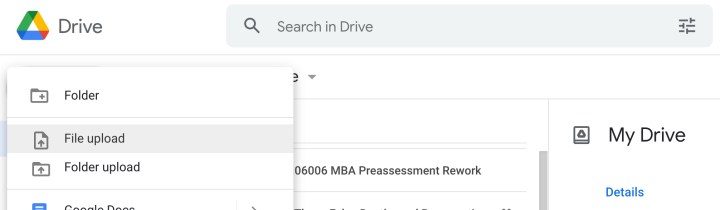
The File Upload option in Google Drive.

Step 3: This will open a window to your local storage. You still have the option to navigate to other types of storage, such as a connected external drive. Choose the location where your PDF is located, and select it to upload it to Drive. If you recently downloaded the PDF specifically for Drive, you can probably just go to your Downloads section and check your recent downloads to find it there. For our example, we’re using the Website Accessibility Checklist from the Bureau of Internet Accessibility.

Download your PDF to Drive and open it

Step 1: Look at the bottom right of your Google Drive window and you’ll see the download notification in action. Especially large PDFs may take a little time to load, and you can watch this notification to see when it’s finished.

The Select Drive File Name option in Google Drive.

Step 2: When done, select the name of the PDF file you want to edit to open it.

See what edits you can make

When the PDF opens, you’ll be able to immediately interact with it. If this is a group PDF that you’ve already accessed in the past, then you may have the option to edit text and images directly. However, many PDFs downloaded from the internet can’t be directly edited by design.

You do still have the option to create comments and discussions about the PDF. You can highlight content, which pops up a little plus-sign icon on the right, then select it to create and save a comment. This still allows you to have a discussion with your team about a document even if you can’t alter content.

A comment field on a Google Drives PDF document.

Open with Google Docs for further options

If you really need to edit a PDF but don’t have the ability, there is an alternative you can try. At the top of your Drive window, you’ll see an option to Open With Google Docs. If you select this, Google will convert the PDF to a Docs file and open it for you.

Content can be edited in Docs, but PDF conversion can be a tricky process. Images may not convert at all, or may be misaligned, for example. But this is a quick and dirty way to directly access the text if you really need to.

Switch to a suggested app if necessary

For certain tasks, you may want to switch to a different app. Google Drive helps with that, too! In the upper center of the window, select the downward-pointing arrow for a dropdown menu. Look for the section called Suggested Third-Party apps. This includes apps like Lumin and DocHub, which you can use to sign and send on PDFs. They can be useful for certain legal documents, and may suit you better than Google Docs.

Alternatively, we have a list of our favorite PDF editors.
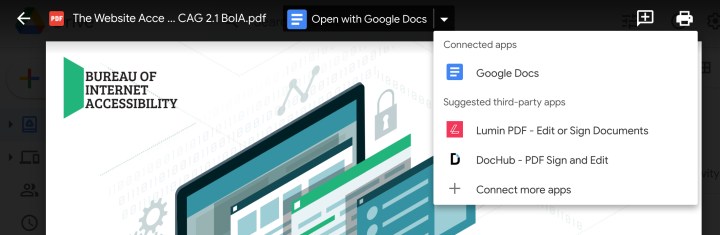
Suggested PDF apps for Google Drive.

Share with others as needed

There’s no need to save your changes in Google Drive — the PDF will save automatically. When you are finished, you can choose the three-dot icon in the upper right of the screen to Share the PDF with others. Or you can select the back arrow in the upper-left corner to return to Drive and choose another file. Either way, now you know what to do!

You can also convert your PDF to a JPG file, or try your luck in Word.

Editors’ Recommendations


Share. Facebook Twitter Pinterest LinkedIn Tumblr Email
Previous ArticleOpenAI’s Chief AI Wizard, Ilya Sutskever, Is Leaving the Company
Next Article Hermen Hulst And Hideaki Nishino Named Dual PlayStation CEOs Following Jim Ryan’s Departure

Related Articles

Tesla Model 3 got outsold by an EV from a Chinese smartphone brand
News

Tesla Model 3 got outsold by an EV from a Chinese smartphone brand

25 January 2026
OnePlus 15T leak spills details on a curious camera situation
News

OnePlus 15T leak spills details on a curious camera situation

25 January 2026
The Lego Pokémon Line Shows Toys Are Only for Rich Adults Now
News

The Lego Pokémon Line Shows Toys Are Only for Rich Adults Now

25 January 2026
Review: Bambu P1S Combo 3D Printer Review
News

Review: Bambu P1S Combo 3D Printer Review

25 January 2026
Your WhatsApp voice notes could help screen for early signs of depression
News

Your WhatsApp voice notes could help screen for early signs of depression

25 January 2026
How Long Should You Cold Plunge? We Asked Experts (2026)
News

How Long Should You Cold Plunge? We Asked Experts (2026)

25 January 2026
Demo
Top Articles
ChatGPT o1 vs. o1-mini vs. 4o: Which should you use?

ChatGPT o1 vs. o1-mini vs. 4o: Which should you use?

15 December 2024107 Views
5 laptops to buy instead of the M4 MacBook Pro

5 laptops to buy instead of the M4 MacBook Pro

17 November 2024101 Views
Costco partners with Electric Era to bring back EV charging in the U.S.

Costco partners with Electric Era to bring back EV charging in the U.S.

28 October 202497 Views

Subscribe to Updates

Get the latest tech news and updates directly to your inbox.

Latest News
How Long Should You Cold Plunge? We Asked Experts (2026) News

How Long Should You Cold Plunge? We Asked Experts (2026)

News Room25 January 2026
Your charging cable might get a workout if you try ‘Charchery’ News

Your charging cable might get a workout if you try ‘Charchery’

News Room25 January 2026
Review: Phonak Audeo Infinio Ultra Sphere News

Review: Phonak Audeo Infinio Ultra Sphere

News Room25 January 2026
Most Popular
The Spectacular Burnout of a Solar Panel Salesman

The Spectacular Burnout of a Solar Panel Salesman

13 January 2025136 Views
ChatGPT o1 vs. o1-mini vs. 4o: Which should you use?

ChatGPT o1 vs. o1-mini vs. 4o: Which should you use?

15 December 2024107 Views
5 laptops to buy instead of the M4 MacBook Pro

5 laptops to buy instead of the M4 MacBook Pro

17 November 2024101 Views
Our Picks
Review: Bambu P1S Combo 3D Printer Review

Review: Bambu P1S Combo 3D Printer Review

25 January 2026
Your WhatsApp voice notes could help screen for early signs of depression

Your WhatsApp voice notes could help screen for early signs of depression

25 January 2026
How Long Should You Cold Plunge? We Asked Experts (2026)

How Long Should You Cold Plunge? We Asked Experts (2026)

25 January 2026

Subscribe to Updates

Get the latest tech news and updates directly to your inbox.

Facebook X (Twitter) Instagram Pinterest
  • Privacy Policy
  • Terms of use
  • Advertise
  • Contact Us
© 2026 Best in Technology. All Rights Reserved.

Type above and press Enter to search. Press Esc to cancel.