



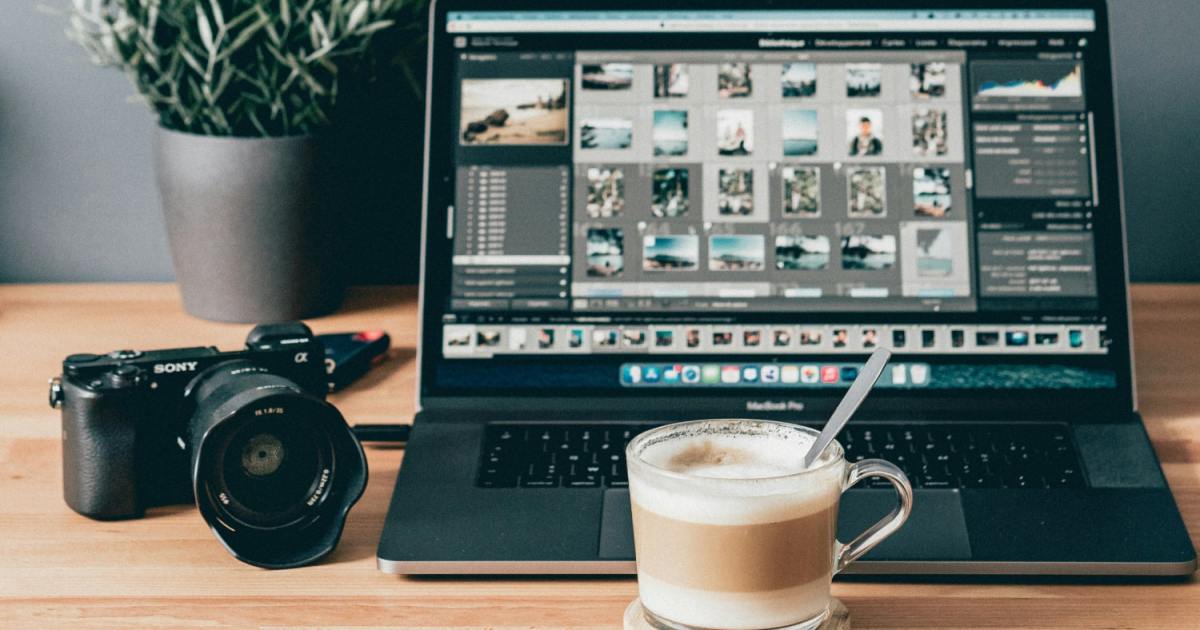
If you’re using a laptop on a daily basis, you’ll know how tiring it can get to stare at a 13-inch screen for hours on end. This is why it’s great that most modern PCs can be connected to a TV. Not only does this give you a bigger display to work with, but you’ll still be able to use your laptop as you normally would. So no saying goodbye to those handy trackpad gestures!
There’s more than one way to connect your laptop to your TV, but we believe the most reliable method is using an HDMI cable. But rest assured: we’ll be covering wireless connectivity, too!
How to connect your laptop to a TV with an HDMI cable
The most straightforward way to connect a laptop to a television is via an HDMI cable. This is a cable designed for transmitting digital audio and video from one source (like your computer) to a projector, monitor, or — in this case — TV screen. Here’s how to set it up:
Step 1: First, locate your laptop’s HDMI port. This is usually on the back or side of the laptop.
If your computer doesn’t have a full-sized HDMI, it may still have a mini- or micro-HDMI, which you can connect using a converter. Many modern laptops have USB-C, Thunderbolt, DisplayPort, or Mini DisplayPort, all of which can be hooked up using an HDMI adapter.
If your laptop doesn’t have an HDMI port, you can use a video graphics array (VGA) connector. However, note that a VGA cable only transmits video, so you’ll also need to connect your laptop to your TV via an audio cable.
Step 2: Once your HDMI cable is connected to your laptop, connect the other end to your TV’s HDMI input. You’ll usually find the connector on the back. If you have a very slim TV, it might be on the side. The exact location may vary depending on the device.
If you can’t locate the HDMI portal, check your TV’s user manual for a quick refresher.
Step 3: Sometimes, the TV and laptop will automatically talk and start displaying content on the screen. If not, you’ll need to change the TV’s input manually.
To do this, turn the TV on and use the remote control to change the TV’s source to the numbered HDMI port you plugged into.
The steps for adjusting your TV’s display options depend on the device, so check your manual if you don’t know how to do it.
Step 4: In addition to setting the appropriate source on your TV, you also need to set the relevant output on your laptop. If you have a Windows PC, press the Windows key and “P” to open the display settings.
On a Mac, click the Apple icon at the top left of the screen, System Settings, and then Displays.

How to wirelessly connect your laptop to a TV
If you don’t want to deal with the clutter of cables that comes with an HDMI connection, you might be able to set up a wireless connection between your laptop and a TV.
The exact process will depend on whether you have an Apple MacBook, Windows PC, or Chromebook.
How to wirelessly connect to a TV using AirPlay on an Apple computer
If you have an Apple computer and an Apple TV box, setting up screen mirroring to your TV is easy.
Step 1: First, make sure both devices are using the same Wi-Fi network.
Step 2: Then, go to the display settings: Under the Apple menu, click System Settings and then Displays and look for AirPlay Display.
Step 3: Whether you’re launching from System Settings or your menu bar, select the Apple TV from the dropdown list. Your screen will be mirrored or extended to your TV, depending on your choices.
Step 4: What if you don’t have an Apple TV? Don’t stress. Many modern smart TVs are Apple AirPlay compatible. When you open your Display settings, you may see your TV listed. You can always check the settings of your TV to see if AirPlay needs to be enabled.
How to wirelessly connect to a TV using a Windows computer
You can also set up a wireless display between your laptop and your TV if you have a PC running Windows 10 or Windows 11. Your laptop simply needs to support screen mirroring.
Further, for this to work, you need a smart TV that can connect to Wi-Fi and supports screen mirroring. If you aren’t sure whether your devices support screen mirroring, check the manual.
Step 1: Make sure both devices are on the same Wi-Fi network.
Step 2: Then, use the remote to select screen mirroring on your TV. You should get a list of sources. You simply have to add your TV to your laptop’s approved devices.
To do this, go to settings, Connected Devices and Add Device. Select your TV from the drop-down menu. The laptop will then mirror to the TV.

How to connect a laptop to a soundbar or AV receiver
Soundbars and AV receivers contain all kinds of ports, with HDMI, USB, and Bluetooth being some of the more common connections. Your best bet for getting video and audio through your soundbar or AV receiver is via HDMI.
The USB ports you’ll find on soundbars and AV receivers are typically used for devices like external hard drives and USB flash drives. While you may be able to get audio from your laptop to a soundbar/AV receiver via USB, video is likely out of the picture (literally).
As far as wire-free screen mirroring goes, your soundbar or AV receiver is going to need to support some kind of wireless protocol for the handshake to work. Apple AirPlay is one of the more popular wireless mirroring methods for Apple devotees. If the soundbar/AV receiver doesn’t natively support AirPlay, you could always invest in a streaming device (like the Apple TV 4K or Roku Ultra) to use this feature.
At the end of the day, if all you care about is music, radio, and podcasts, you can connect your laptop to your soundbar or AV receiver’s Bluetooth input. Just be sure to keep your PC within 35 feet of your AV devices.
How to troubleshoot video output issues
If you have your laptop connected to your TV via HDMI or wirelessly, but you’re not getting picture, sound, or both, there’s a few things you can do to troubleshoot the issue.
For starters, you should make sure your Windows or Mac’s OS is completely up to date. We can’t tell you how many handshake issues can be avoided with just this simple step.
If you’re still not getting picture or sound, you may want to disable your TV’s HDMI-CEC controls. While this is normally an automated feature that you shouldn’t have to worry about, it can sometimes wreak havoc on Device A to Device B handshakes.
Still no good? If you’re using a USB-C or DisplayPort adapter, or some other kind of third-party dongle, you should check to make sure this accessory is actually compatible with your PC. There also might be drivers you can download and install for the adapter or screen mirroring gadget.
Editors’ Recommendations