


Close Menu
Best in TechnologyBest in Technology
  • News
  • Phones
  • Laptops
  • Gadgets
  • Gaming
  • AI
  • Tips
  • More
    • Web Stories
    • Global
    • Press Release

Subscribe to Updates

Get the latest tech news and updates directly to your inbox.

What's On
Apple Is Suing OpenAI for Allegedly Stealing Hardware Secrets

Apple Is Suing OpenAI for Allegedly Stealing Hardware Secrets

10 July 2026
The Video Games You Should Play This Weekend – July 10, 2026

The Video Games You Should Play This Weekend – July 10, 2026

10 July 2026
Meta’s detection tool fails to identify photos generated by its own Muse Image AI

Meta’s detection tool fails to identify photos generated by its own Muse Image AI

10 July 2026
Facebook X (Twitter) Instagram
Just In
  • Apple Is Suing OpenAI for Allegedly Stealing Hardware Secrets
  • The Video Games You Should Play This Weekend – July 10, 2026
  • Meta’s detection tool fails to identify photos generated by its own Muse Image AI
  • More Than a Thousand ‘Pokémon Go’ Players Descend on Times Square to Defeat Mewtwo
  • Is Assassin’s Creed Black Flag Resynced A Good Remake? | The Game Informer Show
  • This app turns your text and voice messages into living AI characters
  • Meet the Battery Startup Taking on China’s Giants
  • Industry Connection Exclusive – Off The Grid Performance Update
Facebook X (Twitter) Instagram Pinterest Vimeo
Best in TechnologyBest in Technology
  • News
  • Phones
  • Laptops
  • Gadgets
  • Gaming
  • AI
  • Tips
  • More
    • Web Stories
    • Global
    • Press Release
Subscribe
Best in TechnologyBest in Technology
Home » How to draw in Microsoft Word
News

How to draw in Microsoft Word

News RoomBy News Room15 May 20244 Mins Read
Share Facebook Twitter Pinterest LinkedIn Tumblr Reddit Telegram Email
How to draw in Microsoft Word
Share
Facebook Twitter LinkedIn Pinterest Email

Microsoft Word is jam-packed with features and formatting options. It also has numerous ways for users to add shapes, diagrams, and other visual elements to regular word processing templates. Unbeknownst to many, you can even draw and sketch in Word. Whether you’d like to call attention to a certain part of your document, or you’d just like to add some flair, this guide will teach you the ins and outs of drawing in Microsoft Word.

How to draw a shape in Word

When some people think of the word “draw,” it conjures images of creating shapes, lines, and similar objects. Rather than attempt to create perfect circles or squares on your own, you can use Word’s shape feature.

Step 1: Open your Word document and place your cursor where you want the shape.

Step 2: Go to the Insert tab and click the Shapes drop-down arrow.

Step 3: You’ll see a large variety of shapes you can insert. From lines and arrows to rectangles and stars, you’ll find the most common shapes in the list.

Select the shape you want to draw.

Step 4: Your cursor will change to a crosshair symbol. Click the document, drag to create the shape, and release when you finish.

Drawing of a rectangle in Word.

Step 5: You can move the shape by selecting and dragging it. You can also resize it by dragging in or out from a corner or edge.

For additional customizations, select the shape and go to the Shape format tab. You’ll see various tools for styling the shape, such as adding a fill color or using an effect like shadow or bevel.
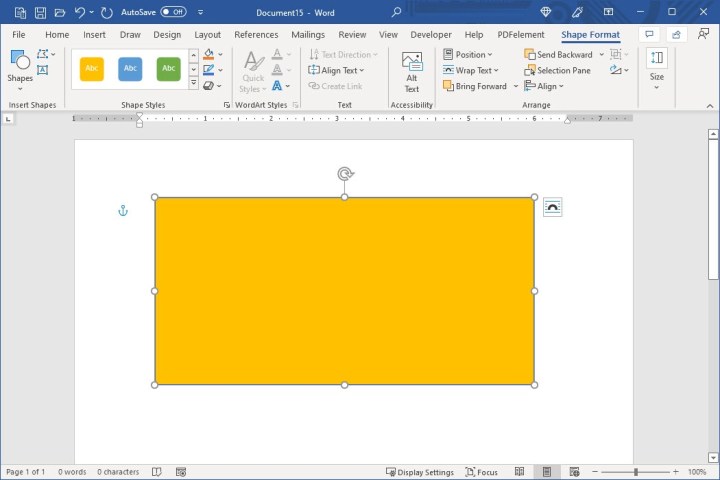
Shape Format tab with formatting tools in the ribbon.

How to draw freehand in Word

Another way to create your shapes and lines in Word is using the freeform options. You can create a freeform shape or scribble.

Step 1: Place your cursor in your document where you want to draw.

Step 2: Go to the Insert tab and click the Shapes drop-down arrow.

In the top section of the list, you’ll see two options you can use. Select Freeform: shape to create your own shape or Freeform: scribble to sketch any type of drawing.

Freeform options in the Shapes drop-down box in Word.

Step 3: If you use the Freeform: shape tool, you draw the shape and return your cursor to the starting point of the drawing. This basically connects the points to create the shape.

With the Freeform: scribble tool, you can draw anything you like without connecting the start and end points.
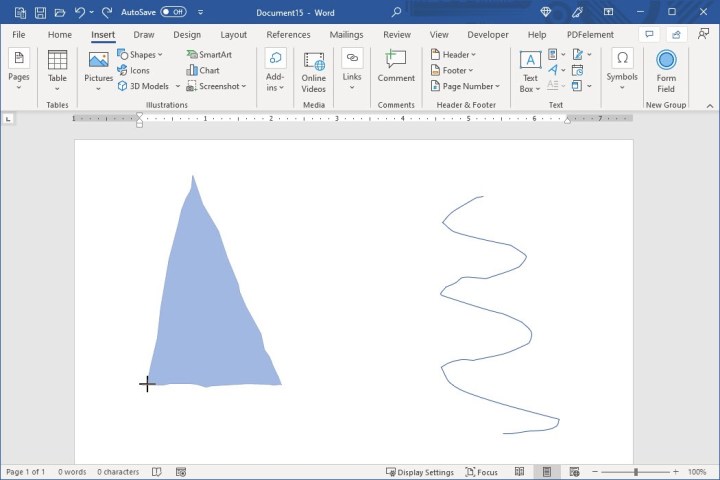
Freeform Shape and Freeform Scribble in Word.

Step 4: When you finish, your drawing is within its own space, just like when drawing a specific shape above. This allows you to drag it if you want to move it or drag it in or out from a corner or edge if you want to resize it.

You can also select your drawing and use the tools on the Shape format tab.

Shape Format tab for freeform drawings.

How to use the drawing tools in Word

One more way to draw a picture or sketch in Word is with the tools on the Draw tab.

Step 1: Head over to the Draw tab and select a tool at the top. You can choose from various pens, a pencil, a highlighter, or the Action Pen tool. You’ll also notice an eraser to perfect your drawing.
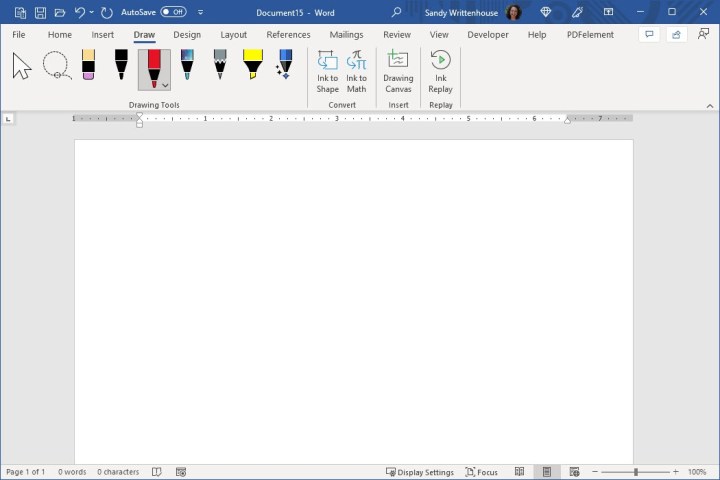
Tools on the Draw tab in Word.

Step 2: To choose a color for your drawing tool, select the tool and then click the arrow that displays in the lower-right corner. You’ll see a palette of colors you can pick from, along with thicknesses for the line.

Colors for the drawing tools.

Step 3: If you want a specific color you don’t see, select More colors and then select a shade or enter the RGB or HEX code for the color you want.
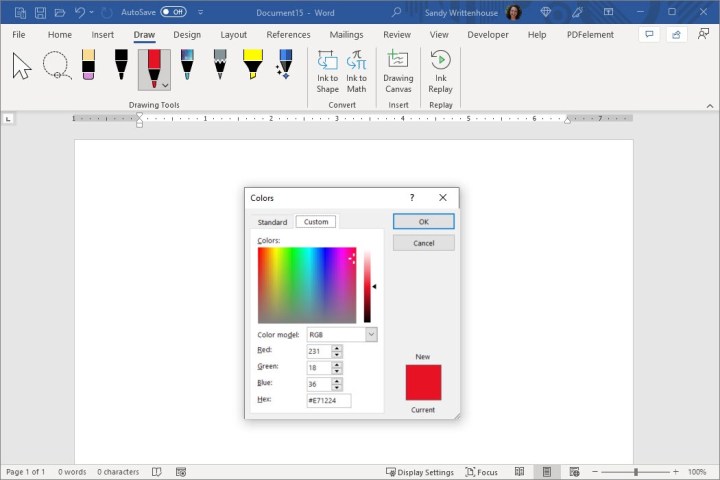
Custom colors for the drawing tools.

Step 4: Another option on the Draw tab is to use a Drawing canvas. Click this option in the ribbon to create a specific area for your sketch and then draw inside it.

Drawing Canvas in Word.

Step 5: When you finish with your drawing, select the large Arrow icon in the ribbon, on the fa- left side, to move or resize your drawing.

Arrow on the left to move or resize the drawing.

Whatever type of picture you want to draw, whether its something detailed with your artistic skills or something simple like your initials or a smiley face, you now know how to draw in Word with its helpful features and handy tools.

For additional help, take a look at how to delete a page in Microsoft Word.

Editors’ Recommendations


Share. Facebook Twitter Pinterest LinkedIn Tumblr Email
Previous ArticleFormer Marvel’s Midnight Suns, XCOM Designer Jake Solomon Announces New Startup, Midsummer Studios
Next Article Unfolding The Wonders Of Paper Trail | New Gameplay Today

Related Articles

Apple Is Suing OpenAI for Allegedly Stealing Hardware Secrets
News

Apple Is Suing OpenAI for Allegedly Stealing Hardware Secrets

10 July 2026
Meta’s detection tool fails to identify photos generated by its own Muse Image AI
News

Meta’s detection tool fails to identify photos generated by its own Muse Image AI

10 July 2026
More Than a Thousand ‘Pokémon Go’ Players Descend on Times Square to Defeat Mewtwo
News

More Than a Thousand ‘Pokémon Go’ Players Descend on Times Square to Defeat Mewtwo

10 July 2026
This app turns your text and voice messages into living AI characters
News

This app turns your text and voice messages into living AI characters

10 July 2026
Meet the Battery Startup Taking on China’s Giants
News

Meet the Battery Startup Taking on China’s Giants

10 July 2026
XREAL’s 9 AR glasses are finally here, and they could be a great travel companion
News

XREAL’s $299 AR glasses are finally here, and they could be a great travel companion

10 July 2026
Demo
Top Articles
5 laptops to buy instead of the M4 MacBook Pro

5 laptops to buy instead of the M4 MacBook Pro

17 November 2024133 Views
ChatGPT o1 vs. o1-mini vs. 4o: Which should you use?

ChatGPT o1 vs. o1-mini vs. 4o: Which should you use?

15 December 2024111 Views
Costco partners with Electric Era to bring back EV charging in the U.S.

Costco partners with Electric Era to bring back EV charging in the U.S.

28 October 2024100 Views

Subscribe to Updates

Get the latest tech news and updates directly to your inbox.

Latest News
This app turns your text and voice messages into living AI characters News

This app turns your text and voice messages into living AI characters

News Room10 July 2026
Meet the Battery Startup Taking on China’s Giants News

Meet the Battery Startup Taking on China’s Giants

News Room10 July 2026
Industry Connection Exclusive – Off The Grid Performance Update Gaming

Industry Connection Exclusive – Off The Grid Performance Update

News Room10 July 2026
Most Popular
The Spectacular Burnout of a Solar Panel Salesman

The Spectacular Burnout of a Solar Panel Salesman

13 January 2025137 Views
5 laptops to buy instead of the M4 MacBook Pro

5 laptops to buy instead of the M4 MacBook Pro

17 November 2024133 Views
ChatGPT o1 vs. o1-mini vs. 4o: Which should you use?

ChatGPT o1 vs. o1-mini vs. 4o: Which should you use?

15 December 2024111 Views
Our Picks
More Than a Thousand ‘Pokémon Go’ Players Descend on Times Square to Defeat Mewtwo

More Than a Thousand ‘Pokémon Go’ Players Descend on Times Square to Defeat Mewtwo

10 July 2026
Is Assassin’s Creed Black Flag Resynced A Good Remake? | The Game Informer Show

Is Assassin’s Creed Black Flag Resynced A Good Remake? | The Game Informer Show

10 July 2026
This app turns your text and voice messages into living AI characters

This app turns your text and voice messages into living AI characters

10 July 2026

Subscribe to Updates

Get the latest tech news and updates directly to your inbox.

Facebook X (Twitter) Instagram Pinterest
  • Privacy Policy
  • Terms of use
  • Advertise
  • Contact Us
© 2026 Best in Technology. All Rights Reserved.

Type above and press Enter to search. Press Esc to cancel.