




Close Menu
Best in TechnologyBest in Technology
  • News
  • Phones
  • Laptops
  • Gadgets
  • Gaming
  • AI
  • Tips
  • More
    • Web Stories
    • Global
    • Press Release

Subscribe to Updates

Get the latest tech news and updates directly to your inbox.

What's On
Resident Evil Requiem Preview – Exciting Emulation

Resident Evil Requiem Preview – Exciting Emulation

26 January 2026
A solid, everyday iPad for under 0 is back on the table

A solid, everyday iPad for under $300 is back on the table

26 January 2026
Deepfake ‘Nudify’ Technology Is Getting Darker—and More Dangerous

Deepfake ‘Nudify’ Technology Is Getting Darker—and More Dangerous

26 January 2026
Facebook X (Twitter) Instagram
Just In
  • Resident Evil Requiem Preview – Exciting Emulation
  • A solid, everyday iPad for under $300 is back on the table
  • Deepfake ‘Nudify’ Technology Is Getting Darker—and More Dangerous
  • Yoshi Debuts In Second Super Mario Galaxy Movie Trailer
  • The rise of adaptive displays: How Lenovo is redefining productivity & play
  • This Wireless Mic Kit Is $70 Off
  • Bandai Namco Reveals Age 1000, A Mysterious New Dragon Ball Game
  • New AirTag, same price, better range, and improved finding for you
Facebook X (Twitter) Instagram Pinterest Vimeo
Best in TechnologyBest in Technology
  • News
  • Phones
  • Laptops
  • Gadgets
  • Gaming
  • AI
  • Tips
  • More
    • Web Stories
    • Global
    • Press Release
Subscribe
Best in TechnologyBest in Technology
Home » How to disable laptop keyboard in Windows
News

How to disable laptop keyboard in Windows

News RoomBy News Room7 April 20245 Mins Read
Share Facebook Twitter Pinterest LinkedIn Tumblr Reddit Telegram Email
How to disable laptop keyboard in Windows
Share
Facebook Twitter LinkedIn Pinterest Email

If you’re using an aftermarket keyboard on your Windows laptop, or find that you accidentally press keys on the built-in keyboard while using the touch screen, it can be a good idea to disable your laptop’s keyboard. It’s easy enough to re-enable again if you get stuck, but turning it off can be a great way to improve functionality of your laptop if you don’t need to use the built in keyboard.

Here’s how to disable your laptop’s keyboard in Windows.

Note: The following instructions have screenshots taken in Windows 10, but they are identical in Windows 11 and can be followed in the same manner.

Open Device Manager

Turn your laptop on and log into Windows. It’s always a good idea to make sure your drivers and operating system are updated so you’re working with the latest interface and data, but it’s not absolutely necessary if you are in a hurry. If in doubt, run Windows Update and see if there any downloads available.

Step 1: Select the Start menu’s search box.

Step 2: Type in Device Manager. The top result in the search box should be the Device Manager app itself. Select it to open this app.

Find your keyboard

Device Manager holds all the important hardware of your system, including the keyboard(s). It’s here you can disable and re-enable various components.

Step 1: In the Device Manager, you’ll see an alphabetical list of devices your computer is using. Look for the Keyboards option on this list, and select it to continue.
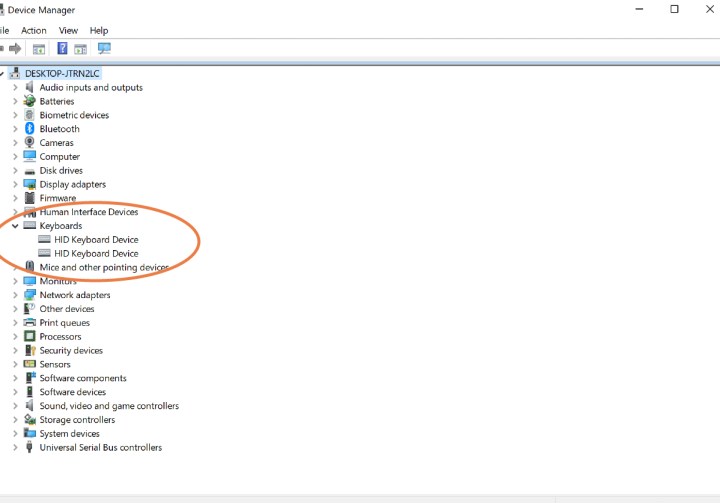
how to disable laptop keyboard on windows 10 keyboards in device manager

Step 2: The Keyboards dropdown menu will show you any keyboards recognized by your laptop. If you have connected an external keyboard, for example, you should see it here.

However, right now you are looking for the internal keyboard your laptop normally uses. The problem is that this keyboard may have different names depending on the type of laptop you are using. Disconnect your external keyboard if necessary, and look for keyboards that say “Standard” or “HID” as these are often the internal keyboard.

Disable the keyboard

The next steps will depend on the laptop you are using and what options are available to you. Some laptops make this a lot easier than others, but we’ll cover what to do in either case.

Step 1: Start by right-clicking on the internal keyboard. In the menu that appears, look for the option that says Disable. If you see it, you can simply select and your laptop keyboard will be turned off. This is by far the easiest method.

how to disable laptop keyboard on windows 10 uninstall option for

Step 2: If the Disable option isn’t there for some reason, you can choose the Uninstall option to remove the keyboard drivers completely. Without the drivers, the keyboard won’t function. There’s just one catch — Windows tends to automatically detect its internal keyboard and re-install the drivers when you try this, especially if you shut down the laptop and then restart it again. So you can choose Uninstall, but you may have to do it a couple of times to make sure Windows gets the message, and it will probably only last until you turn your laptop off again.

For users that only want to disable the laptop’s keyboard temporarily for this session, the Uninstall method can work well. Otherwise, it’s a lot of work to get rid of keyboard functionality over and over again.

On some laptops, you can use sleep or hibernation modes to safely semi-shut things down, but without the full restart that will trigger automatic installation for the keyboard drivers. Try this uninstall-and-sleep option on your laptop to see if it works.

How do I turn my keyboard back on?

To turn your keyboard back on again, find it in the Device Manager list as before, right-click on it and select Enable or Update and the keyboard should work again — potentially after Windows re-installs the drivers. If that doesn’t work, try restarting. That should cause Windows to re-enable the keyboard for use again.

But how do you get back to Device Manager without a keyboard? If you’ve navigated away from the Device Manager, or found your keyboard disabled by accident (or someone else as a prank), you needn’t worry. If you have another keyboard handy, you can plug that in and use it to navigate to Device Manager and then re-enable the keyboard as instructed above. If you don’t though, that’s not a problem. Simply right-click on your Start Button and select Device Manager from the list that pops up. Then follow the instructions above.

If you aren’t satisfied with your current keyboard, why not check out our guide to the best mechanical keyboards out there? Or what about the best keyboards for gaming?

Whether you end up using the built-in keyboard or an external one more often, you may also want to check out our guide to the best Windows keyboard shortcuts to help you save some time!

Editors’ Recommendations


Share. Facebook Twitter Pinterest LinkedIn Tumblr Email
Previous ArticleHow to download and install Windows 11 on your PC
Next Article How to open RAR files on Windows and Mac

Related Articles

A solid, everyday iPad for under 0 is back on the table
News

A solid, everyday iPad for under $300 is back on the table

26 January 2026
Deepfake ‘Nudify’ Technology Is Getting Darker—and More Dangerous
News

Deepfake ‘Nudify’ Technology Is Getting Darker—and More Dangerous

26 January 2026
The rise of adaptive displays: How Lenovo is redefining productivity & play
News

The rise of adaptive displays: How Lenovo is redefining productivity & play

26 January 2026
This Wireless Mic Kit Is  Off
News

This Wireless Mic Kit Is $70 Off

26 January 2026
New AirTag, same price, better range, and improved finding for you
News

New AirTag, same price, better range, and improved finding for you

26 January 2026
Microsoft has released an emergency Windows 11 update to fix crashing apps
News

Microsoft has released an emergency Windows 11 update to fix crashing apps

26 January 2026
Demo
Top Articles
ChatGPT o1 vs. o1-mini vs. 4o: Which should you use?

ChatGPT o1 vs. o1-mini vs. 4o: Which should you use?

15 December 2024107 Views
5 laptops to buy instead of the M4 MacBook Pro

5 laptops to buy instead of the M4 MacBook Pro

17 November 2024101 Views
Costco partners with Electric Era to bring back EV charging in the U.S.

Costco partners with Electric Era to bring back EV charging in the U.S.

28 October 202497 Views

Subscribe to Updates

Get the latest tech news and updates directly to your inbox.

Latest News
This Wireless Mic Kit Is  Off News

This Wireless Mic Kit Is $70 Off

News Room26 January 2026
Bandai Namco Reveals Age 1000, A Mysterious New Dragon Ball Game Gaming

Bandai Namco Reveals Age 1000, A Mysterious New Dragon Ball Game

News Room26 January 2026
New AirTag, same price, better range, and improved finding for you News

New AirTag, same price, better range, and improved finding for you

News Room26 January 2026
Most Popular
The Spectacular Burnout of a Solar Panel Salesman

The Spectacular Burnout of a Solar Panel Salesman

13 January 2025136 Views
ChatGPT o1 vs. o1-mini vs. 4o: Which should you use?

ChatGPT o1 vs. o1-mini vs. 4o: Which should you use?

15 December 2024107 Views
5 laptops to buy instead of the M4 MacBook Pro

5 laptops to buy instead of the M4 MacBook Pro

17 November 2024101 Views
Our Picks
Yoshi Debuts In Second Super Mario Galaxy Movie Trailer

Yoshi Debuts In Second Super Mario Galaxy Movie Trailer

26 January 2026
The rise of adaptive displays: How Lenovo is redefining productivity & play

The rise of adaptive displays: How Lenovo is redefining productivity & play

26 January 2026
This Wireless Mic Kit Is  Off

This Wireless Mic Kit Is $70 Off

26 January 2026

Subscribe to Updates

Get the latest tech news and updates directly to your inbox.

Facebook X (Twitter) Instagram Pinterest
  • Privacy Policy
  • Terms of use
  • Advertise
  • Contact Us
© 2026 Best in Technology. All Rights Reserved.

Type above and press Enter to search. Press Esc to cancel.