





Oh, social media. Sometimes it’s just too much, folks. If you’re finding yourself in a position where shutting down your Instagram account for a period of time sounds good, Meta’s powers that be have made it pretty simple to deactivate your Instagram account. It’s also quite easy to completely delete your Instagram, although we wouldn’t recommend this latter option if you plan on returning to the platform at a later date.
We’ve put together this guide to walk you through the entire process of powering down Instagram for a minute. We’ll also teach you how to eradicate your account permanently.
Temporarily deactivate your Instagram account
By temporarily disabling your Instagram account, your profile, along with its photos, likes, and comments, will be hidden and they’ll stay hidden until you log back in to reactivate your account. Disabling your account is a perfect way to take a bit of a vacation from Instagram. Another option to consider is merely muting a few friends, if that’s your main reason for disabling your account.
The following instructions only work for Instagram accounts that do not use a Facebook account to log in. If you want to disable your Instagram account but your account uses Facebook to log in, you’ll need to remove your Facebook account from your Instagram account and then reset your Instagram account’s password. To do this successfully, you’ll need to have access to the email account that is associated with your Instagram account. Once your Facebook account is unlinked from your Instagram account and you have reset your password for your Instagram account, you can use the following instructions to temporarily disable your Instagram account.
Note: The instructions below reflect the best available method for deactivating Instagram based on Instagram’s latest version of its user interface. However, the steps below may not work all of the time or for everyone. In fact, while we were able to confirm the steps below, it is still unclear if this method actually deactivates an Instagram account or if it merely logs you out. And Instagram’s own Help Center article on the matter even says that this method may not work “at this time.”
Here’s how to deactivate your Instagram account:
Step 1: Visit Instagram.com using a web browser.
If not already logged in, log in to your Instagram account.
Step 2: From the left side menu, choose the Profile option.
Step 3: At the top of the page, click the Edit profile button.
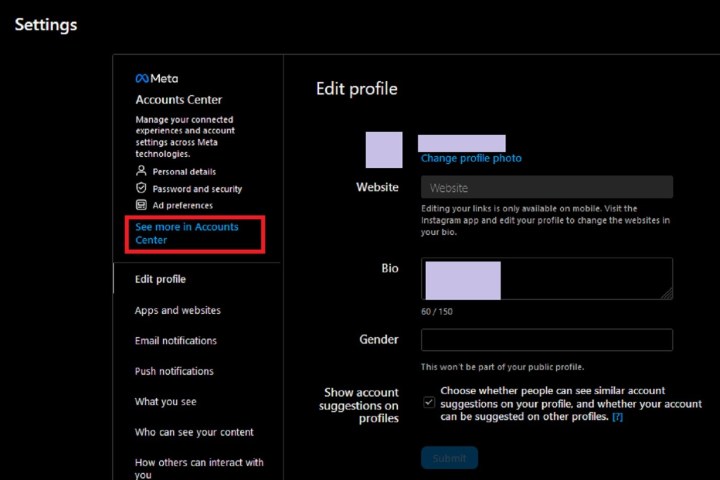
Step 4: Select See more in Accounts Center.
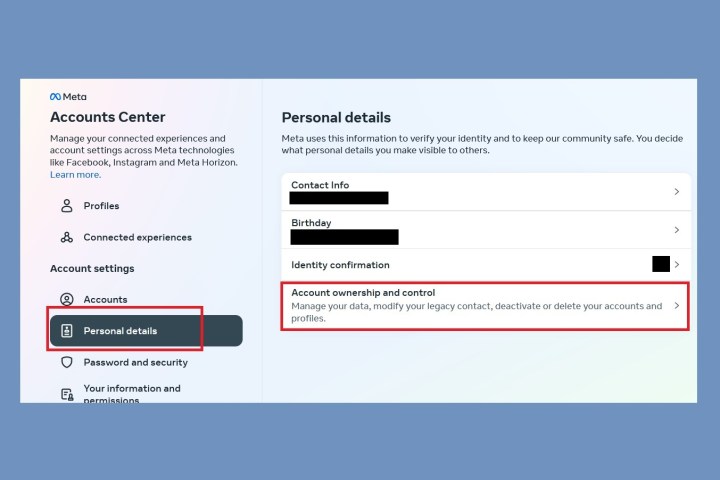
Step 5: On the Accounts Center page, select Personal details. Then choose Account ownership and control.
Step 6: From the menu that appears, choose Deactivation or deletion. Then select the account you want to deactivate.
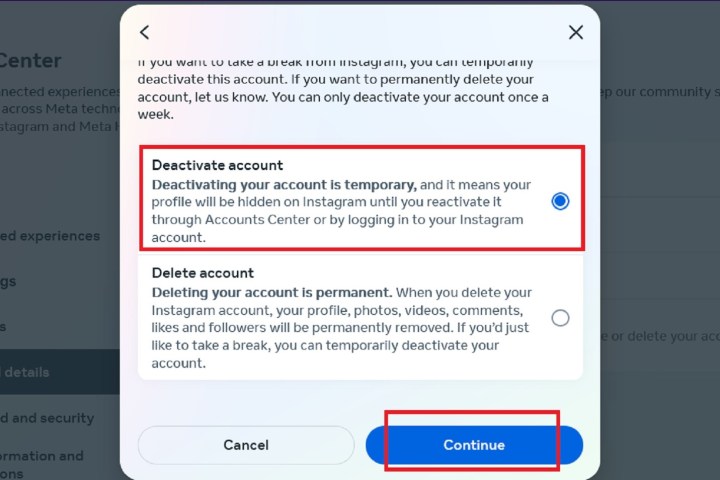
Step 7: On the next screen, choose Deactivate account. Then scroll down to select the Continue button. You’ll then be prompted to enter your account password.
Step 8: Now choose a reason for deactivating your Instagram account from the list of reasons provided. Then select Continue.
Step 9: Select the Deactivate account button to confirm the deactivation of your Instagram account.
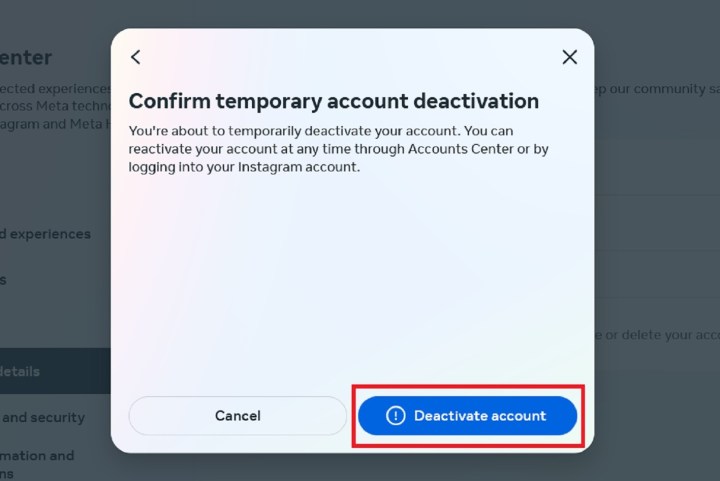
Step 10: The above steps can work for anyone as long as they have a PC, an internet connection, and a web browser.
The Instagram mobile app can let users disable their accounts, and it uses a similar Accounts Center method like steps 1-9. Both the Android and iOS version of Instagram may vary slightly in their methods, but the following steps should still generally apply to both platforms.
Open the Instagram mobile app and then:
Select your Profile picture (bottom right of screen) > Select the Three horizontal lines menu icon > Select Accounts Center > Personal details >Select Account ownership and control > Deactivation or deletion .
Then select the account you want to deactivate. Choose Deactivate account > Continue. Type in your password when prompted then select Continue. Choose your reason for deactivating > Continue.
You can set an automatic reactivation option or select Don’t reactivate automatically from the drop down menu. Select Continue. Finally, confirm your account deactivation by selecting Deactivate account.
Permanently delete your Instagram account
If you know that you definitely won’t be coming back to Instagram, you can permanently delete your account. It is critical to note that deleting your account will remove your profile, photos, videos, comments, likes, and followers. There is no way to retrieve them once the process has been completed. Additionally, you won’t be able to use that same username again if a new user ends up taking it before you decide to sign up with it again.
According to Instagram’s help guide there are two ways to delete your account: You can either follow the steps we already outlined in the deactivation section above and just choose the “delete account” option instead of “deactivate” when asked, or you can follow the alternative method we’ve outlined below.
If you are positive that you want to delete your account, follow these steps:
Step 1: Visit the Instagram Delete Your Account page. If not already logged in, log in to your Instagram account.
Step 2: Next to Why do you want to delete [your username]?, select an option from the drop-down box.
Step 3: Enter your Instagram password to confirm.
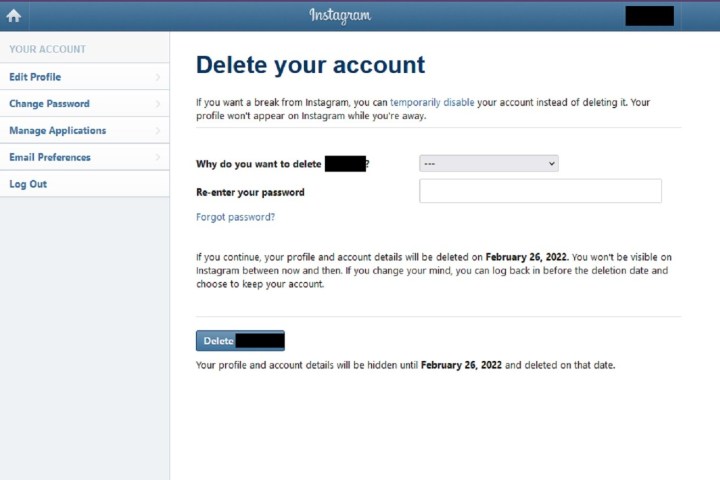
Step 4: Click Delete [Your Username].
By following the above process, you will have submitted a deletion request to the Instagram team. After 30 days, Instagram will permanently delete your account and all information. Instagram notes that it may take up to 90 days for the process to complete.
Step 5: As with disabling an account, you can also delete your account via the Instagram mobile app.
Here’s how to do it on iOS: Select your Profile icon > the Three horizontal lines menu icon > Account > Delete account > Delete account > Continue deleting account. Then answer the on-screen prompts.
Then select Delete [your username] > OK.
Here’s how to do it on Android: Select your Profile icon > the Three horizontal lines menu icon > Accounts Center > Personal details > Account ownership and control > Deactivation or deletion.
Then select the account you want to delete. Choose Delete account > Continue. Choose a reason for deleting > Continue. Enter your password > Continue. Then select Delete account to confirm your account deletion.
It’s also worth noting that, according to Instagram’s help guide, the instructions for Android can also work for iOS. Some of the steps may vary slightly though.
Frequently asked questions
How long can I temporarily deactivate my Instagram account?
There doesn’t appear to be a time limit for deactivating an Instagram account (unless you set one for yourself by choosing an automatic reactivation time period). An Instagram account deactivation generally only ends when the account holder logs back into the deactivated account. Logging back in is usually how you reactivate an Instagram account.
What is the difference between deactivating and deleting an Instagram account?
The main difference is deactivation is temporary and deletion is permanent. You can always reactivate an Instagram account. Deactivation lets you keep the account even though you want to take a break from Instagram. Deletion doesn’t let you keep the account. The account gets permanently deleted. If you want to return to Instagram after you deleted your account, you’ll need to create a new account.
How long does Instagram give you to change your mind about deleting an account?
According to Instagram’s Delete Your Account page, you get about 30 days to change your mind and cancel the account deletion request. That’s 30 days starting from when you sent the request. When you send that request, Instagram will give you the date for when your account is scheduled to be deleted. If you log into your account before that date you can decide to hold onto the account instead.
Editors’ Recommendations