


Close Menu
Best in TechnologyBest in Technology
  • News
  • Phones
  • Laptops
  • Gadgets
  • Gaming
  • AI
  • Tips
  • More
    • Web Stories
    • Global
    • Press Release

Subscribe to Updates

Get the latest tech news and updates directly to your inbox.

What's On
The next official Palworld mobile game comes from an unexpected studio

The next official Palworld mobile game comes from an unexpected studio

4 August 2026
Beast of Reincarnation Review – Boring World, Beguiling Combat

Beast of Reincarnation Review – Boring World, Beguiling Combat

4 August 2026
Save big on DJI creator gear with these AliExpress August deals

Save big on DJI creator gear with these AliExpress August deals

4 August 2026
Facebook X (Twitter) Instagram
Just In
  • The next official Palworld mobile game comes from an unexpected studio
  • Beast of Reincarnation Review – Boring World, Beguiling Combat
  • Save big on DJI creator gear with these AliExpress August deals
  • Google Health just made Fitbit Air a better fit for Apple Health users
  • Did an AI Music App Just Snitch on the Song of the Summer?
  • Pwnage’s new gaming mouse lets users adjust click force and travel with a screwdriver
  • Dave Bautista Reportedly In Talks To Replace Injured Ryan Hurst
  • Volvo’s purported EX50 could be the budget-friendly plot twist nobody saw coming
Facebook X (Twitter) Instagram Pinterest Vimeo
Best in TechnologyBest in Technology
  • News
  • Phones
  • Laptops
  • Gadgets
  • Gaming
  • AI
  • Tips
  • More
    • Web Stories
    • Global
    • Press Release
Subscribe
Best in TechnologyBest in Technology
Home » How to check the storage space on your Mac
News

How to check the storage space on your Mac

News RoomBy News Room27 April 20244 Mins Read
Share Facebook Twitter Pinterest LinkedIn Tumblr Reddit Telegram Email
How to check the storage space on your Mac
Share
Facebook Twitter LinkedIn Pinterest Email

Upgrading storage on your Mac isn’t always easy, or even possible, so knowing how much storage space you have, and how to free up more, is a great idea. Often when you buy a Mac, that’s the storage you’re stuck with — although external drives and cloud storage are always an option.

Luckily, checking your available storage — and then freeing up space for the things you want to keep — is very easy to do. In this guide, we’ll walk you through the process of checking your Mac’s storage space, then show you a few quick ways of clearing out the junk you no longer need.

If you need more in-depth help with freeing up space on your Mac, we’ve got a guide for that, too. Once you’re done, you should have a lot more storage space on your Mac.

How to check disk space on your Mac

Step 1: Select the Apple menu in the top-left corner of your Mac’s screen, then select About This Mac.

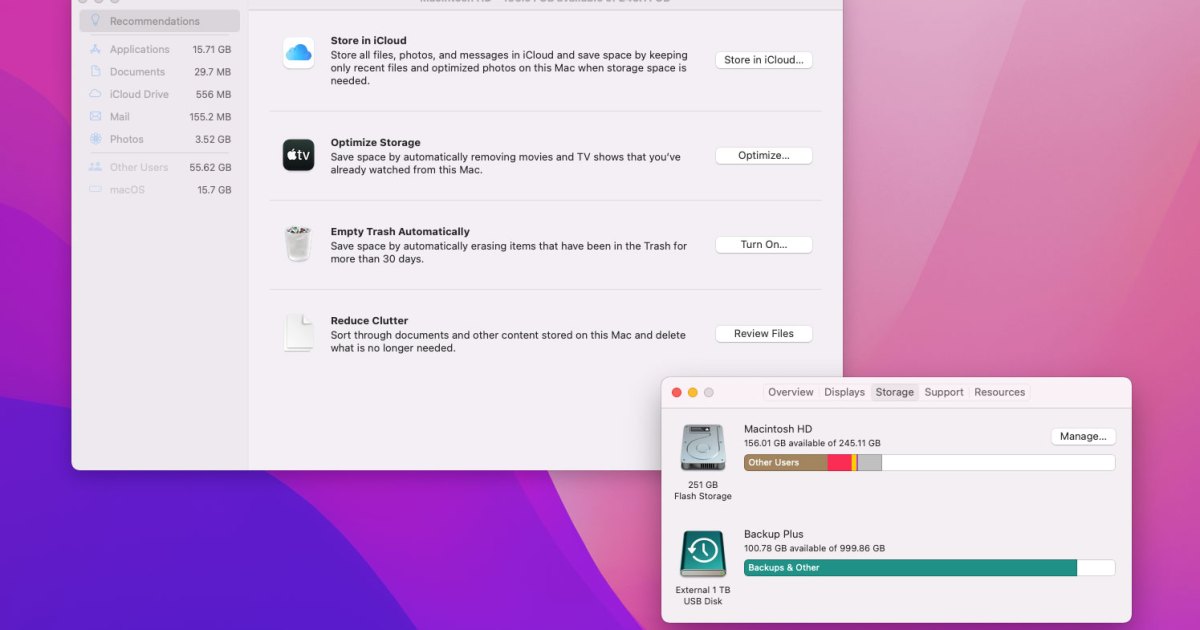
Step 2: Select the Storage tab. This will show how much of your Mac’s storage is taken up, divided into color-coded sections. If you hover your mouse over each one, your Mac will tell you how much space that section is occupying.

Step 3: Use this to work out what is taking up the most space and whether you can delete some files from this section to free up space. For example, if the Applications section is very large, you could try deleting some apps. To do this, open Finder and select Applications in the left-hand sidebar. Select the Icon view button at the top, then select the Size column to sort your apps with the largest at the top. This way, you can work out if you want to keep the most space-hungry apps installed — those you don’t can be moved to the Trash.
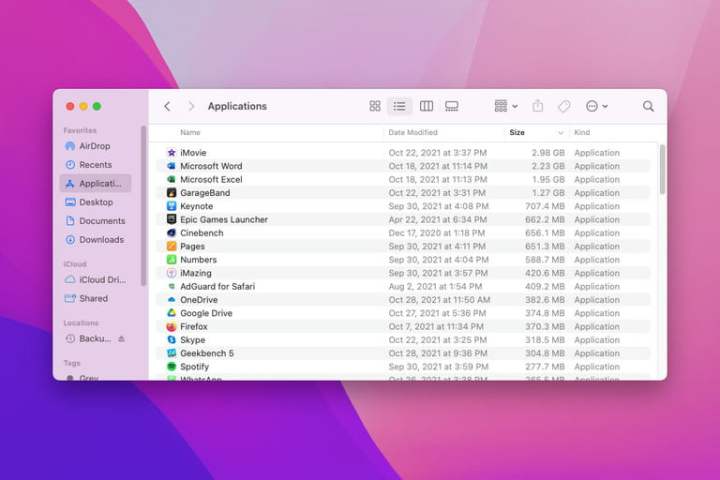
A Finder window in MacOS Monterey showing installed applications.

Step 4: Note: If you have divided your Mac’s drive into multiple APFS containers or HFS+ partitions or you have attached any external hard drives, they will also show up in About This Mac as separate drives, each with its own storage breakdown.

How to find more storage space on your Mac

There are many ways to free up space on your Mac, but one of the quickest and easiest is to use Apple’s own built-in tool within the About This Mac window. Here, we’ll show you how to use it.

Step 1: On the Storage tab in About This Mac, select Manage.

Step 2: If it is not already selected, select the Recommendations tab on the left.
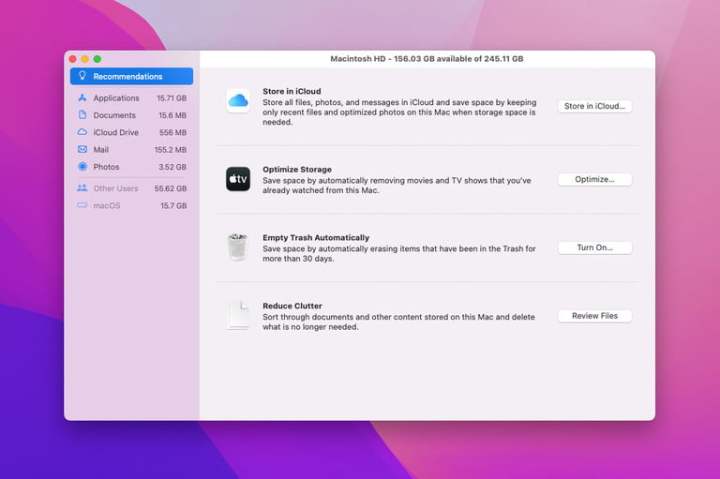
Recommended actions to clear storage space in MacOS Monterey.

Step 3: Step 3: Here, there are four options:

  • Store in iCloud uploads files, photos, and messages to your iCloud storage. You can choose to upload everything or just some file types (such as photos), but you need to have enough available iCloud space to store what you want to upload.
  • Optimize Storage removes Apple TV content once you’ve watched it and only keeps recent email attachments on your Mac.
  • Empty Trash Automatically deletes anything that has been in the trash for more than 30 days.
  • Reduce Clutter suggests files that could be deleted to save space, such as downloaded files and apps that do not work in your version of MacOS.

Step 4: Below Recommendations in the sidebar, there are additional sections that show you what is taking up the most space in different categories. For example, Applications shows the largest apps at the top. Select an app or file in the list, then select Delete to remove it.
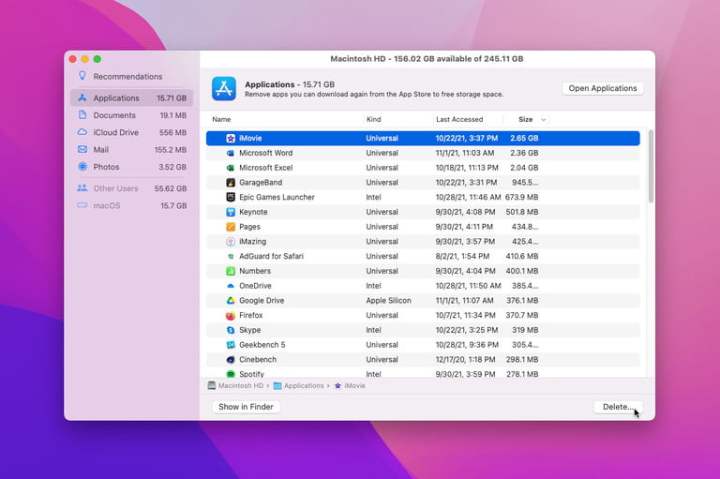
A window showing large installed apps on MacOS Monterey that the user can uninstall to save storage space.

Step 5: As you delete files, keep checking the Storage tab in About This Mac to see how much free space you have. Apple suggests that you check storage space this way rather than using third-party apps or different settings in MacOS, which might measure free space differently and thus paint an inaccurate picture.

Editors’ Recommendations



Share. Facebook Twitter Pinterest LinkedIn Tumblr Email
Previous ArticleThe Best Robot Vacuums to Keep Your Home Clean
Next Article The Best Sleeping Pads for Camping, Backpacking, and Travel

Related Articles

The next official Palworld mobile game comes from an unexpected studio
News

The next official Palworld mobile game comes from an unexpected studio

4 August 2026
Save big on DJI creator gear with these AliExpress August deals
News

Save big on DJI creator gear with these AliExpress August deals

4 August 2026
Google Health just made Fitbit Air a better fit for Apple Health users
News

Google Health just made Fitbit Air a better fit for Apple Health users

4 August 2026
Did an AI Music App Just Snitch on the Song of the Summer?
News

Did an AI Music App Just Snitch on the Song of the Summer?

4 August 2026
Pwnage’s new gaming mouse lets users adjust click force and travel with a screwdriver
News

Pwnage’s new gaming mouse lets users adjust click force and travel with a screwdriver

4 August 2026
Volvo’s purported EX50 could be the budget-friendly plot twist nobody saw coming
News

Volvo’s purported EX50 could be the budget-friendly plot twist nobody saw coming

3 August 2026
Demo
Top Articles
5 laptops to buy instead of the M4 MacBook Pro

5 laptops to buy instead of the M4 MacBook Pro

17 November 2024133 Views
ChatGPT o1 vs. o1-mini vs. 4o: Which should you use?

ChatGPT o1 vs. o1-mini vs. 4o: Which should you use?

15 December 2024111 Views
Costco partners with Electric Era to bring back EV charging in the U.S.

Costco partners with Electric Era to bring back EV charging in the U.S.

28 October 2024100 Views

Subscribe to Updates

Get the latest tech news and updates directly to your inbox.

Latest News
Pwnage’s new gaming mouse lets users adjust click force and travel with a screwdriver News

Pwnage’s new gaming mouse lets users adjust click force and travel with a screwdriver

News Room4 August 2026
Dave Bautista Reportedly In Talks To Replace Injured Ryan Hurst Gaming

Dave Bautista Reportedly In Talks To Replace Injured Ryan Hurst

News Room3 August 2026
Volvo’s purported EX50 could be the budget-friendly plot twist nobody saw coming News

Volvo’s purported EX50 could be the budget-friendly plot twist nobody saw coming

News Room3 August 2026
Most Popular
The Spectacular Burnout of a Solar Panel Salesman

The Spectacular Burnout of a Solar Panel Salesman

13 January 2025137 Views
5 laptops to buy instead of the M4 MacBook Pro

5 laptops to buy instead of the M4 MacBook Pro

17 November 2024133 Views
ChatGPT o1 vs. o1-mini vs. 4o: Which should you use?

ChatGPT o1 vs. o1-mini vs. 4o: Which should you use?

15 December 2024111 Views
Our Picks
Google Health just made Fitbit Air a better fit for Apple Health users

Google Health just made Fitbit Air a better fit for Apple Health users

4 August 2026
Did an AI Music App Just Snitch on the Song of the Summer?

Did an AI Music App Just Snitch on the Song of the Summer?

4 August 2026
Pwnage’s new gaming mouse lets users adjust click force and travel with a screwdriver

Pwnage’s new gaming mouse lets users adjust click force and travel with a screwdriver

4 August 2026

Subscribe to Updates

Get the latest tech news and updates directly to your inbox.

Facebook X (Twitter) Instagram Pinterest
  • Privacy Policy
  • Terms of use
  • Advertise
  • Contact Us
© 2026 Best in Technology. All Rights Reserved.

Type above and press Enter to search. Press Esc to cancel.