

Close Menu
Best in TechnologyBest in Technology
  • News
  • Phones
  • Laptops
  • Gadgets
  • Gaming
  • AI
  • Tips
  • More
    • Web Stories
    • Global
    • Press Release

Subscribe to Updates

Get the latest tech news and updates directly to your inbox.

What's On
Meta promised to stop creepy AI glasses videos, but they’re still all over Instagram

Meta promised to stop creepy AI glasses videos, but they’re still all over Instagram

17 August 2026
I found a better way to dictate on my Mac, and it doesn’t need the cloud

I found a better way to dictate on my Mac, and it doesn’t need the cloud

17 August 2026
Mac users now have an easier way to install apps from DMG files

Mac users now have an easier way to install apps from DMG files

17 August 2026
Facebook X (Twitter) Instagram
Just In
  • Meta promised to stop creepy AI glasses videos, but they’re still all over Instagram
  • I found a better way to dictate on my Mac, and it doesn’t need the cloud
  • Mac users now have an easier way to install apps from DMG files
  • I’m not buying the idea that killing PlayStation discs will make games cheaper
  • I tried a smart bracelet as my digital journal and mood calendar. It’s odd, but it works.
  • Sony still hasn’t fixed a launch date for the PS6, and that’s telling
  • ChatGPT’s Computer History has one big privacy problem
  • Intel may be cooking up a budget Panther Lake chip for gaming handhelds
Facebook X (Twitter) Instagram Pinterest Vimeo
Best in TechnologyBest in Technology
  • News
  • Phones
  • Laptops
  • Gadgets
  • Gaming
  • AI
  • Tips
  • More
    • Web Stories
    • Global
    • Press Release
Subscribe
Best in TechnologyBest in Technology
Home » How to check if your PC meets a game’s system requirements
News

How to check if your PC meets a game’s system requirements

News RoomBy News Room15 May 20244 Mins Read
Share Facebook Twitter Pinterest LinkedIn Tumblr Reddit Telegram Email
How to check if your PC meets a game’s system requirements
Share
Facebook Twitter LinkedIn Pinterest Email

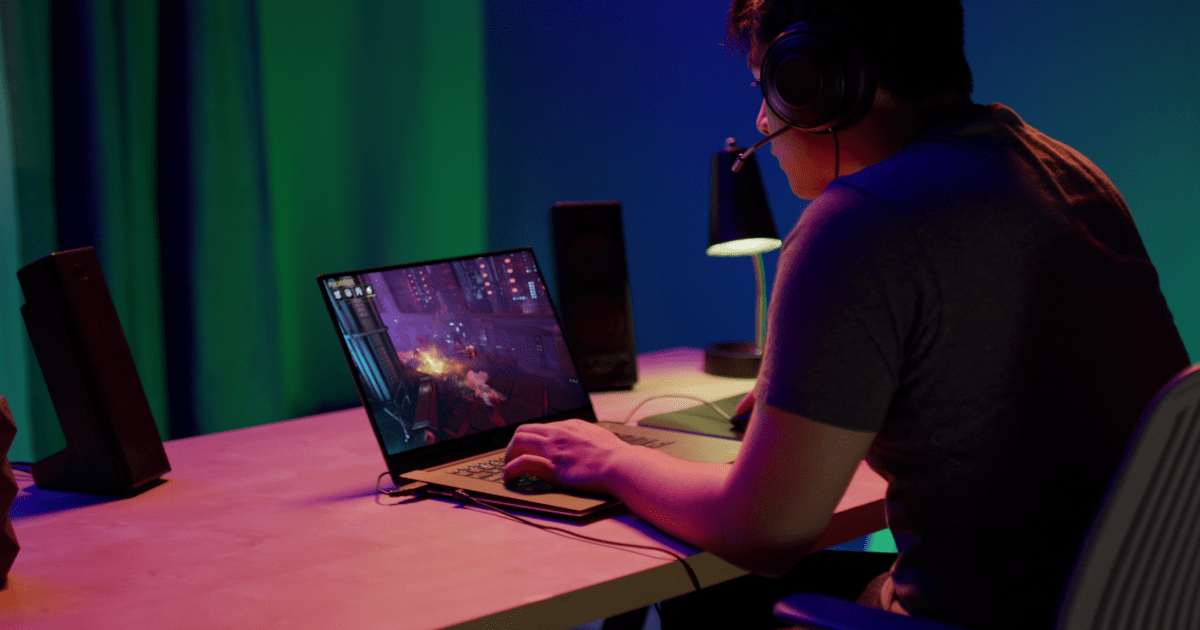
Not everyone can upgrade their gaming stations with the latest GPUs and additional RAM to push game performance as far as it can go. You might just want to know if your current PC can handle the latest title you’re excited to play.

In that case, finding out such information usually isn’t that hard. Games often have information on recommended specifications so that gamers can compare the specs to what they currently have and see if they are good to go or not. While recommended specs may not be able to max out resolution or show off a gaming PC, they should be good enough for gameplay and to allow you to have an enjoyable experience. Here’s how to find those system requirements and check your PC’s specs.

How to check if your PC meets a game’s system requirements

Step 1: Google the game you want to play, along with a phrase like “PC specification recommendations.” Game publishers are very good at putting these recommendations on their own sites, Steam, and other places, so results should immediately appear.

For example, here are the Overwatch 2 system requirements published by Blizzard. Once you have found the official recommendations, save the webpage or take a screenshot for comparison.

Step 2: Note that many games, such as Overwatch 2, have both minimum requirements and recommended specifications. Minimum requirements will help you scrape by, although you may have to lower graphics settings and accept that performance won’t always be great. Recommended specs are a much better level to compare against for a good gaming experience – but you also have to work with what you have, so be prepared to make some changes to game settings if necessary.

Step 3: Now it’s time to find your current PC specifications. Log into your PC if necessary and press the Ctrl + Shift + Escape keys to bring up Task Manager. Or, you could just search for “task manager” in the search bar and select it.

Step 4: If necessary, select More details in the Task Manager.

Step 5: In the new window, select the Performance tab.
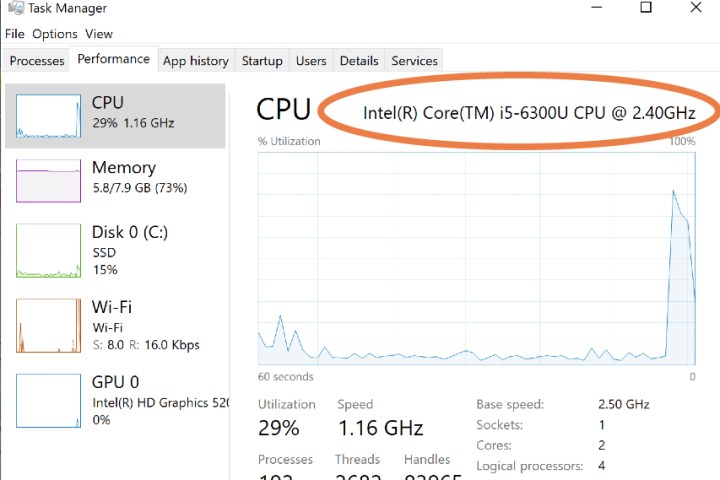
Task Manager CPU information.

Step 6: On the left of the performance window, you’ll see sections for CPU, Memory, Disk, GPU, and more. For each section, you can view current performance and – most importantly – the exact specification your PC is working with.

Step 7: Go through the sections one by one and compare your specs to the game’s requirements. Specs don’t always have to be one-to-one: When necessary, compare things like the number of cores, GPU memory, and similar important features. If your PC meets or exceeds these important details, then you don’t have to worry about playing the game. Remember to check disk space too, so you know you have enough room to download the game files.
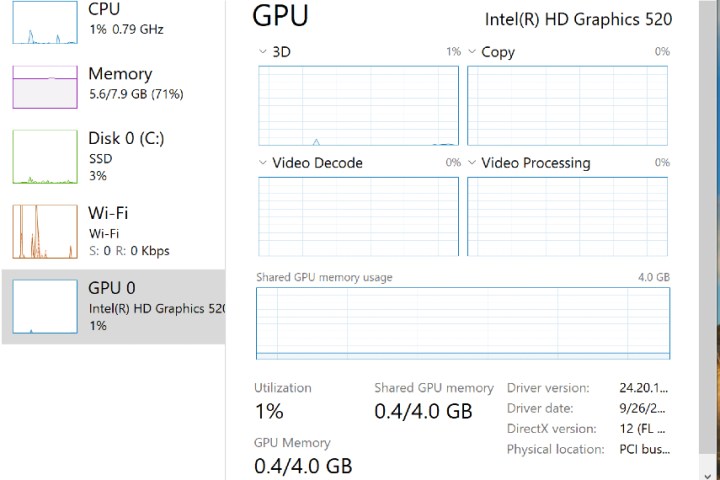
Task Manager GPU section.

Step 8: If Task Manager isn’t an option for you, search for the “about” section on your computer. This section typically provides information about the components that the PC came with, which may be enough to eyeball recommended specifications.

Step 9: If you have an aftermarket GPU, you may also want to check the GPU brand to see if it has its own recommendations for specific games. They often will, especially for AAA titles. Here’s Nvidia’s own page for Overwatch recommendations, for example.
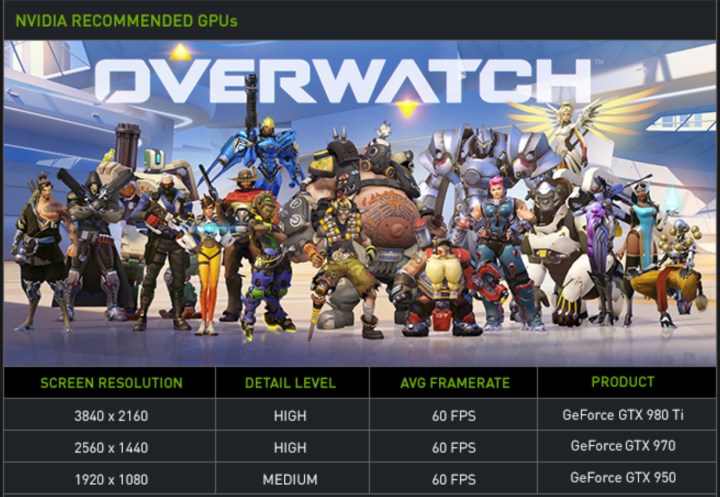
Nvidia Overwatch 2 recommendations page.

What about automatic checkers?

Some tools are designed to automatically check if the computer can handle a specific game. One example is System Requirements Lab, where you can search for the latest games. But these tools can often struggle to properly read the specs of the computer that they are running on. This leads to a lot of failed guesses on their part, which is why it’s always a good idea to manually check yourself. Plus, once you know, you can always reference back as needed.

Editors’ Recommendations



Share. Facebook Twitter Pinterest LinkedIn Tumblr Email
Previous ArticleOppo Reno 12 Series With Triple Rear Cameras to Launch on May 23; Design Teased
Next Article Samsung Galaxy M35 Design, Specifications Tipped via Google Play Console Listing

Related Articles

Meta promised to stop creepy AI glasses videos, but they’re still all over Instagram
News

Meta promised to stop creepy AI glasses videos, but they’re still all over Instagram

17 August 2026
I found a better way to dictate on my Mac, and it doesn’t need the cloud
News

I found a better way to dictate on my Mac, and it doesn’t need the cloud

17 August 2026
Mac users now have an easier way to install apps from DMG files
News

Mac users now have an easier way to install apps from DMG files

17 August 2026
I’m not buying the idea that killing PlayStation discs will make games cheaper
News

I’m not buying the idea that killing PlayStation discs will make games cheaper

17 August 2026
I tried a smart bracelet as my digital journal and mood calendar. It’s odd, but it works.
News

I tried a smart bracelet as my digital journal and mood calendar. It’s odd, but it works.

17 August 2026
Sony still hasn’t fixed a launch date for the PS6, and that’s telling
News

Sony still hasn’t fixed a launch date for the PS6, and that’s telling

17 August 2026
Demo
Top Articles
5 laptops to buy instead of the M4 MacBook Pro

5 laptops to buy instead of the M4 MacBook Pro

17 November 2024133 Views
ChatGPT o1 vs. o1-mini vs. 4o: Which should you use?

ChatGPT o1 vs. o1-mini vs. 4o: Which should you use?

15 December 2024112 Views
Costco partners with Electric Era to bring back EV charging in the U.S.

Costco partners with Electric Era to bring back EV charging in the U.S.

28 October 2024100 Views

Subscribe to Updates

Get the latest tech news and updates directly to your inbox.

Latest News
Sony still hasn’t fixed a launch date for the PS6, and that’s telling News

Sony still hasn’t fixed a launch date for the PS6, and that’s telling

News Room17 August 2026
ChatGPT’s Computer History has one big privacy problem News

ChatGPT’s Computer History has one big privacy problem

News Room16 August 2026
Intel may be cooking up a budget Panther Lake chip for gaming handhelds News

Intel may be cooking up a budget Panther Lake chip for gaming handhelds

News Room16 August 2026
Most Popular
The Spectacular Burnout of a Solar Panel Salesman

The Spectacular Burnout of a Solar Panel Salesman

13 January 2025137 Views
5 laptops to buy instead of the M4 MacBook Pro

5 laptops to buy instead of the M4 MacBook Pro

17 November 2024133 Views
ChatGPT o1 vs. o1-mini vs. 4o: Which should you use?

ChatGPT o1 vs. o1-mini vs. 4o: Which should you use?

15 December 2024112 Views
Our Picks
I’m not buying the idea that killing PlayStation discs will make games cheaper

I’m not buying the idea that killing PlayStation discs will make games cheaper

17 August 2026
I tried a smart bracelet as my digital journal and mood calendar. It’s odd, but it works.

I tried a smart bracelet as my digital journal and mood calendar. It’s odd, but it works.

17 August 2026
Sony still hasn’t fixed a launch date for the PS6, and that’s telling

Sony still hasn’t fixed a launch date for the PS6, and that’s telling

17 August 2026

Subscribe to Updates

Get the latest tech news and updates directly to your inbox.

Facebook X (Twitter) Instagram Pinterest
  • Privacy Policy
  • Terms of use
  • Advertise
  • Contact Us
© 2026 Best in Technology. All Rights Reserved.

Type above and press Enter to search. Press Esc to cancel.