Close Menu
Best in TechnologyBest in Technology
  • News
  • Phones
  • Laptops
  • Gadgets
  • Gaming
  • AI
  • Tips
  • More
    • Web Stories
    • Global
    • Press Release

Subscribe to Updates

Get the latest tech news and updates directly to your inbox.

What's On
Denshattack Review – Come On, Ride The Train

Denshattack Review – Come On, Ride The Train

15 July 2026
Madden NFL 27 is coming to Apple Arcade next month, and it lets you run an NFL franchise from top to bottom

Madden NFL 27 is coming to Apple Arcade next month, and it lets you run an NFL franchise from top to bottom

15 July 2026
How To Watch the 2026 FIFA World Cup Semifinals: England vs Argentina

How To Watch the 2026 FIFA World Cup Semifinals: England vs Argentina

15 July 2026
Facebook X (Twitter) Instagram
Just In
  • Denshattack Review – Come On, Ride The Train
  • Madden NFL 27 is coming to Apple Arcade next month, and it lets you run an NFL franchise from top to bottom
  • How To Watch the 2026 FIFA World Cup Semifinals: England vs Argentina
  • FX’s Live-Action Far Cry Anthology Series Casts Steve Buscemi
  • What are the easiest ways to accept payments online and in person?
  • The Explosive Diarrhea Outbreak Is About to Get Much Bigger
  • Your child can now get a free Spotify account with parental controls
  • The Best Google Home Speaker (2026)
Facebook X (Twitter) Instagram Pinterest Vimeo
Best in TechnologyBest in Technology
  • News
  • Phones
  • Laptops
  • Gadgets
  • Gaming
  • AI
  • Tips
  • More
    • Web Stories
    • Global
    • Press Release
Subscribe
Best in TechnologyBest in Technology
Home » How to change your default browser in Windows 11
News

How to change your default browser in Windows 11

News RoomBy News Room2 March 20243 Mins Read
Share Facebook Twitter Pinterest LinkedIn Tumblr Reddit Telegram Email
How to change your default browser in Windows 11
Share
Facebook Twitter LinkedIn Pinterest Email

Changing the default browser is a great way to improve your Windows 11 web-browsing experience. If you’ve got a favorite — we’re willing to bet it’s Chrome — then you can switch the default browser in Windows 11 so that you aren’t always closing down Edge before launching your preferred browser.

Here’s how to change the default browser in Windows 11 in just a few quick steps.

How to change the default browser in Windows 11

Changing your default browser in Windows 11 is very straightforward. If you only have one browser you want to use for everything, you can set it simply within the Settings menu.

Step 1: Open the Windows 11 Settings menu by pressing Windows key + I. Then select Apps from the left-hand menu.

Step 2: Select Default apps from the central menu.
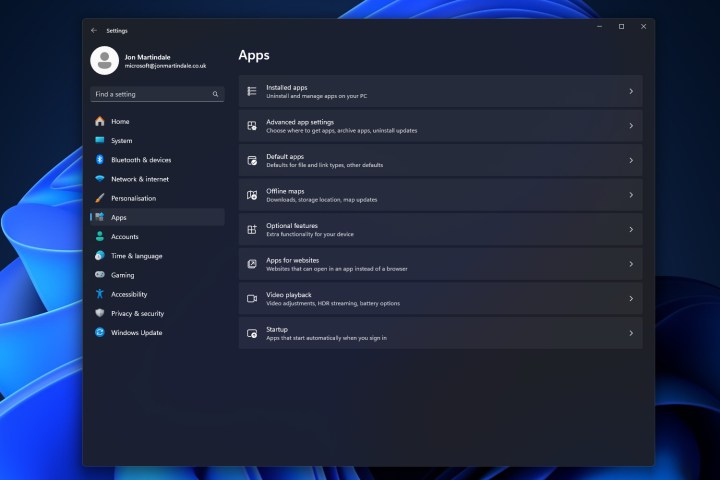
Opening the default apps menu.

Step 3: Scroll down the list to find the application that you want to set as your default browser, then select it. In our case, we’ll be selecting Brave.
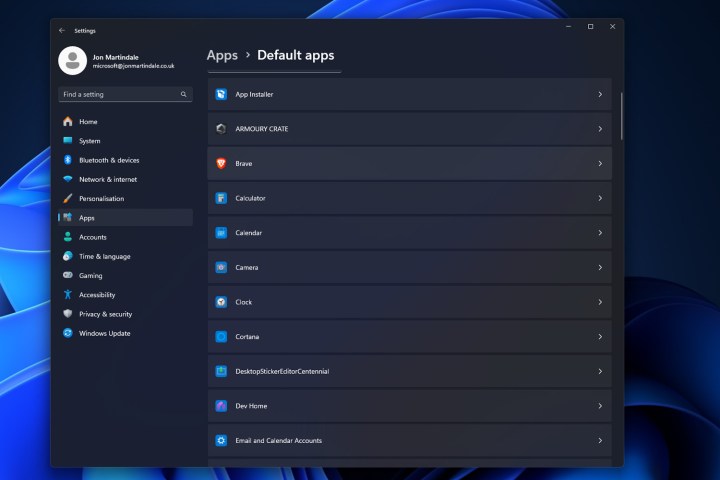
Selecting the Brave browser from the list in Windows 11.

Step 4: Select the Set as default button in the top-right corner.
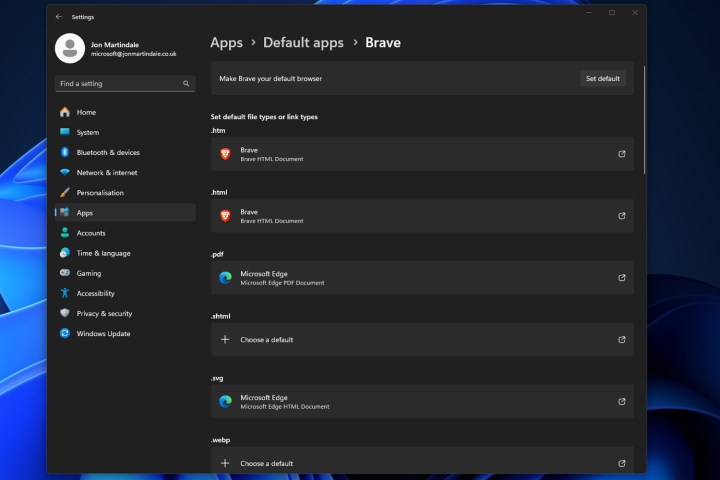
Selecting Brave as the default browser in Windows 11.
Setting default apps in Windows 11.

How to change the default browser for certain file types

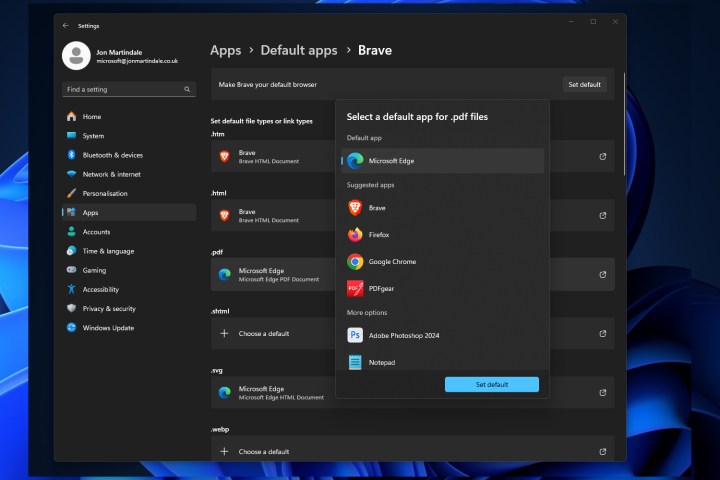
You might want to use your browser for any links you open, but are there any particular file types you might prefer another browser to open? Maybe you like the way Edge handles PDF documents. Whatever it is, though, you can customize which browsers open which type of file. Here’s how.

Step 1: As above, navigate to Settings > Apps > Default apps, then select the browser application that you want to make a default for a certain file type.

Step 2: On the browser’s page, you’ll find a long list of different web-related file types, including .htm, .html, .webp, and others. Scroll down the list of file names until you find the one you want to change. Select it.

Step 3: From the window that appears, select the app that you want to be the default application to handle that file type. It doesn’t technically have to be a browser, but if you’re reading this article, you probably want it to be. That said, if it’s PDFs you want to open, I can heartily recommend PDFGear.

Once you’ve selected it, select the blue Set default button to finalize it.

Step 4: Your browser of choice should be listed in the range of applications to choose from, but if it’s not, scroll down past More options and select Choose an app on your PC. Then use the Windows 11 File Explorer to set the default app that you want for that file type. Then select Open.

If you’ve just changed your default apps because you really don’t like the ones Windows comes with, you can remove them completely if you like. Here’s how to purge Windows 11 of Edge and its related Windows family.

Editors’ Recommendations



Share. Facebook Twitter Pinterest LinkedIn Tumblr Email
Previous ArticleThe Wild Claim at the Heart of Elon Musk’s OpenAI Lawsuit
Next Article Like Dune: Part Two? Then watch these 5 great sci-fi movies right now

Related Articles

Madden NFL 27 is coming to Apple Arcade next month, and it lets you run an NFL franchise from top to bottom
News

Madden NFL 27 is coming to Apple Arcade next month, and it lets you run an NFL franchise from top to bottom

15 July 2026
How To Watch the 2026 FIFA World Cup Semifinals: England vs Argentina
News

How To Watch the 2026 FIFA World Cup Semifinals: England vs Argentina

15 July 2026
What are the easiest ways to accept payments online and in person?
News

What are the easiest ways to accept payments online and in person?

15 July 2026
The Explosive Diarrhea Outbreak Is About to Get Much Bigger
News

The Explosive Diarrhea Outbreak Is About to Get Much Bigger

15 July 2026
Your child can now get a free Spotify account with parental controls
News

Your child can now get a free Spotify account with parental controls

15 July 2026
The Best Google Home Speaker (2026)
News

The Best Google Home Speaker (2026)

15 July 2026
Demo
Top Articles
5 laptops to buy instead of the M4 MacBook Pro

5 laptops to buy instead of the M4 MacBook Pro

17 November 2024133 Views
ChatGPT o1 vs. o1-mini vs. 4o: Which should you use?

ChatGPT o1 vs. o1-mini vs. 4o: Which should you use?

15 December 2024111 Views
Costco partners with Electric Era to bring back EV charging in the U.S.

Costco partners with Electric Era to bring back EV charging in the U.S.

28 October 2024100 Views

Subscribe to Updates

Get the latest tech news and updates directly to your inbox.

Latest News
The Explosive Diarrhea Outbreak Is About to Get Much Bigger News

The Explosive Diarrhea Outbreak Is About to Get Much Bigger

News Room15 July 2026
Your child can now get a free Spotify account with parental controls News

Your child can now get a free Spotify account with parental controls

News Room15 July 2026
The Best Google Home Speaker (2026) News

The Best Google Home Speaker (2026)

News Room15 July 2026
Most Popular
The Spectacular Burnout of a Solar Panel Salesman

The Spectacular Burnout of a Solar Panel Salesman

13 January 2025137 Views
5 laptops to buy instead of the M4 MacBook Pro

5 laptops to buy instead of the M4 MacBook Pro

17 November 2024133 Views
ChatGPT o1 vs. o1-mini vs. 4o: Which should you use?

ChatGPT o1 vs. o1-mini vs. 4o: Which should you use?

15 December 2024111 Views
Our Picks
FX’s Live-Action Far Cry Anthology Series Casts Steve Buscemi

FX’s Live-Action Far Cry Anthology Series Casts Steve Buscemi

15 July 2026
What are the easiest ways to accept payments online and in person?

What are the easiest ways to accept payments online and in person?

15 July 2026
The Explosive Diarrhea Outbreak Is About to Get Much Bigger

The Explosive Diarrhea Outbreak Is About to Get Much Bigger

15 July 2026

Subscribe to Updates

Get the latest tech news and updates directly to your inbox.

Facebook X (Twitter) Instagram Pinterest
  • Privacy Policy
  • Terms of use
  • Advertise
  • Contact Us
© 2026 Best in Technology. All Rights Reserved.

Type above and press Enter to search. Press Esc to cancel.