






Close Menu
Best in TechnologyBest in Technology
  • News
  • Phones
  • Laptops
  • Gadgets
  • Gaming
  • AI
  • Tips
  • More
    • Web Stories
    • Global
    • Press Release

Subscribe to Updates

Get the latest tech news and updates directly to your inbox.

What's On
Chrome can finally stream Netflix in 4K, and Edge just lost bragging rights

Chrome can finally stream Netflix in 4K, and Edge just lost bragging rights

5 August 2026
Sportsman’s Warehouse Promo Code: Save in August 2026

Sportsman’s Warehouse Promo Code: Save in August 2026

5 August 2026
Study finds readers rate AI-written stories higher, but still trust the “human” label more

Study finds readers rate AI-written stories higher, but still trust the “human” label more

5 August 2026
Facebook X (Twitter) Instagram
Just In
  • Chrome can finally stream Netflix in 4K, and Edge just lost bragging rights
  • Sportsman’s Warehouse Promo Code: Save in August 2026
  • Study finds readers rate AI-written stories higher, but still trust the “human” label more
  • The AI Notetaker Has Been Invited to All the Meetings
  • Google Drive steps up its video collaboration game with timestamped comments
  • Foreo Discount Codes and Deals: Up to 50% Off
  • AI models from Anthropic and OpenAI were caught breaking the rules again
  • Medicube Coupon Code: 40% Off for August 2026
Facebook X (Twitter) Instagram Pinterest Vimeo
Best in TechnologyBest in Technology
  • News
  • Phones
  • Laptops
  • Gadgets
  • Gaming
  • AI
  • Tips
  • More
    • Web Stories
    • Global
    • Press Release
Subscribe
Best in TechnologyBest in Technology
Home » How to change where screenshots are saved on a Mac
News

How to change where screenshots are saved on a Mac

News RoomBy News Room27 April 20244 Mins Read
Share Facebook Twitter Pinterest LinkedIn Tumblr Reddit Telegram Email
How to change where screenshots are saved on a Mac
Share
Facebook Twitter LinkedIn Pinterest Email

With the right keyboard shortcuts, taking a screenshot on a Mac is very straightforward — although they don’t always save to the right location. Fortunately, there are a number of locations you can choose from and selecting from them is as quick and easy as taking a screenshot in the first place.

Here’s how to choose where screenshots are savedon a Mac.

How to change where screenshots are saved on a Mac

The “Command + Shift + 5” method will open the full-screen capture panel on your Mac. This defaults to a large capture window called Screenshot that you can adjust for your screenshot and several modes below that can change what kind of capture you want. You can choose to capture the whole screen, a specific window of an app (usually for larger Mac screen), or a customized portion of the entire screen, along with video capture options.

What isn’t clear is how to change where that screenshot saves to. Here’s what to do:

Step 1: Press Command + Shift + 5 to open the Screenshot capture panel and get started.

Step 2: Look at the Screenshot panel controls at the bottom of your screen. At the right end, you should see a button called Options. Select it to open a pop-up menu.

Step 3: At the top of this new pop-up menu is a section labeled Save To. Here you will see a variety of popular folders or apps you can save the screenshot to, including Documents, Clipboard, Mail, and Preview. If one of those works for you, select it.

Step 4: If you want a dedicated file for saving this particular screenshot, select Other Location instead. This will allow you to pick or create a specific folder for storing these files. If you take frequent screenshots, we suggest creating a dedicated folder for this purpose.

Step 5: For smaller screenshots, the *Command + Shift + 4 *option allows you to immediately drag a customized screenshot window with your cursor to capture whatever part of the screen you like. It’s very fast and an excellent option for taking frequent screenshots. The problem is that these screenshots are saved as individual files on your desktop, so before long, they are covering your entire home screen and causing issues.

Another option, is to use the Terminal.

Changing where screenshots are saved on a Mac using Terminal

You can use the Terminal to change the location where screenshots are saved on a Mac, too. It’s a bit more of an involved process, but follow along with these steps and you won’t run into any issues.

Step 1: Head to your Terminal to type out a couple of important commands. You can find the Terminal in the Applications section on your Mac Dock, within the Utilities folder.

Terminal on Macos.

Step 2: With the terminal open, type (or copy and paste) this command:

defaults write com.apple.screencapture location

Finish by pressing the spacebar. Don’t enter the command yet!
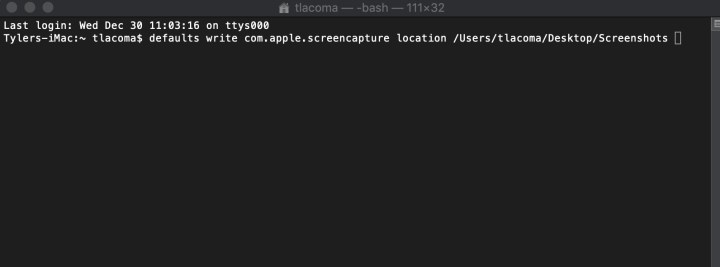
Terminal in MacOs.

Step 3: You need to end the command by specifying a proper folder destination. You can type this out, but it’s usually much easier to find the folder itself and drag it to the Terminal window. This will automatically paste the folder location into the command for you (without doing anything to the folder).

As before, we recommend creating a folder on your desktop called screenshots to use for this, but you can drag any folder destination you want. However, do not drag a folder from the left-side Finder menu, as these are just folder shortcuts that can be removed but won’t give a helpful destination. Always use the folder itself.

Step 4: Press Enter. With the command correct, Terminal should process this without any errors. To finish, paste in the following:

killall SystemUIServer

Press Enter again. Your quick screenshots should now be saved to the folder of your choice.

Handily, the Screenshot capture panel also appears to recognize this command. If you create and use a folder for these quick screenshots, it will also become the default save location for any screenshot mode you may use in the capture panel, adding another layer of usefulness.

Want more tips to improve your Mac skills? Here are our top tips to make your MacBook even better.

Editors’ Recommendations


Share. Facebook Twitter Pinterest LinkedIn Tumblr Email
Previous ArticleHow to change your MAC address on Windows and Mac
Next Article How to connect Bluetooth headphones to PC

Related Articles

Chrome can finally stream Netflix in 4K, and Edge just lost bragging rights
News

Chrome can finally stream Netflix in 4K, and Edge just lost bragging rights

5 August 2026
Sportsman’s Warehouse Promo Code: Save in August 2026
News

Sportsman’s Warehouse Promo Code: Save in August 2026

5 August 2026
Study finds readers rate AI-written stories higher, but still trust the “human” label more
News

Study finds readers rate AI-written stories higher, but still trust the “human” label more

5 August 2026
The AI Notetaker Has Been Invited to All the Meetings
News

The AI Notetaker Has Been Invited to All the Meetings

5 August 2026
Google Drive steps up its video collaboration game with timestamped comments
News

Google Drive steps up its video collaboration game with timestamped comments

5 August 2026
Foreo Discount Codes and Deals: Up to 50% Off
News

Foreo Discount Codes and Deals: Up to 50% Off

5 August 2026
Demo
Top Articles
5 laptops to buy instead of the M4 MacBook Pro

5 laptops to buy instead of the M4 MacBook Pro

17 November 2024133 Views
ChatGPT o1 vs. o1-mini vs. 4o: Which should you use?

ChatGPT o1 vs. o1-mini vs. 4o: Which should you use?

15 December 2024111 Views
Costco partners with Electric Era to bring back EV charging in the U.S.

Costco partners with Electric Era to bring back EV charging in the U.S.

28 October 2024100 Views

Subscribe to Updates

Get the latest tech news and updates directly to your inbox.

Latest News
Foreo Discount Codes and Deals: Up to 50% Off News

Foreo Discount Codes and Deals: Up to 50% Off

News Room5 August 2026
AI models from Anthropic and OpenAI were caught breaking the rules again News

AI models from Anthropic and OpenAI were caught breaking the rules again

News Room5 August 2026
Medicube Coupon Code: 40% Off for August 2026 News

Medicube Coupon Code: 40% Off for August 2026

News Room5 August 2026
Most Popular
The Spectacular Burnout of a Solar Panel Salesman

The Spectacular Burnout of a Solar Panel Salesman

13 January 2025137 Views
5 laptops to buy instead of the M4 MacBook Pro

5 laptops to buy instead of the M4 MacBook Pro

17 November 2024133 Views
ChatGPT o1 vs. o1-mini vs. 4o: Which should you use?

ChatGPT o1 vs. o1-mini vs. 4o: Which should you use?

15 December 2024111 Views
Our Picks
The AI Notetaker Has Been Invited to All the Meetings

The AI Notetaker Has Been Invited to All the Meetings

5 August 2026
Google Drive steps up its video collaboration game with timestamped comments

Google Drive steps up its video collaboration game with timestamped comments

5 August 2026
Foreo Discount Codes and Deals: Up to 50% Off

Foreo Discount Codes and Deals: Up to 50% Off

5 August 2026

Subscribe to Updates

Get the latest tech news and updates directly to your inbox.

Facebook X (Twitter) Instagram Pinterest
  • Privacy Policy
  • Terms of use
  • Advertise
  • Contact Us
© 2026 Best in Technology. All Rights Reserved.

Type above and press Enter to search. Press Esc to cancel.