




Close Menu
Best in TechnologyBest in Technology
  • News
  • Phones
  • Laptops
  • Gadgets
  • Gaming
  • AI
  • Tips
  • More
    • Web Stories
    • Global
    • Press Release

Subscribe to Updates

Get the latest tech news and updates directly to your inbox.

What's On
Apple’s iPhone Air could serve as the blueprint for its 20th anniversary iPhone

Apple’s iPhone Air could serve as the blueprint for its 20th anniversary iPhone

5 August 2026
The National Design Studio Became a DOGE Landing Pad. Now ‘Big Balls’ Is Recruiting

The National Design Studio Became a DOGE Landing Pad. Now ‘Big Balls’ Is Recruiting

5 August 2026
The Most Dangerous AI Hacking Techniques Still Have Humans in the Loop

The Most Dangerous AI Hacking Techniques Still Have Humans in the Loop

5 August 2026
Facebook X (Twitter) Instagram
Just In
  • Apple’s iPhone Air could serve as the blueprint for its 20th anniversary iPhone
  • The National Design Studio Became a DOGE Landing Pad. Now ‘Big Balls’ Is Recruiting
  • The Most Dangerous AI Hacking Techniques Still Have Humans in the Loop
  • Sunbird relaunches its iMessage app for Android, three years after a privacy scandal shut it down
  • AI Worms and Viruses Are Coming
  • Meta Ran Ads That Contained AI-Generated Child Sexual Abuse Imagery
  • How Capcom Reinvented And Updated Onimusha’s Combat In Way Of The
  • AT&T just gave parents a kids tablet that won’t have them sacrificing their iPad
Facebook X (Twitter) Instagram Pinterest Vimeo
Best in TechnologyBest in Technology
  • News
  • Phones
  • Laptops
  • Gadgets
  • Gaming
  • AI
  • Tips
  • More
    • Web Stories
    • Global
    • Press Release
Subscribe
Best in TechnologyBest in Technology
Home » How to cancel your Apple TV+ subscription
News

How to cancel your Apple TV+ subscription

News RoomBy News Room26 April 20244 Mins Read
Share Facebook Twitter Pinterest LinkedIn Tumblr Reddit Telegram Email
How to cancel your Apple TV+ subscription
Share
Facebook Twitter LinkedIn Pinterest Email

Apple TV+, like pretty much every popular movie and TV streaming service, is chockablock with good, sometimes great content … most of the time.
And whether you’ve just signed up for a free trial of Apple TV+ and have decided, “Meh, it’s not for me,” or you’ve devoured every episode and watched every movie the service has to offer and just want to give it a rest before the new season of Severance arrives, we’re here to show you how to cancel your Apple TV+ subscription.

The good news is that Apple makes it easy to cancel your Apple TV+ subscription at any time, from either your mobile device or on your computer. Here’s how.

Canceling Apple TV+ on a mobile device

Canceling Apple TV+ on your mobile device is one of the easiest and fastest ways to do it (you can even cancel on an Apple Watch if you really want to), so let’s start here! All your Apple subscriptions are managed in the same spot on iOS, and while it has changed slightly with the newer versions of iOS, it’s basically the same. So grab your iPhone or iPad and let’s look at how to get there.

Step 1: Log in to your home screen and open up Settings.

Step 2: In the upper section of Settings, select your name/icon where it says Apple ID, iCloud+, Media & Purchases. In the new screen, select Subscriptions. You may have to sign into your Apple account again at this point.
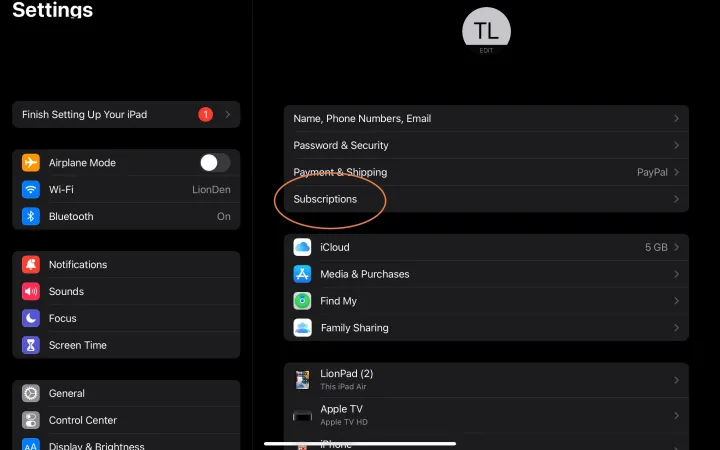
iPad Subscriptions section.

Step 3: Here, you will see all the subscriptions that you have directly through Apple. Apple TV+ will be on this list, so find it and select it.
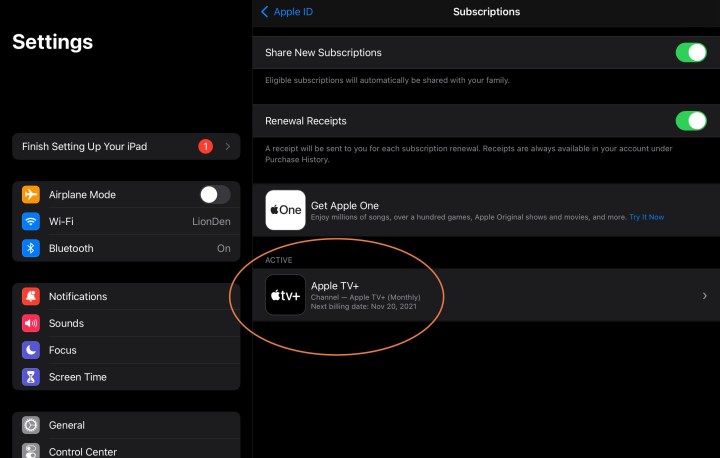
iPad Subscriptions display.

Step 4: Now you can view the details of your Apple TV+ subscription, including when your renewal/pay date is. This info will look a little different depending on whether you are still on your free trial, but the important part is at the bottom of the window, where you will find the option to Cancel subscription. Select this.

Apple TV+ subscription cancel in iPad.

Step 5: Confirm your cancellation. Apple lets you know when your current subscription will end.
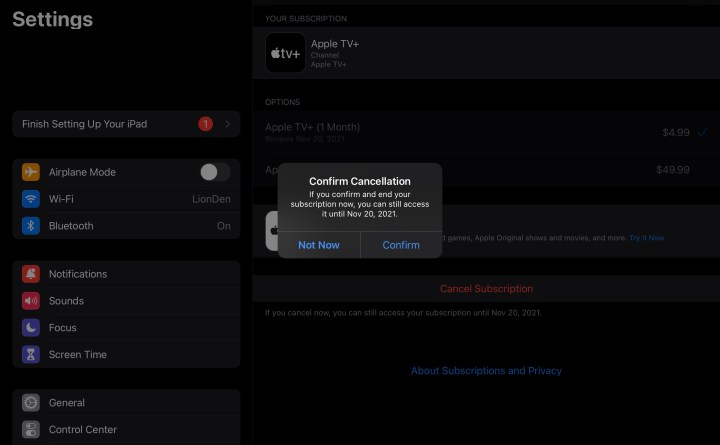
Confirming cancellation on an iPad.

Canceling Apple TV+ on a Mac

If you are on your Mac instead of a mobile device, you can still quickly cancel Apple TV Plus, but the details are going to be a little different, and vary depending on your version of macOS. Here’s what to do.

Step 1: Head down to the Dock menu on your macOS home screen and select the App Store with its triangle icon.

Step 2: Look at the bottom left of the screen, and you should see your Name and icon. Select it. Now you will be able to view your app purchases — but subscriptions are located elsewhere. To find them, select the Account Information or Account Settings button or link at the top right of the window. Sign in with your Apple ID now if you need to.

Step 3: Scroll until you reach the Manage section. Look under your Apple nickname and you should see a category called Subscriptions. Select the Manage button beside this.

MacOS Subscription management window.

Step 4: Find your Apple TV+ subscription, and select it. In the next screen, you will find a button labeled Cancel subscription. Select this and confirm yoour cancellation to end your subscription.
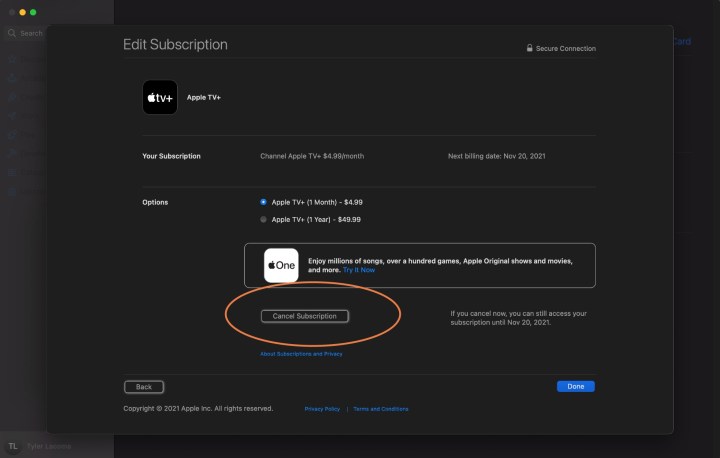
MacOS Cancel TV+ Subscription.

Canceling Apple TV+ in a browser

It doesn’t matter what computer you’re on — as long as you have a safe internet connection, you can still cancel Apple TV+ in your browser. Here’s where to go!

Step 1: Go to the Apple TV+ home page. Select the Sign in option in the upper right, and enter your Apple ID to continue.

Step 2: Select your Icon in the upper right of the window, and select Settings from the menu.

Step 3: Scroll down to the bottom of Settings until you reach Subscriptions. Here, select Manage.
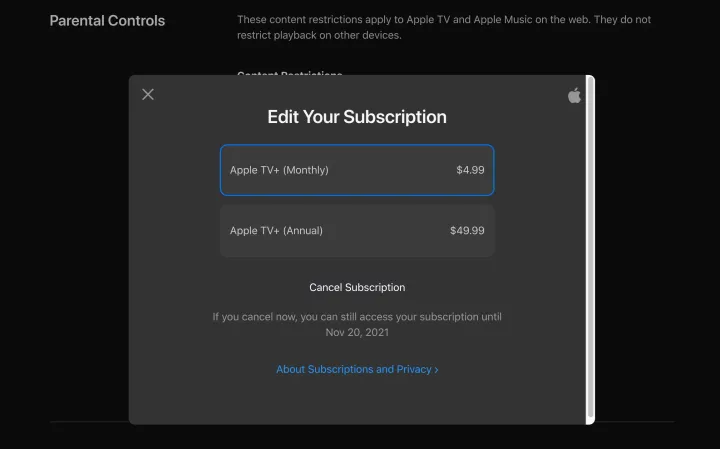
Apple TV+ Website Cancel screen.

Step 4: Select Cancel subscription from the new window, and confirm. You’re done!

How do I stop auto-renewal on Apple TV?

Once you cancel from any device, your subscription will no longer apply to any of your Apple platforms. That includes your Apple TV devices, so you don’t need to do it twice. It’s generally a lot easier to manage your subscriptions using one of our methods above, but if you only have an Apple TV streaming device to work with, you can do it through Settings > Users and accounts and log in with your information to find the Subscriptions section.

Editors’ Recommendations



Share. Facebook Twitter Pinterest LinkedIn Tumblr Email
Previous Article1994 Was the Last Good Year—and It’s Still Going
Next Article HMD’s Self-Branded Smartphone to Launch in India; Details to Be Revealed on April 29

Related Articles

Apple’s iPhone Air could serve as the blueprint for its 20th anniversary iPhone
News

Apple’s iPhone Air could serve as the blueprint for its 20th anniversary iPhone

5 August 2026
The National Design Studio Became a DOGE Landing Pad. Now ‘Big Balls’ Is Recruiting
News

The National Design Studio Became a DOGE Landing Pad. Now ‘Big Balls’ Is Recruiting

5 August 2026
The Most Dangerous AI Hacking Techniques Still Have Humans in the Loop
News

The Most Dangerous AI Hacking Techniques Still Have Humans in the Loop

5 August 2026
Sunbird relaunches its iMessage app for Android, three years after a privacy scandal shut it down
News

Sunbird relaunches its iMessage app for Android, three years after a privacy scandal shut it down

5 August 2026
AI Worms and Viruses Are Coming
News

AI Worms and Viruses Are Coming

5 August 2026
Meta Ran Ads That Contained AI-Generated Child Sexual Abuse Imagery
News

Meta Ran Ads That Contained AI-Generated Child Sexual Abuse Imagery

5 August 2026
Demo
Top Articles
5 laptops to buy instead of the M4 MacBook Pro

5 laptops to buy instead of the M4 MacBook Pro

17 November 2024133 Views
ChatGPT o1 vs. o1-mini vs. 4o: Which should you use?

ChatGPT o1 vs. o1-mini vs. 4o: Which should you use?

15 December 2024111 Views
Costco partners with Electric Era to bring back EV charging in the U.S.

Costco partners with Electric Era to bring back EV charging in the U.S.

28 October 2024100 Views

Subscribe to Updates

Get the latest tech news and updates directly to your inbox.

Latest News
Meta Ran Ads That Contained AI-Generated Child Sexual Abuse Imagery News

Meta Ran Ads That Contained AI-Generated Child Sexual Abuse Imagery

News Room5 August 2026
How Capcom Reinvented And Updated Onimusha’s Combat In Way Of The Gaming

How Capcom Reinvented And Updated Onimusha’s Combat In Way Of The

News Room5 August 2026
AT&T just gave parents a kids tablet that won’t have them sacrificing their iPad News

AT&T just gave parents a kids tablet that won’t have them sacrificing their iPad

News Room5 August 2026
Most Popular
The Spectacular Burnout of a Solar Panel Salesman

The Spectacular Burnout of a Solar Panel Salesman

13 January 2025137 Views
5 laptops to buy instead of the M4 MacBook Pro

5 laptops to buy instead of the M4 MacBook Pro

17 November 2024133 Views
ChatGPT o1 vs. o1-mini vs. 4o: Which should you use?

ChatGPT o1 vs. o1-mini vs. 4o: Which should you use?

15 December 2024111 Views
Our Picks
Sunbird relaunches its iMessage app for Android, three years after a privacy scandal shut it down

Sunbird relaunches its iMessage app for Android, three years after a privacy scandal shut it down

5 August 2026
AI Worms and Viruses Are Coming

AI Worms and Viruses Are Coming

5 August 2026
Meta Ran Ads That Contained AI-Generated Child Sexual Abuse Imagery

Meta Ran Ads That Contained AI-Generated Child Sexual Abuse Imagery

5 August 2026

Subscribe to Updates

Get the latest tech news and updates directly to your inbox.

Facebook X (Twitter) Instagram Pinterest
  • Privacy Policy
  • Terms of use
  • Advertise
  • Contact Us
© 2026 Best in Technology. All Rights Reserved.

Type above and press Enter to search. Press Esc to cancel.