



Close Menu
Best in TechnologyBest in Technology
  • News
  • Phones
  • Laptops
  • Gadgets
  • Gaming
  • AI
  • Tips
  • More
    • Web Stories
    • Global
    • Press Release

Subscribe to Updates

Get the latest tech news and updates directly to your inbox.

What's On
Gear News of the Week: Samsung Sets a Date for Galaxy Unpacked, and Fitbit’s AI Coach Comes to iOS

Gear News of the Week: Samsung Sets a Date for Galaxy Unpacked, and Fitbit’s AI Coach Comes to iOS

14 February 2026
Here’s What It’s Like to Use H&R Block’s DIY Tax Service (2026)

Here’s What It’s Like to Use H&R Block’s DIY Tax Service (2026)

14 February 2026
Ring Kills Flock Safety Deal After Super Bowl Ad Uproar

Ring Kills Flock Safety Deal After Super Bowl Ad Uproar

14 February 2026
Facebook X (Twitter) Instagram
Just In
  • Gear News of the Week: Samsung Sets a Date for Galaxy Unpacked, and Fitbit’s AI Coach Comes to iOS
  • Here’s What It’s Like to Use H&R Block’s DIY Tax Service (2026)
  • Ring Kills Flock Safety Deal After Super Bowl Ad Uproar
  • Best Alternatives to Google’s Android Operating System (2026), Tested and Reviewed
  • Lola Blankets Are 45 Percent Off This Presidents’ Day Weekend
  • Sony Promo Codes and Discounts: 45% Off
  • State Of Play Recap, Plus Pokopia Preview And Reanimal Review | The Game Informer Show
  • Inside the New York City Date Night for AI Lovers
Facebook X (Twitter) Instagram Pinterest Vimeo
Best in TechnologyBest in Technology
  • News
  • Phones
  • Laptops
  • Gadgets
  • Gaming
  • AI
  • Tips
  • More
    • Web Stories
    • Global
    • Press Release
Subscribe
Best in TechnologyBest in Technology
Home » How to automate tasks in Windows to make everything faster
News

How to automate tasks in Windows to make everything faster

News RoomBy News Room13 April 20244 Mins Read
Share Facebook Twitter Pinterest LinkedIn Tumblr Reddit Telegram Email
How to automate tasks in Windows to make everything faster
Share
Facebook Twitter LinkedIn Pinterest Email

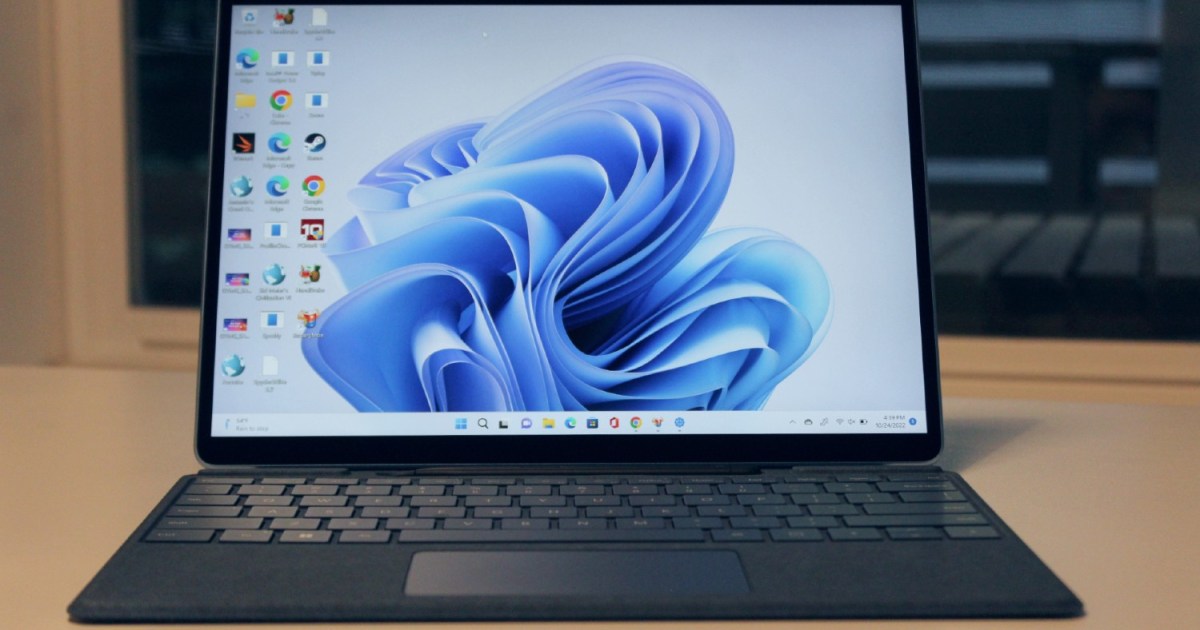
In daily use of Windows 11 or Windows 10, you might notice that a lot of the things you do are repetitive. As soon as you turn on your PC, you might end up launching a specific app like a web browser. You might even be launching programs in tandem, like Slack, Teams, and Microsoft Office.

If you’re hoping to be more productive and save time, automating these tasks to happen on their own without a mouse click or a keyboard as soon as your PC boots up is something to consider.

You don’t have to just automate productivity-related tasks, either. You can automate system tasks like shutting down your PC at a specific time of day to save power. We’ll cover two tools that can help you do this: the native Task Scheduler tool in Windows, as well as Microsoft’s Power Automate app. Both should help make your life easier.

How to automate tasks using Task Scheduler

The top way to automate tasks in Windows is by using the Task Scheduler. With this system tool, you can create scripts that turn on at a specific time on your PC. There’s a script available for pretty much anything you can think of. Just be warned, this tool can seem a little daunting to use since the interface isn’t quite as intuitive. But don’t worry, we’ll guide you through the steps right here for launching a program upon boot-up of a PC.

Step 1: Open the Windows Start Menu and search for Task Scheduler, then select on the top result.

Step 2: In the open window, under Actions in the sidebar, choose the Create Basic Task option. You can give the task a name or a description if you like.
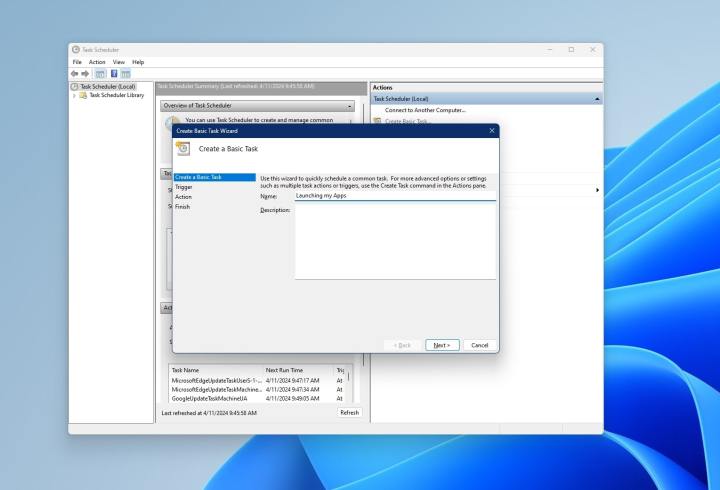
A screenshot of the process of creating an app in Task Scheduler in Windows 11

Step 3: Select Next and choose when you want the task to run. You can pick daily, weekly, monthly, one time, when the computer starts, when I log on, or when a specific event is logged. For our case, we are choosing the When i log on option since we’ll be launching apps.
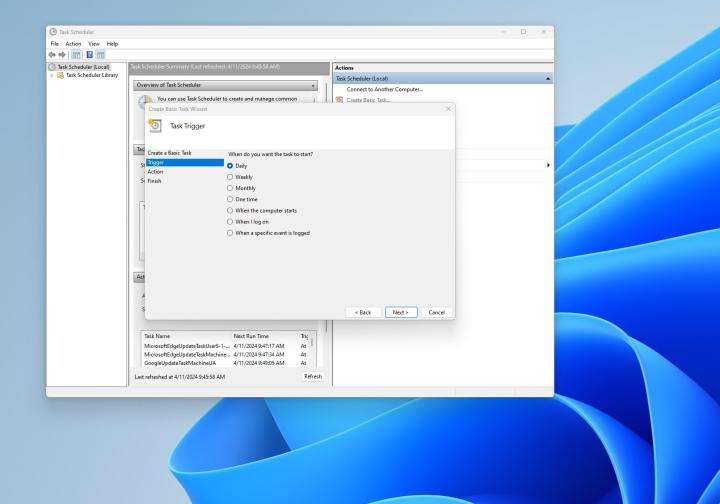
A screenshot of the trigger options for Task Schedulers on Windows 11

Step 4: Pick the action you’d like. We chose the Start a program option and then navigated to where the program is saved. That’s typically in the Program Files folder. Click Open to confirm.
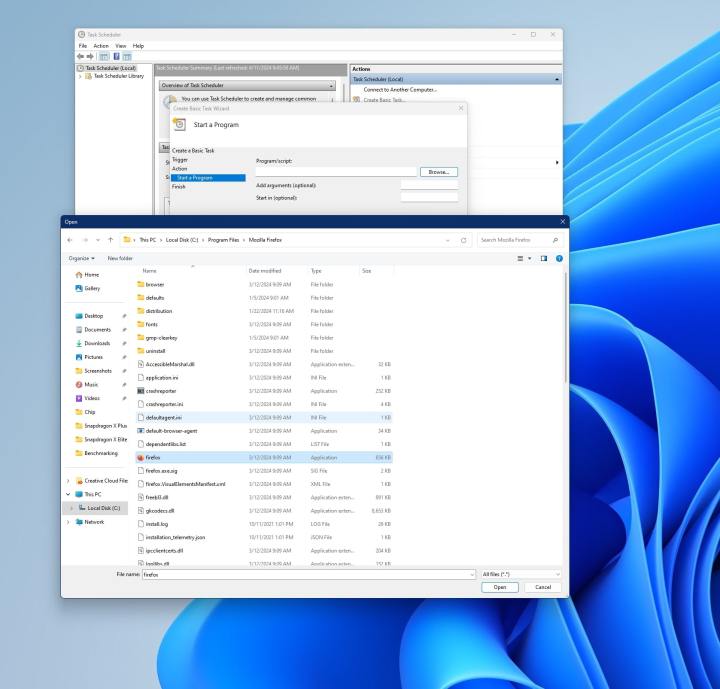
A screenshot of browsing to a specific task in the Task Scheduler app on Windows 11

Step 5: Choose Next to view the summary page, as seen below. You can save it by selecting Finish

Finishing an automation on Task Scheduler in Windows 11

Step 6: At any time, you can select the Task Scheduler Library section in the sidebar to see all the tasks you’ve created or that are running. Simply select the task, then Delete to remove it if you’re no longer pleased. Or choose Disable to disable the task.
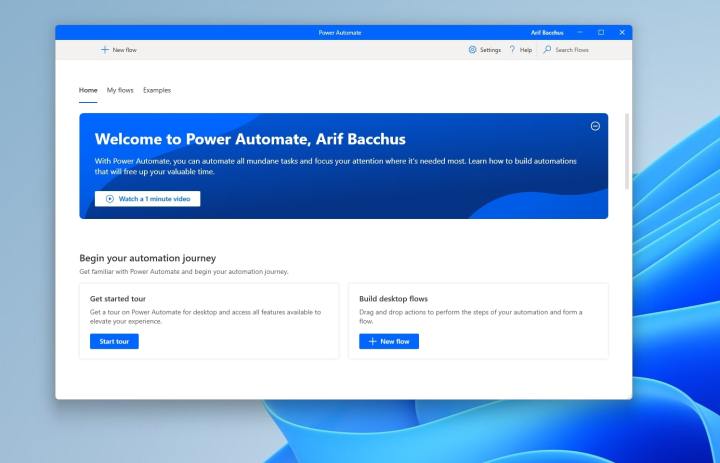
A screenshot of Power Automate on Windows 11

How to automate tasks using Power Automate

As a second option, you can use Power Automate to automate tasks in Windows. This is a tool you can download from Microsoft. Power Automate works just like Task Scheduler in that you can create scripts, some of which can be more complex.

Step 1: Head to Microsoft’s website and download Power Automate.

Step 2: Launch the installer, and follow the steps on your screen. Sign in with a Microsoft Account.

Step 3: Once the app is installed, choose Examples at the top of the application. You’ll see various examples for how to use Power Automate. We suggest looking at the Desktop Automation option for tips on how to get started. You can customize these tasks to your liking and save them as new ones.
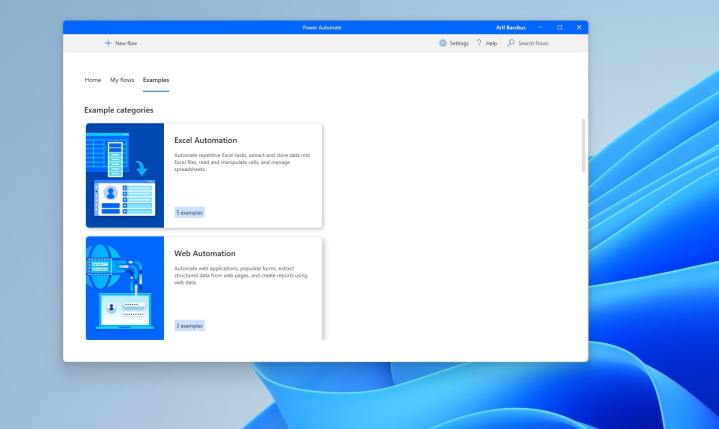
A screenshot of sample desktop workflows in power Automate in Windows 11

Step 4: You can select the Pencil icon next to any example task to get started with creating an automation. It will open in a new window. In our example, we’re choosing the Open a folder option.
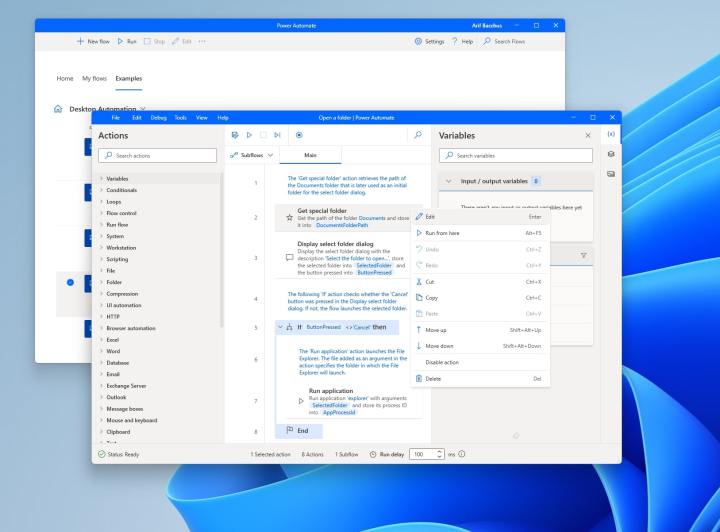
A screenshot of Power Automatee and the edit function for c

Step 5: Click the downward-facing dots next to each step under Main to edit it according to whatever task you want to complete.

Step 6: When you’re done editing the task, select the Save as option at the top of the open window to save it.

Step 7: Close the open window. You’ll see your tasks under My flows in the main Power Automate app.

Even though Task Scheduler and Power Automate are two of the easiest ways to automate tasks on Windows, there are other options. Both of these options are free, but you also can consider some paid apps that help you build macros, like Simple Macro Recorder. There’s also JitBit Macro Recorder.

Editors’ Recommendations


Share. Facebook Twitter Pinterest LinkedIn Tumblr Email
Previous ArticleLike Alex Garland’s Civil War? Then watch these 3 great movies now
Next Article The best Marvel movie just turned 10 this year. Here’s why it’s still a blast to watch

Related Articles

Gear News of the Week: Samsung Sets a Date for Galaxy Unpacked, and Fitbit’s AI Coach Comes to iOS
News

Gear News of the Week: Samsung Sets a Date for Galaxy Unpacked, and Fitbit’s AI Coach Comes to iOS

14 February 2026
Here’s What It’s Like to Use H&R Block’s DIY Tax Service (2026)
News

Here’s What It’s Like to Use H&R Block’s DIY Tax Service (2026)

14 February 2026
Ring Kills Flock Safety Deal After Super Bowl Ad Uproar
News

Ring Kills Flock Safety Deal After Super Bowl Ad Uproar

14 February 2026
Best Alternatives to Google’s Android Operating System (2026), Tested and Reviewed
News

Best Alternatives to Google’s Android Operating System (2026), Tested and Reviewed

14 February 2026
Lola Blankets Are 45 Percent Off This Presidents’ Day Weekend
News

Lola Blankets Are 45 Percent Off This Presidents’ Day Weekend

14 February 2026
Sony Promo Codes and Discounts: 45% Off
News

Sony Promo Codes and Discounts: 45% Off

14 February 2026
Demo
Top Articles
5 laptops to buy instead of the M4 MacBook Pro

5 laptops to buy instead of the M4 MacBook Pro

17 November 2024126 Views
ChatGPT o1 vs. o1-mini vs. 4o: Which should you use?

ChatGPT o1 vs. o1-mini vs. 4o: Which should you use?

15 December 2024109 Views
Costco partners with Electric Era to bring back EV charging in the U.S.

Costco partners with Electric Era to bring back EV charging in the U.S.

28 October 202498 Views

Subscribe to Updates

Get the latest tech news and updates directly to your inbox.

Latest News
Sony Promo Codes and Discounts: 45% Off News

Sony Promo Codes and Discounts: 45% Off

News Room14 February 2026
State Of Play Recap, Plus Pokopia Preview And Reanimal Review | The Game Informer Show Gaming

State Of Play Recap, Plus Pokopia Preview And Reanimal Review | The Game Informer Show

News Room14 February 2026
Inside the New York City Date Night for AI Lovers News

Inside the New York City Date Night for AI Lovers

News Room14 February 2026
Most Popular
The Spectacular Burnout of a Solar Panel Salesman

The Spectacular Burnout of a Solar Panel Salesman

13 January 2025137 Views
5 laptops to buy instead of the M4 MacBook Pro

5 laptops to buy instead of the M4 MacBook Pro

17 November 2024126 Views
ChatGPT o1 vs. o1-mini vs. 4o: Which should you use?

ChatGPT o1 vs. o1-mini vs. 4o: Which should you use?

15 December 2024109 Views
Our Picks
Best Alternatives to Google’s Android Operating System (2026), Tested and Reviewed

Best Alternatives to Google’s Android Operating System (2026), Tested and Reviewed

14 February 2026
Lola Blankets Are 45 Percent Off This Presidents’ Day Weekend

Lola Blankets Are 45 Percent Off This Presidents’ Day Weekend

14 February 2026
Sony Promo Codes and Discounts: 45% Off

Sony Promo Codes and Discounts: 45% Off

14 February 2026

Subscribe to Updates

Get the latest tech news and updates directly to your inbox.

Facebook X (Twitter) Instagram Pinterest
  • Privacy Policy
  • Terms of use
  • Advertise
  • Contact Us
© 2026 Best in Technology. All Rights Reserved.

Type above and press Enter to search. Press Esc to cancel.