








Google Home makes it easy to control all your smart home gadgets from a single location. From smart thermostats and smart speakers to smart bulbs and more, Google Home offers incredible support for all aspects of your household. Part of what makes the application so great is that it can be personalized for each person in your home, allowing each user to have customized settings that fit their needs and preferences.
Adding multiple users to Google Home lets you keep calendars, playlists, and news briefings separated, and it makes your devices more useful than ever. Google Home can even learn to detect your voice, meaning it’ll automatically activate your settings based on who is giving it commands.
For anyone living in a home with multiple family members, here’s a look at how to set up multiple users on your Google Home device. This includes how to teach Google your voice, invite others to your household, and how to manage multiple Google Home accounts.
Teach Google your voice
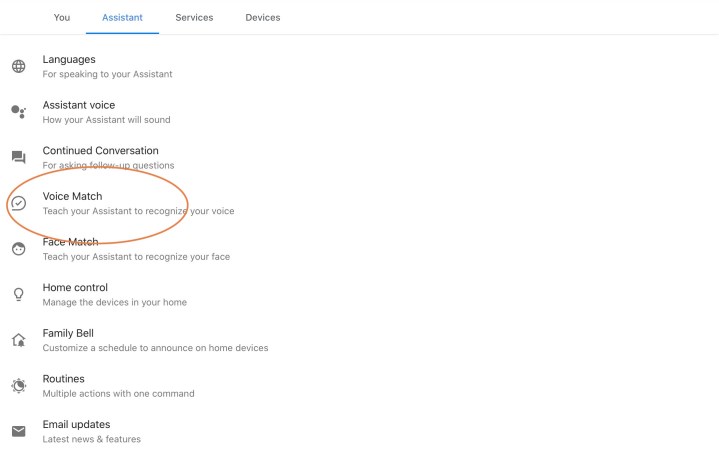
Before you begin, it’s a good idea to teach Google Assistant your own voice. This feature, called Voice Match, is what lets you share your Google Home device with other members of the household, but still get a personalized Google Assistant experience. Here’s how to set up Voice Match.
Step 1: Open the Google Home app.
Step 2: Tap Settings at the bottom right of the screen and open the Google Assistant menu.
Step 3: Tap Voice Match.
Step 4: Tap Add a Device, and add the compatible Google smart device(s) in your home.
It’s a pretty straightforward process that involves you saying the phrases, “Hey, Google” and “OK, Google” out loud to help Google learn the sound of your voice. We walk you through a step-by-step guide on how to set up Voice Match.
Invite others to create accounts
Once you’ve completed the voice training, you’ll have the option to tap Invite, which will send notifications to people you choose, inviting them to set up their own personalized accounts and voices on Google Home. New users will have to download the Google Home app on their devices to connect their music accounts and customize their preferences. Using the app, they can tweak their preferred news sources, calendar updates, and more.
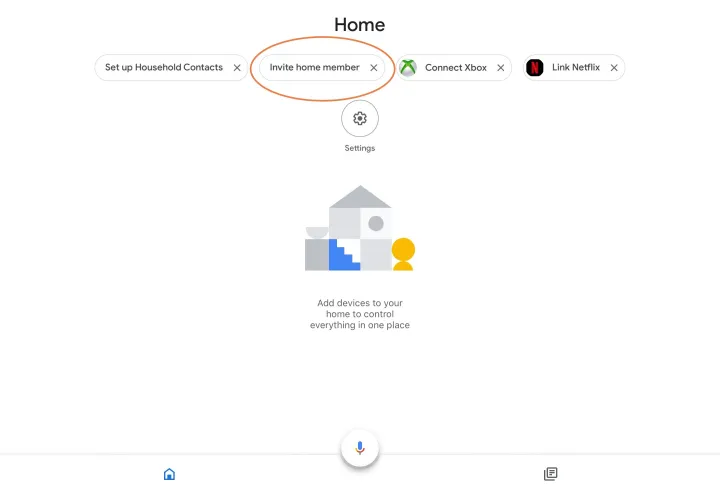
If you don’t want to invite people while you are setting up Voice Match, you can do it at any other time. If you’ve never invited anyone before, you’ll want to select the Invite Home Member tab on the Google Home screen. This step immediately opens your Google/Gmail contact list, allowing you to search for names or emails and send invites.
The person to whom you send the email will need to follow the instructions to properly connect, but this is all you need to do on your end.
Accepting a Google Home invite
Step 1: For those receiving a Google Home multiuser invite, the first thing you’ll want to do is open the invite email and accept the actual invite. Once confirmed, the invitee should download the Google Home app on their preferred mobile device.
Step 2: Next, tap the Home View tab (button with the house icon) and tap 1 Pending Invitation. A message will appear that will inform the user of the many things they’ll be able to do under a shared Google Home network.
Step 3: Tap More, then scroll down and tap Accept. You’ll then be prompted to create a nickname for your Home account.
Step 4: After doing so, tap Next to begin setting up your Voice Match profile. Follow the series of prompts to complete your account setup.
Manage multiple Google Home accounts
At this time, Google Home devices support up to six accounts, so everyone from your spouse to your children to frequent houseguests can create accounts. You can view all active accounts on a Google Home device at any time by tapping your connected device, then tapping Settings > Linked accounts.
Need to remove an account? Maybe your roommate moved out, or one of your children lost interest in the device. You can easily remove accounts using the app. Simply tap Account (the icon with the circled person), then Settings > Home Members. Find the account that’s no longer needed, and tap Remove.
Chances are if you have children running around at home, you probably want to control your Google Home settings. You can successfully restrict selected content by setting up parental controls, which allows you to protect your kids from inappropriate content from YouTube, Google Play Music, and other platforms. With content in your control, you can rest assured that your children will be safe, even if they are home alone with the device.
Here’s a look at everything you can limit with parental controls.
- Set up media controls for music and videos
- Block news and podcasts
- Schedule downtime
- Manage other Assistant features
- Add children to devices with support for Google Assistant
Note that Google says you’ll need to ensure both your devices and app are up to date in order for these features to work properly.
Enjoy multiuser support on Google Home
Once everyone who will be using Google Home has a personal account, switching between them is easy. The Google Assistant will recognize a speaker’s voice and switch to the appropriate account with no hesitation. For example, if you say, “Hey Google, tell me about my day,” your device will tell you what traffic is like on your route and inform you of what’s on your calendar. If you ask Google Home about music, it will access and begin playing your saved playlists on Spotify and Google Play Music platforms.
It’s worth noting that it’s possible to accidentally open someone else’s account if your voices are similar in tone. If this happens, all you need to do is say, “Stop,” and restart the process to avoid accessing their private information.
We have a handy eight-step guide that can teach you more about Google Home, including how to link music accounts and adjust individual settings, like the “wake word.”
Editors’ Recommendations


