




Close Menu
Best in TechnologyBest in Technology
  • News
  • Phones
  • Laptops
  • Gadgets
  • Gaming
  • AI
  • Tips
  • More
    • Web Stories
    • Global
    • Press Release

Subscribe to Updates

Get the latest tech news and updates directly to your inbox.

What's On
The Galaxy S26 FE has leaked in every color, and at least one has some personality

The Galaxy S26 FE has leaked in every color, and at least one has some personality

7 August 2026
The ‘Manosphere’ Isn’t a Movement. It’s a Multibillion-Dollar Grievance Industry

The ‘Manosphere’ Isn’t a Movement. It’s a Multibillion-Dollar Grievance Industry

7 August 2026
Apple sweetens trade-in values for iPhones, iPads, Macs, and even some Android phones

Apple sweetens trade-in values for iPhones, iPads, Macs, and even some Android phones

7 August 2026
Facebook X (Twitter) Instagram
Just In
  • The Galaxy S26 FE has leaked in every color, and at least one has some personality
  • The ‘Manosphere’ Isn’t a Movement. It’s a Multibillion-Dollar Grievance Industry
  • Apple sweetens trade-in values for iPhones, iPads, Macs, and even some Android phones
  • The Hottest New AI Chatbot Is Just a Guy Answering Your Questions
  • A production snag could leave the iPhone 18 Pro in short supply
  • Samsung’s new 200MP ISOCELL HPC sensor rethinks how pixels capture light
  • Anker just exposed a big problem with portable power stations
  • AI models keep escaping their sandboxes, and Kimi K3 is the latest to join the party
Facebook X (Twitter) Instagram Pinterest Vimeo
Best in TechnologyBest in Technology
  • News
  • Phones
  • Laptops
  • Gadgets
  • Gaming
  • AI
  • Tips
  • More
    • Web Stories
    • Global
    • Press Release
Subscribe
Best in TechnologyBest in Technology
Home » How to add audio to PowerPoint
News

How to add audio to PowerPoint

News RoomBy News Room3 September 20245 Mins Read
Share Facebook Twitter Pinterest LinkedIn Tumblr Reddit Telegram Email
How to add audio to PowerPoint
Share
Facebook Twitter LinkedIn Pinterest Email

Slideshows are about more than just what you see. By adding audio like music, voiceover, or sound effects, you can use Microsoft PowerPoint to enhance your presentation or make it more useful to your audience.

You might include background music that evokes emotion, record your own voice to explain the slides, or add sound effects for that extra bit of flair. We’ll show you how to add audio to PowerPoint so that you can improve your next presentation.

How to add audio from your computer

While there are several ways to add music to a PowerPoint, you can insert a saved audio file in your slideshow on both Windows and Mac. This can be a song, voice, or sound effect.

PowerPoint supports these audio file formats: AIFF, AU, MID, MIDI, MP3, MP4, M4A, WAV, and WMA. Note that versions older than PowerPoint 2013 may not support all listed file types. Visit Microsoft Support for additional details.

Step 1: Open your presentation and head to the slide where you want to insert the audio clip. If you’d like the audio to start immediately and play continuously through the slideshow, select the first slide.

Step 2: Go to the Insert tab and the Media section of the ribbon on the right.

Step 3: Click Audio to view your options.

  • On Windows, choose Audio on My PC.
  • On Mac, pick either Audio Browser or Audio from File.
how to add audio powerpoint windows on pc

Step 4: Browse for the audio file, select it, and click Insert.

If you use the Audio Browser on Mac, drag the audio file onto the slide instead.

how to add audio powerpoint windows insert file

Step 5: You’ll then see the audio icon on your slide with a toolbar of basic controls beneath it.

Click the Play button to listen, rewind or move forward, or adjust the volume.

how to add audio powerpoint windows inserted file

How to record audio in PowerPoint

Maybe you’d like to record your own audio for the presentation. You might want to provide audio instructions or record a sound effect.

You can do this in PowerPoint on Windows and Mac as long as you have a microphone enabled on your computer.

Step 1: Open your presentation and go to the slide where you want to insert the recorded audio.

Step 2: Select the Insert tab and click the arrow next to Audio in the ribbon.

Step 3: Choose Record Audio.

how to add audio powerpoint windows record

Step 4: Click the round, red Record button and start recording.

  • On Windows, you’ll see this display in a pop-up box that also prompts you to name the recording.
  • On Mac, you’ll see a Record Audio panel on the right with no option for a name.

As you record, you’ll see the duration, which is helpful if you have to limit the length.

how to add audio powerpoint windows record button

Step 5: When you finish, click the square, red Stop button.
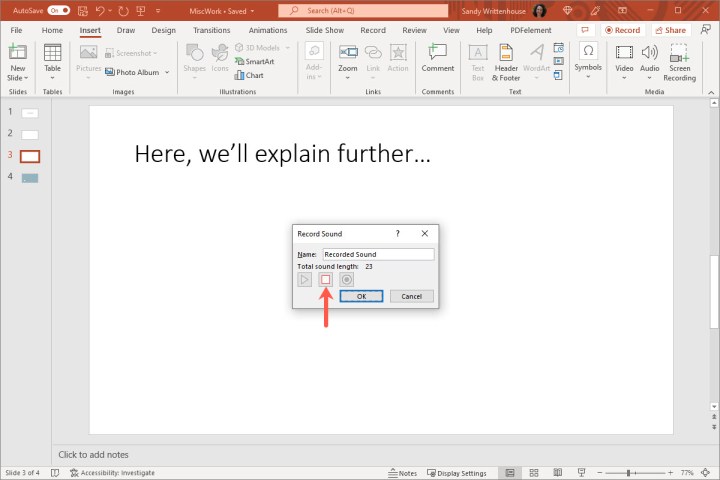
how to add audio powerpoint windows stop recording

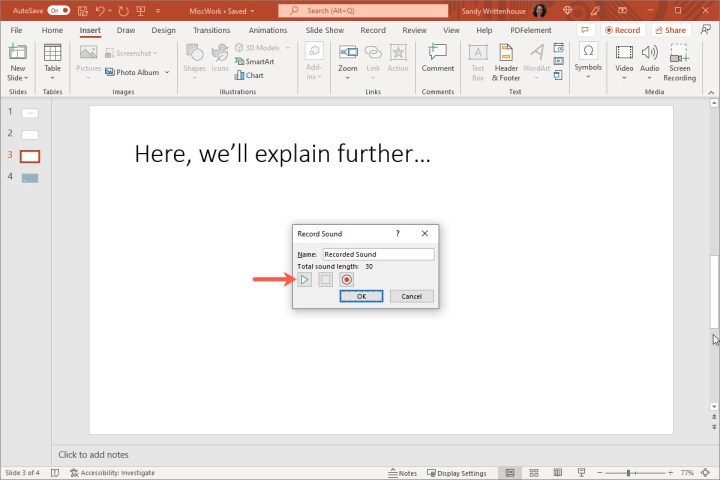
Step 6: You can listen to the recording before you insert it by clicking the Play button. If you’re not happy with the results, you can re-record the audio.

  • On Windows, click the Record button again. The new recording will replace the original.
  • On Mac, click Discard and then click the Record button to start again.
how to add audio powerpoint windows play recording

Step 7: If you like what you hear, click OK on Windows or Insert on Mac to add the audio to the slide.

Like inserting a saved file, you’ll see the audio icon and basic controls to play, forward, rewind, or adjust the volume.
how to add audio powerpoint windows playback tab

How to control the audio playback

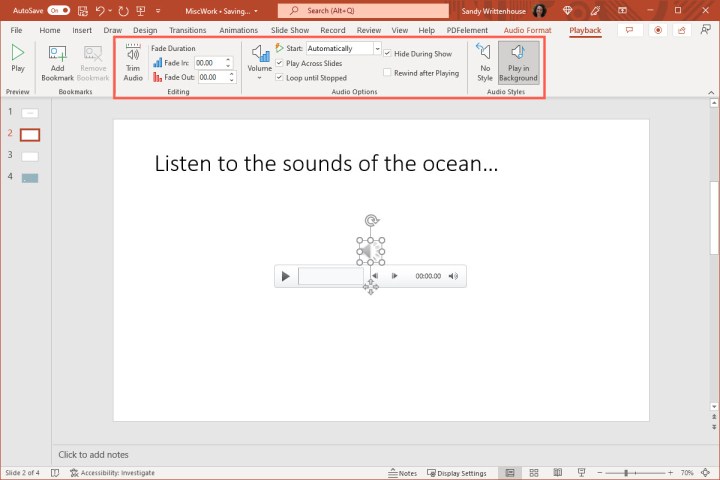
Once you add the audio to your PowerPoint slide, you can adjust several playback settings. Select the Audio icon on the slide and go to the Playback tab.

Here are several helpful ways to customize the playback for your audio:

  • Trim Audio: If you want to shorten the audio, select this option. Use the start and end boxes or slider to trim the clip. Then, click OK on Windows or Trim on Mac.
  • Fade Duration: Maybe you’d like to start the audio by fading it in or end it by fading it out. Use the Fade Duration section to select the timing.
  • Volume: You can set the volume for the audio to low, medium, or high for when it plays during the slideshow.
  • Start: Choose how you want the audio to start playing. You can pick In Click Sequence, Automatically, or When Clicked On.
  • Play Across Slides: If you want the audio to play continuously through each slide, check this box.
  • Loop Until Stopped: To loop the audio until you stop it, check this box.
  • Hide During Show: To hide the audio icon on your slide, check this box.
  • Rewind After Playing: To rewind the clip to the beginning after it’s played, check this box.
  • Play in Background: This option uses both Play Across Slides and Loop Until Stopped.

Whether you want to add a song, the sound of applause, or your own voice, it’s easy to add audio to your PowerPoint slideshow.

For more, take a look at how to add notes to your slides or how to embed a video in Microsoft PowerPoint.





Share. Facebook Twitter Pinterest LinkedIn Tumblr Email
Previous Article5 ways to add music to PowerPoint
Next Article Samsung Galaxy S24 FE’s Charging Specifications Surface Online Ahead of Expected Launch

Related Articles

The Galaxy S26 FE has leaked in every color, and at least one has some personality
News

The Galaxy S26 FE has leaked in every color, and at least one has some personality

7 August 2026
The ‘Manosphere’ Isn’t a Movement. It’s a Multibillion-Dollar Grievance Industry
News

The ‘Manosphere’ Isn’t a Movement. It’s a Multibillion-Dollar Grievance Industry

7 August 2026
Apple sweetens trade-in values for iPhones, iPads, Macs, and even some Android phones
News

Apple sweetens trade-in values for iPhones, iPads, Macs, and even some Android phones

7 August 2026
The Hottest New AI Chatbot Is Just a Guy Answering Your Questions
News

The Hottest New AI Chatbot Is Just a Guy Answering Your Questions

7 August 2026
A production snag could leave the iPhone 18 Pro in short supply
News

A production snag could leave the iPhone 18 Pro in short supply

7 August 2026
Samsung’s new 200MP ISOCELL HPC sensor rethinks how pixels capture light
News

Samsung’s new 200MP ISOCELL HPC sensor rethinks how pixels capture light

7 August 2026
Demo
Top Articles
5 laptops to buy instead of the M4 MacBook Pro

5 laptops to buy instead of the M4 MacBook Pro

17 November 2024133 Views
ChatGPT o1 vs. o1-mini vs. 4o: Which should you use?

ChatGPT o1 vs. o1-mini vs. 4o: Which should you use?

15 December 2024111 Views
Costco partners with Electric Era to bring back EV charging in the U.S.

Costco partners with Electric Era to bring back EV charging in the U.S.

28 October 2024100 Views

Subscribe to Updates

Get the latest tech news and updates directly to your inbox.

Latest News
Samsung’s new 200MP ISOCELL HPC sensor rethinks how pixels capture light News

Samsung’s new 200MP ISOCELL HPC sensor rethinks how pixels capture light

News Room7 August 2026
Anker just exposed a big problem with portable power stations News

Anker just exposed a big problem with portable power stations

News Room7 August 2026
AI models keep escaping their sandboxes, and Kimi K3 is the latest to join the party News

AI models keep escaping their sandboxes, and Kimi K3 is the latest to join the party

News Room7 August 2026
Most Popular
The Spectacular Burnout of a Solar Panel Salesman

The Spectacular Burnout of a Solar Panel Salesman

13 January 2025137 Views
5 laptops to buy instead of the M4 MacBook Pro

5 laptops to buy instead of the M4 MacBook Pro

17 November 2024133 Views
ChatGPT o1 vs. o1-mini vs. 4o: Which should you use?

ChatGPT o1 vs. o1-mini vs. 4o: Which should you use?

15 December 2024111 Views
Our Picks
The Hottest New AI Chatbot Is Just a Guy Answering Your Questions

The Hottest New AI Chatbot Is Just a Guy Answering Your Questions

7 August 2026
A production snag could leave the iPhone 18 Pro in short supply

A production snag could leave the iPhone 18 Pro in short supply

7 August 2026
Samsung’s new 200MP ISOCELL HPC sensor rethinks how pixels capture light

Samsung’s new 200MP ISOCELL HPC sensor rethinks how pixels capture light

7 August 2026

Subscribe to Updates

Get the latest tech news and updates directly to your inbox.

Facebook X (Twitter) Instagram Pinterest
  • Privacy Policy
  • Terms of use
  • Advertise
  • Contact Us
© 2026 Best in Technology. All Rights Reserved.

Type above and press Enter to search. Press Esc to cancel.