



Close Menu
Best in TechnologyBest in Technology
  • News
  • Phones
  • Laptops
  • Gadgets
  • Gaming
  • AI
  • Tips
  • More
    • Web Stories
    • Global
    • Press Release

Subscribe to Updates

Get the latest tech news and updates directly to your inbox.

What's On
This Chrome extension blocks social media until you scream (literally) in agony

This Chrome extension blocks social media until you scream (literally) in agony

8 February 2026
You Asked: Is Apple TV 4K Still a Good Buy? Bravia 9 or OLED for Bright Rooms?

You Asked: Is Apple TV 4K Still a Good Buy? Bravia 9 or OLED for Bright Rooms?

8 February 2026
I Have Fallen in Love With Open Earbuds (and You Should Too)

I Have Fallen in Love With Open Earbuds (and You Should Too)

8 February 2026
Facebook X (Twitter) Instagram
Just In
  • This Chrome extension blocks social media until you scream (literally) in agony
  • You Asked: Is Apple TV 4K Still a Good Buy? Bravia 9 or OLED for Bright Rooms?
  • I Have Fallen in Love With Open Earbuds (and You Should Too)
  • The Shoes and Brooms Transforming Curling at the 2026 Winter Olympics
  • The Best AI Notetakers to Record Your Meetings, Interviews, or Classes
  • For $4,550, Would You Buy a Single Premium Watch or a Swarm of Affordable Ones?
  • Meta thinks you’ll want a whole app just for AI videos
  • 7 Steps to Better Financial Health You Can Take Right Now
Facebook X (Twitter) Instagram Pinterest Vimeo
Best in TechnologyBest in Technology
  • News
  • Phones
  • Laptops
  • Gadgets
  • Gaming
  • AI
  • Tips
  • More
    • Web Stories
    • Global
    • Press Release
Subscribe
Best in TechnologyBest in Technology
Home » How to reset graphics drivers in Windows 11
News

How to reset graphics drivers in Windows 11

News RoomBy News Room8 October 20243 Mins Read
Share Facebook Twitter Pinterest LinkedIn Tumblr Reddit Telegram Email
How to reset graphics drivers in Windows 11
Share
Facebook Twitter LinkedIn Pinterest Email

Having some graphics trouble with your Windows PC? Before you open the nearest real window and toss your treasured gaming rig into the great beyond and go looking for the best graphics card, you should probably do a little troubleshooting. Luckily, one common culprit is misbehaving drivers. And guess what? These pests can be reset! Here’s a guide to teach you how to do it.

How to restart your graphics driver in Windows 11

If your PC appears to be working fine, but the visuals have frozen, or you’ve had a sudden black screen but the PC seems to be working otherwise, you might need to restart your graphics driver.

Step 1: Press Windows key + Ctrl + Shift + B.

Step 2: Your screen(s) will flash black (if they aren’t black already) as the driver refreshes.

If it worked, you should find your PC is working again. If this problem persists, you might want to consider reinstalling your graphics driver anyway.

How to reinstall your graphics driver on Windows 11

The best way to reset your graphics driver in Windows 11 is by reinstalling it. If you have an AMD, Nvidia, or Intel GPU, skip to the section below. However, if you’re running a Windows 11 PC with Intel or AMD onboard graphics, you can let Windows do all the heavy lifting for you.

Step 1: Search for Device Manager in Windows search.
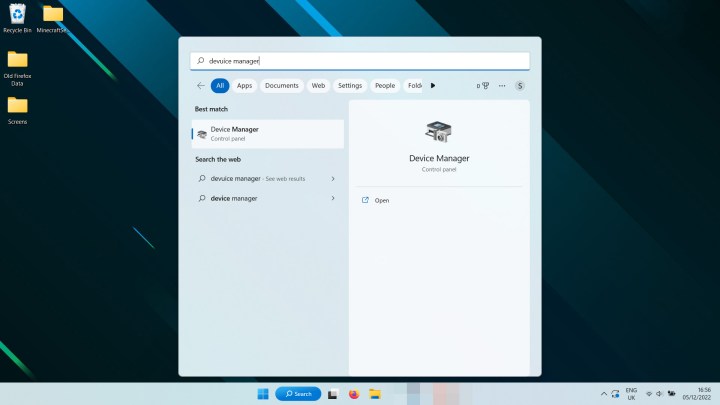
Searching for Device Manager in Windows 11.

Step 2: Look under Display Adapters for your graphics chip. It will be listed as AMD Radeon, Intel UHD, or some variation.
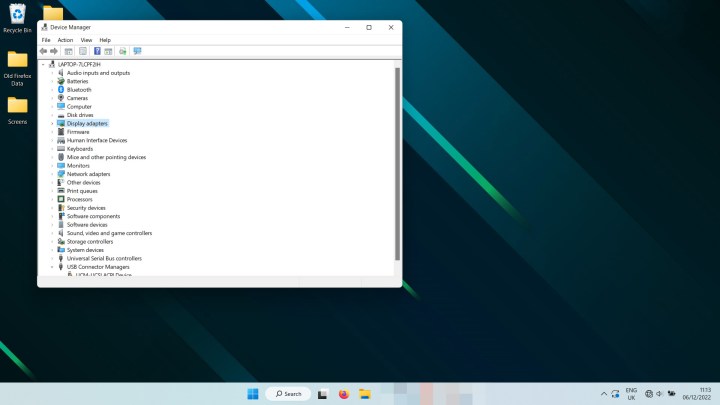
Finding the display adapter in Device Manager in Windows 11.

Step 3: Right-click on the entry and select Uninstall device. It may take a second and your screen may flicker off and on, but when it’s finished, restart your PC.

When Windows 11 boots back up again, it should reinstall the latest Intel or AMD onboard graphics driver for you, hopefully fixing whatever problem you were facing.

How to reinstall your graphics card drivers in Windows 11

If you have an AMD, Nvidia, or Intel graphics card, the process for reinstalling your graphics driver is a little more involved but not much more complicated.

Step 1: Use the Windows 11 search bar to find Add or remove programs and select the appropriate result.
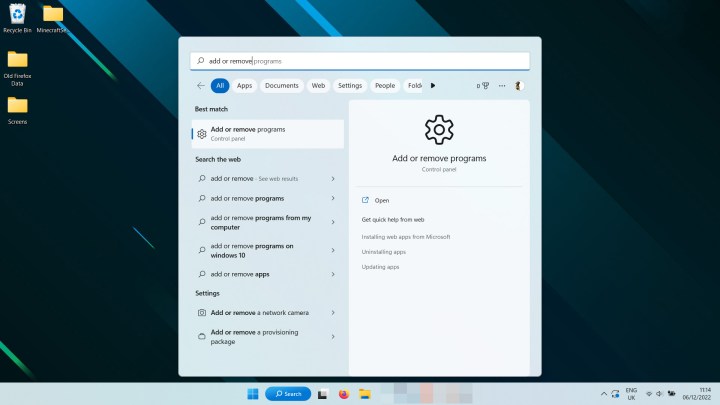
Searching for Add and Remove programs in Windows 11.

Step 2: Scroll through the list or use the search, to find Nvidia, AMD, or Intel graphics drivers. Select the three-dot menu on the right-hand side and select Uninstall.

You may also want to remove the GeForce experience, Nvidia Control Panel, AMD Radeon Adrenaline, and other related applications and drivers.

Finding the Nvidia drivers to uninstall them.

Step 3: Optional: If you want to make doubly sure that your drivers are completely removed, you can also run the third-party application, Display Driver Uninstaller, otherwise known as DDU. You’ll find instructions on how to use it on the official site.

Step 4: Restart your computer and wait for it to boot back up.

Step 5: Visit your graphics card manufacturer’s website and download the latest version of the most applicable driver for your graphics card. Their respective download sites are:

Step 6: Run the graphics card driver installer and follow the on-screen instructions to reinstall your graphics driver.

Now that you’ve reset your graphics drivers in Windows 11, how about improving gaming performance? Make these in-game settings tweaks to make the most of what you’ve got, or consider overclocking your graphics card to find more performance.



Share. Facebook Twitter Pinterest LinkedIn Tumblr Email
Previous ArticleiQOO 13 Specifications Leaked; Tipped to Launch With Slower Charging Than Predecessor
Next Article Honor X60 Series Launch Date Set for October 16; Key Features of Base Model Surfaces Online

Related Articles

This Chrome extension blocks social media until you scream (literally) in agony
News

This Chrome extension blocks social media until you scream (literally) in agony

8 February 2026
You Asked: Is Apple TV 4K Still a Good Buy? Bravia 9 or OLED for Bright Rooms?
News

You Asked: Is Apple TV 4K Still a Good Buy? Bravia 9 or OLED for Bright Rooms?

8 February 2026
I Have Fallen in Love With Open Earbuds (and You Should Too)
News

I Have Fallen in Love With Open Earbuds (and You Should Too)

8 February 2026
The Shoes and Brooms Transforming Curling at the 2026 Winter Olympics
News

The Shoes and Brooms Transforming Curling at the 2026 Winter Olympics

8 February 2026
The Best AI Notetakers to Record Your Meetings, Interviews, or Classes
News

The Best AI Notetakers to Record Your Meetings, Interviews, or Classes

8 February 2026
For ,550, Would You Buy a Single Premium Watch or a Swarm of Affordable Ones?
News

For $4,550, Would You Buy a Single Premium Watch or a Swarm of Affordable Ones?

8 February 2026
Demo
Top Articles
ChatGPT o1 vs. o1-mini vs. 4o: Which should you use?

ChatGPT o1 vs. o1-mini vs. 4o: Which should you use?

15 December 2024108 Views
5 laptops to buy instead of the M4 MacBook Pro

5 laptops to buy instead of the M4 MacBook Pro

17 November 2024101 Views
Costco partners with Electric Era to bring back EV charging in the U.S.

Costco partners with Electric Era to bring back EV charging in the U.S.

28 October 202498 Views

Subscribe to Updates

Get the latest tech news and updates directly to your inbox.

Latest News
For ,550, Would You Buy a Single Premium Watch or a Swarm of Affordable Ones? News

For $4,550, Would You Buy a Single Premium Watch or a Swarm of Affordable Ones?

News Room8 February 2026
Meta thinks you’ll want a whole app just for AI videos News

Meta thinks you’ll want a whole app just for AI videos

News Room7 February 2026
7 Steps to Better Financial Health You Can Take Right Now News

7 Steps to Better Financial Health You Can Take Right Now

News Room7 February 2026
Most Popular
The Spectacular Burnout of a Solar Panel Salesman

The Spectacular Burnout of a Solar Panel Salesman

13 January 2025137 Views
ChatGPT o1 vs. o1-mini vs. 4o: Which should you use?

ChatGPT o1 vs. o1-mini vs. 4o: Which should you use?

15 December 2024108 Views
5 laptops to buy instead of the M4 MacBook Pro

5 laptops to buy instead of the M4 MacBook Pro

17 November 2024101 Views
Our Picks
The Shoes and Brooms Transforming Curling at the 2026 Winter Olympics

The Shoes and Brooms Transforming Curling at the 2026 Winter Olympics

8 February 2026
The Best AI Notetakers to Record Your Meetings, Interviews, or Classes

The Best AI Notetakers to Record Your Meetings, Interviews, or Classes

8 February 2026
For ,550, Would You Buy a Single Premium Watch or a Swarm of Affordable Ones?

For $4,550, Would You Buy a Single Premium Watch or a Swarm of Affordable Ones?

8 February 2026

Subscribe to Updates

Get the latest tech news and updates directly to your inbox.

Facebook X (Twitter) Instagram Pinterest
  • Privacy Policy
  • Terms of use
  • Advertise
  • Contact Us
© 2026 Best in Technology. All Rights Reserved.

Type above and press Enter to search. Press Esc to cancel.