




Close Menu
Best in TechnologyBest in Technology
  • News
  • Phones
  • Laptops
  • Gadgets
  • Gaming
  • AI
  • Tips
  • More
    • Web Stories
    • Global
    • Press Release

Subscribe to Updates

Get the latest tech news and updates directly to your inbox.

What's On
Samsung stirred the wide foldable race, but I’m more excited for an upcoming exotic rival

Samsung stirred the wide foldable race, but I’m more excited for an upcoming exotic rival

23 July 2026
America’s Hot Hybrid Summer | WIRED

America’s Hot Hybrid Summer | WIRED

23 July 2026
Apple could cut off app access on financed iPhones over missed payments

Apple could cut off app access on financed iPhones over missed payments

23 July 2026
Facebook X (Twitter) Instagram
Just In
  • Samsung stirred the wide foldable race, but I’m more excited for an upcoming exotic rival
  • America’s Hot Hybrid Summer | WIRED
  • Apple could cut off app access on financed iPhones over missed payments
  • The Trump Administration Wants to Change Public Engagement Rules for Polluters
  • Lenovo launches new LOQ 17 gaming laptop with RTX 5070 12GB GPU
  • Google Turns a Selfie Video Into Your Account’s Spare Key
  • The best Galaxy Watch Ultra 2 diving features will reportedly cost you extra
  • Remember Jibo? Its Successor Is a Wearable That Turns Your Life Into AI Slop
Facebook X (Twitter) Instagram Pinterest Vimeo
Best in TechnologyBest in Technology
  • News
  • Phones
  • Laptops
  • Gadgets
  • Gaming
  • AI
  • Tips
  • More
    • Web Stories
    • Global
    • Press Release
Subscribe
Best in TechnologyBest in Technology
Home » How to insert a line in Word
News

How to insert a line in Word

News RoomBy News Room19 September 20244 Mins Read
Share Facebook Twitter Pinterest LinkedIn Tumblr Reddit Telegram Email
How to insert a line in Word
Share
Facebook Twitter LinkedIn Pinterest Email

Microsoft’s flagship word processor has tons of neat little features to customize your documents, and it can be hard to keep track of and master them all. But with our quick guides to using Microsoft Word, we can help you learn how to use the tools you’ll need to get up and running and make the most out of it.

If you want to learn how to insert a line in a Word document, you’ve come to the right place. In this guide, we’ll show you how to insert a line in Word. Using a few different methods, you can choose the one that augments your workflow in Microsoft Word the best.

How to draw a line in Word using the Shapes menu

If you’d like your line to be a particular length, you can draw it in Word using an option in the Shapes menu.

Step 1: Open your Word document or create a new one.

Step 2: Go to the Insert tab and select Shapes.
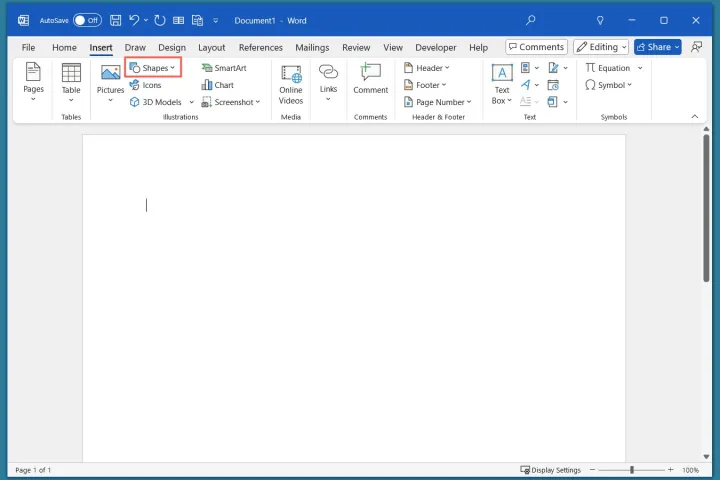
Shapes on the Insert tab in Word.

Step 3: Within the section labeled Lines, choose your preferred line style.
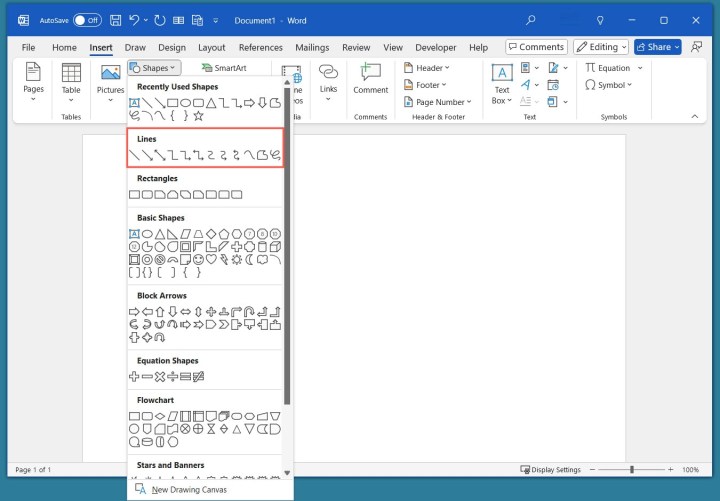
Lines in the Shapes menu in Word.

Step 4: Move your mouse pointer to where you want to insert your line, and click and hold it as you drag it across the page to the desired endpoint of your line. Then release your hold.
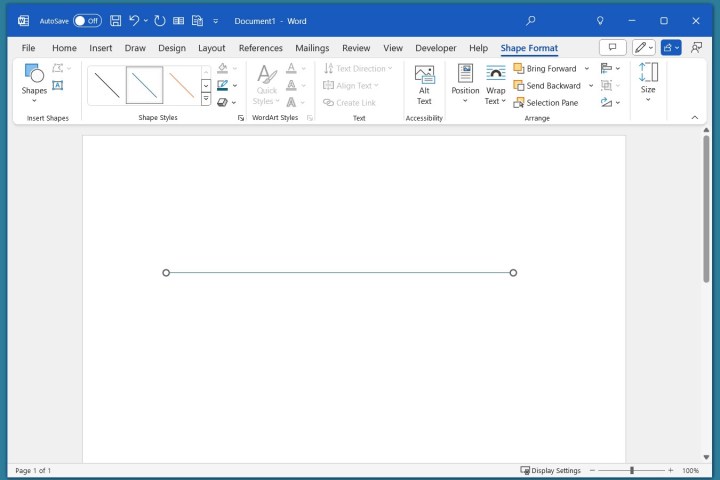
Drawn line in Word.

How to insert a line in Word using the keyboard AutoFormat

Maybe you prefer to tackle tasks in Word using keyboard shortcuts. If so, you can insert a line using the keyboard AutoFormat feature.

Step 1: Open your Word document or create a new one.

Step 2: In the document, put your cursor where you want to insert the line. Then press the Hyphen key on your keyboard three times. (This key should be located in between the zero key and the plus/equal sign key.) Then press the Enter key.

Step 3: A line that stretches between both ends of the width of the page (minus the margins) should automatically appear. If you want to type on the line or insert a signature, simply move your cursor above the line to add your text.

AutoFormat line in Word

Step 4: You can customize the style of your inserted line by choosing a different keyboard key to press three times. For example, pressing the Plus/Equal Sign key three times and then Enter will produce a set of two parallel lines. Here are some other options:

  • Three asterisk key presses: Produces a line of square dots.
  • Three underscore key presses: Produces a bold line.
  • Three number sign key presses: Produces a group of three lines (one bold with two thin).
  • Three tilde key presses: Produces a zig-zag line.

Note: The above bulleted line styles will require using the Shift key plus the key listed and then Enter in order to work.

AutoFormat lines in Word

How to insert a line in Word using the Borders menu

If you want a simple horizontal line that stretches from the left to the right margin, you can use an option in the Borders menu.

Step 1: Open your Word document or create a new one.

Step 2: Place your cursor where you want the line.

Step 3: Go to the Home tab, open the Borders menu, and choose Horizontal Line.
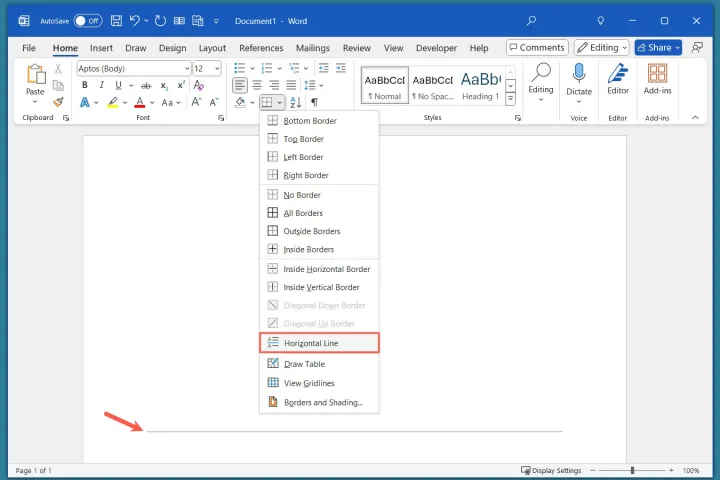
Horizontal Line in the Word Borders menu

FAQs

How do you insert a line through a word?

You can easily apply what’s called strikethrough formatting to a word, sentence, or paragraph in Word. Select the text, go to the Home tab, and choose Strikethrough in the Font section of the ribbon.

How do I put a line around a word in Word?

With the Borders menu in Word, you can add a line around a word or other text. Select the text, go to the Home tab, and open the Borders menu. Pick the Outside Borders option to place a line around the entire text.

How do I insert a horizontal line in Docs?

If you use Google Docs instead of Microsoft Word, you can insert a horizontal line easily in that application as well. Open your Google Doc and place your cursor where you want the line. Select the Insert tab and pick Horizontal line.



Share. Facebook Twitter Pinterest LinkedIn Tumblr Email
Previous ArticleThe Outrageous Scheme to Capture and Sell Greenland’s Meltwater
Next Article Xiaomi Overtook Apple in Global Smartphone Sales in August, Samsung Retains Top Spot: Counterpoint Research

Related Articles

Samsung stirred the wide foldable race, but I’m more excited for an upcoming exotic rival
News

Samsung stirred the wide foldable race, but I’m more excited for an upcoming exotic rival

23 July 2026
America’s Hot Hybrid Summer | WIRED
News

America’s Hot Hybrid Summer | WIRED

23 July 2026
Apple could cut off app access on financed iPhones over missed payments
News

Apple could cut off app access on financed iPhones over missed payments

23 July 2026
The Trump Administration Wants to Change Public Engagement Rules for Polluters
News

The Trump Administration Wants to Change Public Engagement Rules for Polluters

23 July 2026
Lenovo launches new LOQ 17 gaming laptop with RTX 5070 12GB GPU
News

Lenovo launches new LOQ 17 gaming laptop with RTX 5070 12GB GPU

23 July 2026
Google Turns a Selfie Video Into Your Account’s Spare Key
News

Google Turns a Selfie Video Into Your Account’s Spare Key

23 July 2026
Demo
Top Articles
5 laptops to buy instead of the M4 MacBook Pro

5 laptops to buy instead of the M4 MacBook Pro

17 November 2024133 Views
ChatGPT o1 vs. o1-mini vs. 4o: Which should you use?

ChatGPT o1 vs. o1-mini vs. 4o: Which should you use?

15 December 2024111 Views
Costco partners with Electric Era to bring back EV charging in the U.S.

Costco partners with Electric Era to bring back EV charging in the U.S.

28 October 2024100 Views

Subscribe to Updates

Get the latest tech news and updates directly to your inbox.

Latest News
Google Turns a Selfie Video Into Your Account’s Spare Key News

Google Turns a Selfie Video Into Your Account’s Spare Key

News Room23 July 2026
The best Galaxy Watch Ultra 2 diving features will reportedly cost you extra News

The best Galaxy Watch Ultra 2 diving features will reportedly cost you extra

News Room23 July 2026
Remember Jibo? Its Successor Is a Wearable That Turns Your Life Into AI Slop News

Remember Jibo? Its Successor Is a Wearable That Turns Your Life Into AI Slop

News Room23 July 2026
Most Popular
The Spectacular Burnout of a Solar Panel Salesman

The Spectacular Burnout of a Solar Panel Salesman

13 January 2025137 Views
5 laptops to buy instead of the M4 MacBook Pro

5 laptops to buy instead of the M4 MacBook Pro

17 November 2024133 Views
ChatGPT o1 vs. o1-mini vs. 4o: Which should you use?

ChatGPT o1 vs. o1-mini vs. 4o: Which should you use?

15 December 2024111 Views
Our Picks
The Trump Administration Wants to Change Public Engagement Rules for Polluters

The Trump Administration Wants to Change Public Engagement Rules for Polluters

23 July 2026
Lenovo launches new LOQ 17 gaming laptop with RTX 5070 12GB GPU

Lenovo launches new LOQ 17 gaming laptop with RTX 5070 12GB GPU

23 July 2026
Google Turns a Selfie Video Into Your Account’s Spare Key

Google Turns a Selfie Video Into Your Account’s Spare Key

23 July 2026

Subscribe to Updates

Get the latest tech news and updates directly to your inbox.

Facebook X (Twitter) Instagram Pinterest
  • Privacy Policy
  • Terms of use
  • Advertise
  • Contact Us
© 2026 Best in Technology. All Rights Reserved.

Type above and press Enter to search. Press Esc to cancel.