




Close Menu
Best in TechnologyBest in Technology
  • News
  • Phones
  • Laptops
  • Gadgets
  • Gaming
  • AI
  • Tips
  • More
    • Web Stories
    • Global
    • Press Release

Subscribe to Updates

Get the latest tech news and updates directly to your inbox.

What's On
Darwin’s Paradox Review – Passive Prowling Polypus

Darwin’s Paradox Review – Passive Prowling Polypus

30 March 2026
This utterly cute Chinese EV costs just ,200 and pushes over 190 miles

This utterly cute Chinese EV costs just $6,200 and pushes over 190 miles

30 March 2026
Why this week’s moon mission is so special for Jeremy Hansen

Why this week’s moon mission is so special for Jeremy Hansen

30 March 2026
Facebook X (Twitter) Instagram
Just In
  • Darwin’s Paradox Review – Passive Prowling Polypus
  • This utterly cute Chinese EV costs just $6,200 and pushes over 190 miles
  • Why this week’s moon mission is so special for Jeremy Hansen
  • AI is getting surprisingly good, but research says AI creativity is just a myth
  • Smart glasses were already creepy, now they’re helping people cheat
  • Avatar Legends: The Fighting Game comes out in July and it looks pretty slick
  • Apple might create an AI app store for Siri’s next avatar
  • Galaxy S26 battery tests show Qualcomm trim doing far better than Samsung’s own chip 
Facebook X (Twitter) Instagram Pinterest Vimeo
Best in TechnologyBest in Technology
  • News
  • Phones
  • Laptops
  • Gadgets
  • Gaming
  • AI
  • Tips
  • More
    • Web Stories
    • Global
    • Press Release
Subscribe
Best in TechnologyBest in Technology
Home » How to remove a page break in Word
News

How to remove a page break in Word

News RoomBy News Room18 September 20244 Mins Read
Share Facebook Twitter Pinterest LinkedIn Tumblr Reddit Telegram Email
How to remove a page break in Word
Share
Facebook Twitter LinkedIn Pinterest Email

Think you know how to use Microsoft Word but can’t work out how to remove an inconvenient page break?

Don’t worry, you do have options. In some cases, you can the break outright, and in others, you can adjust your page break so that it doesn’t interfere with the flow of your text. And we can show you how to handle either instance in a few quick, hassle-free steps. Let’s take a closer look at how to remove a page break in Word.

A note about page breaks before we start

We mentioned earlier that there are two ways to deal with unwanted page breaks. And that’s because there are two kinds of them: Automatic and manual. The main difference between them to know is that automatic page breaks are created by Word and can’t be removed, and manual page breaks are ones you added to the document, and those can be removed. Our instructions are broken up in two main sections, one for each of these scenarios. That way, you can just scroll to the set of instructions you need.

How to remove a manual page break (for Windows)

Step 1: Open or create a Microsoft Word document.

Step 2: Within the Paragraph section of the Home tab, click on the Show/Hide icon. (It’s a paragraph symbol — which looks like a backward P.)

how to remove page break in word ms home tab paragraph section show hide button screenshot

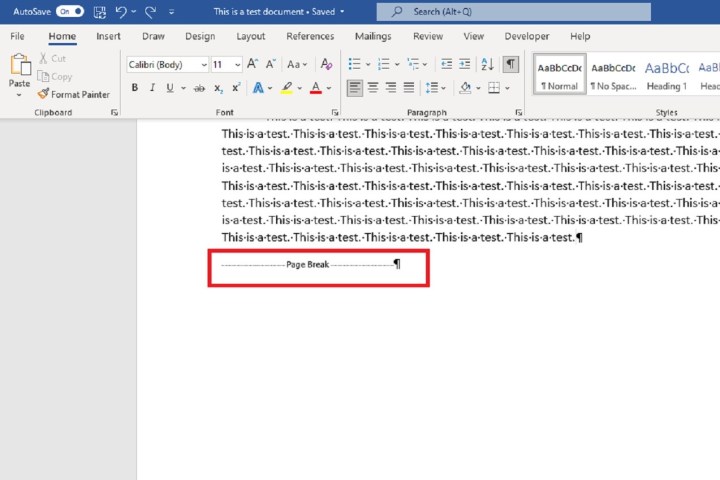
Step 3: A manual page break icon should appear in your document. Double-click on the space after it and then hit the Delete key on your keyboard.
how to remove page break in word ms icon document screenshot

How to remove a manual page break (for MacOS)

Removing a manual page break you insert in Microsoft Word on Mac is as easy as a key press.

Step 1: Open your document in Microsoft Word on Mac.

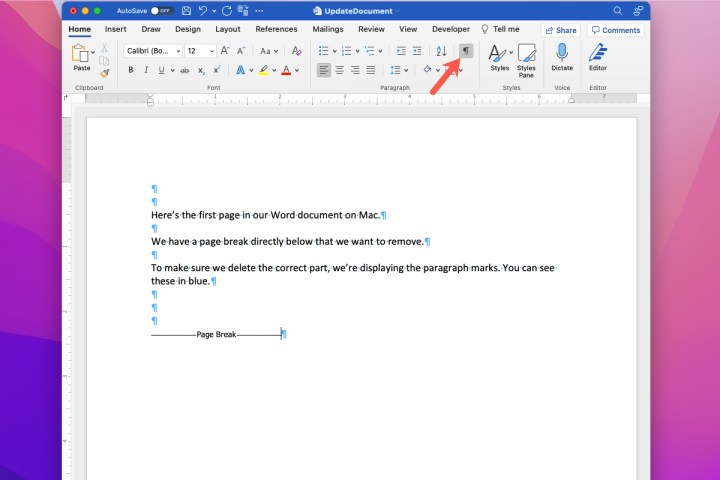
Step 2: Display the paragraph marks so that you can place your cursor correctly. You can do this by going to the Home tab and clicking the Paragraph icon so that it’s selected.
how to remove page break in word mac show paragraph marks

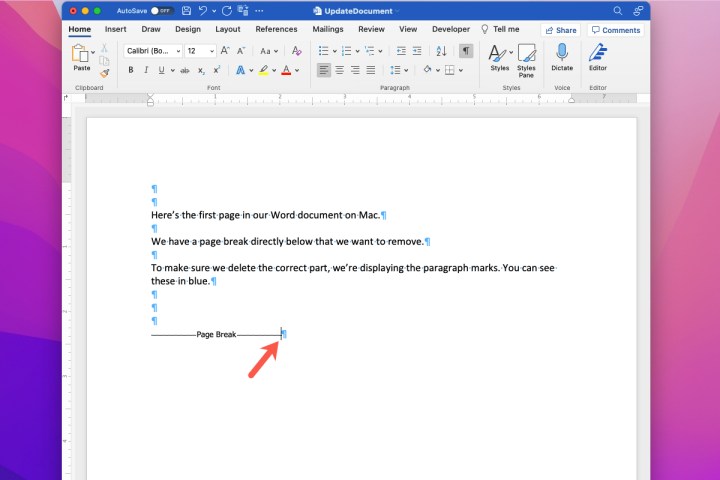
Step 3: When you see the page break appear in your document, place your cursor next to it on the right and press the Delete key.
how to remove page break in word mac cursor

How to alter an automatic page break (for Windows)

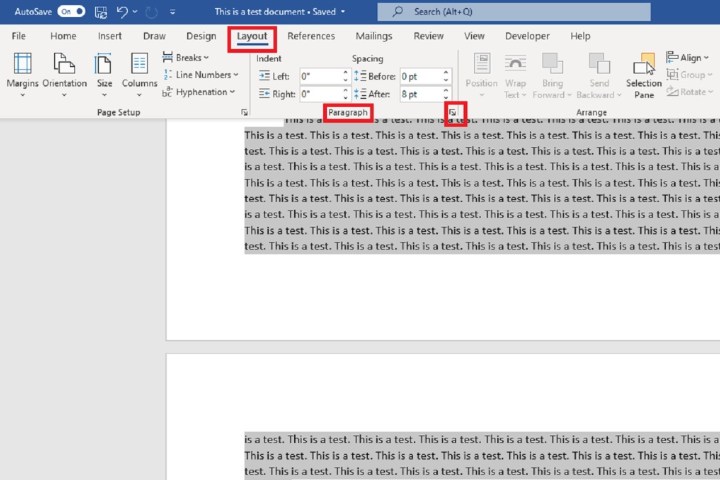
Step 1: Select the paragraph or paragraphs you want to fix. Then select the Layout tab from the Ribbon Menu at the top of the screen.
how to remove page break in word ms layout tab paragraph settings adjust automatic screenshot

Step 2: In the Paragraph section of the Layout tab, click on the Paragraph Settings icon. It looks like a tiny arrow pointing southeast.

Step 3: The Paragraph dialog box will appear, and under the Line and Page Breaks tab (next to Indents and Spacing, which you would use for adding hanging indents to Word documents), you’ll see four options for adjusting your automatic page break: Widow/Orphan Control, Keep With Next, Keep Lines Together, or Page Break Before. Tick the boxes next to the ones you want to use.

  • If you want to keep a paragraph from being split between two pages, choose Keep Lines Together.
  • If you want a minimum of two lines at the top and bottom of your pages, choose Widow/Orphan Control.
  • If you want multiple paragraphs to stay together, choose Keep With Next.
  • If you need a page break before a particular paragraph, choose Page Break Before.
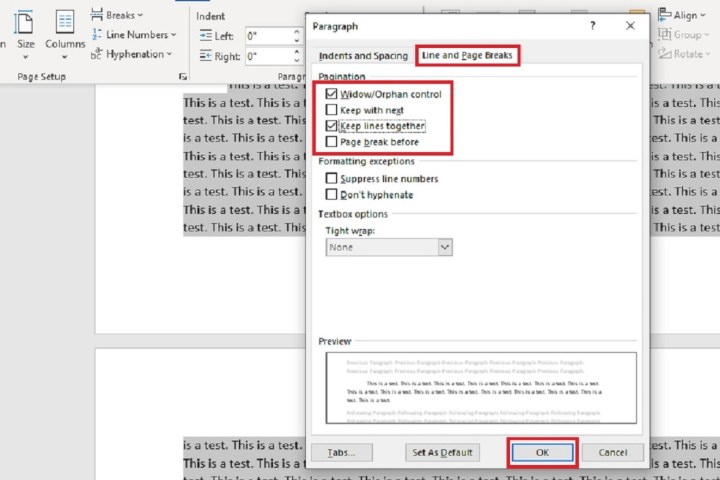
how to remove page break in word ms paragraph dialog box for adjust screenshot

Step 4: Then click OK.

How to alter an automatic page break (for MacOS)

Word provides you with ways to automatically break pages as well as keep lines together. You can adjust these in Word on Mac as well.

Step 1: Select Format > Paragraph from the Menu Bar.

Step 2: When the Paragraph box appears, you’ll see the Pagination options at the top. Check the boxes for those you want to use.

  • Widow/Orphan Control: Stop an individual line in a paragraph from appearing alone at the top or bottom of a page.
  • Keep With Next: Keep paragraphs together – for example, those that include headings.
  • Keep Lines Together: Keep lines in a paragraph together. This stops a paragraph from splitting onto two pages.
  • Page Break Before: Insert a page break before a particular paragraph.
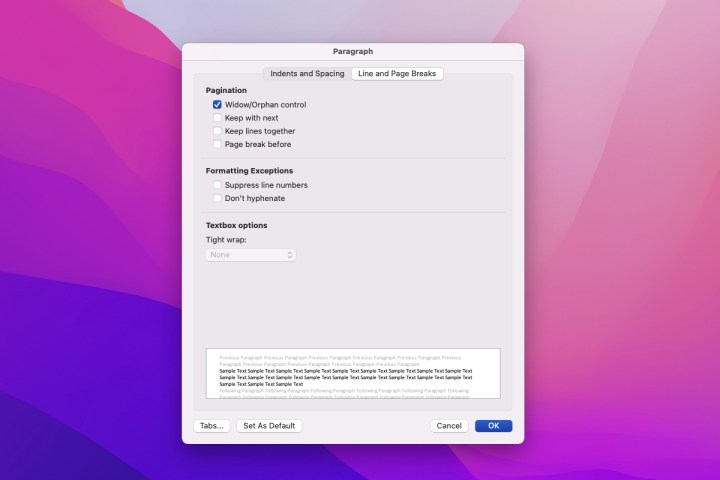
how to remove page break in word mac paragraph pagination

Step 3: Finish making your adjustments and click OK to apply the changes.

Whether it is an automatic page break or a manual one, it should be simple to remove. However, if it doesn’t work out or you’ve got a problem with too many breaks causing blank pages it is worth knowing how to delete a page in Word.


Share. Facebook Twitter Pinterest LinkedIn Tumblr Email
Previous ArticleIt’s the Last Day of the All-Clad Factory Seconds Sale
Next Article Vivo V40e Teased to Launch in India Soon; Design, Colour Options, Key Features Revealed

Related Articles

This utterly cute Chinese EV costs just ,200 and pushes over 190 miles
News

This utterly cute Chinese EV costs just $6,200 and pushes over 190 miles

30 March 2026
Why this week’s moon mission is so special for Jeremy Hansen
News

Why this week’s moon mission is so special for Jeremy Hansen

30 March 2026
AI is getting surprisingly good, but research says AI creativity is just a myth
News

AI is getting surprisingly good, but research says AI creativity is just a myth

30 March 2026
Smart glasses were already creepy, now they’re helping people cheat
News

Smart glasses were already creepy, now they’re helping people cheat

30 March 2026
Avatar Legends: The Fighting Game comes out in July and it looks pretty slick
News

Avatar Legends: The Fighting Game comes out in July and it looks pretty slick

30 March 2026
Apple might create an AI app store for Siri’s next avatar
News

Apple might create an AI app store for Siri’s next avatar

29 March 2026
Demo
Top Articles
5 laptops to buy instead of the M4 MacBook Pro

5 laptops to buy instead of the M4 MacBook Pro

17 November 2024132 Views
ChatGPT o1 vs. o1-mini vs. 4o: Which should you use?

ChatGPT o1 vs. o1-mini vs. 4o: Which should you use?

15 December 2024111 Views
Costco partners with Electric Era to bring back EV charging in the U.S.

Costco partners with Electric Era to bring back EV charging in the U.S.

28 October 2024100 Views

Subscribe to Updates

Get the latest tech news and updates directly to your inbox.

Latest News
Avatar Legends: The Fighting Game comes out in July and it looks pretty slick News

Avatar Legends: The Fighting Game comes out in July and it looks pretty slick

News Room30 March 2026
Apple might create an AI app store for Siri’s next avatar News

Apple might create an AI app store for Siri’s next avatar

News Room29 March 2026
Galaxy S26 battery tests show Qualcomm trim doing far better than Samsung’s own chip  News

Galaxy S26 battery tests show Qualcomm trim doing far better than Samsung’s own chip 

News Room29 March 2026
Most Popular
The Spectacular Burnout of a Solar Panel Salesman

The Spectacular Burnout of a Solar Panel Salesman

13 January 2025137 Views
5 laptops to buy instead of the M4 MacBook Pro

5 laptops to buy instead of the M4 MacBook Pro

17 November 2024132 Views
ChatGPT o1 vs. o1-mini vs. 4o: Which should you use?

ChatGPT o1 vs. o1-mini vs. 4o: Which should you use?

15 December 2024111 Views
Our Picks
AI is getting surprisingly good, but research says AI creativity is just a myth

AI is getting surprisingly good, but research says AI creativity is just a myth

30 March 2026
Smart glasses were already creepy, now they’re helping people cheat

Smart glasses were already creepy, now they’re helping people cheat

30 March 2026
Avatar Legends: The Fighting Game comes out in July and it looks pretty slick

Avatar Legends: The Fighting Game comes out in July and it looks pretty slick

30 March 2026

Subscribe to Updates

Get the latest tech news and updates directly to your inbox.

Facebook X (Twitter) Instagram Pinterest
  • Privacy Policy
  • Terms of use
  • Advertise
  • Contact Us
© 2026 Best in Technology. All Rights Reserved.

Type above and press Enter to search. Press Esc to cancel.