





Close Menu
Best in TechnologyBest in Technology
  • News
  • Phones
  • Laptops
  • Gadgets
  • Gaming
  • AI
  • Tips
  • More
    • Web Stories
    • Global
    • Press Release

Subscribe to Updates

Get the latest tech news and updates directly to your inbox.

What's On
SpaceX wants to take on Verizon, AT&T, and T-Mobile with its own mobile network

SpaceX wants to take on Verizon, AT&T, and T-Mobile with its own mobile network

6 August 2026
MAGA Is In Turmoil Over Tucker Carlson’s Possible 2028 Presidential Bid

MAGA Is In Turmoil Over Tucker Carlson’s Possible 2028 Presidential Bid

6 August 2026
A cheaper Galaxy Watch with more than a week of battery life may be in the works

A cheaper Galaxy Watch with more than a week of battery life may be in the works

6 August 2026
Facebook X (Twitter) Instagram
Just In
  • SpaceX wants to take on Verizon, AT&T, and T-Mobile with its own mobile network
  • MAGA Is In Turmoil Over Tucker Carlson’s Possible 2028 Presidential Bid
  • A cheaper Galaxy Watch with more than a week of battery life may be in the works
  • TikTok Says ‘Moderator Error’ Kept Perez Hilton Livestream Up
  • Google Home’s Interactive Storytime feature has me wondering who actually asked for this
  • Welp, Nobody Saw SpaceX’s Falcon 9 Rocket Crash Into the Moon
  • This new technology could make spotting fake products easier for everyone
  • OpenAI’s Browser Could Be Hijacked to Spam Your WhatsApp Contacts
Facebook X (Twitter) Instagram Pinterest Vimeo
Best in TechnologyBest in Technology
  • News
  • Phones
  • Laptops
  • Gadgets
  • Gaming
  • AI
  • Tips
  • More
    • Web Stories
    • Global
    • Press Release
Subscribe
Best in TechnologyBest in Technology
Home » 5 ways to add music to PowerPoint
News

5 ways to add music to PowerPoint

News RoomBy News Room3 September 20245 Mins Read
Share Facebook Twitter Pinterest LinkedIn Tumblr Reddit Telegram Email
5 ways to add music to PowerPoint
Share
Facebook Twitter LinkedIn Pinterest Email

If you’re using Microsoft PowerPoint to create a slideshow, music might be the perfect addition. You may want a fun upbeat song on a slide or a soft subtle melody throughout the presentation.

We’ll show you how to add music to PowerPoint a few different ways and then use a single song on a slide or play background music from start to finish.

Upload a song from your computer

Probably the easiest way to add music to your slideshow is to upload a song from your computer. This can be a tune you’ve saved and listen to often or one from a playlist.

Step 1: Open your PowerPoint presentation and select a slide to add the music.

Step 2: Go to the Insert tab and choose the drop-down arrow for Audio on the right side of the ribbon.

Step 3: Pick Audio on my PC, browse for the music file, and select Insert.
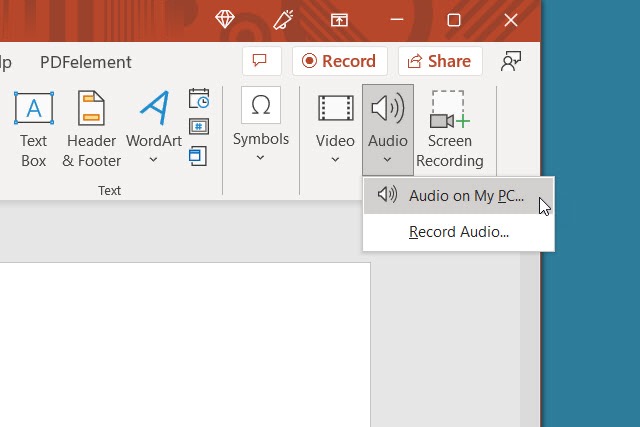
Audio on My PC in the Audio drop-down box in PowerPoint.

Step 4: You’ll then see an audio icon on your slide for the song.
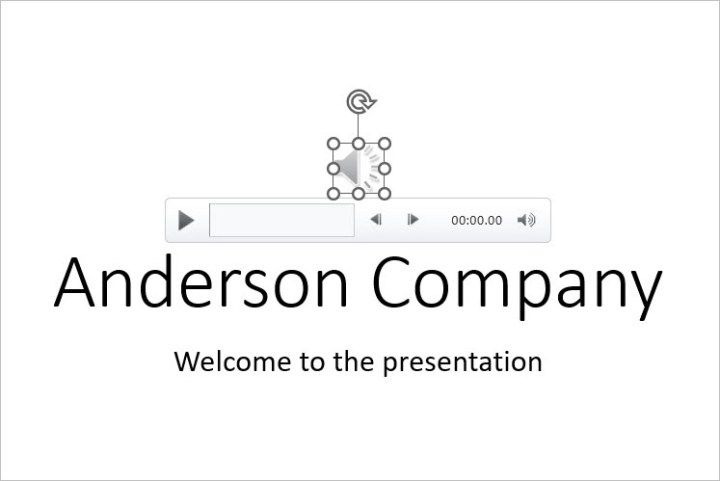
Audio icon on a slide.

Step 5: Use the Play button to listen and the Playback tab to adjust the playback options.
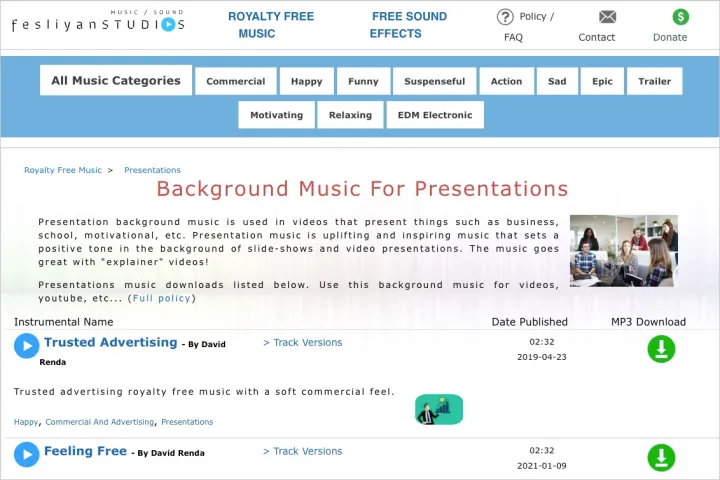
Fesliyan Studios Inc. main page.

Download free music

Maybe you have the type of song in mind you want, but don’t have a copy saved to your computer. There are a few online resources for obtaining royalty-free songs for presentations at no cost.

Fesliyan Studios Inc.: Choose a genre at the top such as commercial, happy, sad, or relaxing. Press the Play button to listen, then check out alternate versions where available. Choose Download to get the song.

Chosic: You’ll see a slew of songs for presentations from upbeat to soft. When you hear the song you want, select Download > Free Download.

SoundCloud: If you’re already a SoundCloud listener, this is a good option for presentation music. Type “free downloads” or similar into the search box and review the results. When you find the song you want, select More or the three dots to download the tune.

If you can find royalty-free music on YouTube as well, there are a number of ways to download MP3s from YouTube.

Once you download one of these songs, save it to your device and simply upload it to the slideshow as described above.

Record music while creating the slideshow

If you’re lucky enough to be gifted with musical talent, you can use your skills to record a song directly in PowerPoint. Warm up your vocal cords or grab your guitar and make your own presentation music.

Step 1: Open your PowerPoint presentation and select a slide to record the music.

Step 2: Go to the Insert tab and choose the drop-down arrow for Audio on the right side of the ribbon.

Step 3: Pick Record audio. Note: You must have either a built-in or external microphone for your computer.
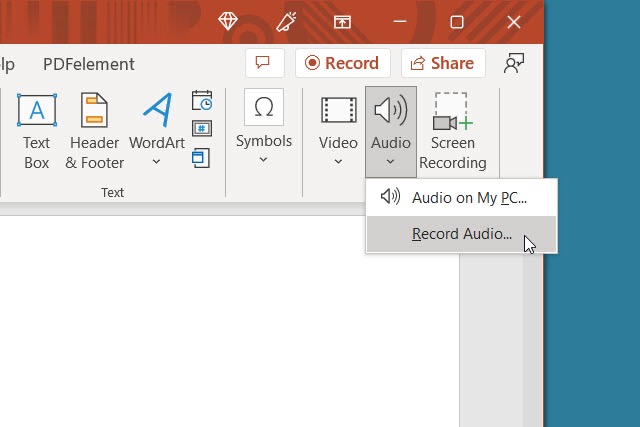
Record Audio in the Audio drop-down box in PowerPoint.

Step 4: When the Record Sound box appears, select the red, round Record button to start recording.
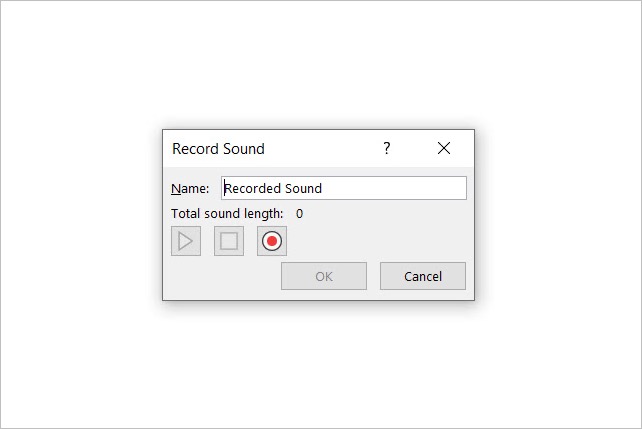
Audio recording dialog box in PowerPoint.

Step 5: Press the square Stop button when you finish. To listen to the recording, press the green Play button.
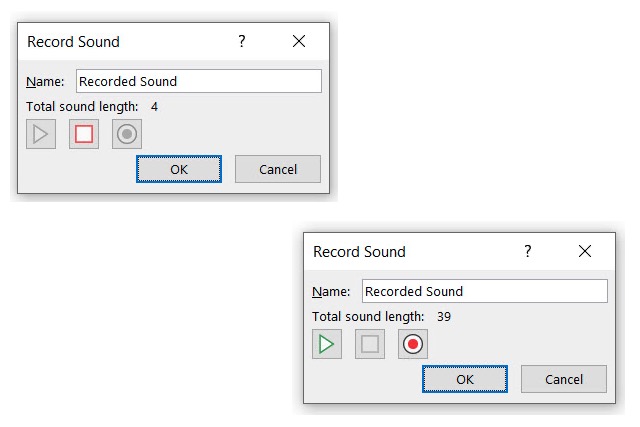
Stop and Play buttons for recorded audio.

Step 6: When you finish, select OK to insert it onto the slide.
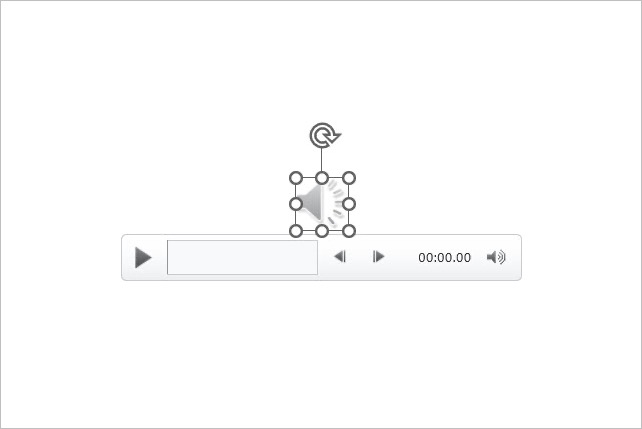
Recorded audio on a slide in PowerPoint.

Step 7: You’ll then see the audio icon just like with an inserted audio file. Press the Play button to hear the recording.

Add an offscreen video

Sometimes the ideal song for a situation is attached to a video. While you can’t currently just play the audio and you probably don’t want the video as part of your presentation, there’s a workaround to get that tune in your show.

Step 1: Open your PowerPoint presentation and select a slide to add the video.

Step 2: Go to the Insert tab and choose the drop-down arrow for Video on the right side of the ribbon.

Step 3: Pick This Device, Stock Videos, or Online Videos and follow the prompts to insert the video.
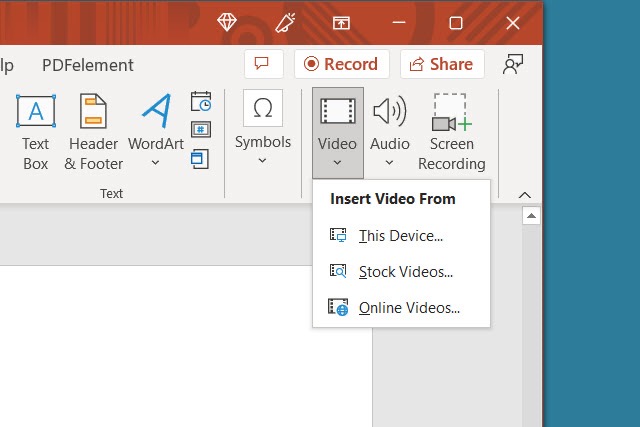
Options in the Video drop-down box in PowerPoint.

Step 4: When the video appears on the slide, drag a corner or edge to make it smaller and then drag it off of the slide to one of the sides.

This allows you to play the video to hear the audio but not see the video in your slideshow.
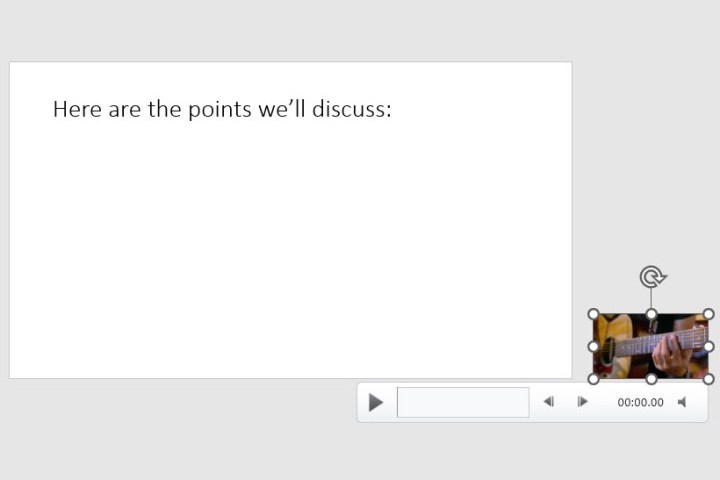
Video resized and moved off the slide.

Step 5: Select the video and use the Playback tab to adjust the options for playing it when clicking the slide or automatically.

You can also fully embed a video within a PowerPoint presentation.

Play the song or use as background music

Once you add the music to PowerPoint, you can set it to play on a single slide or last the duration of the presentation.

Step 1: Go to the slide containing the music and select it.

Note: If you want the music to play in the background throughout the slideshow, you’ll likely want the file on the first or second slide per your preference.

Step 2: Head to the Playback tab and choose to play the song with the slide or as background music.

Step 3: To play the song only on that slide, choose the Start drop-down box in the Audio options section of the ribbon and pick how you want the music to begin. You can select In click sequence, Automatically, or When clicked on. When you advance to the next slide, the song stops playing.
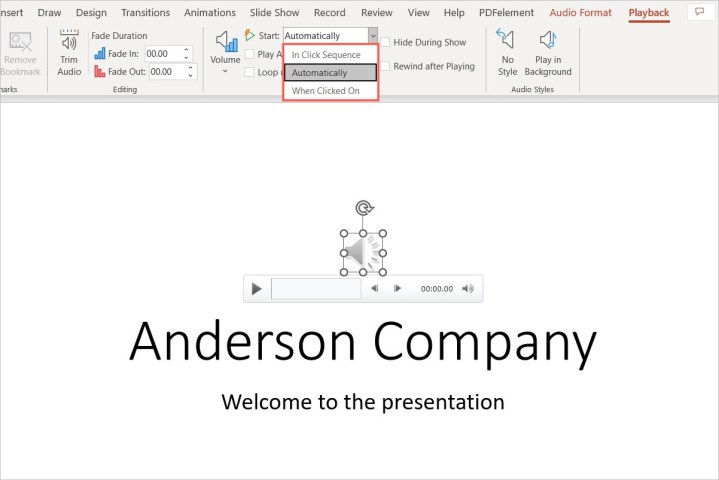
Start actions to play a song on a slide.

Step 4: To play the song throughout the presentation, select Play in background in the Audio styles section. This automatically checks the boxes for Play across slides and Loop until stopped. You can also choose an option in the Start drop-down box for how to begin playing the song.

Keep in mind this only works with audio files, not the video file method described above.
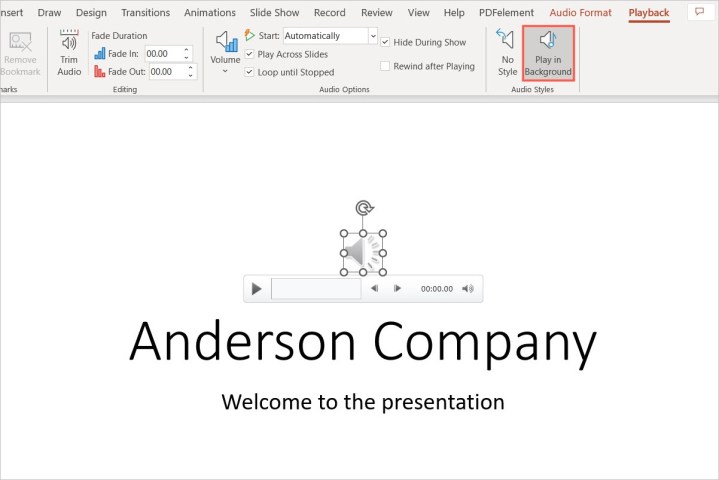
Play in Background button in the PowerPoint ribbon.

Step 5: Adjust any other options on the Playback tab per your preference. You can increase or decrease the volume, rewind the song after it plays, or add a fade in or out effect.

It isn’t only music you can add to your presentations. Here’s how to add different types of audio to Microsoft PowerPoint.




Share. Facebook Twitter Pinterest LinkedIn Tumblr Email
Previous ArticleSamsung Galaxy M05 Official Support Page Goes Live in India; May Launch Soon
Next Article How to add audio to PowerPoint

Related Articles

SpaceX wants to take on Verizon, AT&T, and T-Mobile with its own mobile network
News

SpaceX wants to take on Verizon, AT&T, and T-Mobile with its own mobile network

6 August 2026
MAGA Is In Turmoil Over Tucker Carlson’s Possible 2028 Presidential Bid
News

MAGA Is In Turmoil Over Tucker Carlson’s Possible 2028 Presidential Bid

6 August 2026
A cheaper Galaxy Watch with more than a week of battery life may be in the works
News

A cheaper Galaxy Watch with more than a week of battery life may be in the works

6 August 2026
TikTok Says ‘Moderator Error’ Kept Perez Hilton Livestream Up
News

TikTok Says ‘Moderator Error’ Kept Perez Hilton Livestream Up

6 August 2026
Google Home’s Interactive Storytime feature has me wondering who actually asked for this
News

Google Home’s Interactive Storytime feature has me wondering who actually asked for this

6 August 2026
Welp, Nobody Saw SpaceX’s Falcon 9 Rocket Crash Into the Moon
News

Welp, Nobody Saw SpaceX’s Falcon 9 Rocket Crash Into the Moon

6 August 2026
Demo
Top Articles
5 laptops to buy instead of the M4 MacBook Pro

5 laptops to buy instead of the M4 MacBook Pro

17 November 2024133 Views
ChatGPT o1 vs. o1-mini vs. 4o: Which should you use?

ChatGPT o1 vs. o1-mini vs. 4o: Which should you use?

15 December 2024111 Views
Costco partners with Electric Era to bring back EV charging in the U.S.

Costco partners with Electric Era to bring back EV charging in the U.S.

28 October 2024100 Views

Subscribe to Updates

Get the latest tech news and updates directly to your inbox.

Latest News
Welp, Nobody Saw SpaceX’s Falcon 9 Rocket Crash Into the Moon News

Welp, Nobody Saw SpaceX’s Falcon 9 Rocket Crash Into the Moon

News Room6 August 2026
This new technology could make spotting fake products easier for everyone News

This new technology could make spotting fake products easier for everyone

News Room6 August 2026
OpenAI’s Browser Could Be Hijacked to Spam Your WhatsApp Contacts News

OpenAI’s Browser Could Be Hijacked to Spam Your WhatsApp Contacts

News Room6 August 2026
Most Popular
The Spectacular Burnout of a Solar Panel Salesman

The Spectacular Burnout of a Solar Panel Salesman

13 January 2025137 Views
5 laptops to buy instead of the M4 MacBook Pro

5 laptops to buy instead of the M4 MacBook Pro

17 November 2024133 Views
ChatGPT o1 vs. o1-mini vs. 4o: Which should you use?

ChatGPT o1 vs. o1-mini vs. 4o: Which should you use?

15 December 2024111 Views
Our Picks
TikTok Says ‘Moderator Error’ Kept Perez Hilton Livestream Up

TikTok Says ‘Moderator Error’ Kept Perez Hilton Livestream Up

6 August 2026
Google Home’s Interactive Storytime feature has me wondering who actually asked for this

Google Home’s Interactive Storytime feature has me wondering who actually asked for this

6 August 2026
Welp, Nobody Saw SpaceX’s Falcon 9 Rocket Crash Into the Moon

Welp, Nobody Saw SpaceX’s Falcon 9 Rocket Crash Into the Moon

6 August 2026

Subscribe to Updates

Get the latest tech news and updates directly to your inbox.

Facebook X (Twitter) Instagram Pinterest
  • Privacy Policy
  • Terms of use
  • Advertise
  • Contact Us
© 2026 Best in Technology. All Rights Reserved.

Type above and press Enter to search. Press Esc to cancel.