




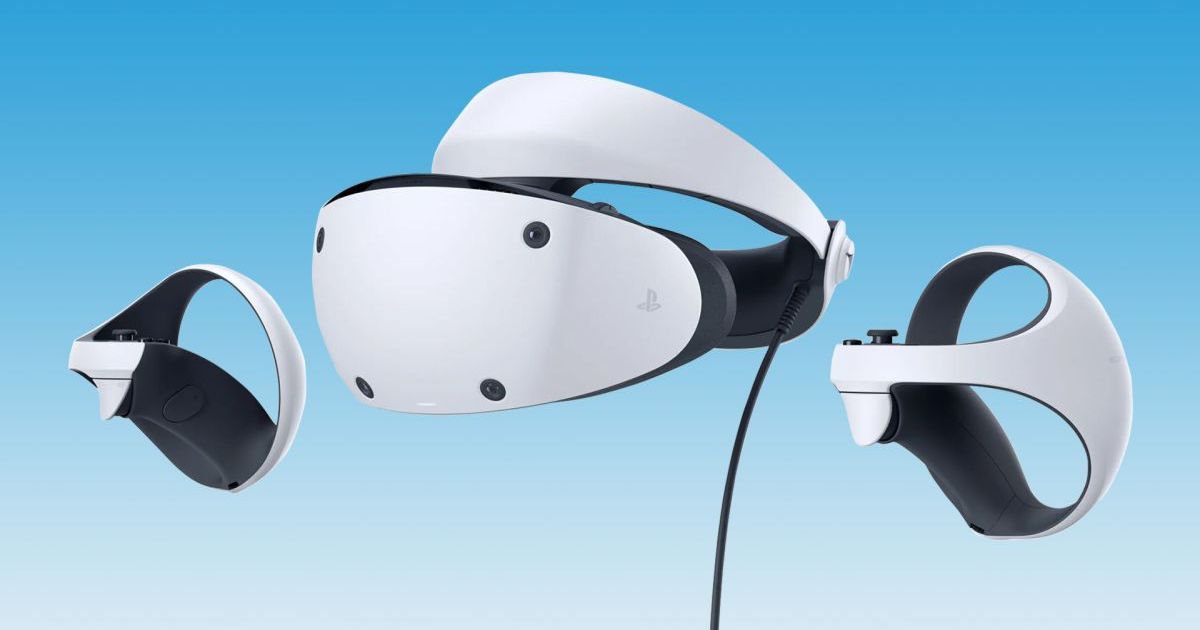
The hype around PSVR 2 has largely died off just a year after its launch, though there’s no denying it’s a cool piece of tech. Making big strides from the original PSVR, the latest headset from Sony offers better graphics, improved tracking capabilities, and introduced the world to the sleek new Sense controllers, which make it easier than ever to interact with your virtual world.
But, like all new pieces of tech, PSVR 2 isn’t without its issues. From faulty Sense controllers to blurry images, here’s a look at the most common PSVR 2 issues and how to fix them. Many of these steps will also work with PSVR, though note the menu navigation might be slightly different.
Your Sense controller isn’t working properly
If your Sense controller is acting funky and not registering the correct motions (or isn’t tracking input at all), you won’t have much success trying to play games.
Solutions:
The best option here is to perform a reset. A reset can be carried by out following these steps.
- Turn off your PS5 console.
- Find the tiny reset button on your Sense controller. It’s located on the back of the unit.
- Using a small pin, press the reset button and hold it for a few seconds.
- Connect your Sense controller to your PS5 with the included USB cable.
- Press the PS button to sync them together.
Your headset has tracking issues
If your PlayStation VR headset isn’t tracking your movement properly, you might see your in-game avatar is moving without your direct input.
Solutions:
The problem could be related to lighting, so make sure you have all the lights turned on in the room that you’re playing in. Tracking issues can happen for a variety of reasons, however, so don’t lose hope if the first few solutions don’t work for you.
- Make sure that no other light source is interfering with the PlayStation VR headset or camera. Sony has noted that the tracking issue can stem from light reflecting off a window or mirror, so if possible, cover these up.
- If your lights don’t appear to be the problem, make sure you’re within the designated play area.
- If the aforementioned steps don’t work, wipe down the headset with a cloth to try and remove any debris from its cameras. The problem could be caused by a dirty lens.
- A variety of Bluetooth devices can interfere with your headset’s signal. Make sure that all controllers — including any PlayStation Move controllers — are tied to the same user account as your headset and controllers.
- If none of these steps solve your problem, then your tracking issues are likely caused by a hardware problem.
Headset won’t power on or turns off
Perhaps one of the issues you’re running into has to do with turning the headset on or off. There are several cables that must be plugged into your headset for the system to work properly. Ensure these are correctly connected before you start troubleshooting your headset.
Solutions:
If your headset is plugged in correctly and won’t turn on, the problem could stem from either the PSVR system software or a piece of hardware.
- Update the PSVR 2 system software before you try any other steps. This is typically handled automatically, though you can dive into your Settings menu to check your current version.
- Ensure all cables are plugged in correctly. Then, try all other additional cables to make sure they aren’t causing the problem.
- If these steps don’t work, your headset likely needs to be repaired. To set up a repair, contact Sony using the following number: 1-800-345-7669.
On-screen image is blurry
PSVR 2 is capable of producing sharp images, but if you’re seeing pictures that are a bit fuzzy and not as vivid as you’d expect, there’s likely a setting that needs to be adjusted.
Solutions:
You should be able to eradicate any blurry images in just a few minutes by checking a few settings and properly adjusting the PSVR to fit your head. This will likely have to be done again if a different player wears the headset.
- Press the PS button to load the PSVR 2 Activity Card. Next, select Adjust Visibility. You’ll then be walked through the process to clear up your blurry images.
- Alternatively, try repositioning the headset on your face, as it’s possible that the headset isn’t aligned properly with your eyes and is causing your screens to look blurry.
PlayStation VR2 is making you sick
VR sickness is a very common occurrence, particularly with people who experience motion sickness while on roller coasters and in high-speed vehicles. The caveat of immersive virtual reality is that it can affect your equilibrium and balance, causing you to feel queasy when you are, in fact, completely motionless.
Solutions:
No single solution is going to alleviate everyone’s VR-induced nausea, but there are a few steps you’ll want to try in order to make your PSVR 2 experience as pleasant and vomit-free as possible.
- Don’t play standing up. Many PSVR 2 games are meant to be played sitting down. If you’re feeling nauseous and your sense of balance is already off, you risk not only exacerbating the sickness but also injuring yourself.
- If you start to feel sick, we highly recommend that you don’t ignore those feelings. Try to close your eyes and take a few deep breaths to see if you can settle the nauseousness.
- Test out a couple of natural remedies. Peppermint and ginger both have fantastic reputations for helping relieve nausea symptoms, and you can mix these spices in with teas or other foods pretty easily.
- Dramamine is an effective and popular over-the-counter medication to assist with nausea relief and motion sickness. If your natural remedies aren’t helping, and the problem isn’t going away on its own, this medication could be useful. Manufacturers first created the product to ward off carsickness, seasickness, or airsickness, but it’s also useful in VR. This medication does often cause pretty significant drowsiness, so don’t take it if you have to drive or operate heavy machinery. Kids under 12 shouldn’t take the full adult dosage; To be safe, they can try the children’s formula.
- Consider starting with less-intense virtual reality games or experiences. Games that let you sit down and don’t require constant movement are likely the best option. Meanwhile, games that have you constantly running around, require you to look side to side or up and down, or place you in vertigo-inducing environments aren’t ideal for VR newcomers
Editors’ Recommendations