


Close Menu
Best in TechnologyBest in Technology
  • News
  • Phones
  • Laptops
  • Gadgets
  • Gaming
  • AI
  • Tips
  • More
    • Web Stories
    • Global
    • Press Release

Subscribe to Updates

Get the latest tech news and updates directly to your inbox.

What's On
Forget the Pixel 11, I can’t stop looking at these PixelSnap accessories

Forget the Pixel 11, I can’t stop looking at these PixelSnap accessories

13 August 2026
McDonald’s Built a 515-Page Dossier on Me. It Says I’ll Never Stop Eating There

McDonald’s Built a 515-Page Dossier on Me. It Says I’ll Never Stop Eating There

13 August 2026
Asus made an e-bike conversion kit compact enough to slip into a backpack

Asus made an e-bike conversion kit compact enough to slip into a backpack

13 August 2026
Facebook X (Twitter) Instagram
Just In
  • Forget the Pixel 11, I can’t stop looking at these PixelSnap accessories
  • McDonald’s Built a 515-Page Dossier on Me. It Says I’ll Never Stop Eating There
  • Asus made an e-bike conversion kit compact enough to slip into a backpack
  • Oh Lord, AI Reporters Are Actually Breaking Big News
  • PlayStation Plus just added two of the best games you can play right now
  • Review: Ego 1300 Electric Lawn Mower
  • The AI Sales Engineer Is Moving Into the Meeting
  • The Best Photos of the Big August Solar Eclipse
Facebook X (Twitter) Instagram Pinterest Vimeo
Best in TechnologyBest in Technology
  • News
  • Phones
  • Laptops
  • Gadgets
  • Gaming
  • AI
  • Tips
  • More
    • Web Stories
    • Global
    • Press Release
Subscribe
Best in TechnologyBest in Technology
Home » How to create a folder in Google Docs
News

How to create a folder in Google Docs

News RoomBy News Room26 March 20244 Mins Read
Share Facebook Twitter Pinterest LinkedIn Tumblr Reddit Telegram Email
How to create a folder in Google Docs
Share
Facebook Twitter LinkedIn Pinterest Email

If you’ve never used Google Docs or Google Drive before, it’s completely free to get started, and there’s an entire world of web-connected features you’ll be able to use, both online and offline.

Your Google Docs dashboard can be optimized and organized by way of helpful filters, settings, and the classic PC tidy-up tool — digitized folders. Making a new folder in Google Docs is pretty simple, but we thought it best to create this step-by-step guide for reference. On top of detailed instructions, we’ll also answer some of your frequently asked questions about creating folders in Google Docs.

How to create a folder in Google Docs

Before we lay out the steps to do so, it’s important to highlight the fact that Google has decided to restrict folders exclusively to your Google Drive account. So when you do create a folder within Google Docs, remember its primary location will be situated within Drive instead of the former.

Alternatively, if you’re signed into Google Drive, you can click the New icon at the the top-left corner of the screen, then click New Folder. You can also upload one by clicking Upload folder.

Step 1: Open a new document or open an existing one within Google Docs.

Step 2: Next to the document’s title setting, a small folder button will appear that’s titled Move when hovering over it. Click that icon.

Step 3: Now select the New Folder button at the bottom of the window.
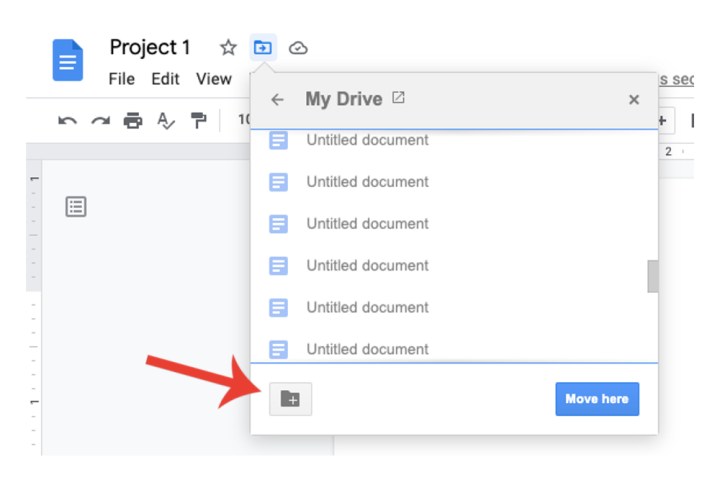
The create new folder button within a Google Docs document.

Step 4: The title of Untitled Folder will automatically be entered and highlighted in the title field. Type an appropriate name for your folder.

Step 5: Click the blue-tick icon box next to the title field.
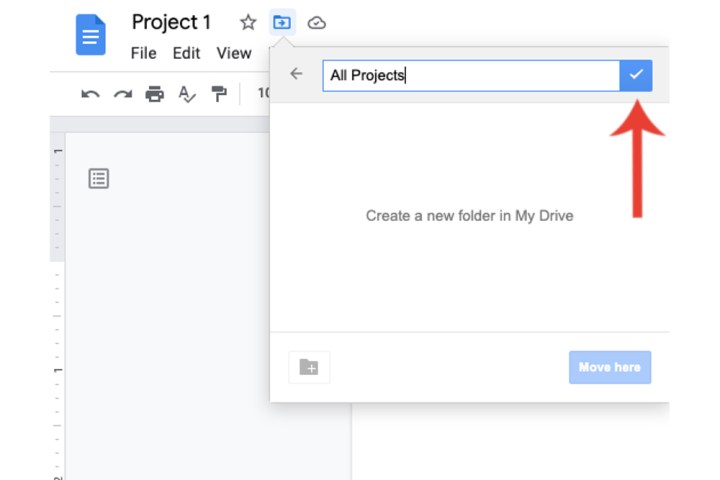
The Create New Folder button next to the folder’s title button on Google Docs.

Step 6: Select the Move Here button.

The Move Here button on Google Docs when moving a document to a folder.

How to access folders in Google Docs

Now that you’ve created a folder in Google Docs, how do you access it? Conveniently, you don’t need to switch back and forth between Google Drive and Docs to do so.

Step 1: Head to the main home page of Google Docs where it lists all your documents. Next to the Grid View and Sort Options menus, click Open File Picker.

The Open file picker button on Google Docs.

Step 2: Google Docs will now list all the folders contained within your Google Drive account. The Documents file type will automatically be selected. Select a folder where you saved your document to by double-clicking it or selecting it once and using the Open option at the bottom.

Here, you’ll see any files you moved to the folder. Double-click the document of your choice to open it within Google Docs.

Accessing a folder within Google Docs.

How many folders can I make in Google Docs?

There’s no cap on how many folders you can make in Google Docs, but there is a limit on your Google account’s storage space. By default, every new Google user receives 15GB of cloud storage that is shared across Gmail, Google Drive, and Google Photos. Once this storage limit is met, you’ll need to either delete some files, or start transferring data to external flash drives, or HDDs.

How do I get more storage space on Google Drive?

You can add additional storage to your Google account by signing up for a Google One plan.

Right now, the Basic plan is only $0.49 per month for the first three months, then $1.99 per month for the rest of the year (or $20 annually). The Basic plan includes 100GB of storage, VPN access, and other Google benefits.

If you want even more storage, there’s also the Premium plan, which is currently marked down to $2.49 per month for the first three months, then $9.99 per month until year’s end (or $100 annually). Not only do you get 2TB of storage at this tier (in addition to all the same benefits as the Basic plan), but you’ll also be able to share your subscription with up to five other users.

For more tips on how to make the most of Google Docs, head over to our guide on how to use Google Docs.

Editors’ Recommendations


Share. Facebook Twitter Pinterest LinkedIn Tumblr Email
Previous ArticleSamsung One UI 6.1 With Galaxy AI Might Debut on Galaxy S23 Series This Week
Next Article Poco C61 With MediaTek Helio G36 SoC, 5,000mAh Battery Launched in India: Price, Specifications

Related Articles

Forget the Pixel 11, I can’t stop looking at these PixelSnap accessories
News

Forget the Pixel 11, I can’t stop looking at these PixelSnap accessories

13 August 2026
McDonald’s Built a 515-Page Dossier on Me. It Says I’ll Never Stop Eating There
News

McDonald’s Built a 515-Page Dossier on Me. It Says I’ll Never Stop Eating There

13 August 2026
Asus made an e-bike conversion kit compact enough to slip into a backpack
News

Asus made an e-bike conversion kit compact enough to slip into a backpack

13 August 2026
Oh Lord, AI Reporters Are Actually Breaking Big News
News

Oh Lord, AI Reporters Are Actually Breaking Big News

13 August 2026
PlayStation Plus just added two of the best games you can play right now
News

PlayStation Plus just added two of the best games you can play right now

13 August 2026
Review: Ego 1300 Electric Lawn Mower
News

Review: Ego 1300 Electric Lawn Mower

13 August 2026
Demo
Top Articles
5 laptops to buy instead of the M4 MacBook Pro

5 laptops to buy instead of the M4 MacBook Pro

17 November 2024133 Views
ChatGPT o1 vs. o1-mini vs. 4o: Which should you use?

ChatGPT o1 vs. o1-mini vs. 4o: Which should you use?

15 December 2024112 Views
Costco partners with Electric Era to bring back EV charging in the U.S.

Costco partners with Electric Era to bring back EV charging in the U.S.

28 October 2024100 Views

Subscribe to Updates

Get the latest tech news and updates directly to your inbox.

Latest News
Review: Ego 1300 Electric Lawn Mower News

Review: Ego 1300 Electric Lawn Mower

News Room13 August 2026
The AI Sales Engineer Is Moving Into the Meeting News

The AI Sales Engineer Is Moving Into the Meeting

News Room13 August 2026
The Best Photos of the Big August Solar Eclipse News

The Best Photos of the Big August Solar Eclipse

News Room13 August 2026
Most Popular
The Spectacular Burnout of a Solar Panel Salesman

The Spectacular Burnout of a Solar Panel Salesman

13 January 2025137 Views
5 laptops to buy instead of the M4 MacBook Pro

5 laptops to buy instead of the M4 MacBook Pro

17 November 2024133 Views
ChatGPT o1 vs. o1-mini vs. 4o: Which should you use?

ChatGPT o1 vs. o1-mini vs. 4o: Which should you use?

15 December 2024112 Views
Our Picks
Oh Lord, AI Reporters Are Actually Breaking Big News

Oh Lord, AI Reporters Are Actually Breaking Big News

13 August 2026
PlayStation Plus just added two of the best games you can play right now

PlayStation Plus just added two of the best games you can play right now

13 August 2026
Review: Ego 1300 Electric Lawn Mower

Review: Ego 1300 Electric Lawn Mower

13 August 2026

Subscribe to Updates

Get the latest tech news and updates directly to your inbox.

Facebook X (Twitter) Instagram Pinterest
  • Privacy Policy
  • Terms of use
  • Advertise
  • Contact Us
© 2026 Best in Technology. All Rights Reserved.

Type above and press Enter to search. Press Esc to cancel.