



Close Menu
Best in TechnologyBest in Technology
  • News
  • Phones
  • Laptops
  • Gadgets
  • Gaming
  • AI
  • Tips
  • More
    • Web Stories
    • Global
    • Press Release

Subscribe to Updates

Get the latest tech news and updates directly to your inbox.

What's On
Minecraft is coming to Switch 2, and even the Creepers are getting prettier

Minecraft is coming to Switch 2, and even the Creepers are getting prettier

6 August 2026
Two Fossil Fuel Companies Are Betting Big on Data Centers

Two Fossil Fuel Companies Are Betting Big on Data Centers

6 August 2026
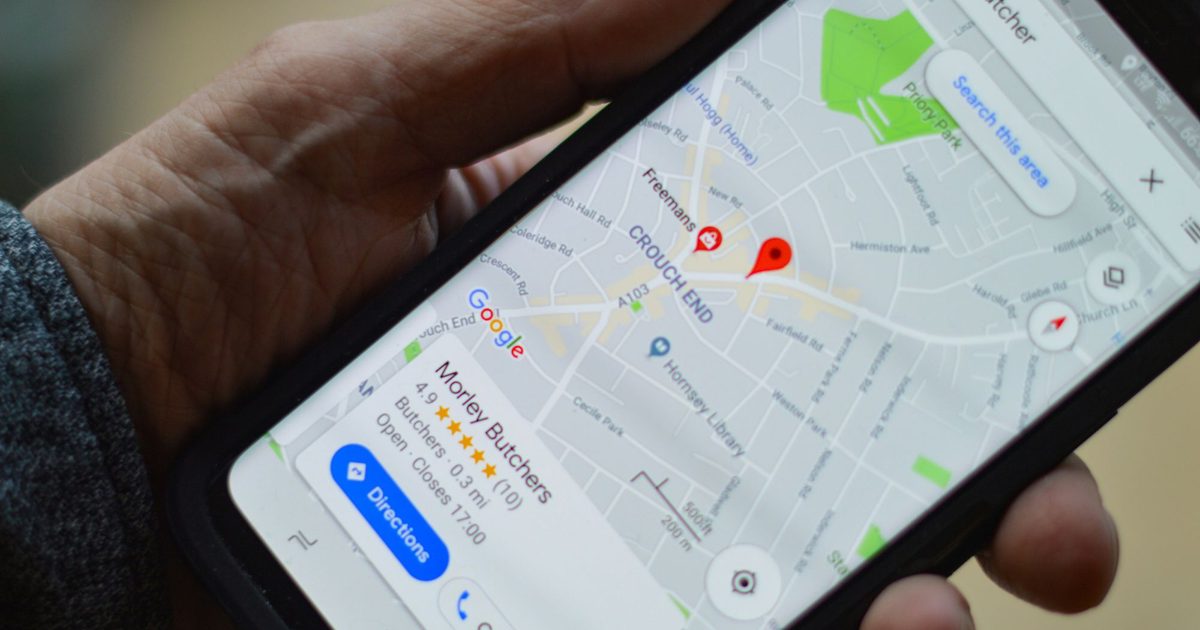
Google Maps is getting dangerously good at planning your day

Google Maps is getting dangerously good at planning your day

6 August 2026
Facebook X (Twitter) Instagram
Just In
  • Minecraft is coming to Switch 2, and even the Creepers are getting prettier
  • Two Fossil Fuel Companies Are Betting Big on Data Centers
  • Google Maps is getting dangerously good at planning your day
  • Review: Samsung G8 6K Gaming Monitor
  • Bose reveals second-gen QuietComfort Headphones and they steal some of the Ultra’s tricks.
  • Microsoft’s Quantum Chief Doesn’t Care That Scientists Don’t Believe His Results
  • Grand Theft Auto VI Is Getting An ‘Extended Look’ On Netflix
  • Pubs and restaurants are treating Meta’s smart glasses like hidden cameras, and I’m completely on board
Facebook X (Twitter) Instagram Pinterest Vimeo
Best in TechnologyBest in Technology
  • News
  • Phones
  • Laptops
  • Gadgets
  • Gaming
  • AI
  • Tips
  • More
    • Web Stories
    • Global
    • Press Release
Subscribe
Best in TechnologyBest in Technology
Home » How to Download All of Your TikTok Videos
News

How to Download All of Your TikTok Videos

News RoomBy News Room13 March 20244 Mins Read
Share Facebook Twitter Pinterest LinkedIn Tumblr Reddit Telegram Email
How to Download All of Your TikTok Videos
Share
Facebook Twitter LinkedIn Pinterest Email

Next, an array of sharing options pop up. You can choose the email option to send the file to yourself as an attachment, or upload it to a cloud service like Google Drive. To directly download the file, swipe to the end of the Share To options and tap More. There will be even more options. Look for options that allow you to save the video locally.

On Android, the best option for saving it to your phone will be labeled Files by Google. Tap this icon to download the video to your phone, then use Android’s built-in Files app to browse your downloads. On iOS, look for the option Save to Files, then choose to save the video either in your device’s internal storage or in your iCloud drive.

Download TikTok Videos to Your Computer

The simplest option for collecting your work is to download the videos from TikTok’s website or desktop app. This process is very easy compared to the mobile option.

Go to your favorite video on TikTok.com and right-click on it. If you’re looking at your own video and you’re logged in to your account, or if the video’s creator has marked their posts as downloadable, there will be an option in the right-click menu that says Download Video.

Click that option.

Congrats, you’ve done it! The video will be saved as an MP4 in your downloads folder.

If you don’t see the option to download the video when you right-click, that probably means the video’s creator hasn’t shared the video publicly or has chosen to disallow downloads.

Use Screen Record

It’s not the tidiest option, but you can also record a copy of the video via screen record on your phone. Screen record basically takes a video screenshot; once turned on, it will record whatever is playing on your screen until you hit Stop. Play the TikTok clip while screen recording and you’ll have a quick-and-dirty copy saved to your device.

You’ll need to play the video all the way through in real time. Keep in mind that this will capture everything that happens on the screen while you’re recording, so if a notification pops up or you swipe to another app, that will all be in the video. It also means you’ll still see all the menu buttons and text that are normally around the edges of the screen in a TikTok video, so it won’t be a perfectly clean copy of the video. But it’s better than nothing.

You can record your screen on iOS and on Android phones with Android 11 or higher.

On iOS, go into Settings, then Control Center. Tap the green plus sign Add button next to the Screen Recording option. This will add a little gray-dot icon button to your homescreen. Tap that and Screen Recording will start.

On Android, swipe down from the top of your screen to bring up your notifications and settings screen. From there, you might have to expand the menu at top and swipe through your settings widgets. Look for Screen Record. Tap that and you’ll have options to record device audio and whether to show touches on the screen. Tap start to record.

What’s With the Watermark?

If you’ve downloaded your videos, you probably noticed the faint TikTok watermark in the frame. This watermark will appear in any videos you’ve published as well as in videos you download from other creators. Unfortunately, there’s no official way to download a video directly from the platform after it’s been posted without that watermark being applied. If a video is still in your drafts in the TikTok app—meaning you’ve shot and edited it but not posted it yet—you can select the Save Video option and download a version of it without the watermark.

In general, if you’re creating videos, your best bet is to use a separate video editing app to edit your video before posting it online. That way you’ll always have the original cut and not have to worry about whether your distribution platform—and all your hard work—is about to suddenly go poof.


Share. Facebook Twitter Pinterest LinkedIn Tumblr Email
Previous ArticleUnicorn Overlord Review
Next Article The best horses in The Legend of Zelda: Breath of the Wild

Related Articles

Minecraft is coming to Switch 2, and even the Creepers are getting prettier
News

Minecraft is coming to Switch 2, and even the Creepers are getting prettier

6 August 2026
Two Fossil Fuel Companies Are Betting Big on Data Centers
News

Two Fossil Fuel Companies Are Betting Big on Data Centers

6 August 2026
Google Maps is getting dangerously good at planning your day
News

Google Maps is getting dangerously good at planning your day

6 August 2026
Review: Samsung G8 6K Gaming Monitor
News

Review: Samsung G8 6K Gaming Monitor

6 August 2026
Bose reveals second-gen QuietComfort Headphones and they steal some of the Ultra’s tricks.
News

Bose reveals second-gen QuietComfort Headphones and they steal some of the Ultra’s tricks.

6 August 2026
Microsoft’s Quantum Chief Doesn’t Care That Scientists Don’t Believe His Results
News

Microsoft’s Quantum Chief Doesn’t Care That Scientists Don’t Believe His Results

6 August 2026
Demo
Top Articles
5 laptops to buy instead of the M4 MacBook Pro

5 laptops to buy instead of the M4 MacBook Pro

17 November 2024133 Views
ChatGPT o1 vs. o1-mini vs. 4o: Which should you use?

ChatGPT o1 vs. o1-mini vs. 4o: Which should you use?

15 December 2024111 Views
Costco partners with Electric Era to bring back EV charging in the U.S.

Costco partners with Electric Era to bring back EV charging in the U.S.

28 October 2024100 Views

Subscribe to Updates

Get the latest tech news and updates directly to your inbox.

Latest News
Microsoft’s Quantum Chief Doesn’t Care That Scientists Don’t Believe His Results News

Microsoft’s Quantum Chief Doesn’t Care That Scientists Don’t Believe His Results

News Room6 August 2026
Grand Theft Auto VI Is Getting An ‘Extended Look’ On Netflix Gaming

Grand Theft Auto VI Is Getting An ‘Extended Look’ On Netflix

News Room6 August 2026
Pubs and restaurants are treating Meta’s smart glasses like hidden cameras, and I’m completely on board News

Pubs and restaurants are treating Meta’s smart glasses like hidden cameras, and I’m completely on board

News Room6 August 2026
Most Popular
The Spectacular Burnout of a Solar Panel Salesman

The Spectacular Burnout of a Solar Panel Salesman

13 January 2025137 Views
5 laptops to buy instead of the M4 MacBook Pro

5 laptops to buy instead of the M4 MacBook Pro

17 November 2024133 Views
ChatGPT o1 vs. o1-mini vs. 4o: Which should you use?

ChatGPT o1 vs. o1-mini vs. 4o: Which should you use?

15 December 2024111 Views
Our Picks
Review: Samsung G8 6K Gaming Monitor

Review: Samsung G8 6K Gaming Monitor

6 August 2026
Bose reveals second-gen QuietComfort Headphones and they steal some of the Ultra’s tricks.

Bose reveals second-gen QuietComfort Headphones and they steal some of the Ultra’s tricks.

6 August 2026
Microsoft’s Quantum Chief Doesn’t Care That Scientists Don’t Believe His Results

Microsoft’s Quantum Chief Doesn’t Care That Scientists Don’t Believe His Results

6 August 2026

Subscribe to Updates

Get the latest tech news and updates directly to your inbox.

Facebook X (Twitter) Instagram Pinterest
  • Privacy Policy
  • Terms of use
  • Advertise
  • Contact Us
© 2026 Best in Technology. All Rights Reserved.

Type above and press Enter to search. Press Esc to cancel.