Close Menu
Best in TechnologyBest in Technology
  • News
  • Phones
  • Laptops
  • Gadgets
  • Gaming
  • AI
  • Tips
  • More
    • Web Stories
    • Global
    • Press Release

Subscribe to Updates

Get the latest tech news and updates directly to your inbox.

What's On
The Search for Another Earth-Like Planet Just Took a Big Step Forward

The Search for Another Earth-Like Planet Just Took a Big Step Forward

19 July 2026
OnePlus is gone, and Android phones just became more boring in the US

OnePlus is gone, and Android phones just became more boring in the US

19 July 2026
How To Watch the 2026 FIFA World Cup Finals: Spain vs. Argentina

How To Watch the 2026 FIFA World Cup Finals: Spain vs. Argentina

19 July 2026
Facebook X (Twitter) Instagram
Just In
  • The Search for Another Earth-Like Planet Just Took a Big Step Forward
  • OnePlus is gone, and Android phones just became more boring in the US
  • How To Watch the 2026 FIFA World Cup Finals: Spain vs. Argentina
  • A niche iPhone browser quietly fixes my biggest problem with Google Search
  • Imagine a DualSense controller with a detachable touchscreen — that’s Sony’s latest idea
  • If you absolutely love pinball, this app will find you a table wherever you go
  • Apple is finally removing AI apps that can digitally undress anyone
  • Top phone brands should learn how to deck out a flagship without nuking our wallets
Facebook X (Twitter) Instagram Pinterest Vimeo
Best in TechnologyBest in Technology
  • News
  • Phones
  • Laptops
  • Gadgets
  • Gaming
  • AI
  • Tips
  • More
    • Web Stories
    • Global
    • Press Release
Subscribe
Best in TechnologyBest in Technology
Home » How to delete apps on an Apple TV
News

How to delete apps on an Apple TV

News RoomBy News Room8 February 20243 Mins Read
Share Facebook Twitter Pinterest LinkedIn Tumblr Reddit Telegram Email
How to delete apps on an Apple TV
Share
Facebook Twitter LinkedIn Pinterest Email

Apple TV is easily one of the best streaming devices you can get, hands down. It’s a gateway to all your streaming services like Netflix and Disney+, and it can be used for gaming, fitness, music streaming, and other fun and helpful apps. But therein lies the problem — there’s almost too much to do with the Apple TV, so much so that over time, your device’s home screen can get pretty crowded with apps.

The good news is that you can clean things up pretty easily, either by offloading apps you don’t use, but want to keep in the background, or giving the ax to apps that you’re just done with. Here’s how to delete apps on Apple TV.

How do I delete an app on Apple TV?

It’s time to cull your app herd, and it’s easy to do. But don’t worry, you canc any apps you delete without needing to purchase them again, but keep in mind that deleting an app will also remove its data, which may not be recovered.

Certain apps, like Apple’s own native apps such as Podcasts, Fitness, or Apple Music, can’t be deleted at all, but can be moved into folders to organize things better or keep them out of sight. But first, here’s how to delete an app from your Apple TV.

Step 1: From your Apple TV’s Home Screen, scroll over or down to find the app that you want to uninstall, and hover over it with your remote cursor.

Step 2: Press and hold down the remote’s Select button for a couple of seconds until a menu appears. On newer Siri remotes, that button is the center of the clickpad at the top of the remote. On older Siri remotes, you’ll want to press down on the middle of the touch surface without moving.
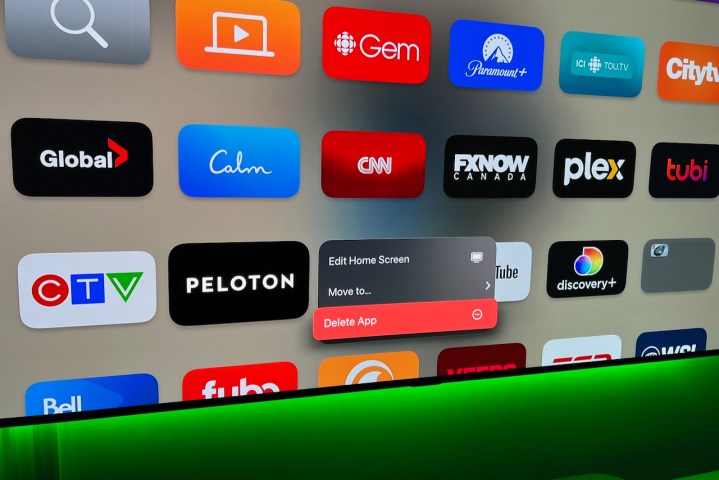
How to delete apps from Apple TV.

Step 3: The menu will give you options to Edit Home Screen, allowing you to move the app icon to another location; Move to…, which lets you create a new folder to group similar apps in (just like on your iPhone) or move the app to an existing folder; and finally, Delete App, which is why you’ve come here.

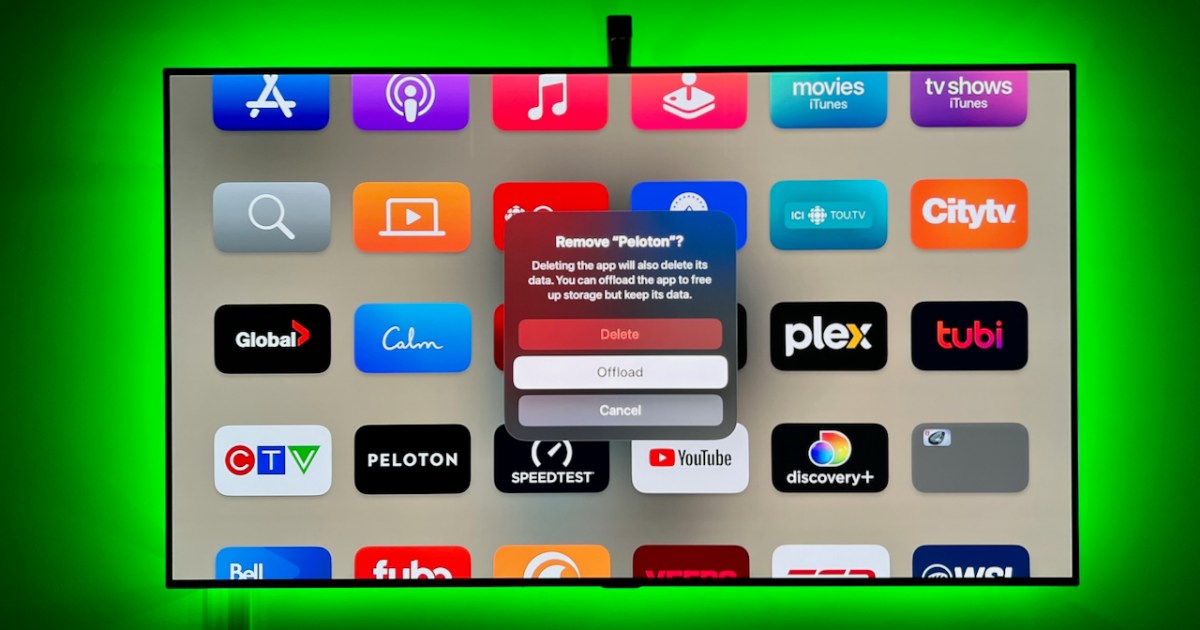
Step 4: Choose Delete from the new menu and you’ll have the option to delete the app or Offload the app (you can no longer hide apps on Apple TV via the Settings menus. Offloading apps keeps the icon on your device, but effectively removes the app). Select Delete and the app is gone.
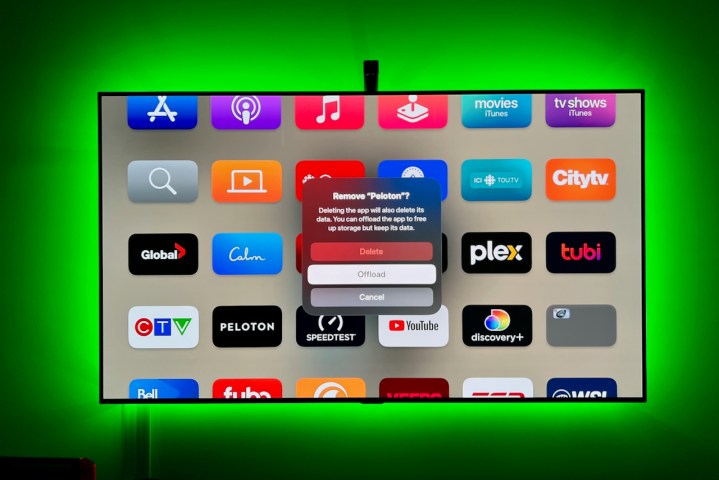
How to delete apps from Apple TV.

Additionally, if you are using multiple Apple TVs on different screens, you’ll want to go to the Users and Accounts section in Settings, choose your profile, and enable the option One Home Screen. This will sync up any changes that you make to apps and your Home Screen on one device to all your other tvOS devices, so you don’t have to repeat the steps.

One final note — you can switch between light and dark modes on Apple TV using the Appearance option in the General section of Settings. This may make navigation easier, or could help you find the apps you are looking for more quickly. You can also use automatic mode, which switches to dark mode at night.

Editors’ Recommendations


Share. Facebook Twitter Pinterest LinkedIn Tumblr Email
Previous ArticleSlack Is Turning 10 Years Old, and Wow Has It Changed Everything
Next Article OpenAI Wants to Control Your Computer

Related Articles

The Search for Another Earth-Like Planet Just Took a Big Step Forward
News

The Search for Another Earth-Like Planet Just Took a Big Step Forward

19 July 2026
OnePlus is gone, and Android phones just became more boring in the US
News

OnePlus is gone, and Android phones just became more boring in the US

19 July 2026
How To Watch the 2026 FIFA World Cup Finals: Spain vs. Argentina
News

How To Watch the 2026 FIFA World Cup Finals: Spain vs. Argentina

19 July 2026
A niche iPhone browser quietly fixes my biggest problem with Google Search
News

A niche iPhone browser quietly fixes my biggest problem with Google Search

19 July 2026
Imagine a DualSense controller with a detachable touchscreen — that’s Sony’s latest idea
News

Imagine a DualSense controller with a detachable touchscreen — that’s Sony’s latest idea

19 July 2026
If you absolutely love pinball, this app will find you a table wherever you go
News

If you absolutely love pinball, this app will find you a table wherever you go

19 July 2026
Demo
Top Articles
5 laptops to buy instead of the M4 MacBook Pro

5 laptops to buy instead of the M4 MacBook Pro

17 November 2024133 Views
ChatGPT o1 vs. o1-mini vs. 4o: Which should you use?

ChatGPT o1 vs. o1-mini vs. 4o: Which should you use?

15 December 2024111 Views
Costco partners with Electric Era to bring back EV charging in the U.S.

Costco partners with Electric Era to bring back EV charging in the U.S.

28 October 2024100 Views

Subscribe to Updates

Get the latest tech news and updates directly to your inbox.

Latest News
If you absolutely love pinball, this app will find you a table wherever you go News

If you absolutely love pinball, this app will find you a table wherever you go

News Room19 July 2026
Apple is finally removing AI apps that can digitally undress anyone News

Apple is finally removing AI apps that can digitally undress anyone

News Room19 July 2026
Top phone brands should learn how to deck out a flagship without nuking our wallets News

Top phone brands should learn how to deck out a flagship without nuking our wallets

News Room19 July 2026
Most Popular
The Spectacular Burnout of a Solar Panel Salesman

The Spectacular Burnout of a Solar Panel Salesman

13 January 2025137 Views
5 laptops to buy instead of the M4 MacBook Pro

5 laptops to buy instead of the M4 MacBook Pro

17 November 2024133 Views
ChatGPT o1 vs. o1-mini vs. 4o: Which should you use?

ChatGPT o1 vs. o1-mini vs. 4o: Which should you use?

15 December 2024111 Views
Our Picks
A niche iPhone browser quietly fixes my biggest problem with Google Search

A niche iPhone browser quietly fixes my biggest problem with Google Search

19 July 2026
Imagine a DualSense controller with a detachable touchscreen — that’s Sony’s latest idea

Imagine a DualSense controller with a detachable touchscreen — that’s Sony’s latest idea

19 July 2026
If you absolutely love pinball, this app will find you a table wherever you go

If you absolutely love pinball, this app will find you a table wherever you go

19 July 2026

Subscribe to Updates

Get the latest tech news and updates directly to your inbox.

Facebook X (Twitter) Instagram Pinterest
  • Privacy Policy
  • Terms of use
  • Advertise
  • Contact Us
© 2026 Best in Technology. All Rights Reserved.

Type above and press Enter to search. Press Esc to cancel.